Managed apps for iPhones and iPads
You can install iPhone and iPad apps as managed or unmanaged.
To find out whether an installed app is managed or unmanaged, in Sophos Mobile, go to the device's Show device page, select the Installed apps tab, and check the Managed column.
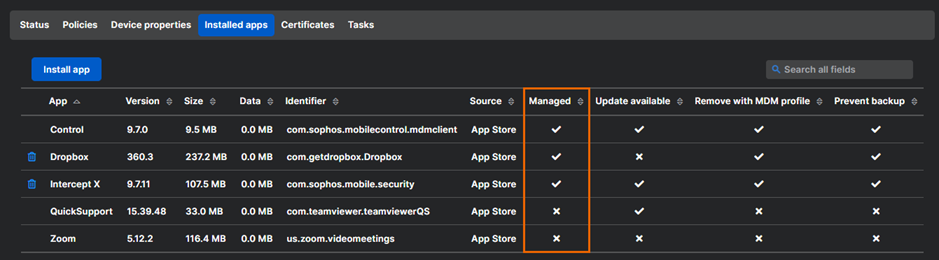
Differences between managed and unmanaged apps
The following differences exist between managed and unmanaged apps:
- You can uninstall managed apps in Sophos Mobile, but you can't do so for unmanaged apps.
- On supervised devices, managed apps are installed and uninstalled silently, that is, without user interaction. For unmanaged apps, the user must confirm the action.
- Some device policy settings only apply to managed apps.
- Managed apps are automatically uninstalled when you unenroll a device from Sophos Mobile. Unmanaged apps remain installed.
Installing a managed app
You can install a managed app in one of the following ways:
- Install the app via Sophos Mobile. See Install app.
-
Turn on Sophos Mobile managed installation in the app's settings in Sophos Mobile, then tell the user to install the app from the Enterprise App Store. See App settings (iOS, iPadOS).
The Sophos Mobile managed installation setting isn't available for apps you added to Sophos Mobile by uploading the IPA package file.
Changing an unmanaged app to a managed app
Restriction
You can't change an unmanaged app to a managed app on Apple User Enrollment devices.
For other app management restrictions on Apple User Enrollment devices, see App management.
You can change an unmanaged app, that is, an app the user installed from the Apple App Store, to a managed app by re-installing it via Sophos Mobile. See Install app.