Set up an authenticator app
You can set up an authenticator application for your Sophos Fusion Partner account.
Note
You can set up a maximum of 10 authenticator apps.
To set up an authenticator app, do as follows:
- Sign in to your Sophos Fusion Partner account.
- Click your Profile icon
 , then click My info.
 - Click Manage MFA.
- Authenticate to continue.
-
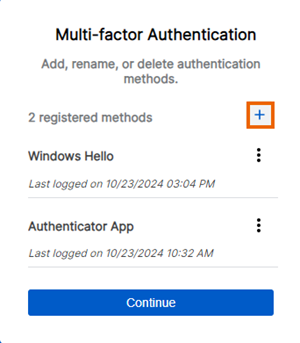
In the Multi-factor Authentication dialog, click the Plus icon to add an MFA method.
-
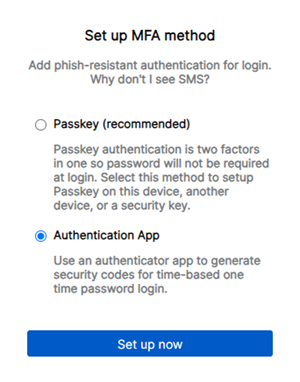
In Set up MFA method, select Authentication App.
-
Click Set up now.
-
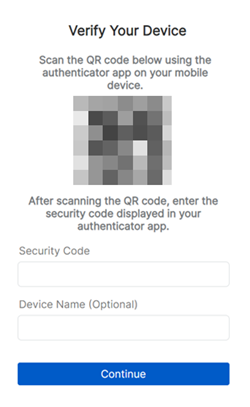
Scan the QR code with your authenticator app to add the Sophos Fusion account to your device. Then enter the security code displayed in your authenticator app. You can also add a device name. Click Continue.
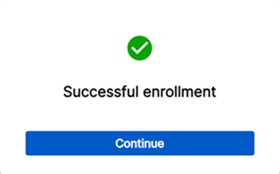
When the setup is complete, you'll see a window with the following message: Successful enrollment.
-
Click Continue.
- The next time you sign in, you can use your username or email address and password, followed by a verification code from your authenticator app.
You can set up a passkey from Sophos Fusion. See Set up a passkey.