Set up a passkey
You can set up a passkey as a second method of authentication after you've set up an authenticator app.
Note
We recommend using passkey authentication and registering passkeys on more than one device for resiliency.
Note
You can set up a maximum of 10 passkeys.
Set up a passkey with Windows
In this example, we'll show you how to set up a passkey with a fingerprint using Windows. If you're setting up a passkey on a different operating system, see General information about setting up a passkey.
To set up a passkey, do as follows:
- Sign in to your Sophos Fusion Partner account.
- Click your Profile icon
 , then click My info.
 - Click Manage MFA.
- Authenticate to continue.
-
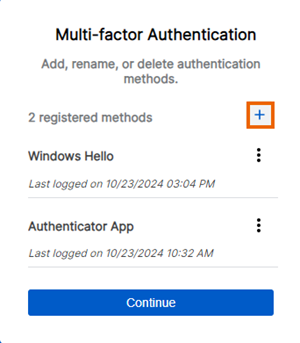
In the Multi-factor Authentication dialog, click the Plus icon to add an MFA method.
-
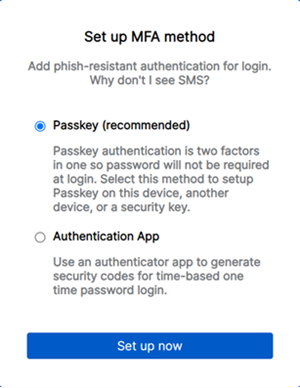
In Set up MFA method, select Passkey.
-
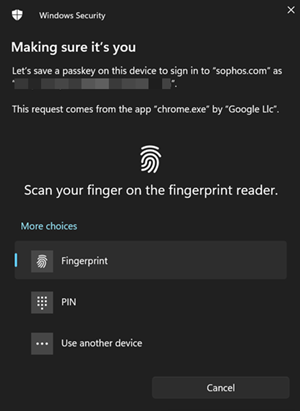
Place your finger on the fingerprint reader.
You can also enter your device's PIN.
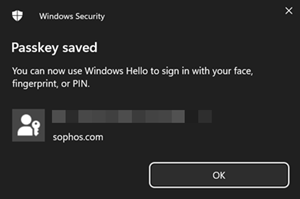
You'll see the Passkey Saved screen.
-
Click OK.
You'll see your passkey added to your registered authentication methods.
-
Click Continue.
You're redirected to the Sophos Fusion dashboard.
After you've added your passkey, you can use your email address and passkey the next time you sign in.
Note
Even if you've set up an authenticator app in addition to your passkey, you're prompted to use your passkey. To use your authenticator app instead, click Try another way from the Use your passkey to confirm it's really you prompt during the sign-in process.
General information about setting up a passkey
When you set up a passkey, you'll need to follow the on-screen prompts to set up a passkey on your device.
The steps differ depending on your device.
At some point, you'll need the PIN or biometric you use to unlock your device to continue the setup.
Depending on your device, you can select to store the passkey in one of the following places:
- In a credential manager on your local computer. This could be a web browser, an operating system, or a commercial credential manager application.
- On a device-bound authenticator, such as a YubiKey.
- On a mobile device, using a QR code.