M365 Quarantine
M365 Quarantine lets you view and manage messages quarantined by Microsoft 365 directly in Sophos Email. This gives you a unified view of quarantined messages across Email Security, post-delivery protection, and Microsoft 365.
In Quarantined Messages, you see a new tab called M365 quarantine. In this tab, you can view Microsoft 365 quarantine details, search for messages, and release or delete them.
Messages quarantined by Microsoft 365 appear in the Sophos Central Self Service Portal (SSP). When the M365 Quarantine feature is turned on for a user, those messages also appear in that user's quarantine summary email, the same way they appear in SSP.
Sophos Central syncs with Microsoft 365 periodically, so recent changes might not appear immediately, and older items can occasionally appear out of sync. You can request an on-demand data sync to get the latest data from Microsoft 365.
The first sync pulls the last seven days of data. After that, data continues to accumulate and maintains a maximum 30-day window.
Accept Microsoft pop-ups
When you set up M365 Quarantine, you must give permission for Sophos applications to access Microsoft 365.
To do this, your browser must accept pop-ups during the setup process. You might have to turn off pop-up blockers or add exceptions for Microsoft 365 domains.
You must also be able to sign in to the correct domain.
After setup, you may also see pop-ups when you view message content or refresh the M365 quarantine list. These pop-ups connect to Microsoft services and may take a moment to load.
Set up M365 Quarantine
Turn on M365 Quarantine to let Sophos Email sync with Microsoft 365 and show messages that Microsoft quarantines for your domain. You must grant permissions in Microsoft 365 during setup so Sophos can get quarantine data.
To set up M365 Quarantine, do as follows:
- Sign in to Sophos Central.
-
Click the Global Settings icon
 , scroll down to the Email Domain Setup section, and click Gateway Domains or M365 Mailflow Domains.
Tip
Alternatively, go to My Products > Email Security > Settings. Under Email Domain Setup, click Gateway Domains or M365 Mailflow Domains.
Gateway Domains or M365 Mailflow Domains opens with a list of your domains.
-
In the M365 Quarantine column, turn it on for your domain.
- If post-delivery protection isn't turned on, a pop-up tells you that it'll also be turned on. Click Proceed.
-
Select the Microsoft 365 admin account that grants consent.
- If this is your first time signing in, enter the Microsoft 365 admin email address and password.
- If you've signed in previously, Microsoft shows the permission request pop-ups immediately.
-
Review the pop-ups, grant consent to Sophos, and accept the requests.
This allows Sophos to access your Microsoft 365 domain.
During this step, Microsoft asks for permissions such as managing Exchange as an application and reading or writing directory RBAC settings. These permissions must be granted for M365 Quarantine to function correctly.
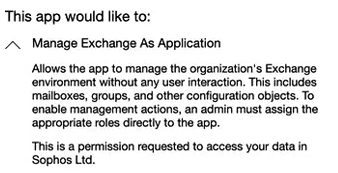
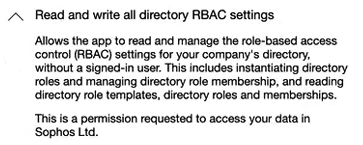
If you can't connect, you may see one of the following error messages.
-
Failed to establish session: session has timed out.
Sign in again and complete the consent process.
-
Failed to create connection: consent for API access wasn't granted.
Grant all requested permissions during setup.
-
Failed to create connection: consent for data access wasn't granted.
Grant all requested permissions during setup.
-
Failed to create connection: the domains in Sophos Email don't match the domains in the Microsoft 365 domain.
Make sure your domains match in both Sophos Email and Microsoft 365.
-
Failed to create connection: (reason not specified).
Try the setup again. If the issue persists, check your configuration or contact Sophos Support.
Note
Post-delivery protection won't work unless you grant these permissions.
-
-
After the permissions are granted, click Close.
M365 Quarantine may take a few minutes to turn on.
When the M365 Quarantine feature is turned on, the M365 quarantine tab shows quarantine data from Microsoft 365 on the Quarantined Messages page.
View M365-quarantined messages in Sophos Central
Go to My Products > Email Security > Quarantined Messages. On this page, select the M365 quarantine tab.
This tab shows all messages that Microsoft 365 quarantined for your domain and lets you view message details, release messages, or delete them.
For information about the columns, filters, and other features, see Quarantined Messages.
View M365-quarantined messages in SSP
If you've turned on Allow release of M365 quarantine emails in User Settings, users see Microsoft-quarantined messages under the M365 quarantine tab in the Self Service Portal. See Allow release of M365 quarantine emails.
Users can view message details and release messages.
For more information, see Sophos Central Self Service Portal – Quarantined messages.
Quarantine summary emails
Quarantine summary emails also show "(Microsoft Quarantine)" next to the Reason field so users and admins can see that Microsoft 365 quarantined the message.