Upgrade firmware for firewalls
You can schedule recurring firmware upgrades, edit scheduled upgrades, and upgrade firmware immediately.
For high availability firewall pairs, Sophos Fusion schedules the upgrade for the primary device. The auxiliary device upgrades automatically as part of the existing high availability upgrade process.
Note
-
Only firmware that reaches the "Available to all" phase of the release process can be upgraded from Sophos Fusion. See Firewall Firmware Release Process and Timeline.
-
If there's an issue migrating your firewall configuration during the update process, we automatically roll back your firmware version. See Sophos Firewall: Automatic firmware rollback.
Create a recurring firmware upgrade schedule
You can create a recurring firmware upgrade schedule in Sophos Fusion to automatically upgrade your firewalls when eligible firmware becomes available. This lets you define a regular maintenance window instead of scheduling each upgrade manually. The firmware upgrade applies to all firewalls.
Firewalls are updated based on their time zone. The upgrade starts at the scheduled time on each firewall.
To create a recurring firmware upgrade schedule, do as follows:
- Go to My Products > Firewall Management, and click Firewalls.
- Click Recurring Firmware Upgrade.
-
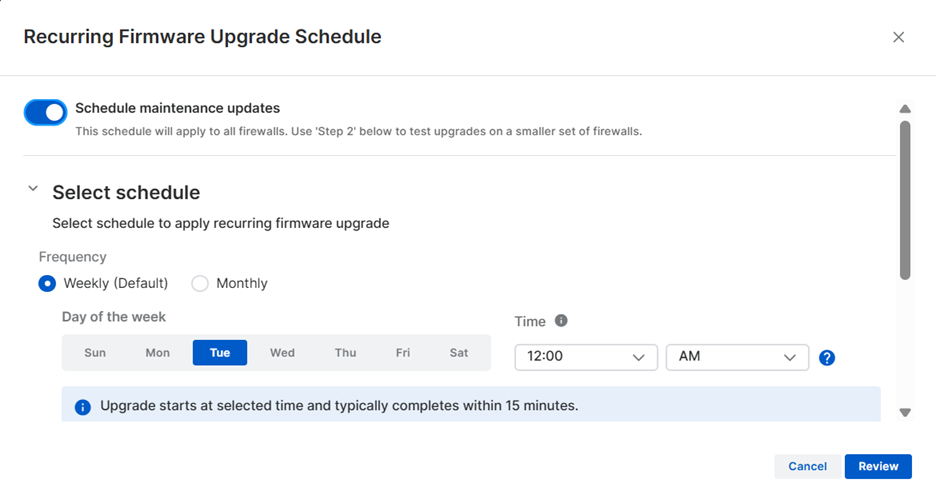
Turn on Schedule maintenance updates.
This schedule applies to maintenance upgrades only. You can also include major versions. See Major firmware versions.
The schedule applies to all firewalls. You can select firewalls to stage the upgrade on before it's rolled out to the others. See Staging Firewalls.
-
Select Weekly (Default) or Monthly.
- For Weekly (Default), select the day of the week and the time the upgrade occurs.
- For Monthly, select the week of the month from the following options: 1st, 2nd, 3rd, 4th, or Last. Then select the day of the week and the time the upgrade occurs.
- Click Review to review your settings. You can edit settings that you want to change.
-
Click Confirm.
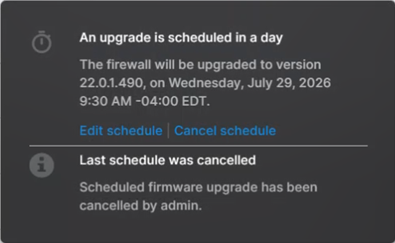
After you confirm the schedule, you can see scheduled upgrade information for individual firewalls. Click the Scheduled icon
 next to the firewall.
The image below shows a firewall with an upgrade scheduled for the next day.
Note
The upgrade starts at the selected time and typically completes in 15 minutes.
Staging Firewalls
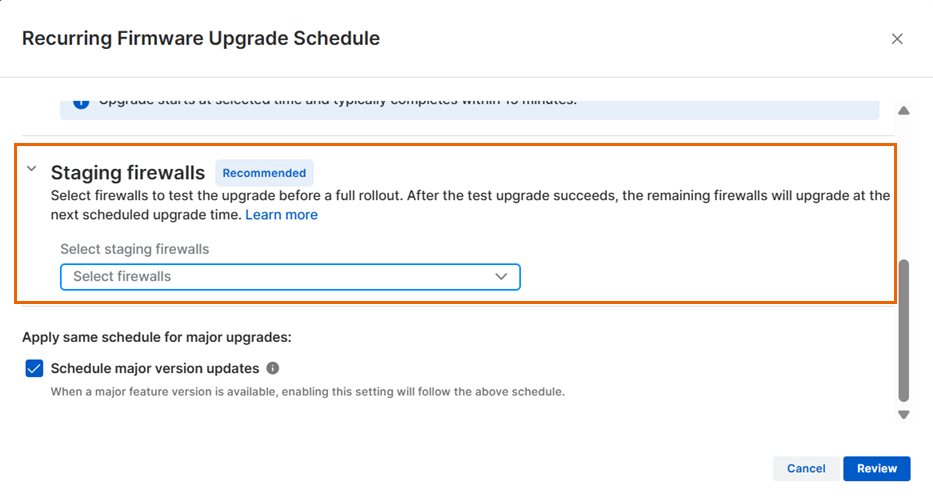
We recommend that you select staging firewalls to test upgrades before deploying them to other firewalls.Staging firewalls receive the upgrade first. If the upgrade succeeds, the remaining firewalls are upgraded according to the schedule. If the upgrade fails, the rollout stops, and the firewalls revert to the previous firmware version. You must resolve any issues before resuming the schedule.
If you don't select any staging firewalls, all eligible firewalls are upgraded according to the schedule. Upgrading without staging can lead to service disruption, traffic loss, or rollback delays if issues occur.
Under Staging firewalls, select your firewalls from the drop-down list. You can select multiple firewalls.
Major firmware versions
Major versions include significant new features and architectural changes and are released separately from routine maintenance updates.
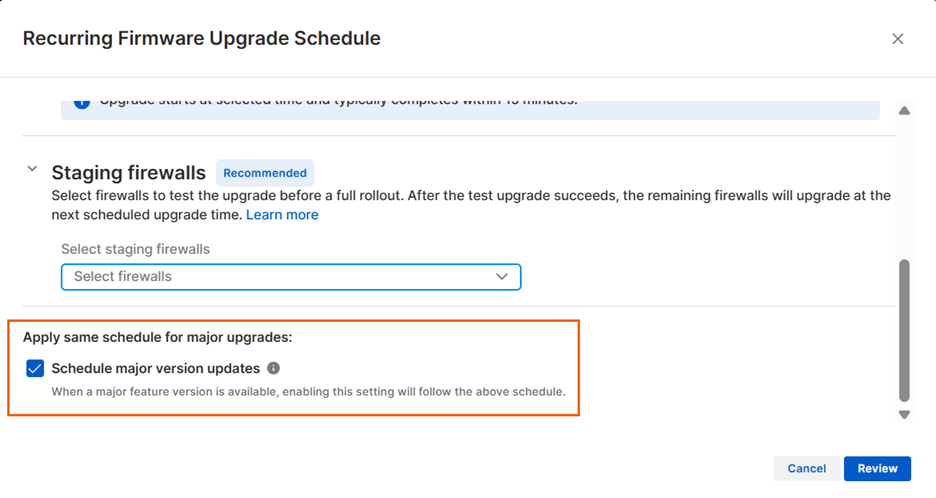
Turn on Schedule major version updates to apply the same schedule to eligible major firmware upgrades. The same schedule and staging process are used for maintenance and major version upgrades.
Manage upgrades for individual firewalls
You can schedule upgrades for individual firewalls if you haven't set a schedule. After you set a schedule, you can override and skip scheduled upgrades for individual firewalls without changing the recurring schedule for other firewalls. You can also remove a firewall from staging.
Schedule an upgrade
If a firmware update is available, you see a blue arrow icon  next to the firewall.
Note
You can only schedule upgrades for individual firewalls before you create a recurring firmware upgrade schedule. After you create a schedule, you can override the schedule, or skip a firmware upgrade occurence for individual firewalls.
To upgrade the firewall, do as follows:
-
Click the icon, and then click Schedule upgrade.
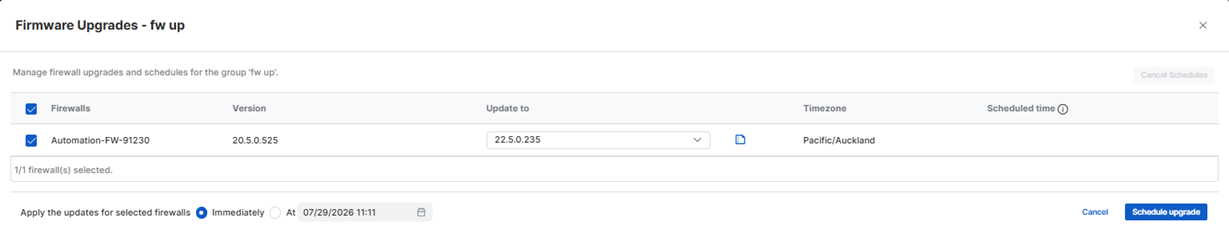
The Firmware upgrades screen opens.
-
Select the firmware version.
- Select Immediately or At.
-
If you select At, click the Calendar
 icon, and then select the date and time.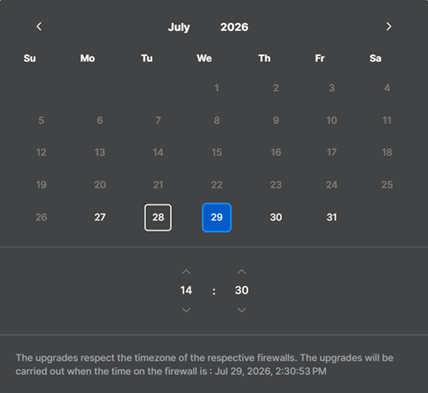
-
Click Schedule upgrade.
Override a scheduled upgrade
To override a scheduled upgrade for an individual firewall, do as follows:
- Click the Schedule icon.
-
Click Override schedule.
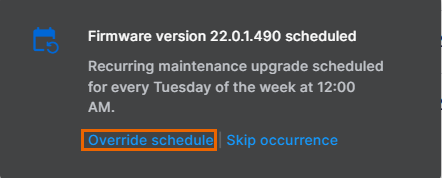
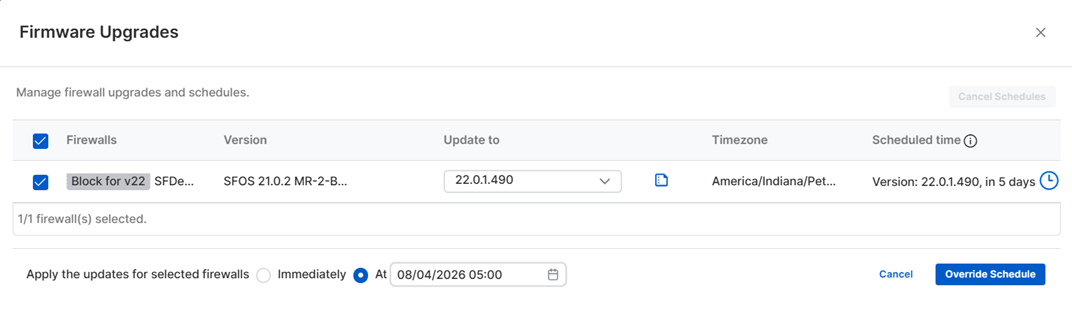
The Firmware upgrades screen opens.
-
Select the firmware version.
- Select Immediately or At.
-
If you select At, click the Calendar
icon, and then select the date and time. -
Click Override schedule.
On the Firmware upgrades screen, you can also do as follows:
- Click the Release notes
 icon to see information about the firmware version you've selected.
 - Hover over the Clock
 icon to see the current schedule details, including the date, time, and firewall's local time.
Skip a firmware upgrade occurrence
To skip a firmware upgrade, do as follows:
- Click the Schedule icon.
-
Click Skip occurrence.
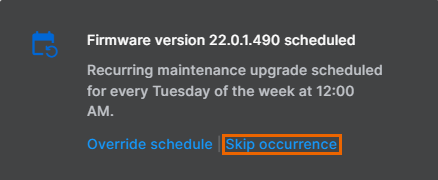
This skips the next scheduled firmware upgrade for the firewall. The upgrade is rescheduled for the next occurrence in the recurring schedule. For example, if the upgrade is scheduled every Friday and you skip the occurrence, the upgrade is rescheduled for the following Friday.
Remove a firewall from staging
- Click the Schedule icon.
-
Click Remove from upgrade staging.
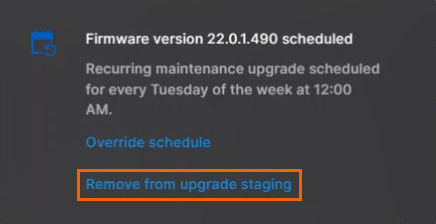
The Recurring Firmware Upgrade Schedule screen appears.
-
Under Staging firewalls, deselect your firewall from the drop-down list.
- Click Review.
- Click Confirm.