Create an SD-WAN connection group
Create an SD-WAN connection group in Sophos Fusion with managed firewalls and shared resources.
Prerequisites
Before you create a connection group, you need to know the following requirements:
- You must select firewalls with a Central Orchestration license on SFOS 18.5 MR1 or later.
- You must choose at least two firewalls to create a connection group.
- (Optional) You can add IP address pools. See Add IP address pools.
Note
If you create an SD-WAN connection group with shared resources and participating networks, the firewall creates two similar SD-WAN routes. One is for the shared resources and the other for the participating networks.
Create an SD-WAN connection group
To create a connection group, do as follows:
- Go to My Products > Firewall Management > SD-WAN Connection Groups.
-
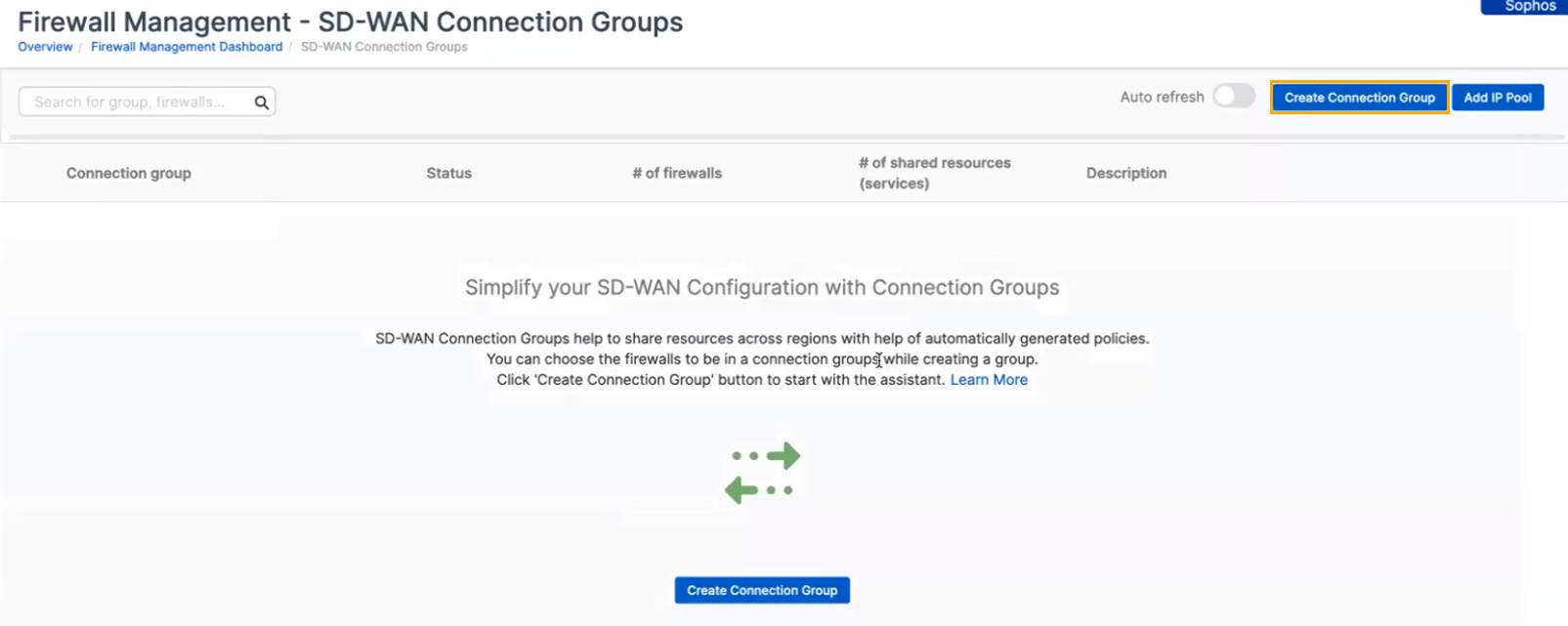
Click Create Connection Group.
This opens the SD-WAN Connection Group creation assistant. The assistant takes you through creating a group.
-
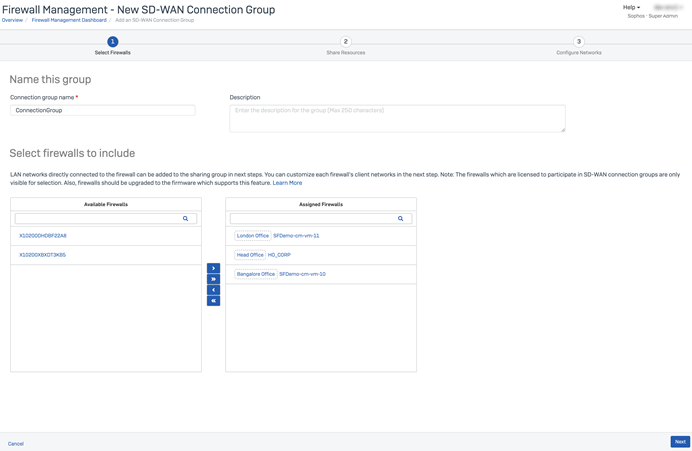
Enter a name for the group.
- (Optional) Enter a description.
Add firewalls
To add firewalls, do as follows:
-
Select at least two firewalls.
Note
Before you add firewalls to an SD-WAN connection group, you must add them to a firewall group.
-
Click Next.
Add resources
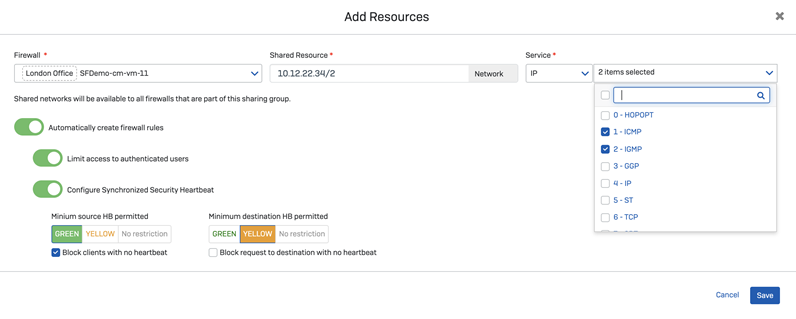
You can add multiple resources and review any resources that you added earlier. To add resources, do as follows:
- Select the firewall with the resource that you want to share across the group.
- Enter the IP address or network range of the resource you want to share.
- Choose the service type and options.
- Turn on Automatically create firewall rules, if required.
- Turn on Limit access to authenticated users, if required.
-
Turn on Configure Synchronized Security Heartbeat and set your options.
For example, you can set Minimum Source HB permitted to GREEN and turn on Block clients with no heartbeat.
-
Click Save to add the resource.
-
Click Next.
Fix conflicts
We check your chosen configuration for any network conflicts and show them in the table.
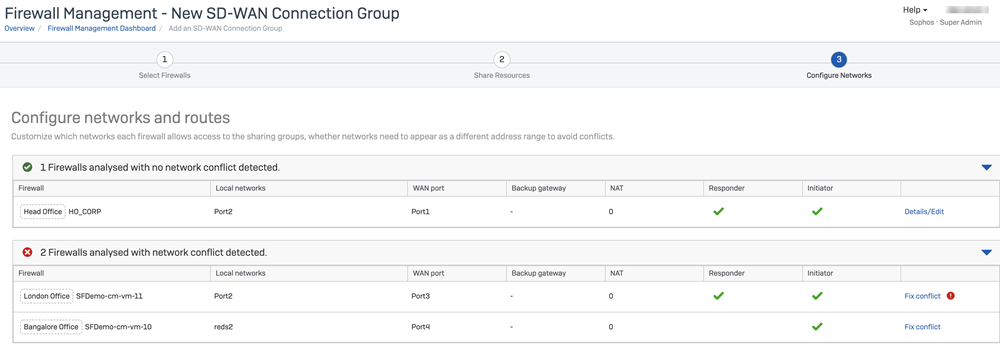
You must fix any conflicts. Click Fix Conflict and try one of the following methods:
- Turn the subnet on or off.
- Attach a new NAT address to an existing subnet.
- Attach a custom network to the firewall. Click Add Network to do this.
- Choose a WAN link.
- Choose a backup gateway.
- Override a gateway address.
Here are some examples:
- Fix a name conflict by renaming the resources that show conflicts.
- Fix subnet conflicts by selecting NAT.
- Override the gateway address to fix a conflict, as shown in the following image.
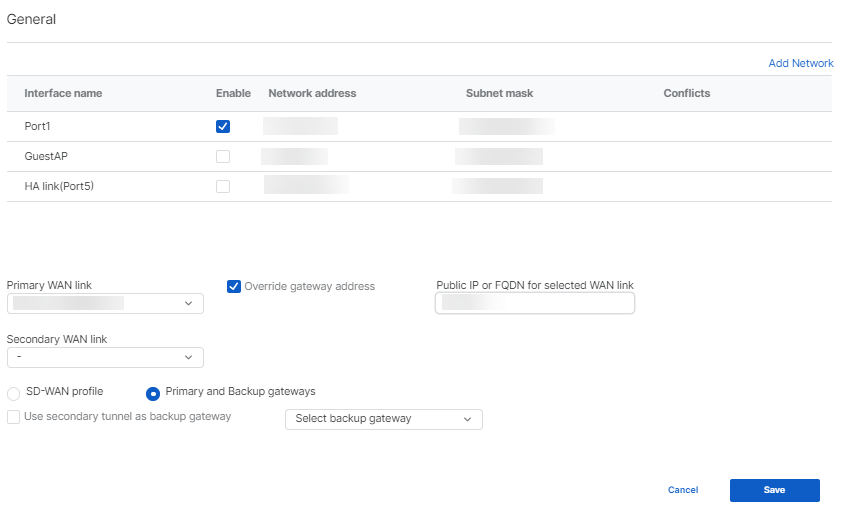
If you select Override a gateway address, you can enter a wildcard (*) address in Public IP or FQDN for selected WAN link. The remote gateway must be a responder firewall running SFOS 20.0 or later.
Note
If there's a network conflict for a resource-sharing firewall, you may need to choose different configurations for your subnets in Sophos Firewall. Alternatively, in Sophos Fusion you can choose not to use the conflicting subnet in the group.
After you've resolved the conflicts, click Save.
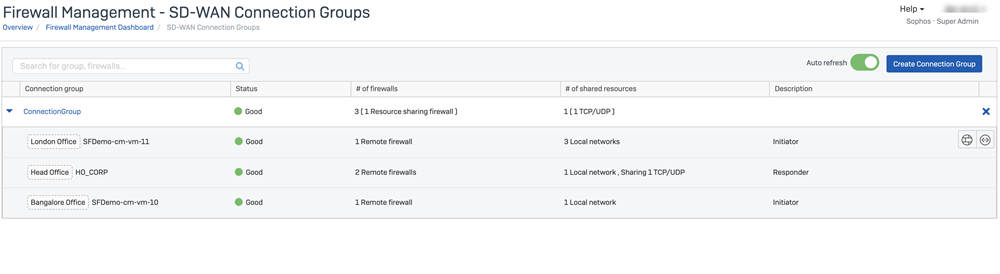
This creates your group with your chosen firewalls. You can also see their status. The following image shows an example of a connection group.
For more information, see How SD-WAN connection group changes are processed.