Manage an SD-WAN connection group
You can edit and delete an SD-WAN connection group. You can see the status of the VPN tunnels established among the firewalls in the connection groups.
How SD-WAN connection group changes are processed
When you create, edit, or delete an SD-WAN connection group, the operation begins immediately and runs in the background. You can continue working while it runs.
The behavior is as follows:
- Track progress: Each operation involves multiple tasks. You can check the status of each task on the SD-WAN Connection and Task Queue pages. The status remains available even if you refresh the page.
- Editing is locked during an operation: You can't edit a group while an operation is in progress. This prevents you from making conflicting changes. You can edit the group again when the operation finishes.
- Configuration is applied only when ready: Changes are sent to your firewalls only when all the firewalls are ready. If a task fails, your group isn't left partially updated. You'll see a failure status with details about what went wrong.
Edit a connection group
To edit a connection group, do as follows:
- Go to My Products > Firewall Management > SD-WAN Connection Groups.
- Click the name of the group you want to change.
-
Use the SD-WAN Connection Group creation assistant to make your changes.
For example, you can change your resources or delete them.
-
Click Save.
The operation begins immediately and runs in the background. You can continue working while it runs.
Delete a connection group
To delete a connection group, do as follows:
- Go to My Products > Firewall Management > SD-WAN Connection Groups.
-
Click the group you want to delete and click the delete icon,
 at the end of the row for the group.
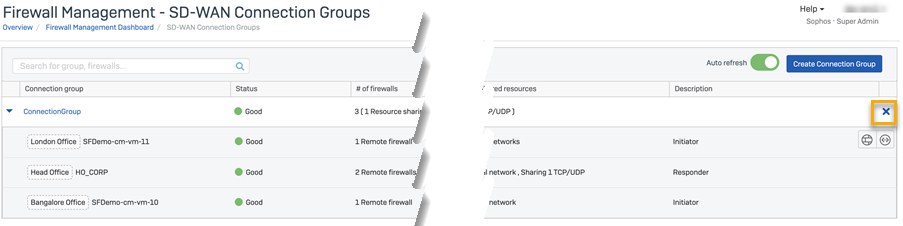
Force delete
If you can't delete a group normally, use Force delete. This option appears only when the group has no pending or unresolved tasks in the Task Queue.
Firewall location and VPN tunnel status
To check your VPN connections, go to My Products > Firewall Management > SD-WAN Connection Groups. This map shows the location of the firewalls and the status of the VPN tunnels.
The status of the VPN tunnels can be as follows:
-
Green: All firewalls in the connection group are active.
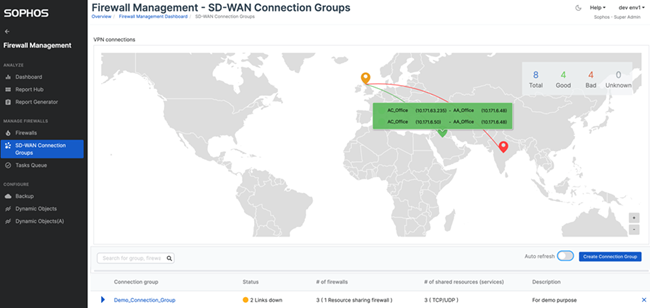
-
Orange: At least one firewall in the connection group is inactive.
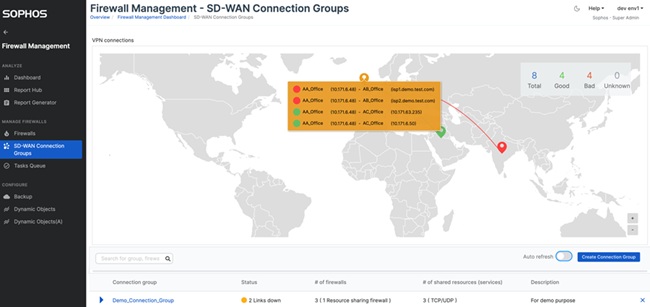
-
Red: All firewalls in the connection group are inactive.
To see the location of the firewalls and the status of the VPN tunnels on the map, add the location of the firewalls in a connection group to Sophos Fusion.
Add the location of a firewall
To add the location of a firewall to Sophos Fusion, do as follows:
- Go to My Products > Firewall Management > Firewalls.
- For the firewall whose location you want to add, click More options
 , and select Add location.
- Enter the Latitude and Longitude of the firewall and click Add.
You can now see the location of the firewalls and the status of the VPN tunnels in the VPN connections map on Firewall Management > SD-WAN Connection Groups.
Edit the location of a firewall
To edit the location of a firewall in Sophos Fusion, do as follows:
- Go to My Products > Firewall Management > Firewalls.
- For the firewall whose location you want to edit, click More options , and select Edit location.
- Edit the Latitude and Longitude of the firewall and click Edit.