MDR setup
You must set at least one authorized contact in your organization before you can configure any other MDR settings or use the service. See Set authorized contacts.
We strongly recommend that you select the "Authorize" or "Collaborate" threat response so that our MDR Operations team can help you respond to incidents. See Set the threat response.
Configure or edit your Managed Detection and Response (MDR) settings, including your contacts and service level.
The first time you sign in to Sophos Fusion after you activate an MDR license, you’re prompted to enter settings needed for the MDR service.
 You can also enter or change your settings at any time.
You need to do as follows:
- Set authorized contacts.
- Set the threat response.
- Enter additional information about your organization to help us focus our investigations.
- Install or upgrade Sophos endpoint software on your devices if you haven't already done this.
For details of these tasks, see the sections below.
Set authorized contacts
Enter contact details for Sophos Fusion administrators who will get MDR notifications and work with the MDR team. If there's an active threat, we'll contact each of them in turn until we get a response.
You must set at least one contact before you can configure other MDR settings.
To set authorized contacts, do as follows:
- Click the Global Settings icon
 .
. - Go to Products and Services > MDR.
-
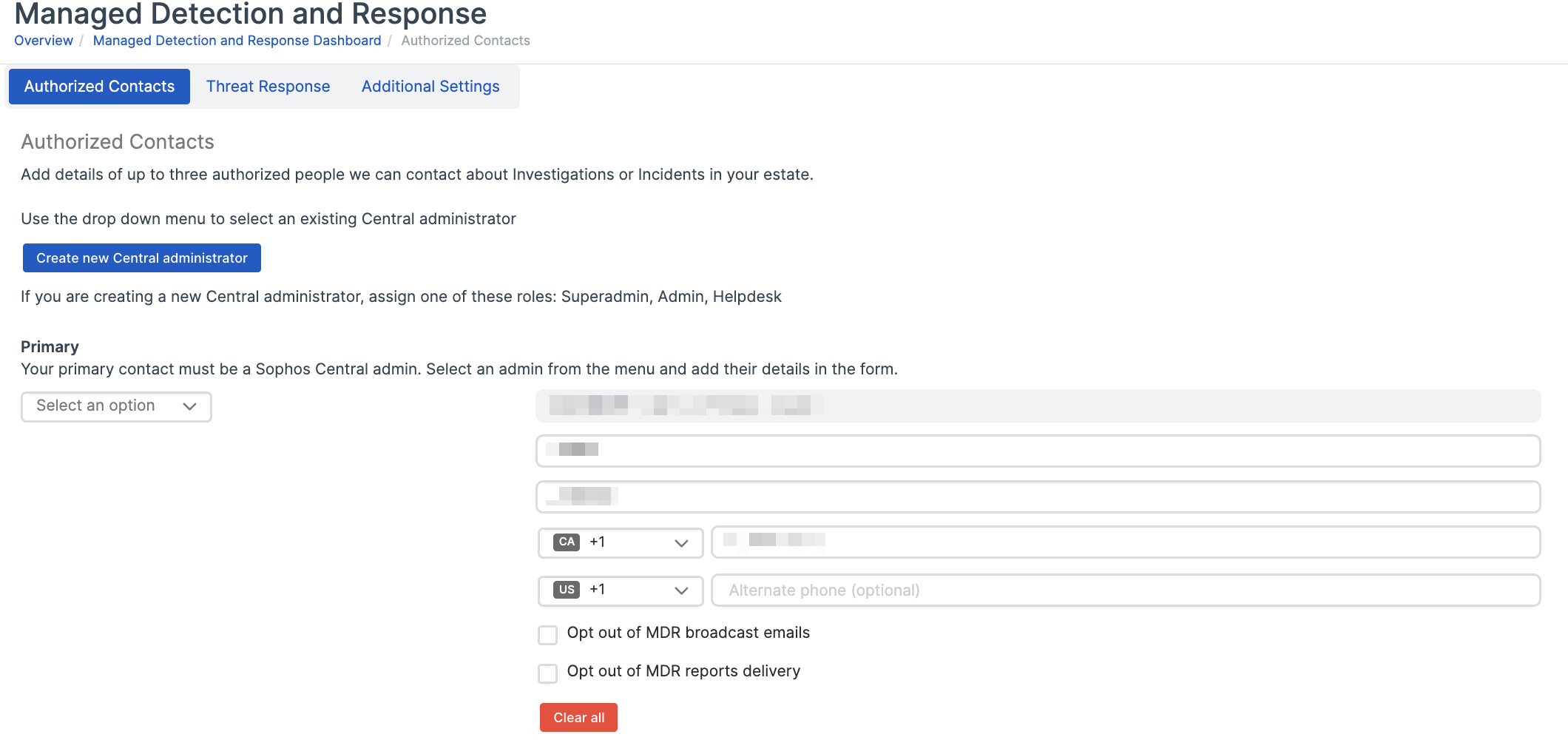
Select the Authorized Contacts tab.
-
(Optional) If you need to create a new Sophos Fusion administrator, click Create new Central administrator and add a user with the Super Admin, Admin, or Help Desk role.
If you use a Sophos Fusion administrator with an email address that's a distribution list, multiple users can use the admin account. To limit what they do, select the Help Desk role because it has the lowest privileges.
-
Under Primary, select one of your Sophos Fusion admins from the drop-down menu.
-
Enter the admin's contact details.
Note
If you have an existing authorized MDR contact with a country code in their phone number, the phone number field shows that code by default. If the contact's number doesn't have a country code, a message on the MDR Settings page prompts them to add one.
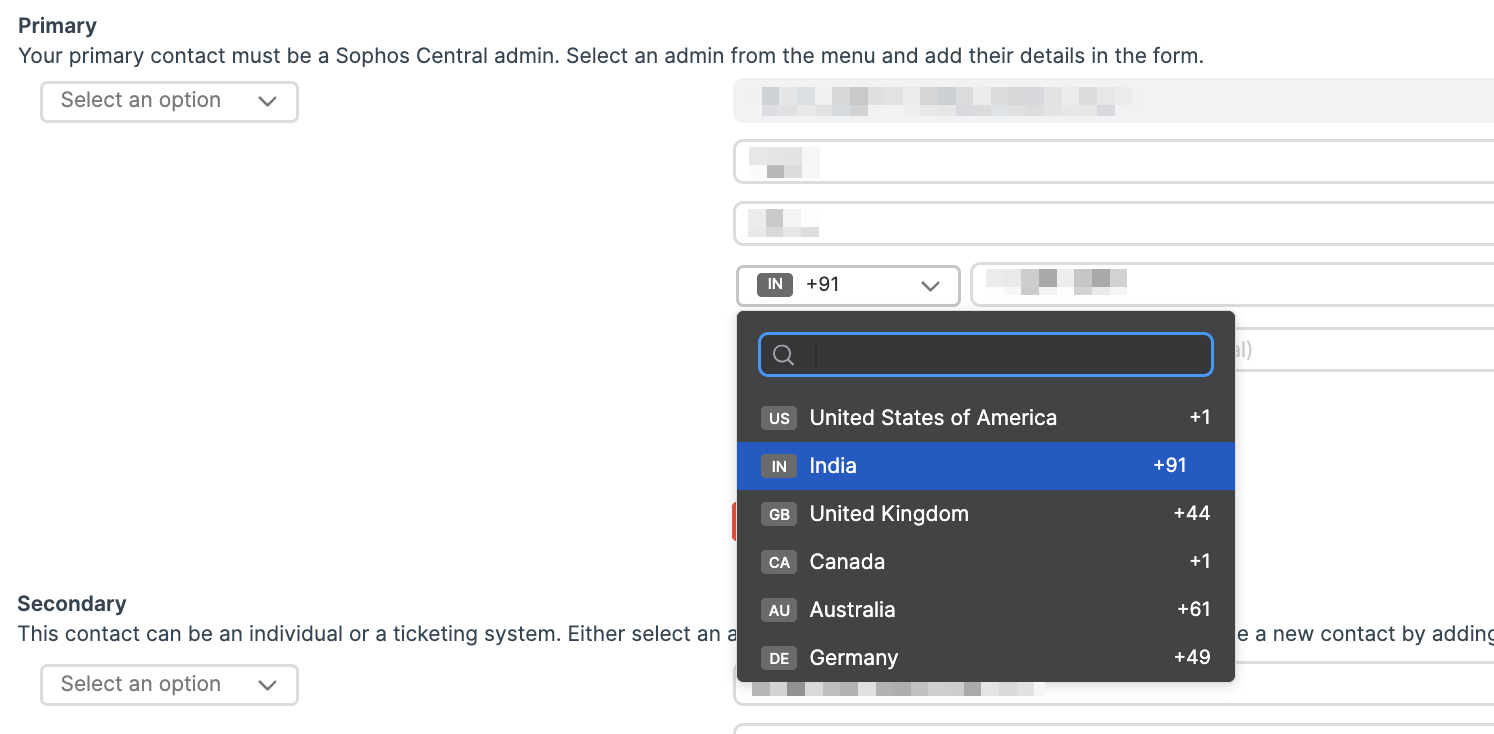
If you don't want the administrator to get MDR reports or broadcast announcements by email, select the opt-out checkboxes.
-
Select Secondary and Tertiary contacts if you want to, and enter their details.
You must at least have a Primary contact. We recommend that you create multiple contacts in case the primary contact is unavailable when the MDR Ops team needs to contact you.
-
Click Save.
Set the threat response
Specify how we respond to active threats, as follows:
- Click the Global Settings icon .
- Go to Products and Services > MDR.
-
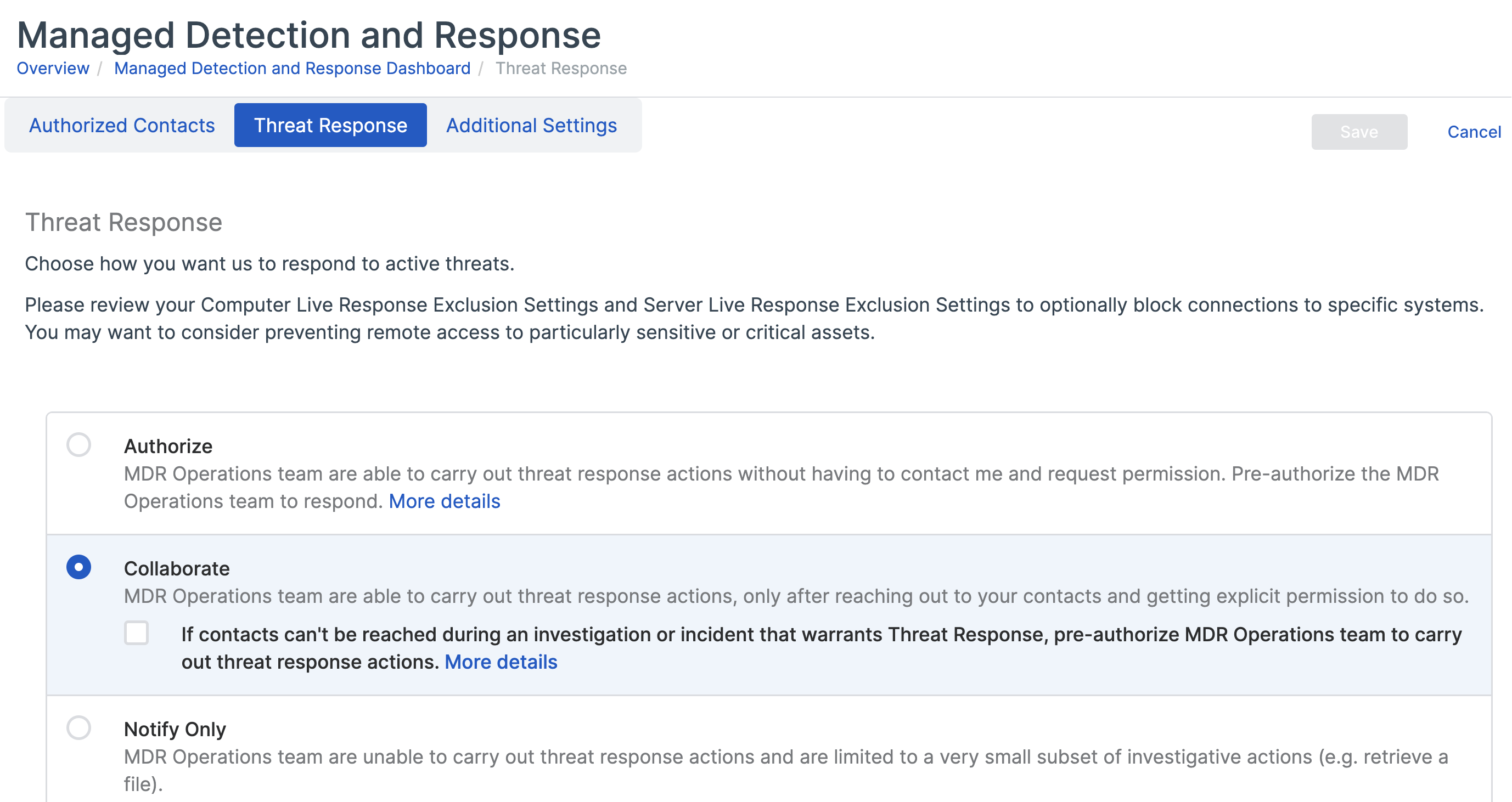
Select the Threat Response tab and select one of these responses:
-
Authorize: We'll take any action needed to resolve the threat and we'll notify you.
We prompt you to turn on Live Response. This lets the MDR Operations team access your devices.
If you don't want us to access sensitive devices, put them in a special group. Then go to My Products > Endpoint or Server > Policies, create a Data Collection and Investigation policy with Live Response turned off, and apply the policy to the group.
For details of actions the MDR Ops team can take, see What MDR Operations team can do.
-
Collaborate: We'll work with your contacts to resolve the threat.
You can authorize our MDR Operations team to take action even if they can't reach your contacts. Select the checkbox below the Collaborate option.
-
Notify Only: If you select this, we can't take action against threats. We can only do limited investigation and notify your authorized contacts. We don't recommend using this option for an extended time.
-
-
Click Save.
Additional settings
Enter details about your organization that help us focus our threat investigations.
- Go to My Products > MDR.
- Click Settings.
-
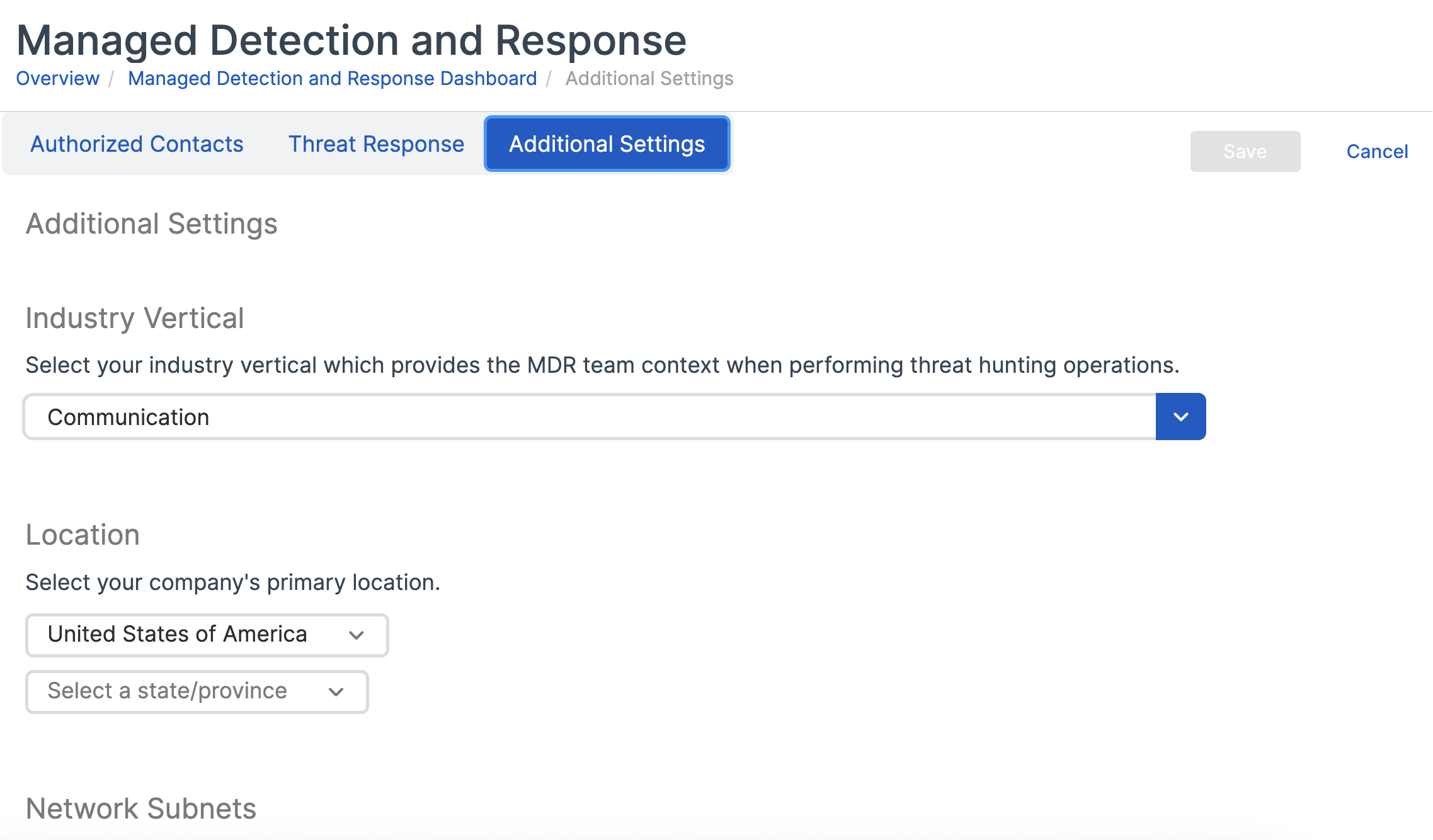
Select the Additional Settings tab.
-
In Industry Vertical, select your specialized market, if applicable.
Industry verticals are groups of companies that focus on a specialized market spanning multiple industries, such as Fintech or digital health.
-
Enter your organization's primary location.
- Add details of network subnets used in your estate.
- Click Save.
Install or upgrade Sophos agents
To use the MDR service, you also need a Sophos endpoint agent that supports MDR on each of your computers or servers. If you don't already have it, or you're not sure, see Install Sophos agent.