Managed Risk critical assets
Managed Risk lets you define some of your assets as critical for your business.
This feature helps our Managed Risk Ops team know which assets to focus on when it reports security vulnerabilities and recommends action. It also helps you get insights quickly by filtering reports to show only the vulnerabilities that affect your critical assets.
Add critical assets
To define critical assets, tag assets seen by previous vulnerability scans.
You can only add one critical asset at a time.
You can add a maximum of 25 critical assets.
To add a critical asset, do as follows:
- Make sure you know the IP address or hostname of the asset.
-
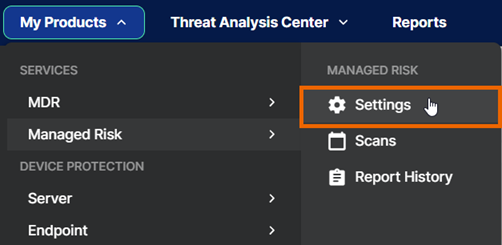
Go to My Products > Managed Risk > Settings.
-
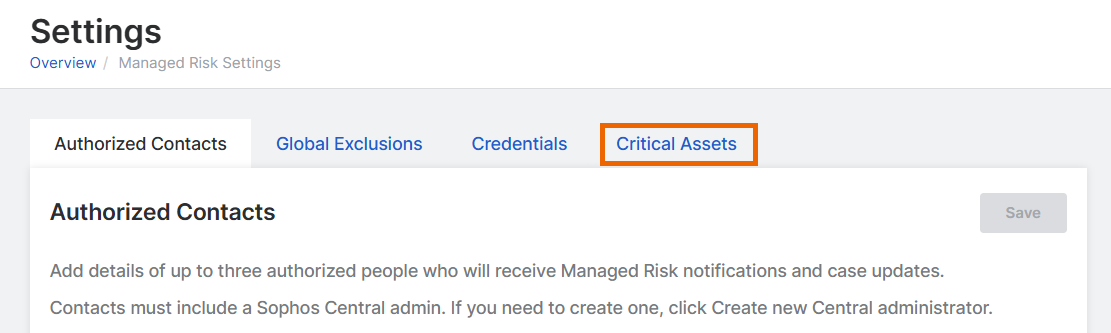
Select the Critical Assets tab.
-
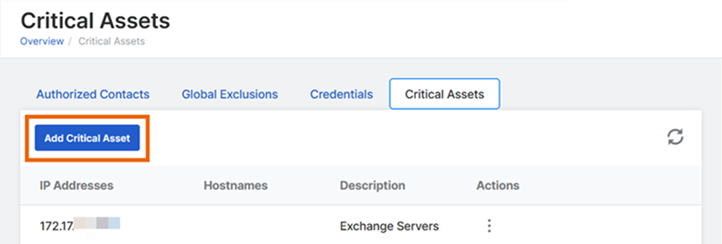
Click Add Critical Asset.
-
In the Configure Critical Asset Details slide-out on the right of the page, do as follows:
-
In Search, enter the IP address or hostname of an asset you want to add. Then select the asset in the search results.
Note
Only assets previously seen by vulnerability scans are shown in the search results.
-
In Description, enter a description of the asset, for example “Web server”.
You can edit the description later if you want to.
-
Click Save.
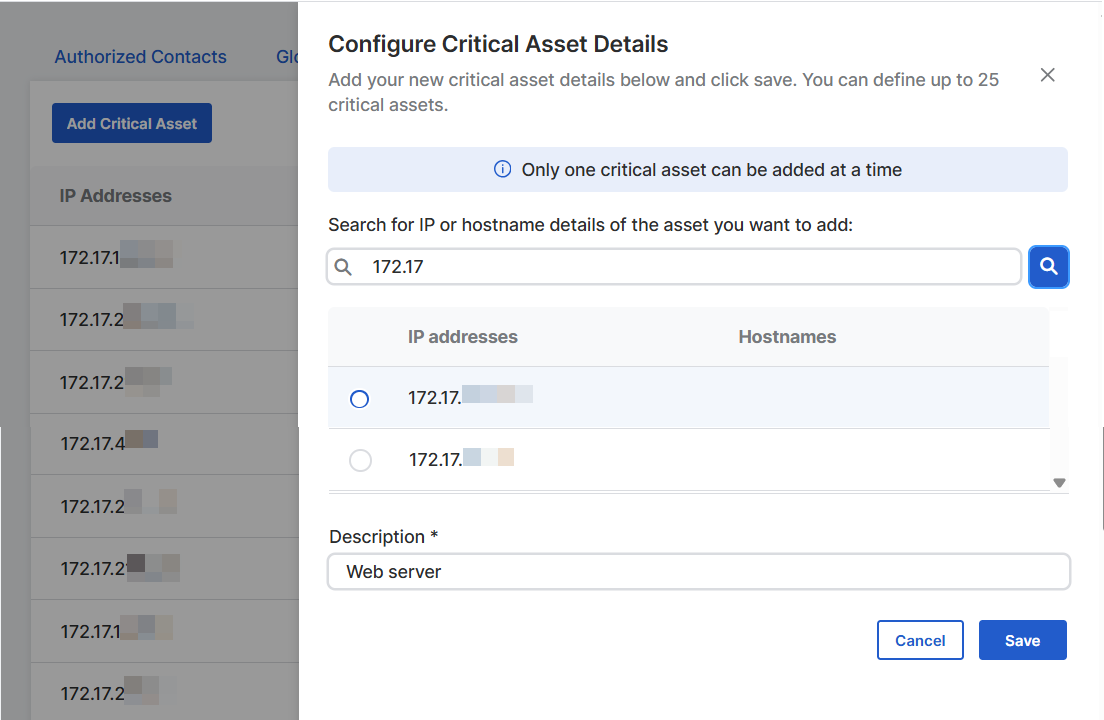
The asset is added to the list on the Critical Assets tab.
-
Edit or delete critical assets
To edit or delete a critical asset, do as follows:
- Go to Managed Risk > Settings and select the Critical Assets tab.
-
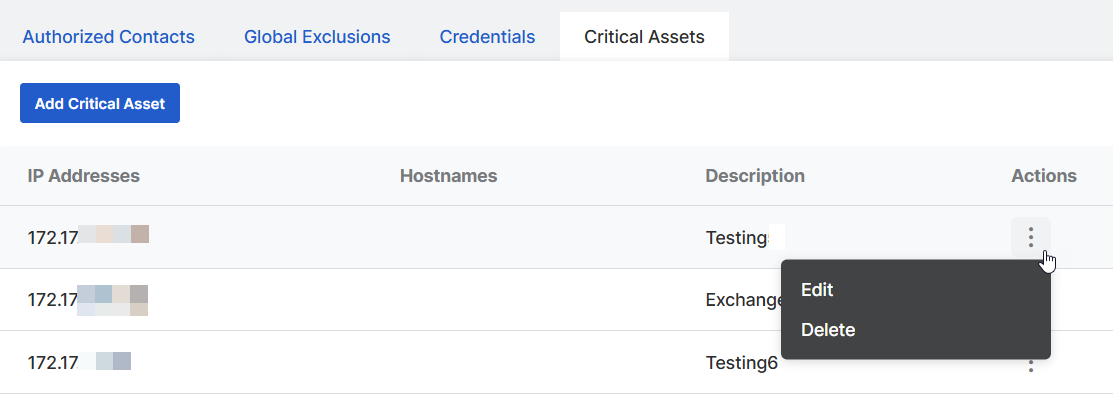
Next to the asset, under Actions, click the three dots icon

- Select Edit to edit the asset details. You can only edit the Description.
- Select Delete to remove the asset from the critical assets list.
See whether an asset is critical
You can quickly see in your reports whether an asset is critical.
-
Go to My Products > Managed Risk > Report History and download a report. For details, see Download reports.
Make sure you download an HTML format report.
-
Open the downloaded report.
-
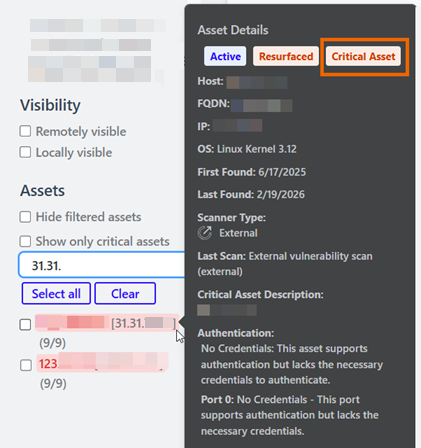
In the Assets list on the left of the report, hover over an asset name.
A popover opens.
-
If the asset is critical, you see a Critical Asset label at the top of the popover.
For more detail to help identify the asset, see the Critical Asset Description lower in the popover.
See critical assets with vulnerabilities
To see critical assets affected by vulnerabilties, do as follows:
-
Go to My Products > Managed Risk > Report History and download a report. For details, see Download reports.
Make sure you download an HTML format report.
-
Open the downloaded report.
-
Under the Assets list on the left of the report, select Show critical assets only.
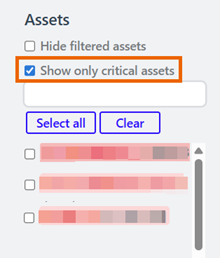
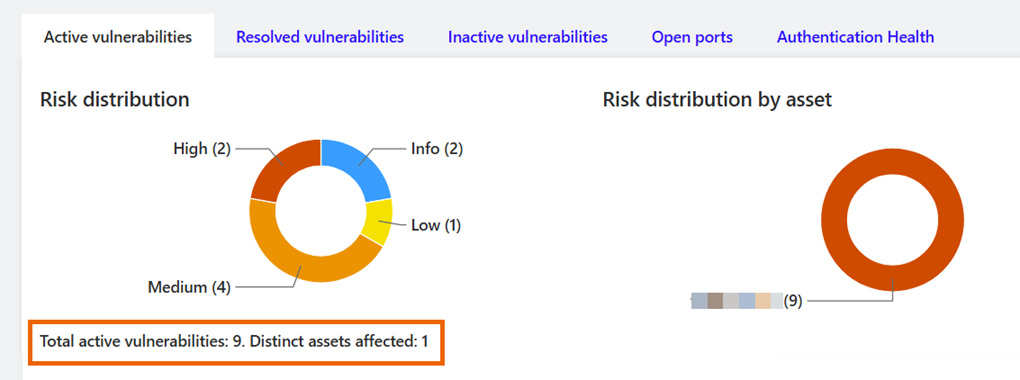
The widgets at the top of the report now show the number of vulnerabilities affecting critical assets and the number of assets affected.
In this example, there are nine vulnerabilities affecting one critical asset.