Network Map
The Sophos Fusion Network Map shows a unified view of your connected Sophos Firewall, Sophos Switch, and Sophos AP6 access point devices. This helps you visualize your network topology, search for devices, and understand the relationships between network devices across your account.
The Network Map uses LLDP-based discovery to identify and map the connections between firewalls, switches, and access points in your network. It also shows connected devices.
Requirements
In order for managed devices to appear on the Network Map, they must meet the following requirements:
- LLDP must be turned on for all devices. Without LLDP, the network topology shown may be incorrect or incomplete.
-
Devices must have the minimum firmware version listed below.
- Sophos Firewall: Version 22.0 GA. See Sophos Firewall release notes.
- Sophos Switch: 2.1.1986 MR2. See Sophos Switch release notes.
- Sophos AP6 access points: 1.9.2854 MR9. See Sophos AP6 access points release notes.
Navigation
You can use the following controls and features to navigate around the Network Map pages:
- Click refresh
 on any map to update the device status.
 - Use the search box to search all devices by MAC address, IP address, serial number, or name.
- Click download
 on any map to download it as a SVG file.
 - Use the zoom in
 and zoom out
  buttons to zoom in and out of the Network map view.
 - Click pan
 to move the entire network map around. You can also click and drag empty parts of the network map.
 - Click fit to view
 to zoom the map so all devices fit on the screen at once.
 - Click the right-facing arrow
 to collapse the flyout on the right side of the map. Click the left-facing arrow
  to expand the flyout.
Network discovery view
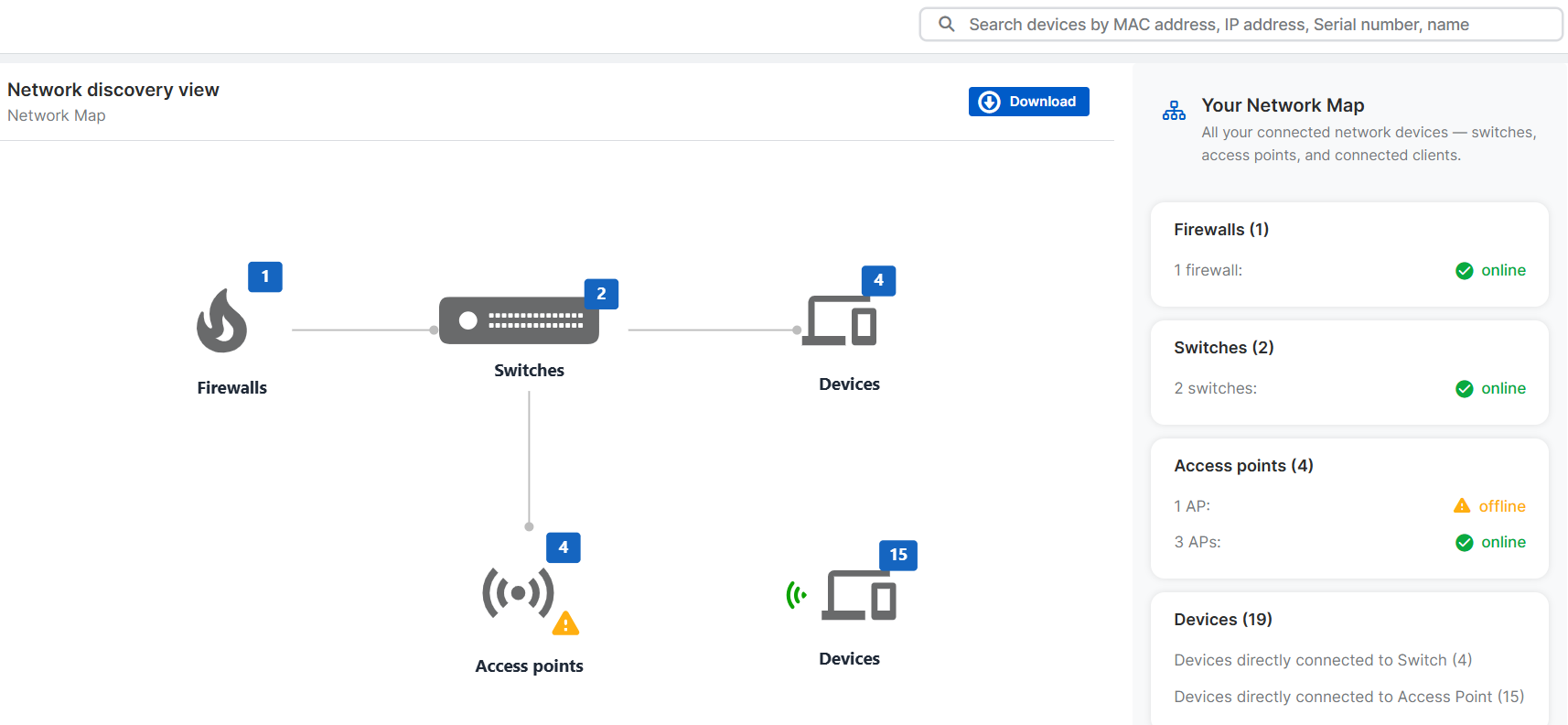
The Network discovery view shows the Network Map, an overview of your network devices. You can see icons representing your firewalls, switches, access points, and connected devices. Each icon has a number indicating how many of that type of device are in your network.
Your Network Map
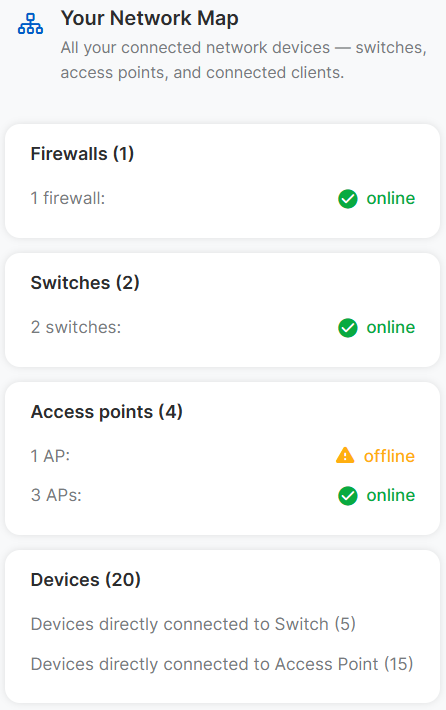
Under Your Network Map, you can see tiles for Firewalls, Switches, and Access points that show the total number of each device and how many are online and offline. You can also see a Devices tile that shows the total number of devices connected to your switches and access points, and how many are connected to each.
Network Devices
Clicking the Firewalls, Switches, or Access points icon or tile opens the Network Devices view. This view shows individual network devices and the connections between them, helping you visualize your network topology.
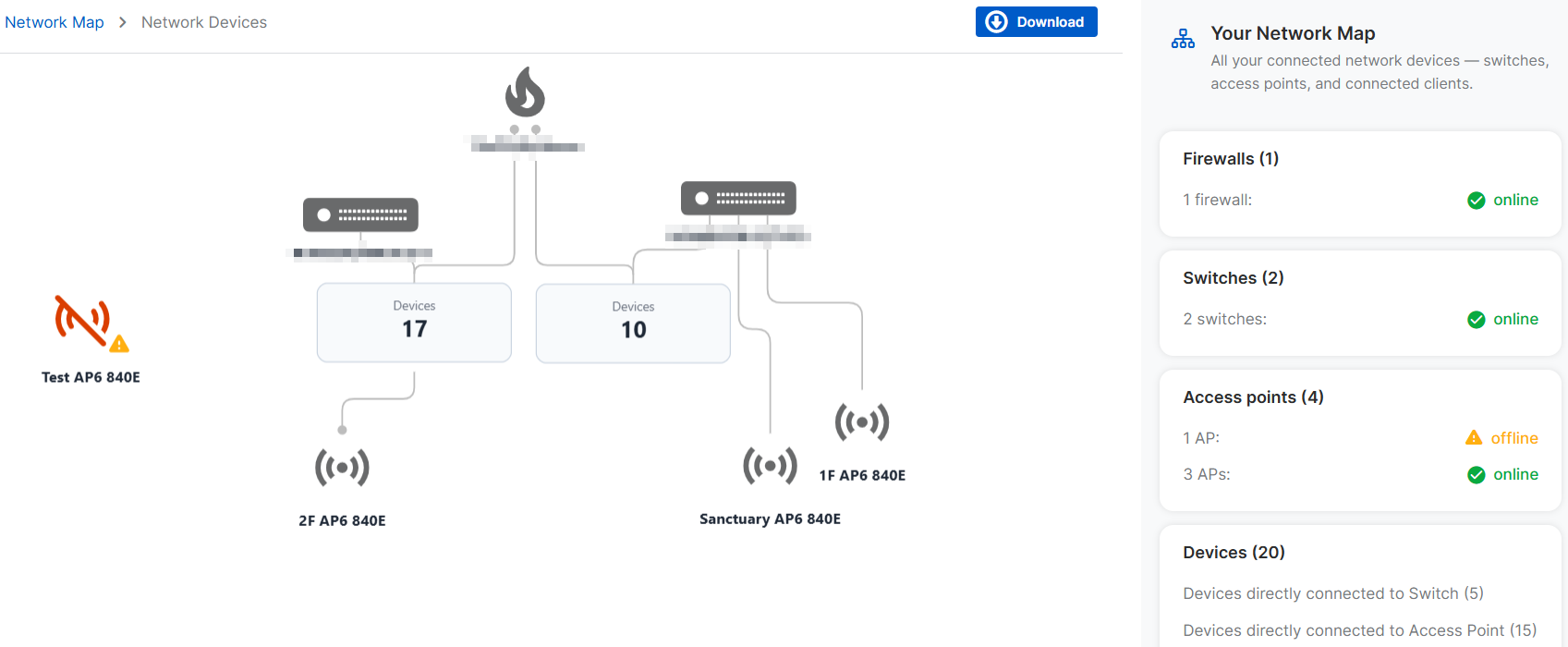
The information you can see varies by device type.
- Firewalls: Name and online status
- Switches: Name and online status
- Access points: Name, mesh role, and online status
You can arrange the devices on the map by clicking and dragging each device's icon. You can select multiple devices before clicking and dragging to move them without changing their arrangement.
You can click an empty area of the map and drag to see different areas of the map. You can also zoom in and out on the map to make it easier to see your entire deployment.
The connections between devices are drawn automatically based on LLDP neighbor discovery data. However, you may see some of the following inconsistencies, depending on your environment:
- Network loops: The network map draws a connection to the peer device based on LLDP neighbor discovery, even if the port is in a blocking status due to STP.
- Active connections from offline devices: Offline devices may still appear connected due to stale data, and the network map shows their last known status.
Device Details
Clicking a device opens the Device Details page. Here you can see more detailed information about the device and any devices connected to it.
Firewalls
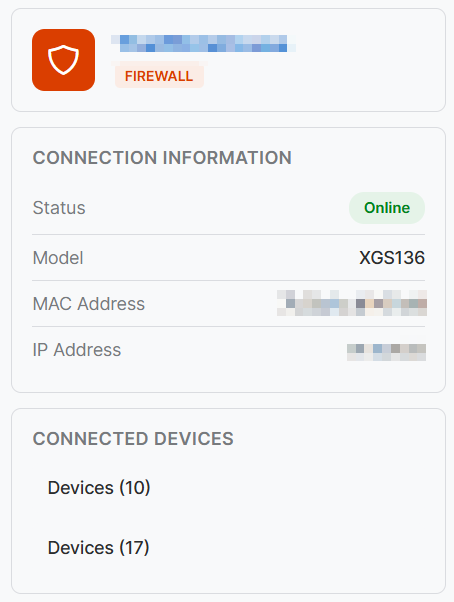
When you click a firewall, you can see information about that firewall, including its name, firmware version, and online status. The Connection information tile shows the firewall's serial number, model, MAC address, and IP address. The Connected devices tile shows the names of any switches directly connected to the firewall.
Note
Endpoint devices connected directly to Sophos Firewall won't appear on the network map.
Switches
When you click a switch, you can see a representation of the switch ports and the connected devices discovered on those ports. Uplink and PoE ports are clearly labelled and you can hover over a port to see its status, speed, duplex, and PoE power. You can click a connected access point to see the network details for that access point.
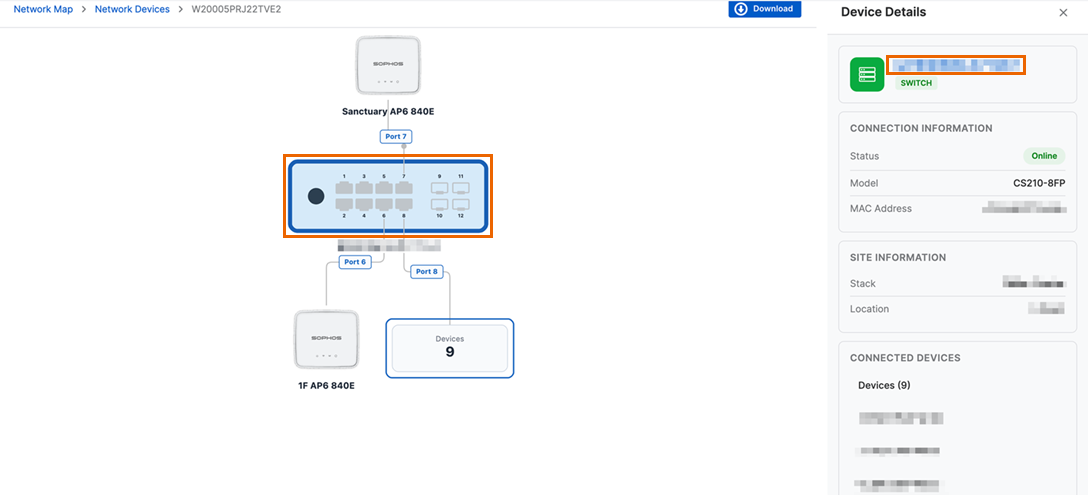
You can see information about the switch, including its name, firmware version and online status. An upgrade icon  is shown next to the firmware version if an upgrade is available.
The Connection information tile shows the switch's serial number, model, MAC address, and IP address. The Site information shows the site or stack the switch belongs to and its location. The Connected devices tile shows how many devices are connected to the switch. Click View details to see information about all devices connected to the switch.
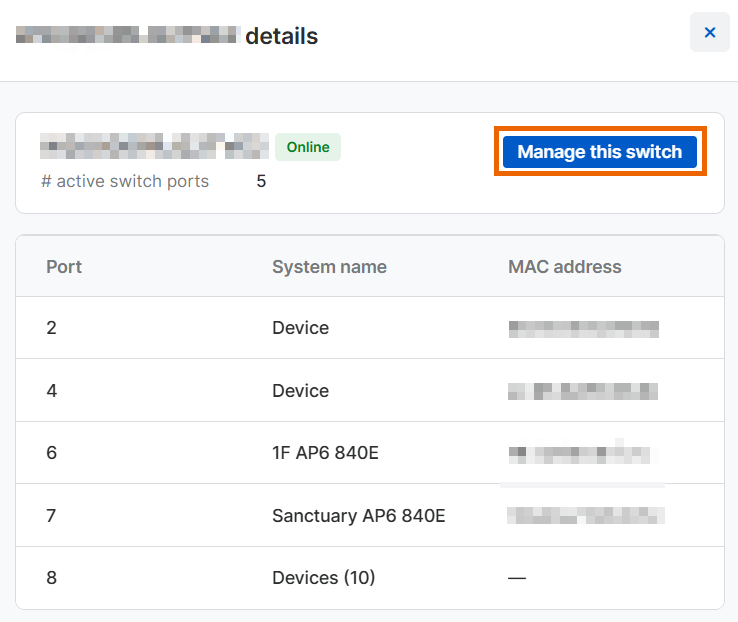
Click the switch to see a list of ports and the names and MAC addresses of the devices connected to them.
Click Manage this switch to go to the switch management page. See Switch management.
Access points
When you click an access point, you can see a representation of it and any connected devices. If the access point is part of a mesh network, you can see the other access points that are part of the same mesh network and their roles. If it's connected to a switch, you can see the switch and the port it's connected to. You can click the connected switch to see the details for that device.
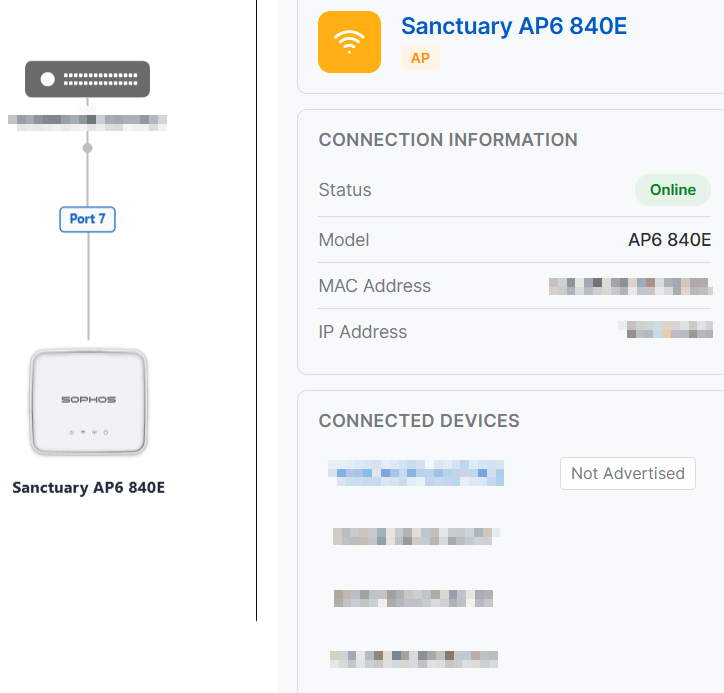
You can also see information about that access point, including its name, firmware version, and online status. An upgrade icon is shown next to the firmware version if an upgrade is available.
The Connection information tile shows the access point's serial number, model, MAC address, and IP address. The Site information shows the site or stack the access point belongs to and its location. The Connected devices tile shows how many devices are connected to the access point. Click View details to see information about all devices connected to the access point.
Click the access point to see a detailed list of information for each connected device, including MAC address, host name, username, SSID, IP address, and frequency band.
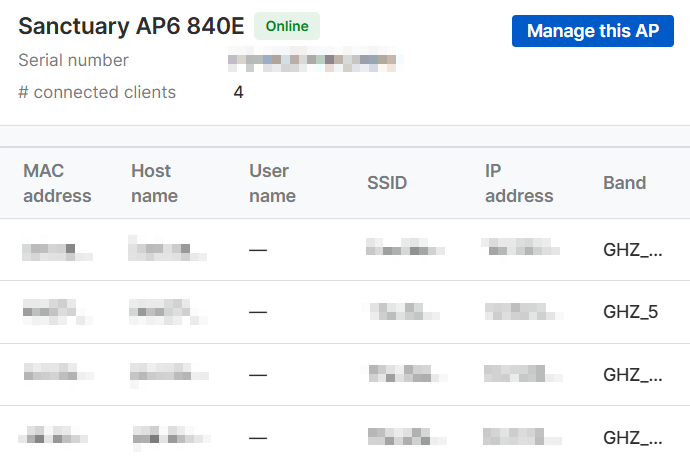
Click Manage this AP to go to the access point's management page. See Access point details.
Connected devices
Connected devices shows all devices discovered by the firewall, switch, or access point. You can see the MAC address of connected endpoint devices, the names of firewalls and switches, and the name of access points. You can click switches and access points to open the Sophos Fusion page to manage those devices.
Unmanaged devices
The Network Map is currently designed to work with Sophos Firewall, Sophos Switch, and Sophos AP6 access points managed by Sophos Fusion. All other devices, such as Sophos APX access points, are considered unmanaged devices. These devices are subject to the following restrictions:
- Unmanaged devices connected directly to a Sophos Switch won't appear on the map unless they have endpoint devices connected to them.
- Unmanaged devices aren't identified in the device list. The System name shown is "Device".