Allow authorized Generative AI apps with restrictions
You can allow users to access approved Generative AI (Gen AI) applications while preventing them from uploading files and copying data from those applications. To do this, create an application group for the approved Gen AI apps and apply a web policy that blocks uploads and restricts data transfer.
Create an application group for authorized Gen AI apps
To create an application group for authorized Gen AI apps, do as follows:
- Go to My Products > Protected Browser > Policy objects.
- Click Add object.
- Select Application group.
- Enter a name for the application group.
- Expand Generative AI and select the authorized Gen AI apps.
- Click Save.
Create a web policy with restrictions
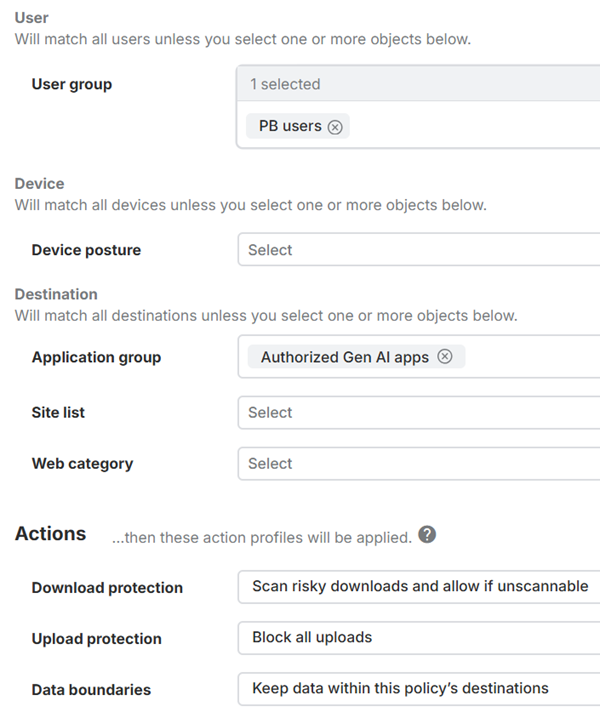
Create a web policy that allows access to the authorized Gen AI applications and applies restrictions to prevent data loss.
To create a web policy, do as follows:
- Go to My Products > Protected Browser > Web policy.
- Click Add policy.
- Enter a name for the policy.
- Select Allow as the policy action.
- Click Edit.
- Under Available, select the user groups you want to apply the policy to.
- Move the user groups to Assigned.
- Click Save.
- In Application group, select the application group you created for the authorized Gen AI apps.
- Under Upload protection, select Block all uploads.
- Under Data boundaries, select Keep data within this policy's destinations.
- Click Save.