Block Generative AI apps in Protected Browser
You can use Protected Browser web policies to block access to unauthorized Generative AI (Gen AI) applications. To do this, create an application group that contains the Gen AI apps you want to block, and then assign the group to a Protected Browser web policy with a Block action.
Create an application group for Gen AI apps
Create an application group that contains the unauthorized Gen AI apps you want to block.
To create an application group, do as follows:
- Go to My Products > Protected Browser > Policy objects.
- Click Add object, then select Application group.
- Enter a name for the application group. For example,
Blocked Gen AI Apps. - Expand Generative AI and select the Gen AI apps you want to block.
- Click Save.
Create a web policy
Create a web policy to block the application group you created for the unauthorized Gen AI apps.
To create a web policy, do as follows:
- Go to My Products > Protected Browser > Web policy.
- In Policies, click Add policy.
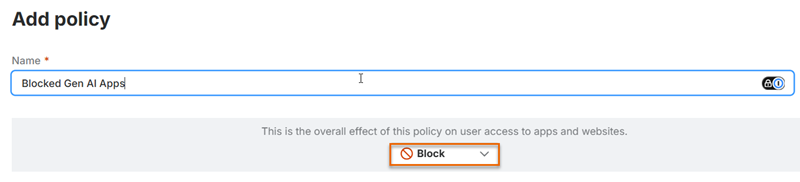
- Enter a name for the policy. For example, Blocked Gen AI Apps.
-
Select Block as the policy action.
-
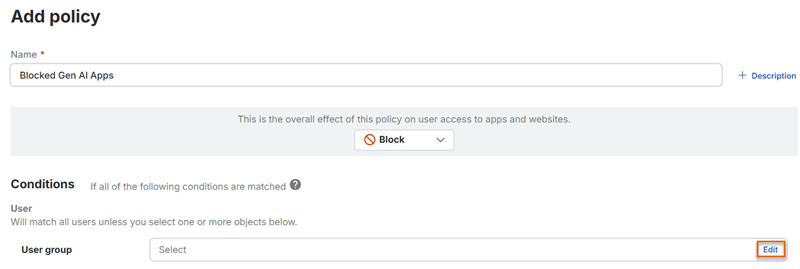
Under User group, select Edit.
-
Under Available, select the user groups the policy applies to.
- Move the selected user groups to Assigned.
- Click Save.
- In Application group, select the application group that contains the Gen AI applications you want to block.
- Click Save.