Bulk install the extension using Active Directory GPO
You can use Active Directory GPO to install the Protected Browser extension to Google Chrome on multiple Windows devices.
Requirements
You must have the following accounts and permissions:
- An Active Directory admin account with permission to use the group policy editor
- A Sophos Fusion admin account
- An admin account for all the devices where you want to install the extension
You must meet the following requirements in Google Chrome:
- Chrome must have the permission to install extensions from external resources.
- Chrome must have the ADMX template installed. See Install and configure Chrome policy templates.
You must have completed the following configurations in the Microsoft Group Policy Management Console:
- A group policy object (GPO) for the extension on a domain controller or management server.
-
Linked the GPO to the appropriate Organizational Unit (OU).
-
An SMB share to deploy software to domain-joined Windows devices.
Download the installer from Sophos Fusion
To download the extension installer, do as follows:
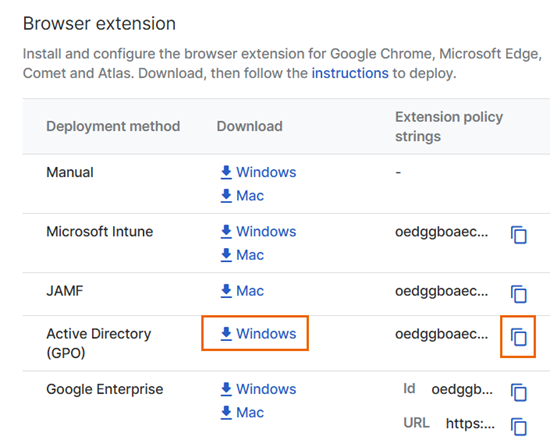
- In Sophos Fusion, go to My Environment > Installers.
-
Under Browser extension, next to Active Directory (GPO), click Windows.
This downloads a .zip file. It includes the installation files. Extract the file to your device.
-
Copy the extension URL.
Configure the group policy object to install the extension
In the Microsoft Group Policy Management Console, do as follows:
- Open the group policy object (GPO) you created for the extension.
- In the GPO, go to Computer Configuration > Policies > Administrative Templates.
- In Administrative Templates, go to Google > Google Chrome > Extensions.
-
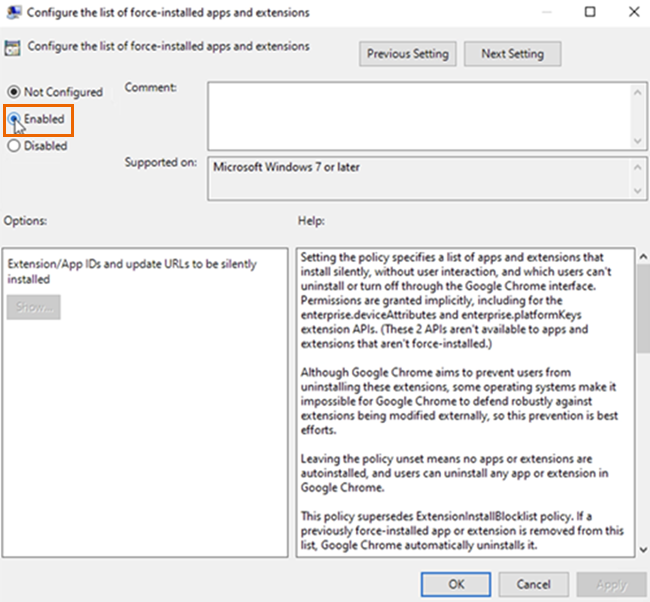
Click Configure the list of force-installed apps and extensions, then select Enabled.
-
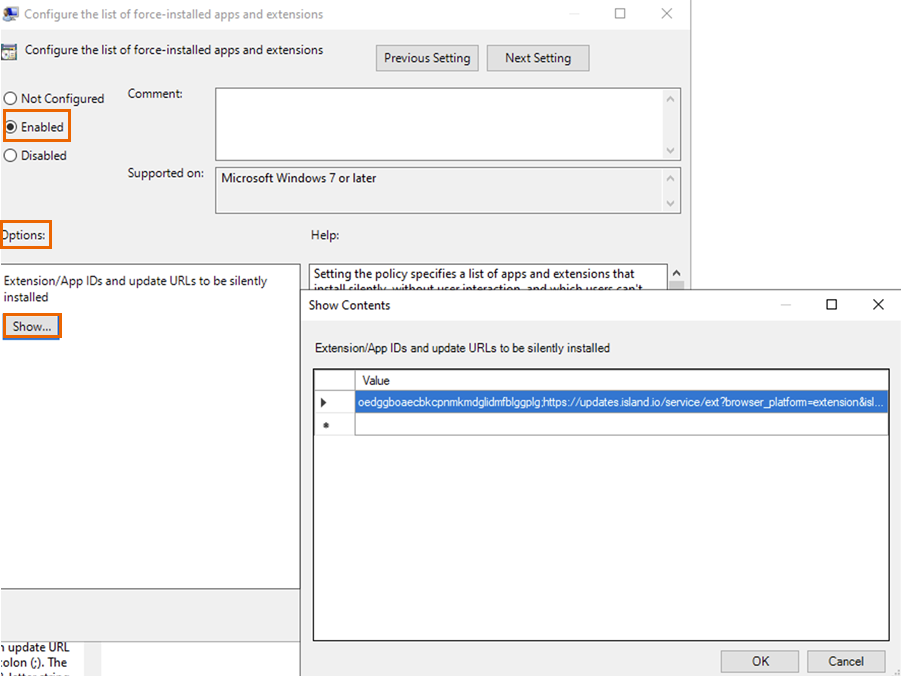
Under Options, click Show.
-
In Show contents, paste the extension URL you copied from Sophos Fusion.
-
Click OK, then click Save.
- Copy the contents of the
ChromeExtensionSettings.xmlfile you downloaded from Sophos Fusion. - In the same GPO, go to Computer Configuration > Preferences > Windows Settings > Registry.
- Right-click Registry and paste the contents of the file.
- Enter a name for the registry and save it.
-
Verify the installation as follows:
- On a Windows device, open the Chrome browser.
-
In the address bar, type
chrome://policyand click Reload policies.In the Chrome Policies table, check if you can see the ExtensionInstallForcelist policy and its status is OK.
-
In the address bar, type
chrome://extensionsand check if you can see the Protected Browser extension. You may see the following message:Sophos extension is installed and managed by the organization.
Install the extension utility
To use device posture policy objects in web policies, you must install the extension utility on users' devices.
To do this, you must have an SMB share to deploy software to domain-joined Windows devices.
To install the extension utility, do as follows:
-
Upload the
ExtensionUtility.exefile you downloaded from Sophos Fusion to a local SMB share.Make sure you meet the following requirements:
- The computers in the domain have read access to the extension utility installer.
-
The installer is available through a path similar to the following one:
\\<server>\<share>\ExtensionUtility.exe
-
Open the GPO you created for the extension.
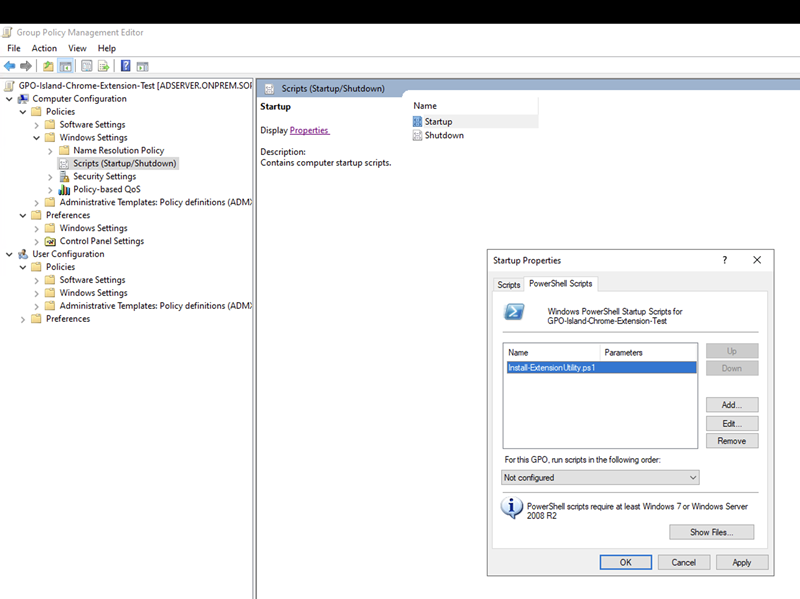
- In the GPO, go to Computer Configuration > Policies > Windows Settings > Scripts (Startup/Shutdown), and click Startup.
- Under PowerShell Scripts, click Add.
- Enter a name for the PowerShell script. For example,
Install-ExtensionUtility.ps1. -
Paste the following code into the PowerShell script you created.
Replace
<path>,<server>, and<share>with the path, server, and SMB share where theExtensionUtility.exefile is located.$folder = '<path>' if (-not (Test-Path -Path $folder)) { Start-Process -FilePath "\\<server>\<share>\ExtensionUtility.exe" } -
Click OK, then click Apply.
Uninstall the extension
To uninstall the extension, do as follows:
- Open the group policy object (GPO) you created for the extension.
- In the GPO, go to Computer Configuration > Policies > Administrative Templates > Google > Google Chrome, and click Extensions.
- Click Configure the list of force-installed apps and extensions and select Not configured.
-
To remove the XML custom settings, do as follows:
- Go to Computer Configuration > Preferences > Windows Settings, and click Registry.
- Find registry items you uploaded from the XML file and delete them.
-
To delete the extension utility, run the following PowerShell command:
powershell.exe -Command "& { msiexec /q /x $((New-Object -ComObject 'WindowsInstaller.Installer').RelatedProducts('{B0D532EB-39A8-497B-8DD8-6A3ACCE97532}')); }"