Manage authentication methods
To manage your authentication methods, do as follows:
- Click your Profile icon
 , then go to My info.
 -
Click Manage MFA.
Note
You can also go to Sophos ID, click My Profile, then click Manage MFA.
-
Authenticate to continue. You can select any of your existing authentication methods.
On the Multi-Factor Authentication screen, you see the total number of registered authentication methods, each registered MFA method with a default display name, and an indicator of when that method was last used to sign in.
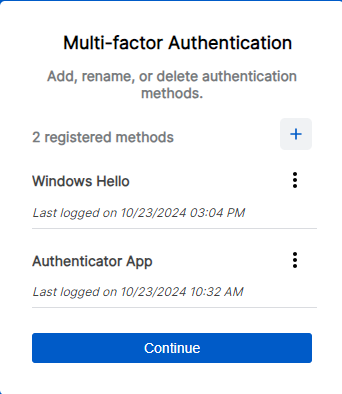
You can add, edit, and remove authentication methods.
Note
You can set up a maximum of 10 of the same type of authentication method.
-
To add an MFA method, click the add icon
 on the right-hand side. Follow the prompts to add a passkey or authenticator app.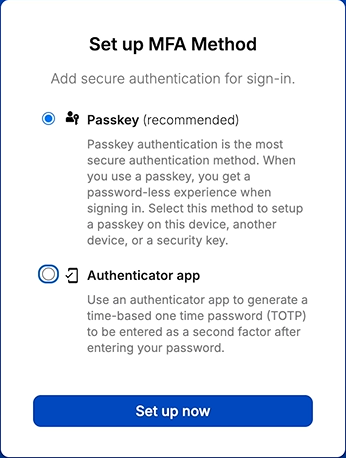
- For instructions on how to add a passkey, see Set up a passkey.
- For instructions on how to add an authenticator app, see Set up an authenticator app.
Note
You must register at least two multi-factor authentication (MFA) methods. For more information, see Sophos Fusion MFA Requirements.
-
(Optional) To rename an MFA method, click the three dots on the right-hand side
 , click Rename, then type the new name, and click the check mark.
Note
If you haven't already specified a name, registered MFA methods use a default name based on the method that was registered. If more than one of that type of method is registered, they're also numbered.
-
(Optional) To remove an MFA method, click the three dots on the right-hand side,
, then click Delete.Note
You can’t delete authentication methods once you've reached the minimum required number.
-
Click Continue to go to the Fusion dashboard.
Video
