Add an application group
Create an application group policy object to manage related applications under one web policy.
When adding applications to a group, you can browse them by category. For example, generative AI apps appear under Generative AI, and commonly-used apps are listed under the Sophos-curated category Popular web apps.
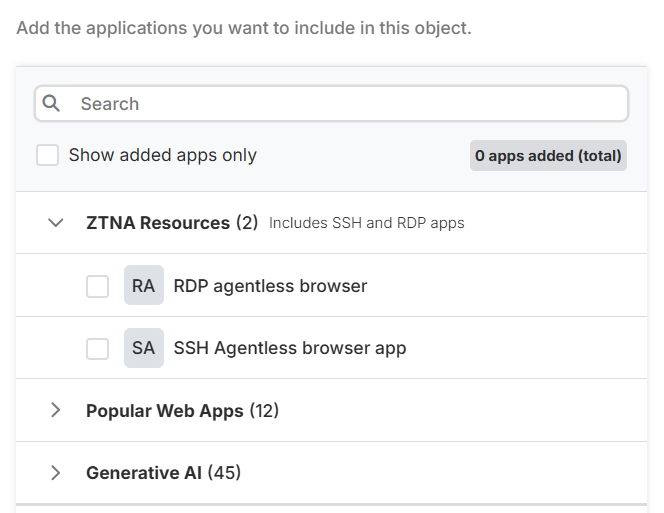
If you're using Sophos ZTNA, you can add agentless RDP and SSH applications protected by ZTNA to an application group. These applications are under the ZTNA resources category.
To add these ZTNA applications, you must meet the following requirements:
- You must have set up ZTNA. See Set up Zero Trust Network Access.
- You must have added resources in ZTNA. See Resources & Access.
- ZTNA gateways deployed on ESXi, Microsoft Hyper-V, or Sophos Firewall must run the latest version of their respective platform.
To add an application group, do as follows:
- Go to My Products > Protected Browser > Policy objects.
- Click Add object and select Application group.
- Enter a name and description for the application group.
-
To add ZTNA applications, expand ZTNA resources and select the applications.
Note
This list includes only agentless SSH and RDP applications. To configure agentless web applications, add them to a Site list policy object. See Add a site list.
-
To add other applications, expand the application category they belong to and select them.
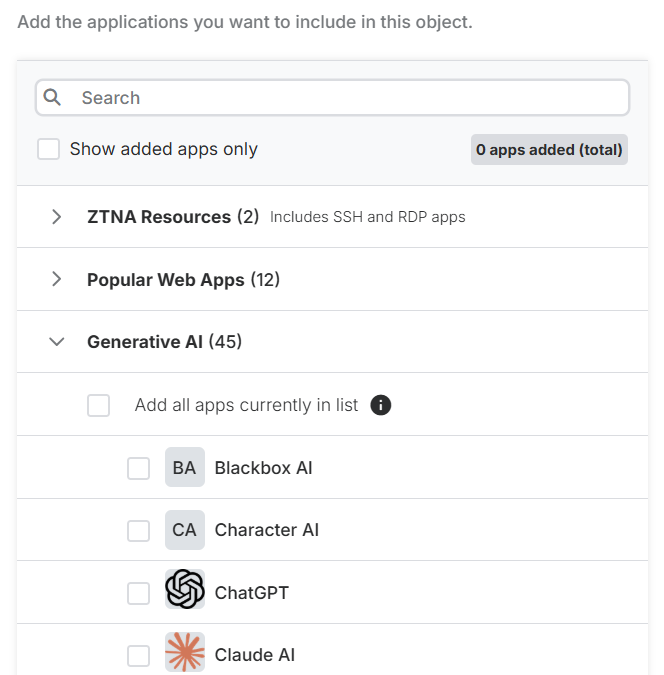
When you expand a category, you can see the first 20 applications. Click Show more to see the next 20 applications.
Alternatively, you can search for applications by name in the Search field. After you've added the applications, turn on Show added apps only to show only the added applications.
Note
The Add all apps currently in list option is only available for the Generative AI category.
-
Click Save.