Give admins access to Live Response
You can use administrator roles to give admins access to Live Response.
Super Admins always have the rights to manage Live Response settings and start Live Response sessions.
If you want other administrators to have these rights, you must create a new custom role.
Restriction
If you're a Managed Service Provider managing a customer's account from Sophos Fusion Partner, you can't currently create this role.
To create the custom role, do as follows:
- Click the Global Settings icon
 .
. - Go to Access Control and click Admins and Roles.
- Click the Roles tab and click Add role.
-
On the Add role dialog, do as follows:
- Enter a name for the role. For example, "Live Response admins".
- In Base role, select Full or Help desk role for the admin.
- In the list of products, select Full access to Endpoint Protection and/or Server Protection.
- In Additional settings for Sophos Fusion Admin, select the Start Live Response sessions on computers and Start Live Response sessions on servers settings.
- Click Save.
-
On the Admins and Roles page, click the new role. This opens the role's details page.
-
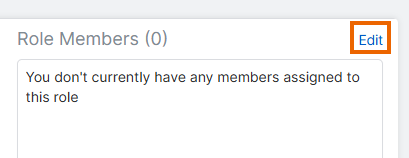
Next to Role Members, click Edit.
-
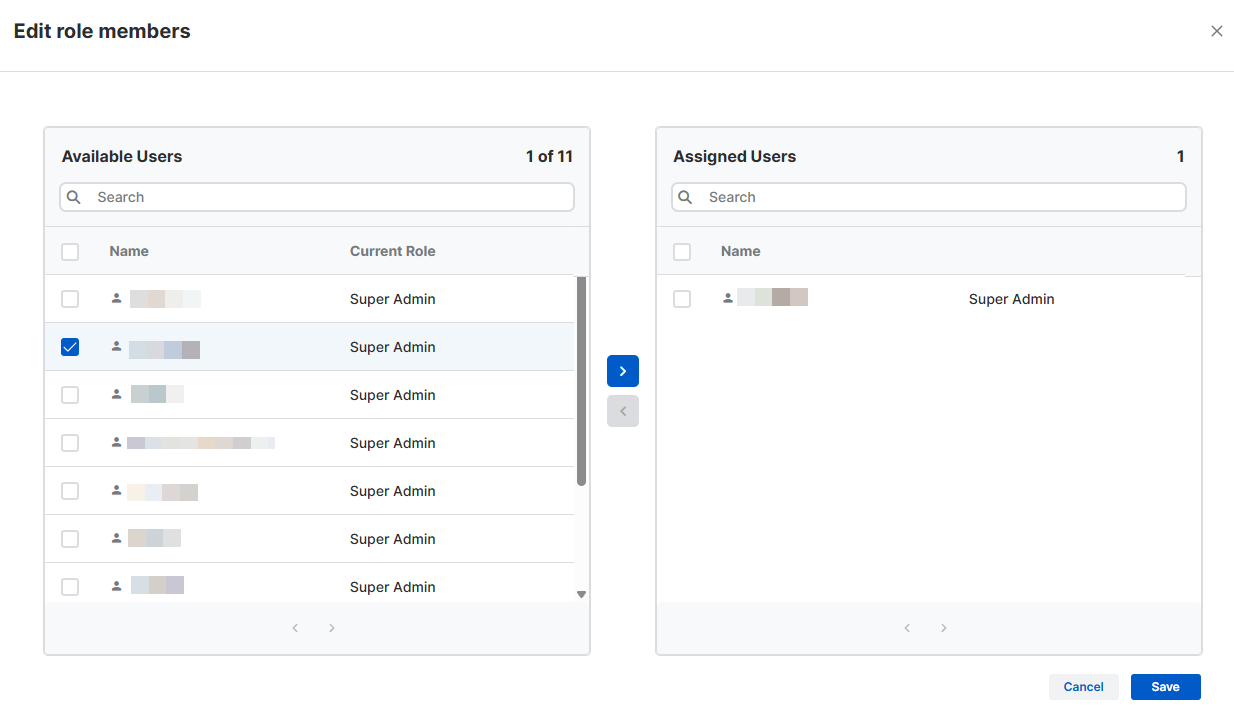
On the Edit role members dialog, do as follows:
- Select the administrators you want to assign this new role to.
- Click Save.
Assign an existing role to admins
To assign an existing role with Live Response access to admins, do as follows:
- Click the Global Settings icon .
- Go to Access Control and click Admins and Roles.
- On the Admins and Roles page, click a role with access to Live Response. This opens the role's details page.
-
Next to Role Members, click Edit.
-
On the Edit role members dialog, do as follows:
- Select the administrators you want to assign this role to.
- Click Save.