Use the AI workbench
The AI workbench lets you keep earlier AI assistant chat responses so that you can consult them as you continue investigating, without the need to leave the AI assistant page.
Add chat items to the workbench
To add an item from your chat to the workbench, do as follows:
-
Click the workbench icon next to the item in the AI assistant. For example, click the icon next to a query that you want to add to the workbench.
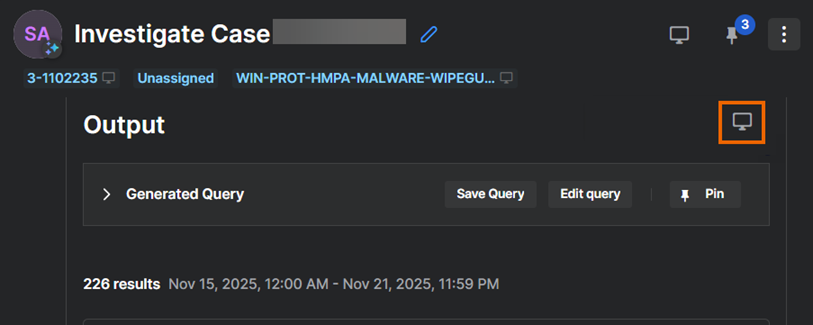
You can also access the workbench by clicking the pinned items icon.
-
The workbench now shows on the right side of the screen. There's a tab for the query you clicked and a Pinned tab for any items you've pinned.
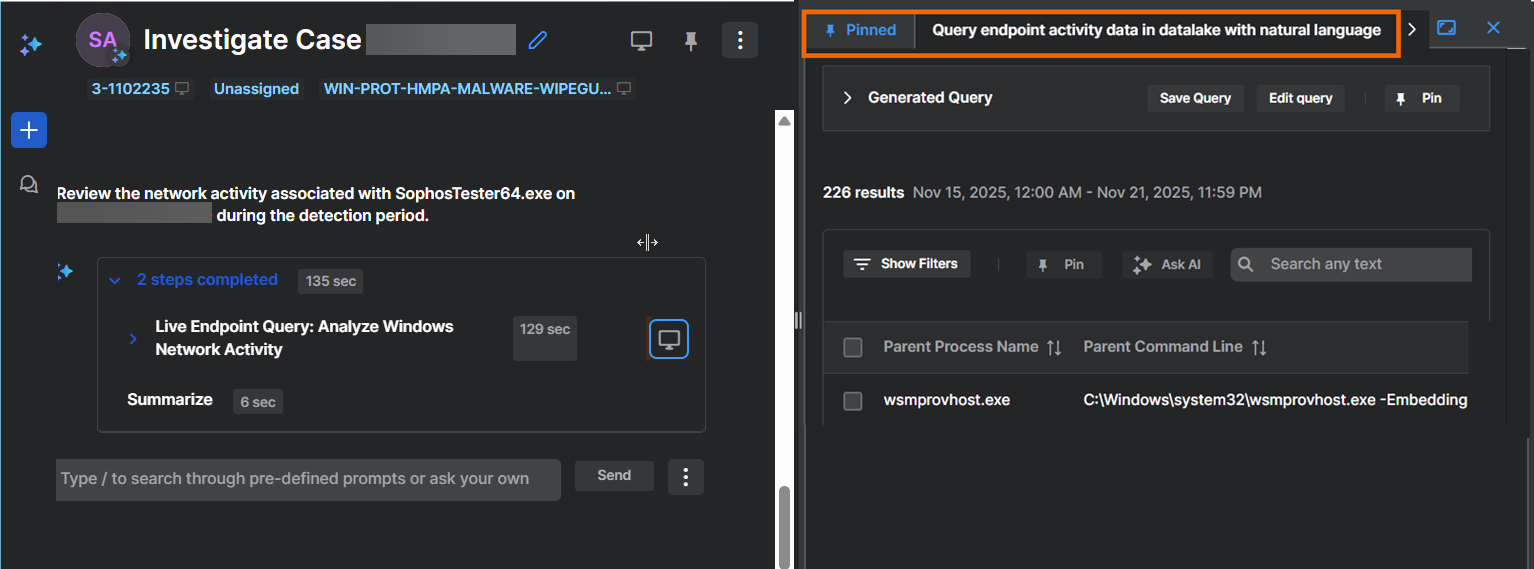
-
(Optional) Drag the workbench or click the Expand icon
 so that it occupies the full screen.
You can also access the workbench by clicking the pinned items icon at the top of the page.
Add case details to the workbench using tags
You can add case details to the workbench using tags we provide, as follows:
-
In your chat about a case, look for the tags under the case name.

-
Click a tag with the workbench icon beside it:
- Click the case name to add the case details to the workbench.
- Click the threat name to add details of the initial detection to the workbench. This detection gave rise to the case.
Close the workbench
To close the workbench, click the workbench icon at the top of the chat on the right side of the screen.
