Set up a browser-based authenticator
You can install a browser-based authenticator from your browser's extension store and use it for multi-factor authentication (MFA).
Note
Browser-based authenticator extensions are third-party products and aren't developed or supported by Sophos. Review the extension publisher and the requested permissions before you install an authenticator from the extension store.
To install and set up your authenticator, do as follows:
- Sign in to Sophos Fusion.
- Click your Profile icon
 and click My info.
 - Click Manage MFA.
- Authenticate to continue.
-
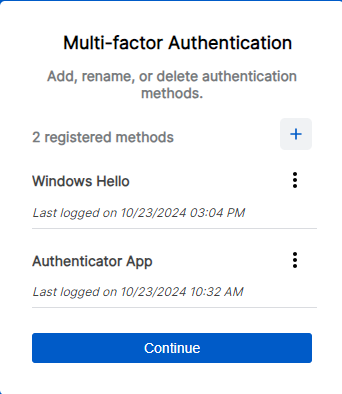
On the Multi-factor Authentication screen, click the Add icon
 .
.
-
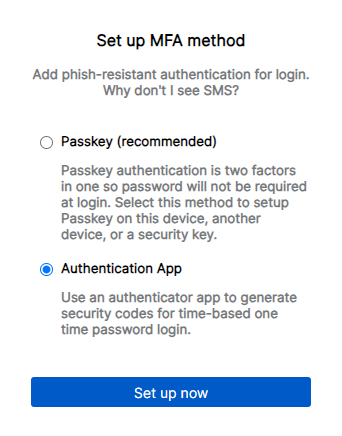
Select Authentication App.
-
Click Set up now.
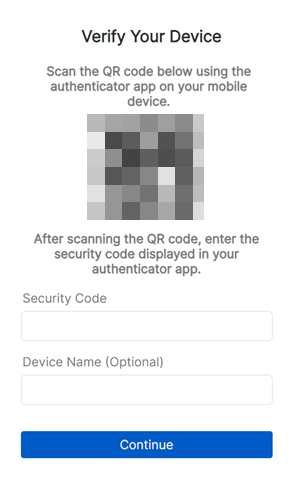
A one-time QR code is displayed. Leave the QR code displayed on the screen.
-
Open your browser's extension store in a separate tab.
- Search and install your preferred authenticator.
- Return to the one-time QR code and click your browser's extension icon beside the address bar.
- Select the authenticator to open it.
-
In the authenticator, click Add Account, then click Scan QR from screen.
The authenticator scans the one-time QR code. This generates a one-time password (OTP).
-
Under Verify Your Device, in Security Code, enter the OTP generated by the authenticator.
- (Optional) In Device Name, enter a name for your authenticator.
- Click Continue.
To verify that the new authentication method was added, click your Profile icon > My info and click Manage MFA.
The next time you sign in, enter your username and password, then enter the verification code generated by your authentication app.