Google Workspace PDP
You can set up post-delivery protection (PDP) for your Google Workspace users to protect them from malicious messages.
PDP includes the auto search and remediate feature, which searches your users' Google Workspace mailboxes to identify and quarantine messages that become malicious after they're delivered.
It also includes the on-demand clawback feature, which lets you manually claw back messages that you previously delivered to one or more Google Workspace mailboxes.
You can watch the following video to learn how to configure PDP for Google Workspace and view its reports.

Requirements
Before you connect Google Workspace for post-delivery protection, check the following requirements:
- You must be a Sophos Central admin to set up Google Workspace domains.
- You must have a Sophos Email license.
- You must sign in to Google Workspace using an admin account.
Warning
By default, the service account key creation policy in Google Cloud is enabled for new Google Workspace accounts. If you don't disable this policy, connecting Google Workspace for post-delivery protection will fail.
To prevent the connection from failing, disable this policy in Google Cloud. For more information, see Disable service account key creation policy in Google Cloud.
Accept Google pop-ups
When you set up post-delivery protection, you must give permission for Sophos applications to access your Google Workspace domains.
To do this, your browser must accept pop-ups during the setup process. You might have to turn off pop-up blockers or add exceptions for Google Workspace domains.
You must also be able to sign in to the correct domain. If your browser has stored sign-in credentials for a different domain, use an incognito or private browsing window.
Set up post-delivery protection
Set up post-delivery protection by connecting your Google Workspace domain and granting the required permissions. This lets Sophos Email scan delivered messages, remove malicious content, and perform clawback actions.
Show me how to set up post-delivery protection for Sophos Gateway
To set up your domains, do as follows:
-
Click the General Settings icon
 , scroll down to the Email Domain Setup section, and click Gateway Domain Settings/Status.
Tip
Alternatively, go to My Products > Email Security > Settings. Under Email Domain Setup, click Gateway Domain Settings/Status.
Gateway Domains settings/status opens with a list of your domains.
-
Under Post-Delivery, hover over the status and click the Connect icon
 for the domain you want to connect.
Note
Sophos Central normally detects the email service for your domain automatically. If it can't detect the service, it displays a dialog asking you to select between Microsoft 365 and Google Workspace. Select Google Workspace to continue.
Note
Each time you connect a domain to post-delivery protection, you must read and accept the terms and conditions of use.
-
Select the Google account you want to use for the connection.
Note
You must use a Google Workspace account with administrator privileges.
Google requires you to verify your administrator account to complete the connection.
If this is your first time signing in, enter your email address and password.
If you've signed in previously, Google shows the permission request pop-ups immediately.
-
Review the Google sign-in confirmation and click Continue.
After selecting your account, Google shows a confirmation window indicating that
sophos.comis requesting access to your account information. -
Review the permission request pop-up and grant consent to Sophos.
In the permission pop-up, make sure the required access is selected.
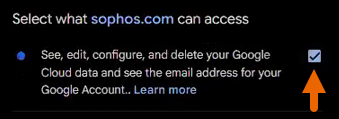
This access lets Sophos see, edit, and manage the data it needs to scan delivered messages and perform post-delivery actions in your Google Workspace domain.
If another admin has already granted permissions, you may not see this pop-up again.
If you can't connect to your domain, you may see one of the following error messages.
- Failed to establish session: session has timed out.
- Failed to create connection: consent for API access wasn't granted.
- Failed to create connection: consent for data access wasn't granted.
- Failed to create connection: the domains in Sophos Email don't match the domains in the Google Workspace domain.
- Failed to create connection: (reason not specified).
You may also encounter the following issues during setup.
- You must accept Google APIs Terms of Service by clicking on the link and then clicking Accept.
- You must accept Google Apps Admin APIs Terms of Service by clicking on the link and then clicking Accept.
- Access was denied because you clicked Cancel instead of Continue in the previous screen.
- Application error occurred.
- You have not granted access to your Google Cloud data in the previous screen.
Resolve the issue, then try connecting again.
Note
Post-delivery protection won't work unless you grant these permissions.
-
After the permissions are granted, click Continue.
Setting up the connection starts. This may take a few minutes.
-
When setting up the connection is completed, click Close.
Your domain is now connected to post-delivery protection.
-
The row for the domain expands automatically. Copy the required values.
-
Click Copy next to Google OAuth Client ID to copy its value. You'll need this value later.

-
Click Copy next to the list of OAuth scopes to copy their values. You'll need these values later.

-
-
Authorize post-delivery protection in Google Workspace.
- Click the Google Workspace Admin console link.
-
In the Admin Console, click Add new to add the domain.
The Add a new client ID dialog appears.
-
In Client ID, paste the Google OAuth Client ID.
- In OAuth scopes (comma-delimited), paste the OAuth scopes.
- (Optional) Select Overwrite existing client ID if the client ID was previously added.
- Click Authorize.
-
After completing the authorization in Google Workspace, go back to Sophos Central and click Test connection.
Note
Post-delivery protection authorization may take a few minutes to complete.
If the test connection is successful, your domain is fully authorized.
-
Turn on post-delivery protection features.
- Click Configure Post Delivery.
- Turn on Auto search and remediate.
- Turn on Remove emails containing malicious URLs and Remove emails containing malware.
- Turn on On demand clawback.
-
Click Save.
Sophos Email now scans your users' Google Workspace inboxes and quarantines malicious messages. You can see, delete, and release malicious messages in My Products > Email Security > Quarantined Messages > Post delivery quarantine.
Disconnect post-delivery protection
Disconnect post-delivery protection to stop Sophos Email from scanning delivered messages and managing post-delivery actions for your domain.
To disconnect post-delivery protection, do as follows:
-
Click the General Settings icon
, scroll down to the Email Domain Setup section, and click Gateway Domain Settings/Status.Tip
Alternatively, go to My Products > Email Security > Settings. Under Email Domain Setup, click Gateway Domain Settings/Status.
Gateway Domains settings/status opens with a list of your domains.
-
Under Post-Delivery, hover over the status, and click the Disconnect icon
 for the domain you want to disconnect.
Tip
Alternatively, click the arrow next to the domain name to expand the domain row, then click Disconnect.
Note
Each time you disconnect a domain from post-delivery protection, you must read and accept the terms and conditions of use.
-
Select the Google account you want to use for disconnecting.
Note
You must use a Google Workspace account with administrator privileges.
Google requires you to verify your administrator account to complete the disconnection.
If this is your first time signing in, enter your email address and password.
If you've signed in before, Google shows the permission request pop-ups immediately.
-
Review the Google sign-in confirmation and click Continue.
After selecting your account, Google shows a confirmation window indicating that
sophos.comis requesting access to your account information. -
Review the permission request pop-up and grant consent to Sophos.
In the permission pop-up, make sure the required access is selected.
-
After the permissions are granted, click Continue.
Disconnecting starts. This may take a few minutes.
-
When disconnecting is completed, click Close.
Your domain is now disconnected from post-delivery protection. Sophos Email no longer scans delivered messages or performs post-delivery actions for your domain.
Manage Google Workspace connections
In Gateway Domain Settings/Status, you can manage your Google Workspace domains and view their connection status.
To open this view, click the General Settings icon , scroll down to the Email Domain Setup section, and click Gateway Domain Settings/Status.
Alternatively, you can go to My Products > Email Security > Settings. Under Email Domain Setup, click Gateway Domain Settings/Status.
From there, you can view the connection status of your Google Workspace domains. You can connect or disconnect domains from post-delivery protection, edit their settings, or remove them as needed.
Note
Sophos Central may reuse an existing Google Workspace authorization when multiple domains belong to the same tenant. If it can't detect the email service automatically, it may prompt you to select between Google Workspace and Microsoft 365.
Manage quarantined messages
Auto search and remediate looks for messages in your users' inboxes that become malicious after delivery and retracts them from inboxes into PDP quarantine. With On demand clawback, you can manually claw back messages that have already been delivered to recipients, retracting the messages into PDP quarantine. See On-demand clawback.
Note
For Google Workspace domains, retracted messages may appear inconsistent when a message was delivered to multiple recipients through Google's internal routing. Google processes each recipient separately, so the post-delivery summary report may show recipient failures even if the message was already clawed back. This behavior is expected for Google's internally routed messages.
You can find quarantined messages from Google Workspace users in My Products > Email Security > Quarantined Messages > Post delivery quarantine. For more information, see Post-delivery quarantine.
Reports
Reports are available in Reports > Post delivery summary.
For more information, see Post-delivery summary report.