Directory
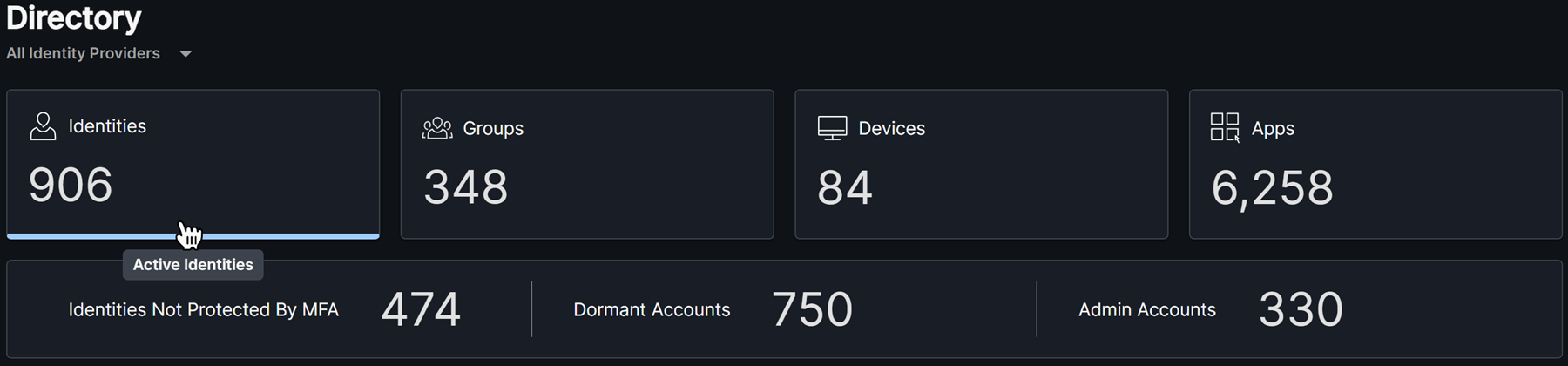
Directory shows an overview of your environment with a series of cards with the number of identities, non-human identities (NHIs) groups, and devices that ITDR is monitoring within your environment. Click a card to update the panel below with the corresponding records.
Identities
The Identities view shows a list of identities that have been captured from your identity provider.
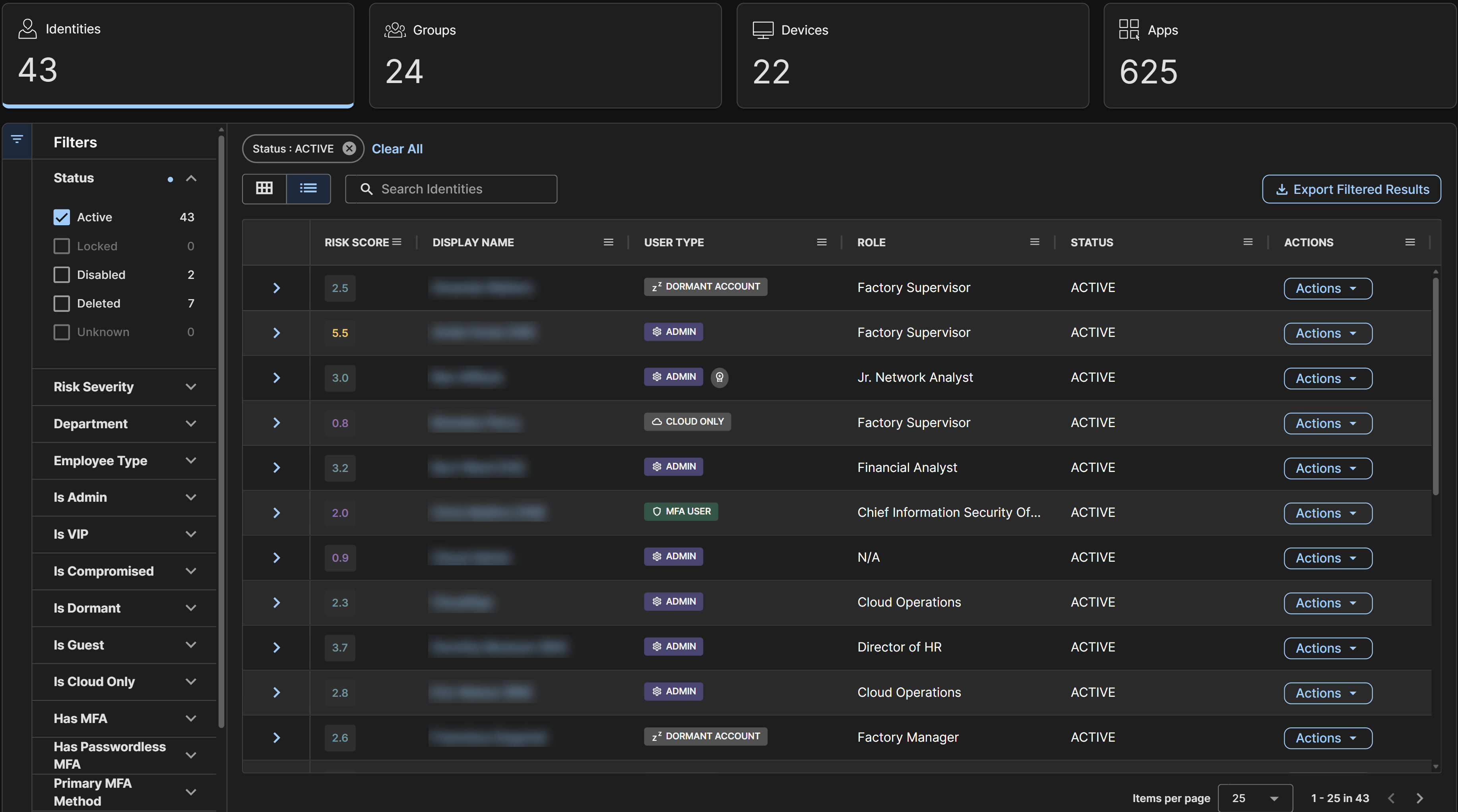
Each identity shows a Risk Score in the Risk Score column in list view and at the top right of each card in card view. For details, see Identity Risk Score.
Identity icons and tags
Identities have different icons and sets of tags to help you quickly identify the type of account and its associated attributes. These appear in the card view, in the Top Risky Users widget, and in Identity Details pages. Identities may have the following icons and tags.
| Icons | Description |
|---|---|
 | User icon for user accounts. |
 | MFA User icon for accounts that use MFA. |
 | Deleted User icon for deleted accounts. |
 | Locked User icon for disabled accounts. |
 | Admin icon for admin accounts. |
 | Guest icon for guest accounts. |
The following additional tags based on attributes related to the account as well as analysis and processing by the system may also show:
- Admin tag: The account has been identified as an admin in the identity provider.
- Guest tag: The account is a guest in your tenant.
- Deleted User tag: The account has been deleted from your tenant.
- Locked User tag: The account has been disabled.
- MFA User tag: The account has MFA enabled.
- Compromised tag: The account has an active credential leak.
- Dormant Account tag: The account hasn't signed in within the last 90 days.
- Cloud Only tag: The account doesn't have on-premises identifiers, indicating it's only present in the cloud identity provider.
- Hybrid tag: The account contains on-premises identifiers, indicating it's being synced and can access both cloud and on-premises resources.
- Human tag: The account is associated to a human user.
- Non Human tag: The account is a non-human identity.
- Agent Identity tag: The account is an agent identity.
- VIP tag: The account is configured for VIP monitoring. For details, see Select users for VIP monitoring.
Adjust Identities view
Adjust the Identities view using the following controls:
- Switch between card view or list view using the icons above the table.
- By default, users are sorted alphabetically by name. Change the sort order using the drop-down menu above the table. For example, sort by Risk Score descending to see your highest-risk identities first.
- Filter the identities by name using the Search Identities field.
-
Filter the identities by the following attributes:
- Status: The status of the identity within the identity provider.
- Risk Severity: The range of Risk Scores for the identities.
- Department: The department of the user, if defined within the identity provider.
- Employee Type: The type of employee, if defined within the identity provider.
- Is Admin: Whether the user has the admin flag set within the identity provider.
- Is VIP: Whether the user is configured for VIP Monitoring.
- Is Compromised: Whether the user has active credential leaks.
- Is Dormant: Whether the user is considered dormant due to having not signed in within the last 90 days.
- Is Guest: Whether the user is a guest within the identity provider.
- Is Cloud Only: Whether the user is only registered in the cloud.
- Has MFA: Whether the user has MFA configured on their account within the identity provider.
- Has Passwordless MFA: Whether the user has a stronger MFA method defined, such as passwordless MFA.
- Primary MFA Method: The primary MFA method set for the user.
- Country: The user's country, if defined within the identity provider.
- Region: The user's region, if defined within the identity provider.
- MFA Method: Shows users filtered by the selected MFA method, if applicable.
Note
Some filters may lack data if it's not available from the identity provider.
Adjust card view
When viewing users in card view, click the down arrow at the bottom of a card to expand the card to view more details. Only one card can be expanded at a time.
Adjust list view
When viewing users in list view, take the following actions:
- Click the arrow at the left of a row to expand the row to view more details.
- Click the menu icon of any column to pin, auto-size, reset, and add or remove columns.
View identity details
Click the Display Name at the top of a card in card view or from the list view table to go to the Identity Details page. For more information, see Identity Details.
Take response actions
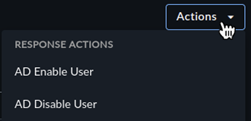
If you opted to authorize response actions, you can run these actions on a user. Click the Actions menu from an expanded card in card view or the Actions column in list view, and choose the desired response action.
Non-Human Identities (NHIs)
The Non-Human Identities (NHIs) view shows the NHIs registered within your Microsoft Entra ID tenant, including enterprise applications, other service principals, and Microsoft Entra Agent ID objects.
Enterprise applications are a type of service principal that is the local representation, or application instance, of a global application object in a single tenant or directory. In this case, a service principal is a concrete instance created from the application object that inherits certain properties from that application object. A service principal is created in each tenant where the application is used and references the globally unique app object. The service principal object defines what the app can actually do in the specific tenant, who can access the app, and what resources the app can access.
For more information about Entra ID and service principal objects, see the Microsoft documentation.
Agents
ITDR also discovers AI agents built on Microsoft Entra Agent ID as a distinct type of NHI, made up of an agent identity blueprint, its blueprint principal, and one or more agent identities. For an explanation of what each of these means and how they relate, see Understanding agent ID concepts.
For details on agent identities, see the Microsoft documentation.
Note
Microsoft also has an optional agent's user account, which is a mailbox or Teams-style identity paired with an agent that's used when the agent needs to act like a user. Because it behaves like a user rather than a service principal, ITDR shows it in the Identities view with the Agent Identity tag. Microsoft's manager role for these accounts isn't currently surfaced. For details on available agent-specific fields, see Details.
For details on agent users, see the Microsoft documentation.
Filter non-human identities
Filter NHIs by name using the Search Non-Human Identities field or filter by these attributes:
- Status: The status of the NHI within the identity provider, such as Active, Disabled, or Deleted.
- Resource Type: The underlying object type, such as Application, ServiceIdentity, ManagedIdentity, SocialIdp, or Legacy.
- Has Password Credentials: Whether the NHI has a password credential configured.
- Has Key Credentials: Whether the NHI has a certificate credential configured.
- Is Agent: Whether the NHI is classified as an agent identity or agent identity blueprint principal.
- Agent Type: Filter to only Agent Identity or only Blueprint Principal objects.
View non-human identity details
Click the Display Name in the table to go to the Non-Human Identity Details page. For more information, see Non-Human Identity Details.
Groups
The Groups view shows a list of groups that have been captured from your identity provider. Search groups using the search field above the table, or use the following filters:
- Deleted: Whether the group is deleted within the identity provider.
- Mail Enabled: Whether email can be sent to the group.
- Security Enabled: Whether the group can be used to control user access to resources.
- Assignable to Roles: Whether the group is assignable to roles.
For more information on Microsoft Entra ID groups, see Security groups and mail-enabled security groups.
Group details
Select a group from the Groups view to open a dedicated details page with retrieved group metadata, tables of users, groups, NHIs and devices that are members the group, and tabs with associated applications and findings.
Devices
The Devices view shows a list of devices that have been registered within your Microsoft Entra ID tenant. Devices include both personal or company-owned devices that users can access company resources from. For more information, see Microsoft Entra registered devices.
Search devices using the search field above the table, or use one of the following filters:
- State: The state of the device as reported by the identity provider, such as active or disabled.
- Ownership: The ownership of the device as reported by the identity provider, such as personal, company, or unknown.
- Operating System: The operating system as reported by the identity provider.
- Architecture: The device architecture as reported by the identity provider.
- Manufacturer: The device manufacturer as reported by the identity provider.
- Model: The device model as reported by the identity provider.
- Rooted: Whether the device is reported by the identity provider to have been rooted.
- Managed: Whether the device is considered managed by the identity provider.
- Compliant: Whether the device is considered compliant by the identity provider.
Availability of details for a device is subject to what is provided by the identity provider. For details about Microsoft Entra ID devices, see What is a device identity?.
Device details
Click a Display Name to open a dedicated details page listing retrieved device metadata, associated identities, related findings, and more, depending on the type of device.