SophosLabs Analysis Report
The SophosLabs Analysis Report shows verdicts from SophosLabs for email messages reported by admins and users as Reported threat (false negatives) or Reported clean (false positives). It also includes a breakdown of threats (malware, impersonation, and spam) and bulk messages categorized by Sophos Email.
The report helps you assess how well your current Sophos Email settings are working and identify patterns in user behavior. If some users rarely report risky messages, consider reviewing their activity to make sure they recognize and report threats correctly.
To see the report, go to Reports > Email Security > SophosLabs Analysis Report.
You can watch the following video to learn how admins and users can report false positives or false negatives to SophosLabs and view the verdicts.

How to report messages to SophosLabs
Admins and users can report suspicious or misclassified messages to SophosLabs for further analysis. These reports help improve Sophos threat detection and reduce false negatives and false positives across your organization.
There are several ways to report messages.
-
Report from the quarantine portal
Admins and users can report messages as spam or not spam from the quarantine portal if the message was quarantined based on your policy. These submissions are sent to SophosLabs for analysis.
-
Report using smart banners in emails
Admins and users can click Report in smart banners shown in received emails. If reporting is turned on in the policy, the Report option is available for messages marked as External or Untrusted.
-
Report from VIP impersonation protection
Messages that impersonate users on your VIP list are automatically detected and quarantined. Admins and users can then report these messages to SophosLabs for further analysis.
-
Report during on-demand clawback
When admins manually claw back delivered messages, they can report them to SophosLabs and specify a reason, such as phishing, spam, or malware.
These reporting methods give SophosLabs valuable feedback to improve detection accuracy and protect your organization against evolving threats.
View reported message from Message Details
When a message has been submitted to SophosLabs from Message Details, it's labeled as Reported threat or Reported clean. You can click the link to open the SophosLabs Analysis Report. The report is automatically filtered to show the selected message.
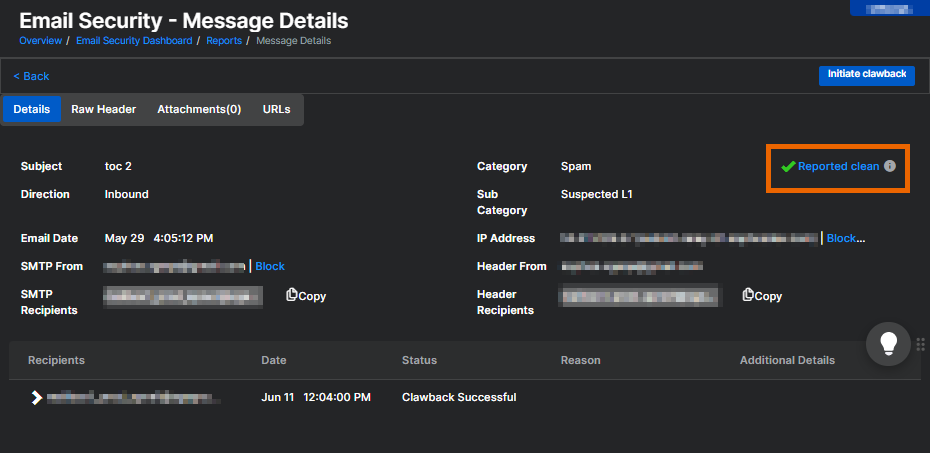
SophosLabs report details
The SophosLabs Analysis Report helps you quickly verify how the message was analyzed and what verdict SophosLabs returned.
The report includes filters, statistic summaries, a chart, and summary cards to help you quickly understand submission patterns and verdicts.
Filters
You can view submissions from the past 365 days. By default, the report shows the last 30 days. Use the drop-down menu to filter by Reported threat or Reported clean.
Detection statistics summary
The detection statistics summary at the top of the report has two parts:
- Sophos detected: Shows the number of messages identified as "Threats" or "Bulk" messages by Sophos during the initial scan.
- SophosLabs analyzed: Shows the number of messages categorized by SophosLabs after analysis as "Threats", "Bulk", "Uncategorized", or "Clean" messages.
Malware, Impersonation, and Spam messages are considered as Threats.
You can hover over each section of the detection statistics summary to see a breakdown of message categories. To view more details, you can take the following actions:
- Click a number in the Sophos detected panel to go to the Message Summary report.
- Click a number in the Sophos analyzed panel to filter the table based on that verdict.
To hide the detection statistics summary, click Hide graph at the top right of the page.
Chart
The chart shows a timeline view of messages submitted to SophosLabs for analysis. It helps you track when different types of messages were reported and how they were categorized over time.
Here's what you can do with the chart:
- Hover over the chart to see the number of messages in each category by date.
- Click a legend item to show or hide specific categories so you can focus on the ones you're most interested in.
- Click Hide graph to hide the chart.
Cards
The report includes four summary cards that highlight key insights from the submissions:
- Top senders
- Top sender domains
- Top sender IPs
- Top reporters
These cards help you identify sources of potential threats and users who frequently report suspicious messages. You can use this insight to adjust policies, improve detection, or train specific users.
Here's what you can do with the cards:
- Click a number on any card to view a list of matching submissions.
- Click the Expand icon
 to open a detailed view of the card. Each card shows up to 30 entries and includes a search bar to help you find specific results.
 - Click Hide Summary to hide the cards.
Report table
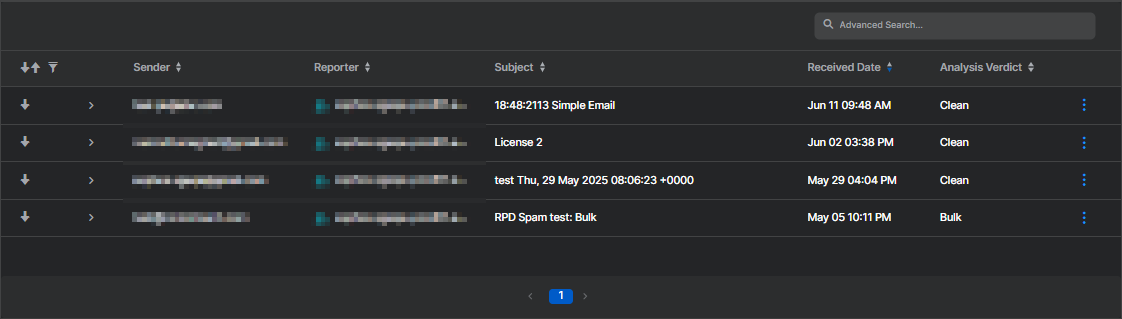
The report table shows the number of processed messages for each date within the selected range. You can sort the table by any column.
Each row represents a message that was submitted to SophosLabs for analysis.
Columns
The report shows the following details:
- Direction: Inbound or Outbound. Click the Filter icon
 and select Inbound, Outbound, or both to filter the rows.
 - Sender: The sender's email address.
- Reporter: The reporter's email address.
- Subject: Click the subject for more details about the message.
- Received Date: Shows the date and time when the message was received.
- Analysis Verdict: Indicates the SophosLabs verdict, such as "Malware", "Impersonation", "Spam", "Bulk", "Uncategorized", and "Clean". The messages that have yet to be analyzed by SophosLabs show as "Analysis pending".
Expanded view
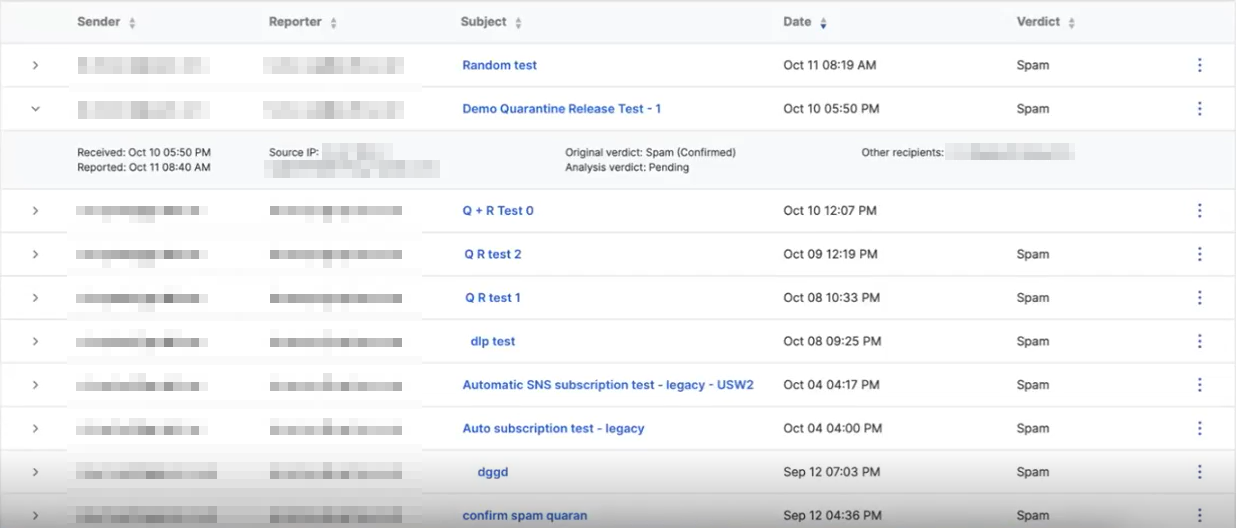
You can expand a row to view detailed information about a reported message. The expanded view includes the following details:
- The timestamp when the message was received
- The timestamp when the message was reported
- The source IP address and sending mail server
- The original message category
- The analysis verdict
- The reporter and other recipients
Actions
In the SophosLabs Analysis Report, you can search for submissions, allow or block senders, and schedule or export reports.
How to search
You can use Advanced Search to search for relevant report submissions.
Note
Enter at least three characters of a word, email address, or IP address to find partial matches. Leave a field blank if you don't want to filter by it.
The following search conditions are available in Advanced Search:
- Sender: Supports partial strings. Not case sensitive.
-
Reporter: Supports partial strings. Not case sensitive.
Example
You can enter
johnto matchjohn.doe@example.com. -
Source: Source IP address or mail server. Supports partial IP address value.
Example
You can enter
192to match192.168.0.1. -
Subject: Supports partial strings. Not case sensitive.
Example
You can enter
testto matchspam test. -
Verdict: Select from Any, Pending, Bulk, Spam, Malware, Impersonation, Uncategorized, Clean, Threats (Malware, Impersonation, Spam).
- Reporting Date: Select date of submission.
You can combine different search conditions. When you use several search conditions, we link them with a logical AND operator. That is, a message must match all search conditions to appear in the results.
After you apply your search conditions, click Search to update the search results.
In your search results, the search conditions you selected appear in the search box. You can adjust your search by clicking the gray cross icon next to a condition to remove it. Your search results are updated immediately.
Allow a sender
You can allow senders only when viewing Reported clean data in the SophosLabs Analysis Report.
Click the three dots  on the right of the report table to allow a sender, sender domain, or an IP address.
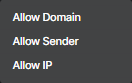
You can add descriptions when allowing a sender's email address, domain, or IP address to specify the reason for each allow entry. For example, a description might be "trusted business partner". You can view and edit these descriptions later on the Inbound Allow/Block list. See Inbound Allow/Block.
Block a sender
You can block senders only when viewing Reported threat data in the SophosLabs Analysis Report.
Click the three dots on the right of the report table to block a sender, sender domain, or an IP address.
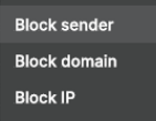
You can add descriptions when blocking a sender's email address, domain, or IP address to specify the reason for each block entry. For example, a description might be "blocked due to spam". You can view and edit these descriptions later on the Inbound Allow/Block list. See Inbound Allow/Block.
Warning
Be careful when you block an IP address. You may accidentally block a whole service. For example, if you block the IP address used by Microsoft 365, you won't receive messages from any Microsoft 365 users.
Schedule a report
You can schedule regular SophosLabs Analysis Report to be sent via email to selected admins.
For information on scheduling a report, see Schedule reports.
Export a report
You can export a SophosLabs Analysis Report that contains a record of activities for a selected date range or the last 90 days. The exported file contains all applied filters at the time of export.
Click Export to download the report as a CSV or PDF file.