Prevent data leaks from SaaS apps
Using Protected Browser, you can prevent unauthorized data transfers from your SaaS applications.
Key steps are as follows:
- Create an application group that contains the applications you want to protect. See Create an application group.
- Create an allow policy for selected user and application groups and apply the required data controls. See Create an allow policy for selected users.
- Create a block policy to prevent all other users from accessing those applications. See Create a block policy for all other users.
Requirement
Make sure users can access the SaaS applications only through Sophos Protected Browser and not through another browser. To do this, configure browser enforcement. See Settings.
Create an application group
Create an application group that contains the applications you want to protect.
To create an application group, do as follows:
- Go to My Products > Protected Browser > Policy objects.
- Click Add object and select Application group.
- Enter a name for the application group.
- Search for the applications you want to protect and select them.
- Click Save.
Note
If a location or site that you want to protect isn't included in a predefined application, create a site list and add the required domains to that site list. See Add a site list.
Create an allow policy for selected users
Create an allow policy for the selected user and application groups, and apply the required data controls.
To create an allow policy, do as follows:
- Go to My Products > Protected Browser > Web policy.
- Click Add policy.
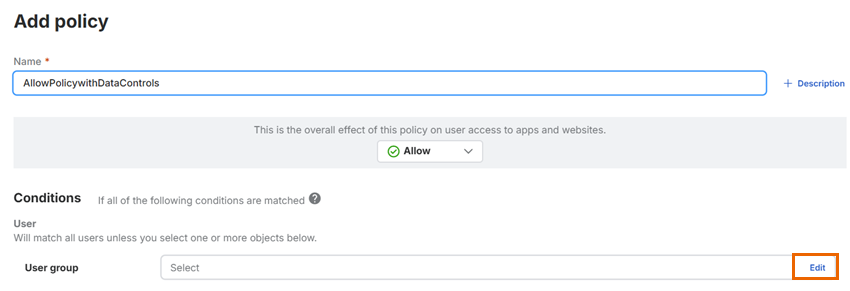
- Enter a name for the policy.
- Keep the action as Allow.
-
In User group, click Edit.
-
Search for the user groups you want to apply the policy to and move them to Assigned.
- Click Save.
- In Application group, select the application group you created for your SaaS applications.
-
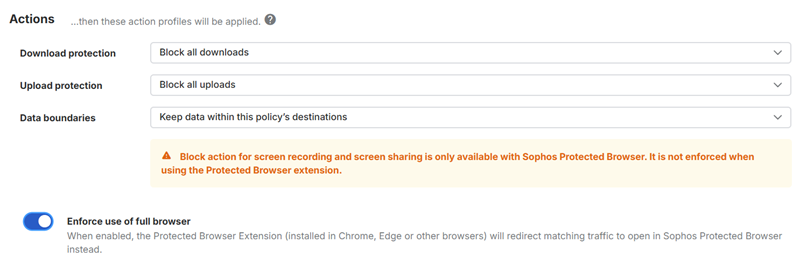
Configure Download protection. For example, select Block all downloads.
For more information, see Download protection.
-
Configure Upload protection. For example, select Block all uploads.
For more information, see Upload protection.
-
Configure Data boundaries as required.
For more information, see Data boundaries.
-
Turn on Enforce use of full browser if users must access the applications through the full browser instead of the browser extension.
- Click Save.
Create a block policy for all other users
Create a block web policy to prevent all other users from accessing those applications.
To create a block web policy, do as follows:
- Go to My Products > Protected Browser > Web policy.
- Click Add policy.
- Enter a name for the policy.
- Change the action to Block.
- Select the application group you created for your SaaS applications.
- Click Save.
-
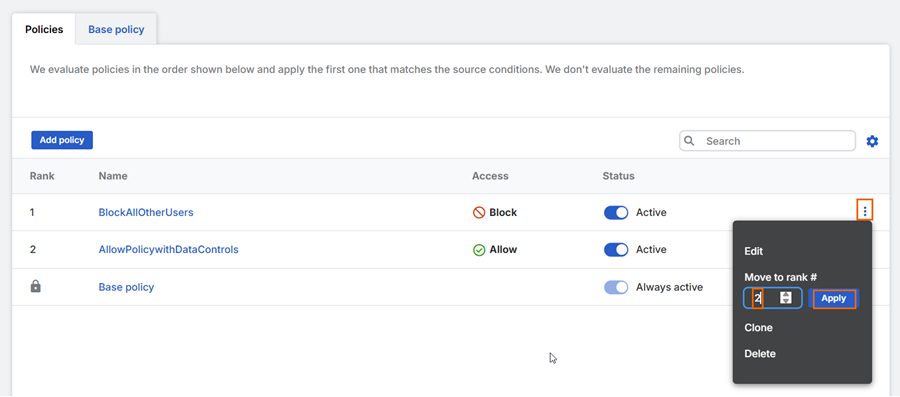
In the Policies table, move the allow policy above the block policy by changing its policy rank. See Update policies.