Protected Browser version
Learn how the Sophos Protected Browser release process works, including Chromium update cycles, security patches, end-of-life schedules, and how to check your browser version.
Release process
Protected Browser uses a two-week release cycle. Each cycle alternates between the following types of releases:
- Chromium and browser features: This release includes the latest major version of Chromium and new Protected Browser features and is released at the beginning of every month.
- Protected Browser engine only: This release adds new Protected Browser features but keeps the existing Chromium major version. This version is released two weeks after the "Chromium and browser features" release.
Security patches
Security fixes are automatically released within 24 hours, or less, after the Chromium team issues an update, ensuring you receive the most up-to-date protection against newly discovered vulnerabilities. When the updated version is available, we begin a gradual rollout process that spans an additional 12 to 24 hours, for a total deployment time of no more than 48 hours. This approach allows us to closely monitor the update process and ensure a seamless experience for all users.
Release schedule example
Here's an example of the release schedule for 30 days:
- Protected Browser version 1.50.x is released including updates from the Chromium 129 release.
- Two weeks later, Protected Browser version 1.51.x is released, and updated with the latest changes in Chromium 129.
- Two weeks after that, Protected Browser version 1.52.x is released including updates from the Chromium 130 release.
Each Protected Browser version release is always up to date with the latest Chromium security content.
Browser version end of life
Protected Browser supports each browser release for up to four months following its initial release.
Each version will be in one of the following four stages at a given time.
| Stage | Release | Timeline |
|---|---|---|
| Stage 1 | Current release | In the first two weeks after the release |
| Stage 2 | Maintained prior release | Between two weeks and three months after the release |
| Stage 3 | Near end-of-life release | Between three and four months after the release |
| Stage 4 | End-of-life release | More than four months after the release |
We recommend that you use the latest version and advise your users to allow updates as soon as they're available.
Failure to keep the browser up to date may result in degraded performance and reduced protection for your users.
Find the browser version
Version numbers are divided into sets of numbers, separated by decimal points. Protected Browser's release version is divided into three parts, for example, 1.86.23. This is the Protected Browser version that appears in the Protected Browser settings. On the user's Windows or Mac devices, the version is divided into four parts, for example, 145.1.86.23. This version includes the major Chromium version 145 and the Protected Browser version 1.86.23.
You can find the browser version in the browser itself or on your Windows or Mac device.
To get step-by-step instructions, click the tab below based on where you're checking the browser version.
To find the Protected Browser version in the browser, do as follows:
- On your device, open Sophos Protected Browser.
-
At the top right, click the three dots
 and select About Sophos Protected Browser.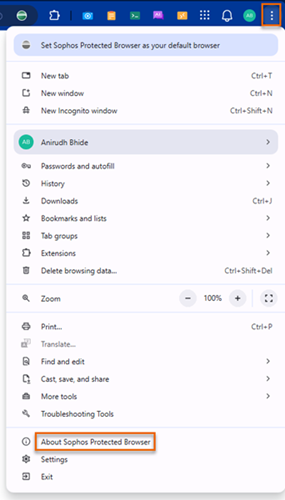
About Sophos Protected Browser shows your current Protected Browser version and whether it's up to date. The version information is determined using the following logic:
Version [Protected Browser_generation].[Protected Browser_major].[Protected Browser_minor] Chromium [Chromium_major].[Chromium_minor].[Chromium_patch].[Chromium_build] ([build_type]) ([processor])
Example
Version 1.86.23 Chromium 145.0.7632.160 (Official Build) (64-bit)
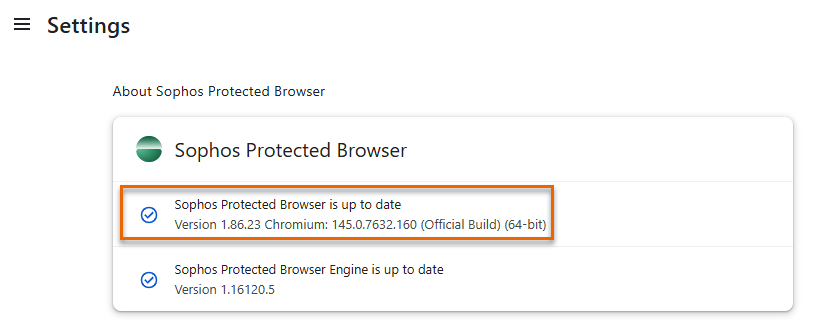
To find the Protected Browser version on your Windows device, do as follows:
- On your Windows device, click Start.
-
Go to Settings > Apps > Installed Apps, and search for Sophos Protected Browser.
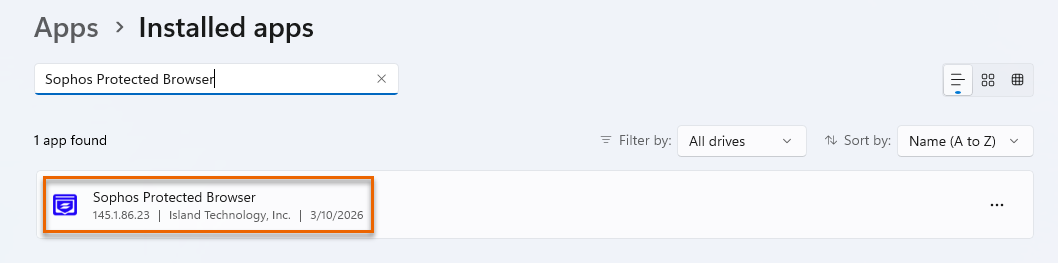
The Sophos Protected Browser app shows your current Protected Browser version and whether it's up to date. The version information is determined using the following logic:
[Chromium_major].[Protected Browser_generation].[Protected Browser_major].[Protected Browser_minor]
Example
145.1.86.23
To find the Protected Browser version on your Mac device, do as follows:
- On your Mac device, click the Apple menu, then click More Info.
- Under General, click System Report.
- On the left pane, expand Software, then click Applications.
-
Search for Sophos Protected Browser.
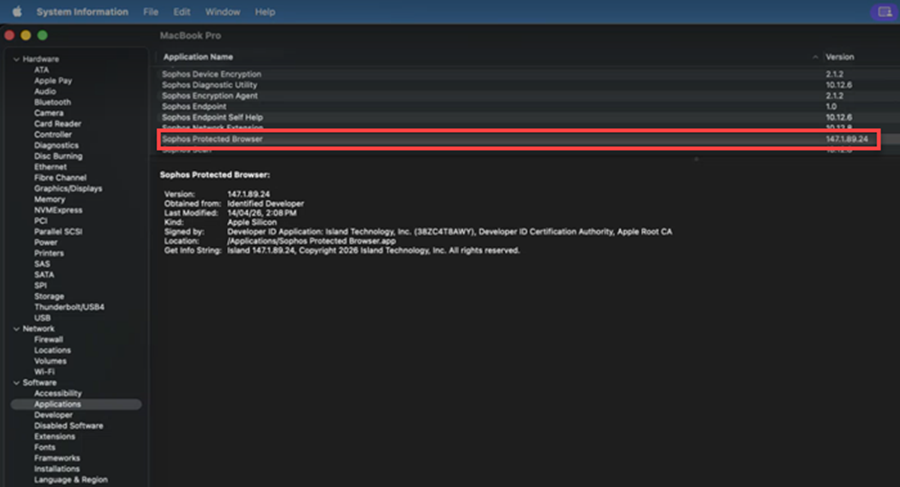
The Sophos Protected Browser app shows your current Protected Browser version and whether it's up to date. The version information is determined using the following logic:
[Chromium_major].[Protected Browser_generation].[Protected Browser_major].[Protected Browser_minor]
Example
145.1.86.23