Bulk install Protected Browser using Microsoft Intune
You can use Microsoft Intune to install Protected Browser on multiple devices at the same time.
The key steps are as follows:
- Download the installer from Sophos Fusion.
- Create a deployable package.
Requirements
To install Protected Browser using Microsoft Intune, you must have the following accounts:
- A Microsoft Intune admin account.
- A Sophos Fusion admin account.
- A Windows admin account to install the package on Windows devices.
Download the installer from Sophos Fusion
To download the Protected Browser installer, do as follows:
- In Sophos Fusion, go to My Environment > Installers.
-
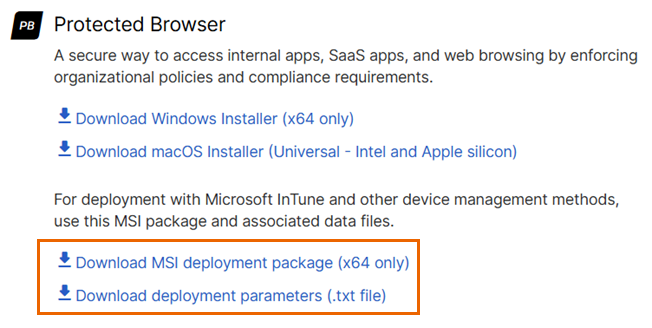
Under Protected Browser, do as follows:
-
For Windows, download the following files:
- Download MSI deployment package (x64 only)
- Download deployment parameters (.txt file)
-
For Mac devices, click Download macOS Installer (Universal - Intel and Apple silicon).
-
The installer you clicked is downloaded to your device.
Create a deployable package
The steps depend on whether you're installing the browser on Windows or Mac devices.
To get step-by-step instructions, click the tab for your device type below.
To create a package for Windows users, do as follows:
- In Microsoft Intune, go to Apps > Windows, then click Add.
- In App Type, select Line-of-business app.
- Under App information, click Select app package file.
- In App package file, upload the
SophosProtectedBrowserStandaloneX64-dev.msifile that you downloaded from Sophos Fusion. - Click OK.
-
Specify the following details:
- Name: Enter a name for the package.
- Description: Enter a description for the package.
- Publisher: Enter Sophos.
- App install context: Select Device.
- Ignore app version: Select Yes.
-
Command-line arguments: Do as follows:
- Open the
installerparams-spb-deployment-dev.txtfile that you downloaded from Sophos Fusion. - Copy its contents.
- Paste the contents of the file in Command-line arguments.
- Open the
-
Click Next.
- In Assignments, select the devices or user groups on which you want to install the browser.
- Click Next.
-
In Review + create, review the details and click Create.
Microsoft Intune shows a notification when the package is created. It then installs the package on the selected devices.
To create a package for Mac users, do as follows:
- In Microsoft Intune, go to Apps > macOS, then click Add.
- In App Type, select macOS app (.pkg) and click Select.
- Under App information, click Select app package file.
- In App package file, select the macOS installer that you downloaded from Sophos Fusion.
- Click OK.
-
Specify the following details:
- Name: Enter a name for the package.
- Publisher: Enter Sophos.
-
Click Next.
- Under Requirements, in Minimum operating system, select the operating system version of your Mac devices.
- Click Next.
-
In Detection rules, specify the following details:
- Ignore app version: Select Yes.
- App bundle ID: Specify an ID for Protected Browser.
- App Version: Enter the Protected Browser version you're installing.
-
Click Next.
- In Assignments, select the devices on which you want to install the browser.
- Click Next.
-
In Review + create, review the details and click Create.
Microsoft Intune shows a notification when the package is created. It then installs the package on the selected devices.