Invite users to install Protected Browser
You can use email invitations to help users install Protected Browser on their managed devices. When users receive the invitation, they can follow the instructions in the email to complete the installation and sign in to the browser with their work account.
You can send email invitations to users from the Users tab on Users & Groups or edit a user to set up an email invitation.
Note
Users must have at least the Read Only role to receive email invitations.
Send email invitations from the users list page
To send email invitations from the users list page, do as follows:
- Go to My Environments > Users & Groups.
- On the Users tab, select the user you want to invite and click Email Setup Link.
-
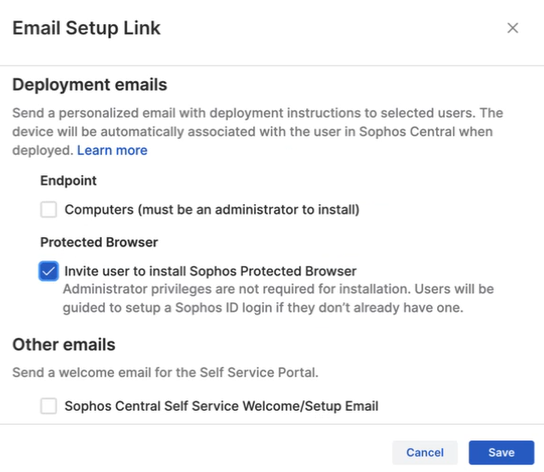
In Email Setup Link, under Protected Browser, select Invite user to install Sophos Protected Browser.
-
Click Save.
The user will receive an email with a link to download the browser.
Set up email invitations by editing the user
To set up email invitations by editing the user, do as follows:
- Go to My Environments > Users & Groups.
- On the Users tab, click the user you want to invite.
-
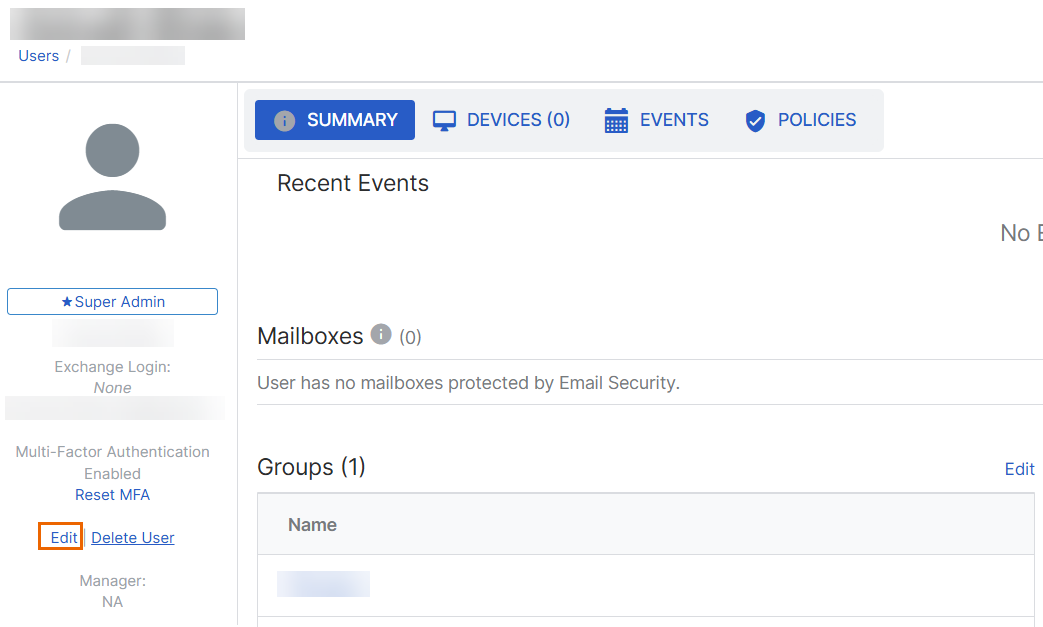
Click Edit.
-
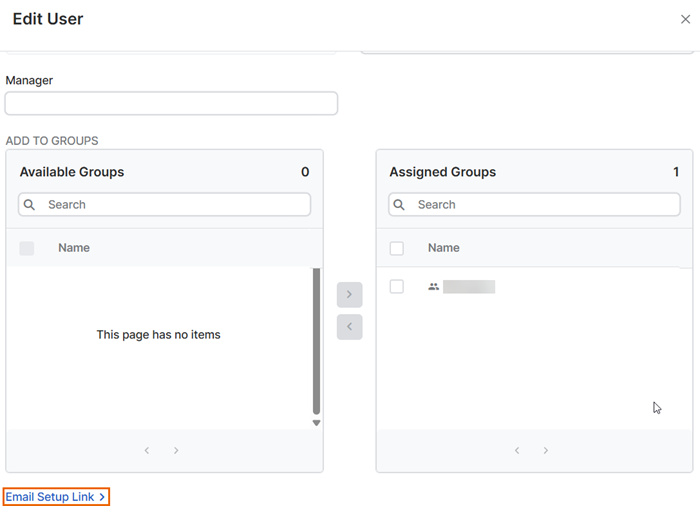
In Edit User, click Email Setup Link.
-
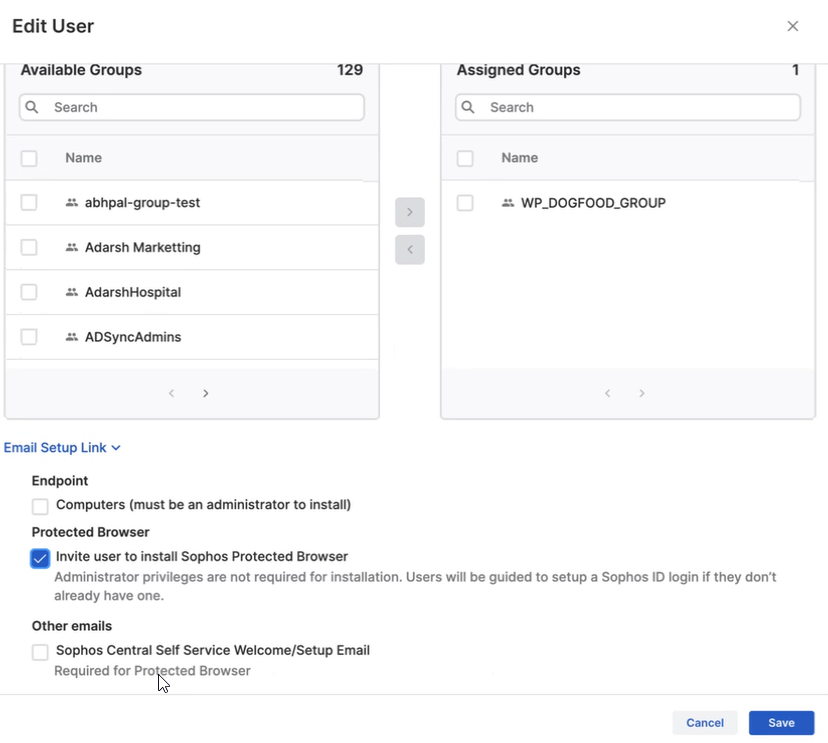
Under Protected Browser, select Invite user to install Sophos Protected Browser.
-
Click Save.
The user will receive an email with a link to download the browser.