Bulk install the extension using Google Enterprise Core
Learn how to install the extension to Google Chrome on Mac and Windows devices using Google Enterprise Core.
Requirements
Make sure you meet the following requirements:
- You've enrolled the Chrome browsers on the Mac and Windows devices in Google Enterprise Core and assigned them to the required organizational unit. See Chrome Enterprise Core and Enroll cloud-managed Chrome browsers.
-
You have administrator access to the following devices and products:
- Mac and Windows devices
- Google admin console
- Sophos Fusion
Download the installation files from Sophos Fusion
In Sophos Fusion, do as follows:
- Go to My Environment > Installers > Protected Browser.
-
Under Browser extension, next to Google Enterprise, click the appropriate installer for your operating system.
This downloads a
.zipfile. It includes theExtensionSettings.jsonfile. Extract the file to your device. -
Copy the extension ID and URL.
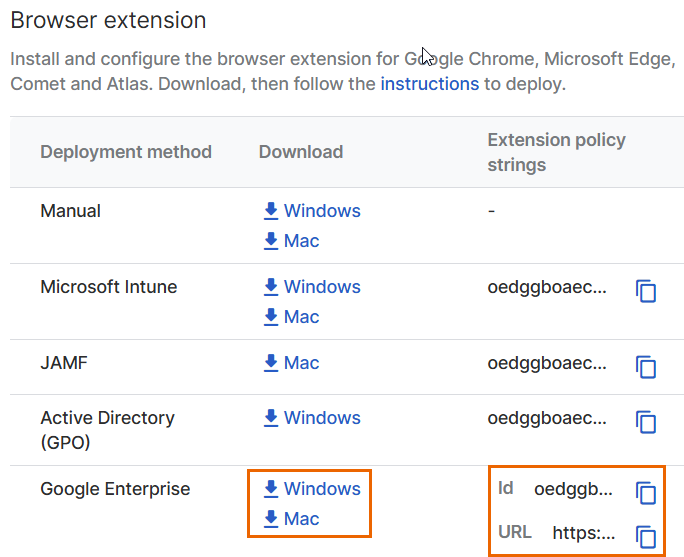
Install the Protected Browser extension on your devices
In the Google admin console, do as follows:
- Go to Chrome browser > Apps & extensions > Users & browsers.
- Select the organizational unit you created for your devices.
-
In the bottom-right, click the plus icon
 , then click Add Chrome app or extension by ID.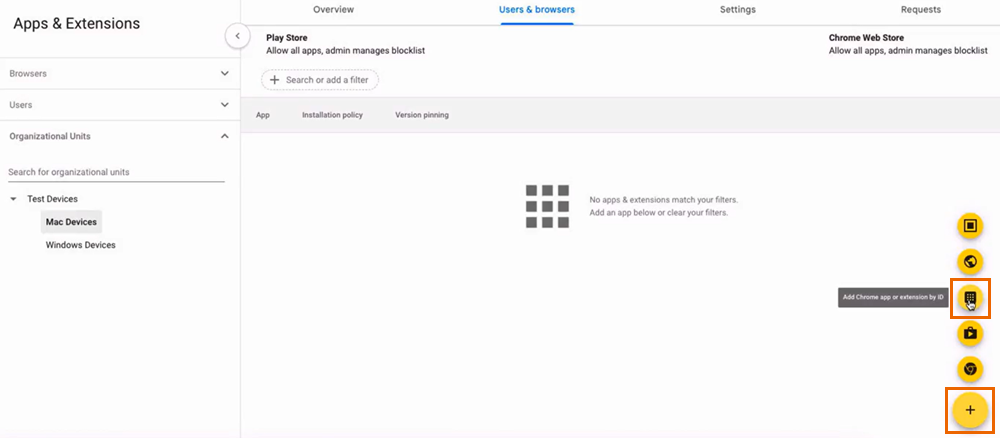
-
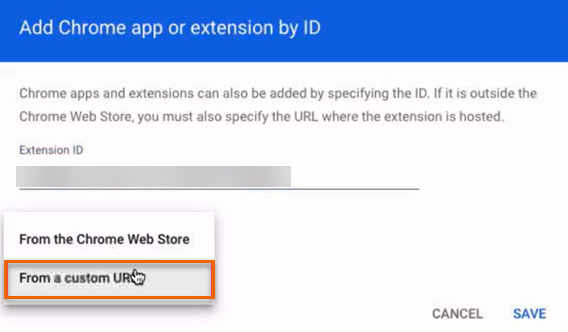
In Extension ID, paste the extension ID you copied from Sophos Fusion.
-
Select From a custom URL, and paste the extension URL you copied from Sophos Fusion.
-
Click Save.
-
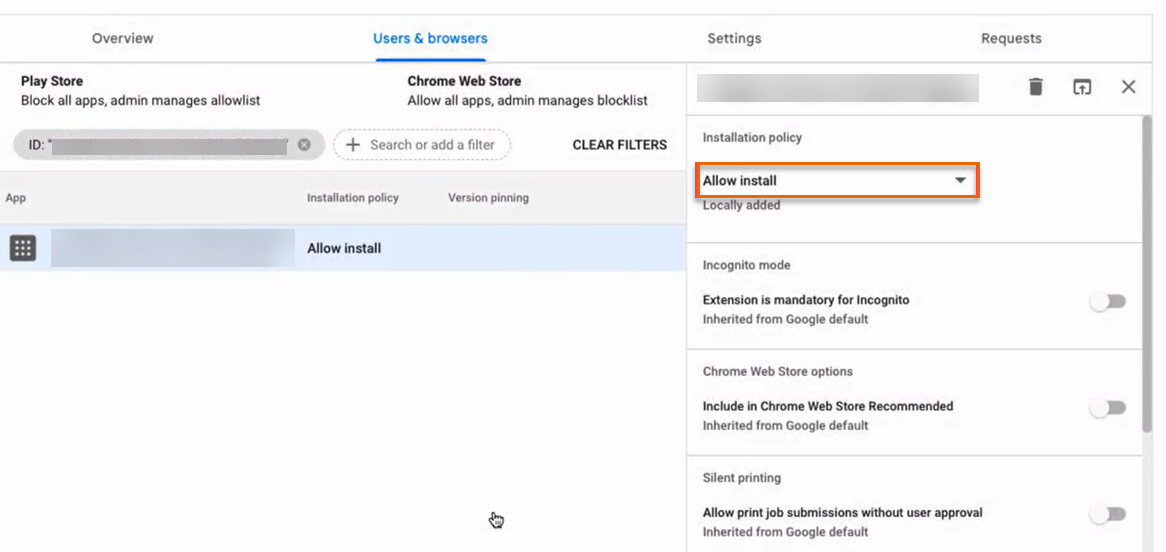
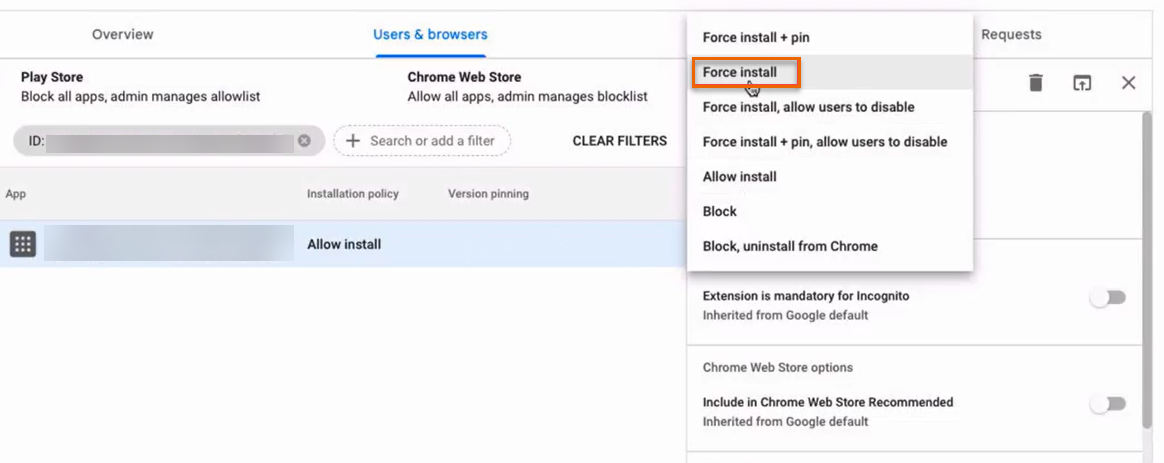
In Installation policy, click Allow install.
-
Click Force install.
-
Go to Policy for extensions and upload the
ExtensionSettings.jsonfile you downloaded from Sophos Fusion. - Click Save.
-
Verify the installation as follows:
- On an enrolled device, open the Chrome browser.
-
In the address bar, type
chrome://policyand click Reload policies.In the Chrome Policies table, check if you can see the ExtensionInstallForcelist policy and its status is OK.
-
In the address bar, type
chrome://extensionsand check if you can see the Protected Browser extension. You may see the following message:Sophos extension is installed and managed by the organization.
Install the extension utility
To use device posture policy objects in web policies, you must install the extension utility on users' devices. The .zip file you downloaded from Sophos Fusion includes the ExtensionUtility.exe installer for Windows devices and the ExtensionUtility.pkg installer for Mac devices. Run this installer directly on each device on which you've installed the extension.