Install the extension on Mac devices manually
You can install the Sophos Protected Browser extension manually on the Google Chrome, Atlas, Comet, and Microsoft Edge browsers on your Mac devices.
Requirements
Make sure you meet the following requirements:
-
Your Mac devices are enrolled in a Mobile Device Management (MDM) solution.
Note
The files you download and run on macOS modify the ExtensionForceinstallList settings used by Chrome and Edge. If these settings are already managed through an MDM, remove the MDM-managed configuration before installing the extension manually. macOS doesn't merge MDM-managed and locally installed profiles. Instead, it applies only one profile.
-
You have administrator access to the following devices and products:
- Mac devices
- Sophos Fusion
Download the installation files from Sophos Fusion
In Sophos Fusion, do as follows:
- Go to My Environment > Installers > Protected Browser.
-
Under Browser extension, next to Manual, click Mac.
This downloads a
.zipfile. It includes the installation files for the Google Chrome, Atlas, and Microsoft Edge browsers. -
Extract the file to your device.
Install the extension on Mac devices
On the Mac device, do as follows:
-
Go to the folder where you extracted the installation files and double-click the force installation file for your browser.
For example, for Chrome, double-click
ChromeForceInstallExtension.mobileconfig.This creates a configuration profile for the force installation settings.
-
Go to System Settings and search for
Profiles. -
In Profiles, under Downloaded, install the profile.
For example, for Chrome, double-click
Install Island Extension Chrome.Here's an example of the
Install Island Extension Chromeprofile.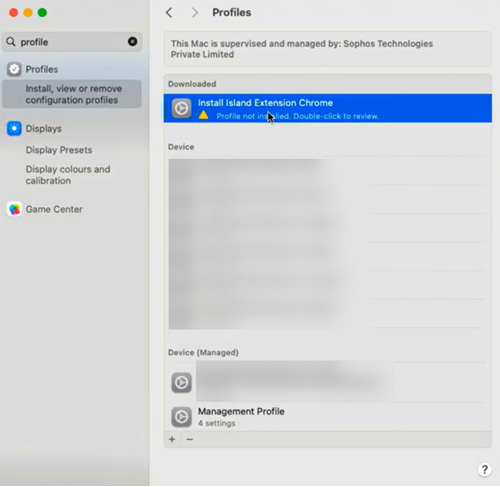
-
Click Install when prompted and enter the Mac device's administrator password.
This installs the extension to your chosen browser.
-
Go to the folder where you extracted the installation files and double-click the extension settings file for your browser.
For example, for Chrome, double-click
ChromeExtensionSettings.mobileconfig.This creates a configuration profile for the custom extension settings.
-
In Profiles, under Downloaded, set up the extension settings profile.
For example, for Chrome, double-click the
Setup Island Extension on Chromeprofile. -
Click Install when prompted and enter the Mac device's administrator password.
This configures the Protected Browser settings on your extension.
-
Go to the folder where you extracted the installation files.
-
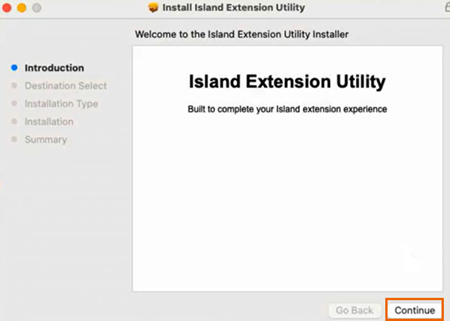
Double-click the
ExtensionUtility.pkgfile.Tip
You must install the extension utility if you want to create web policies with device posture policy objects.
This file is common for all browsers.
-
In the utility, click Continue.
-
Click Install and enter the Mac device's administrator password.
This completes the installation and setup of the Protected Browser extension on your browser.
Users are prompted to sign in with their credentials before they can use the extension.
Uninstall the extension
To uninstall the extension, you must remove the profiles you created for force installation and custom extension settings. You must also uninstall the extension utility.
To uninstall the extension, do as follows:
- Go to System Settings and search for
Profiles. - Select a profile and click Remove.
- Enter the Mac device's administrator password to complete the uninstallation.
-
To uninstall the extension utility, run the following command:
sudo /usr/local/island/island-nmh/uninstall