Bulk install the extension using Microsoft Intune
You can use Microsoft Intune to install the extension on multiple devices.
Requirements
To install Protected Browser using Microsoft Intune, you must have the following accounts:
- A Microsoft Intune admin account.
- A Sophos Fusion admin account.
- An admin account for all the devices on which you want to install the extension.
- Google Chrome and Microsoft Edge browsers must have permission to install extensions from external resources.
Download the installer from Sophos Fusion
To download the installer, do as follows:
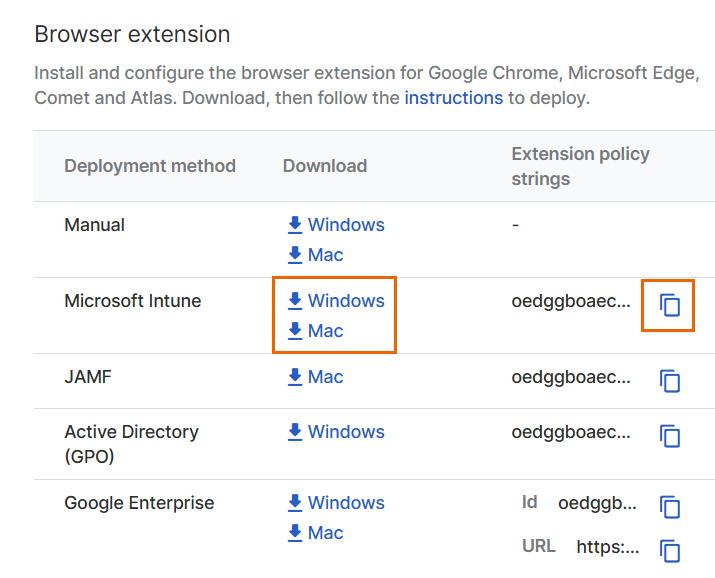
- In Sophos Fusion, go to My Environment > Installers.
-
Under Browser extension, next to Microsoft Intune, click the appropriate installer for your operating system.
This downloads a
.zipfile. It includes the installation files. Extract the file to your device. -
Copy the extension URL.
Configure Microsoft Intune to install the extension
The steps depend on whether you're installing the extension on Windows or Mac devices.
To get step-by-step instructions, click the tab for your device type below.
In the Microsoft Intune Admin Center, do as follows:
- Go to Devices > Windows > Configuration profiles > Create > New policy.
-
Specify the Settings Catalog as follows:
- Set Platform to Windows 10 and later.
- Set Profile type to Settings catalog.
- Click Create and enter a name for the profile.
-
In Configuration settings, click Add settings.
-
Add the extension URL for your browser as follows:
- For Google Chrome, go to Google > Google Chrome > Extensions, turn on Configure the list of force-installed apps and extensions, and enter the extension URL you copied from Sophos Fusion.
- For Microsoft Edge, go to Microsoft Edge > Extensions, turn on Configure the list of force-installed apps and extensions, and enter the extension URL you copied from Sophos Fusion.
-
Click OK, then click Apply.
- Go to Devices > Windows, and click PowerShell scripts.
-
Upload the PowerShell script you downloaded from Sophos Fusion for your browser.
For example, for Google Chrome, upload
ChromeExtensions.ps1. -
Click Next.
- In Assignments, select the devices on which you want to install the extension.
- Click Next.
- In Review + create, review the details and click Create.
In the Microsoft Intune Admin Center, do as follows:
- Go to Devices > macOS > Configuration profiles, and click Create Profile.
- Under Profile type, select Templates.
- Click Custom, then click Create.
- Enter a name for the profile.
- Under Deployment channel, select Device channel.
-
Under Configuration profile file, upload the force installation file for your browser from the ZIP file you downloaded from Sophos Fusion.
For example, for Google Chrome, upload the
ChromeForceInstallExtension.mobileconfigfile. -
Click Next.
- In Assignments, select the devices on which you want to install the extension.
- Click Next.
- In Review + create, review the details and click Create.
Repeat this procedure to upload the extension settings file. For example, for Chrome, create another profile and upload the ChromeExtensionSettings.mobileconfig file.
Install the extension utility
To use device posture policy objects in web policies, you must install the extension utility on users' devices. The .zip file you downloaded from Sophos Fusion includes the ExtensionUtility.exe installer for Windows devices and the ExtensionUtility.pkg installer for Mac devices. Run this installer directly on each device on which you've installed the extension.