Troubleshooting
Troubleshoot Protected Browser issues.
ZTNA and Protected Browser use case
Agentless RDP or SSH resource isn't added
Issue
Adding or editing an agentless RDP or SSH resource in ZTNA or in an application group in Protected Browser fails.
What to do
Make sure all users in user groups have a valid email address.
To check this, do as follows:
- Go to My Environment > Users & Groups > Users.
-
Check the Email column.

-
In your directory service, or in Sophos Fusion if you've added users manually, add a valid email address for users who don't have one.
Agentless RDP or SSH resources aren't accessible
Issue
You can't access ZTNA agentless RDP or SSH resources through Protected Browser.
What to do
Check whether you can access the ZTNA user portal through Protected Browser. If you can't access it, check whether the device from where you're accessing the resource can resolve the ZTNA gateway FQDN. Use nslookup to test the DNS resolution.
For a Sophos Cloud gateway, the DNS request must resolve to the gateway proxy.
For an on-premises gateway, the DNS request must resolve to the ZTNA gateway configured in your DNS server.
In the following example, the ZTNA gateway is configured as a Sophos Cloud gateway with the FQDN ztna.testdomain, and the DNS request resolves to the gateway proxy ap-south-1.
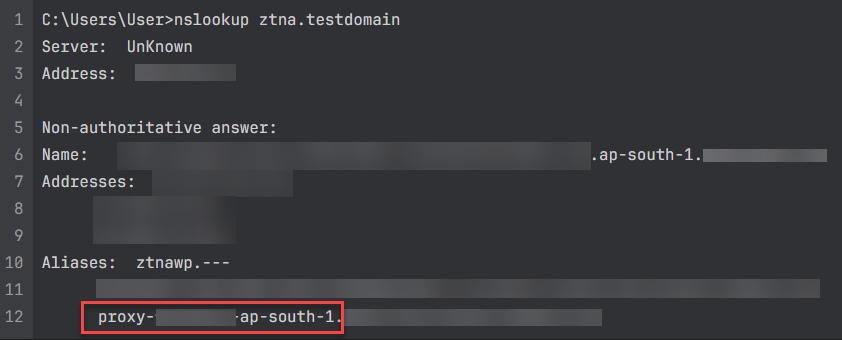
DNS resolution output
If the device can't resolve the ZTNA gateway FQDN, check your DNS configuration. See Add your DNS settings.
Network unreachable or failed to make the connection
Issue
If ZTNA uses an identity provider (IDP) such as Okta or Entra ID, but the user signs in to Protected Browser with their Sophos ID or as a local user when accessing an SSH or RDP app behind a ZTNA gateway, authentication may fail with the "Network unreachable" or "Failed to make the connection" error messages.
What to do
If an IDP is configured in ZTNA, users must sign in to Protected Browser through the configured IDP when accessing SSH or RDP apps behind a ZTNA gateway.
Access issues
User can't sign in to Protected Browser
Issue
Signing in to Protected Browser fails for a user.
What to do
To resolve this, try the following solutions:
-
Check whether the user has access to Sophos Fusion Self Service Portal. Do as follows:
- Go to My Environment > Users & Groups > Users.
-
Check the Role column.

The Role column must show SelfService.
Alternatively, you can click the name of the user in the table. If the user has access to Sophos Fusion Self Service Portal, the text under the profile photo will be SelfService.
 .
.
To give Self Service Portal access, see Give Self Service Portal access.
-
Make sure the user's email address isn't associated with multiple Sophos Fusion accounts.
SSH access to a known host fails
Issue
When you're accessing a known host using an SSH client, you get the following error message:
"Host key verification failed"
This might happen when a server's key changes legitimately, for example, after a reinstallation.
What to do
To resolve this error, do as follows:
-
Remove the host's old key from your device.
This may vary based on the SSH client you're using.
For example, in your SSH client, click Clear known host.

-
Accept the new key when you reconnect.