Policies
You can use policies to override the base policy settings to meet your organization's needs. Each policy has an overall effect, Allow, Block, or Warn, which determines how web access is handled. To create a policy, choose the overall effect, define the conditions it applies to, and set the specific actions for those conditions.
For example, create a policy that allows the Finance user group to access all business-related websites, allows them to download files from these sites, but doesn't allow them to upload any files or copy data outside of Protected Browser.
Conditions
Conditions specify the matching criteria to which the policy applies.
You can specify the following user and device matching criteria:
- User groups
- Device postures, such as Windows or MAC devices
These two criteria use an AND operation. So, both criteria must match for the policy to apply.
You can specify the following destination matching criteria:
- Application groups
- Site lists
- Web categories
Destination criteria use an OR operation. The browser applies the policy if any one of the criteria matches.
You must add user groups to Sophos Fusion before selecting them as matching criteria in a policy. See Set up users and directories.
You must add device postures, application groups, site lists, and web categories as policy objects before selecting them as matching criteria in a policy. See Policy objects.
Action profiles
You can use action profiles to apply download, upload, and data boundary protections to the selected conditions.
Download protection
You can allow, block, or scan file downloads for the selected conditions.
You can specify one of the following action profiles:
- Block all downloads: Blocks all file downloads.
- Allow all downloads without scanning: Allows all file downloads without scanning them or checking the reputation of their URLs.
- Scan risky downloads and block if unscannable: Scans all text, Microsoft Office, and PDF files, checks the reputation of their URLs, and blocks unscannable files.
- Scan risky downloads and allow if unscannable: Scans all text, Microsoft Office, and PDF files, checks the reputation of their URLs, and allows unscannable files.
- Scan only executable downloads: Scans all binary and executable files, checks the reputation of their URLs, and allows unscannable files.
Note
The browser scans all files based on their reputation using the Sophos Extensible List (SXL). In certain cases, specific files are overridden and scanned by Sophos Intellix for deeper analysis.
Upload protection
You can allow, block, or scan file uploads for the selected conditions.
You can specify one of the following action profiles:
- Block all uploads: Blocks all file uploads.
- Allow all uploads without scanning: Allows all file uploads without scanning or checking the reputation of their URLs.
- Scan risky file uploads and block if unscannable: Scans all text, Microsoft Office, and PDF files, checks the reputation of their URLs, and blocks unscannable files.
- Scan risky file uploads and allow if unscannable: Scans all text, Microsoft Office, and PDF files, checks the reputation of their URLs, and allows unscannable files.
- Block document and text uploads, scan other file types: Blocks all document or text files, scans and runs a URL verification check on other file types, and allows unscannable files.
Note
The browser scans all files based on their reputation using the Sophos Extensible List (SXL). In certain cases, specific files are overridden and scanned by Sophos Intellix for deeper analysis.
Data boundaries
You can allow, block, or show a warning for actions such as screenshot and screen sharing, printing, saving web pages, and clipboard actions such as cut, copy, and paste.
Note
Clipboard-related boundaries don't apply to the browser's address bar.
The following table describes all available data boundary action profiles:
| Data boundary actions | Description |
|---|---|
| Allow all | Allows all actions. |
| Allow copy/paste outside the browser - block pasting inwards | Allows you to cut or copy data from the selected applications and paste it into other applications. You can't paste data from external sources into the selected applications. For example, under Application groups, if you've selected ChatGPT, you can cut or copy data from ChatGPT and paste it into applications outside the selected group. You can't paste data from external applications into ChatGPT. |
| Keep data within this policy's destinations | Keeps data within the destinations you select in the policy. For example, under Application groups, if you've selected Jira and Salesforce, you can cut, copy, and paste data within these applications. You can't paste data from these applications into other applications. |
| Keep data within this policy's destinations - allow and log bypass | Keeps data within the destinations you select in the policy, but logs any allowed actions. For example, under Application groups, if you've selected Jira and Salesforce, you can cut, copy, and paste data within these applications. You can't paste data into other applications. The cut, copy, and paste actions are logged. |
| Keep data within this policy's destinations - allow pasting from outside | Keeps data within the destinations you select in the policy. For example, under Application groups, if you've selected Jira and Salesforce, you can cut and copy data within these applications. You can paste data to and from other applications. |
| Keep data within this policy's destinations - allow screenshare and recording | Keeps data within the applications selected in the policy but allows screen sharing and screen recording for those applications. For example, under Application groups, if you've selected Jira and Salesforce, you can cut, copy, and paste data within Jira and Salesforce. You can't paste data from Jira or Salesforce into other applications. You can share and record the screen for the applications selected in this policy. |
| Keep data within the Protected Browser | Keeps all data within the browser. You can cut, copy, and paste data within the browser only. You can paste text from outside into the browser. |
The following table shows what each boundary action profile allows or blocks:
| Data boundary actions | Settings |
|---|---|
| Allow all | Screen capture, sharing, and recording: Allowed Printing: Allowed Save page: Allowed Cut, copy, paste: Allowed |
| Allow copy/paste outside the browser - block pasting inwards | Screen capture, sharing, and recording: Allowed Printing: Allowed Save page: Allowed Cut, copy, paste: You can cut and copy data and paste it in to resources outside the browser. Allow paste from external sources: No |
| Keep data within this policy's destinations | Screen capture, sharing, and recording: Blocked Allow end-users to temporarily bypass screen capture, sharing, and recording protection: No Printing: Blocked Save page: Blocked Cut, copy, paste: All allowed, but can't paste text outside of the selected destinations. Allow paste from external sources: No |
| Keep data within this policy's destinations - allow and log bypass | Screen capture, sharing, and recording: Blocked Allow end-users to temporarily bypass screen capture, sharing, and recording protection: Yes Printing: Allowed after a warning Save page: Allowed after a warning Cut, copy, paste: Allowed, but you can't paste text outside of the selected destinations. Allow paste from external sources: No |
| Keep data within this policy's destinations - allow pasting from outside | Screen capture, sharing, and recording: Blocked Allow end-users to temporarily bypass screen capture, sharing, and recording protection: No Printing: Blocked Save page: Blocked Cut, copy, paste: Cut and copy are blocked. Paste is allowed. Allow paste from external sources: Yes |
| Keep data within this policy's destinations - allow screenshare and recording | Screen capture, sharing, and recording: Allowed Allow end-users to temporarily bypass screen capture, sharing, and recording protection: Yes Printing: Blocked Save page: Blocked Cut, copy, paste: Allowed, but you can't paste text outside the selected destinations. Allow paste from external sources: No |
| Keep data within the Protected Browser | Screen capture, sharing, and recording: Blocked Allow end-users to temporarily bypass screen capture, sharing, and recording protection: No Printing: Blocked Save page: Blocked Cut, copy, paste: Allowed, but within the browser only. Allow paste from external sources: Yes |
Policy evaluation
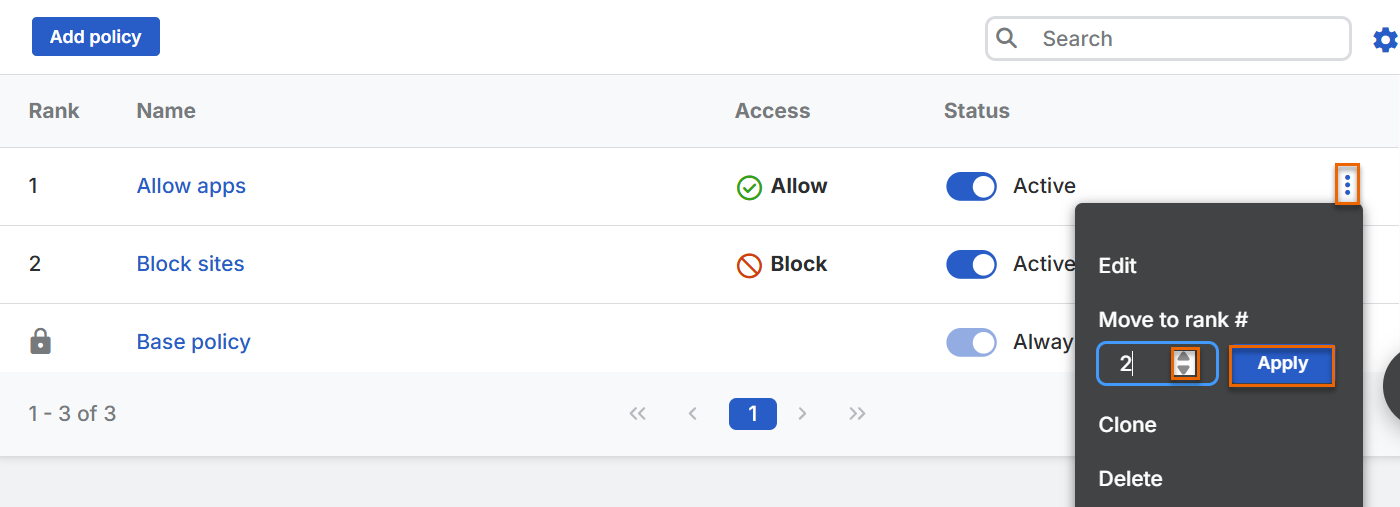
Protected Browser evaluates policies in the order shown in the policies table and applies the first one that matches the specified conditions. So, a policy's Rank determines how the browser evaluates the policy. The lower the rank number, the higher its probability of being evaluated. If a policy is ranked 1, it's evaluated before all the other policies in the table. If all the conditions in the policy match, the browser doesn't evaluate the remaining policies in the table.
If you want the browser to evaluate a policy that's positioned lower in the table before policies positioned above it, change the policy's rank. For example, if you want the browser to evaluate a policy ranked 4 before polices ranked 2 and 3, change that policy's rank to 2.
Policy details
The Policies tab lists the base policy and all the policies you've created. It shows the following details for each policy:
- Rank: Shows the policy's rank.
- Name: Shows the name of the policy.
- Access: Shows whether the policy's overall effect is Allow, Block, or Warn.
- Status: Shows whether the policy is Active or Not active. If it's Active, the browser evaluates the policy based on its rank. If it's Not active, the browser doesn't evaluate the policy. To change the policy's status, turn it on or off and click Update.
Update policies
You can update the policies as follows:
- To edit a policy, click its name or click the three dots and click Edit.
- To clone a policy, click the three dots and click Clone.
-
To delete a policy, click the three dots and click Delete.
Note
You can't delete or clone the base policy or change its rank.
-
To change a policy's rank, do as follows:
- Click the three dots for that policy.
-
Under Move to rank #, move the arrow up or down to change the rank and click Apply.