Task queue
The task queue shows an overview of actions and their status that have been carried out on the switch. You can also synchronize settings between Sophos Fusion and the switch.
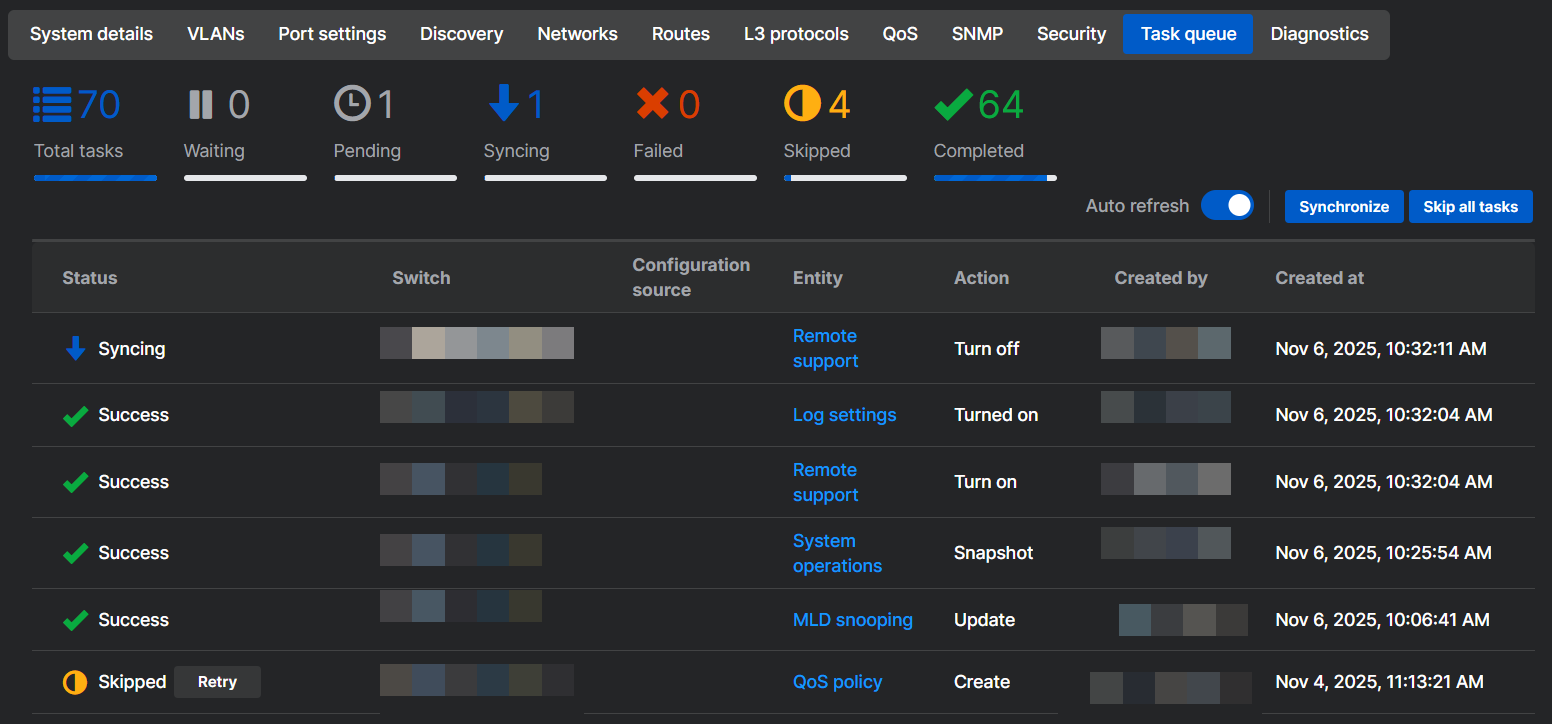
Turn on Auto refresh to automatically refresh the task queue when new actions are taken.
Click Synchronize to synchronize changes made in Sophos Fusion with the switch.
The Task queue shows the following information:
-
Status: Shows one of the following statuses for the task:
- Success: The task completed successfully.
- Waiting: The task is configured in Sophos Fusion and is waiting to be sent to the switch.
- Pending: The task is pending in Sophos Fusion.
- Syncing: Sophos Fusion has sent the task to the switch and is waiting for confirmation.
- Failed: The task failed.
- Skipped: The task has been skipped. Click Retry to synchronize the task with the switch.
- Suspended: Firmware is out of date and needs to be updated.
You can use the Skip button to skip tasks with created, pending, and failed statuses.
You can use the Retry button to retry tasks with failed or skipped statuses.
-
Switch: Shows the serial number of the switch for which the task is created.
- Configuration source: Shows the origin of the task.
- Entity: Shows the switch module to which the task is related. Click the entry in the Entity column to see the details for that task.
- Action: Shows one action taken by the task. For example, Create when a new configuration is added or Update when an existing configuration is changed.
- Created by: Shows the Sophos Fusion account that created the task.
- Created at: Shows the date and time the task was created.
If the queue contains more than 10 tasks, Sophos Fusion separates the table into pages. You can view 10, 25, or 50 tasks per page.