Configure Entra ID for AP6 authentication
Sophos Fusion Wireless supports Microsoft Entra ID as an identity provider (IdP) for AP6 SSIDs that use enterprise encryption.
Prerequisites
Before configuring Entra ID for AP6 authentication, you must configure user accounts, make sure your devices meet the following requirements, and verify you're not using unsupported features.
- Users: To configure user accounts in Entra ID, see How to create, invite, and delete users.
- EAP method: Only EAP-TTLS with PAP inner authentication is supported.
-
Device compatibility: Windows and Android devices don't support TTLS/PAP with WPA3 enterprise, so the SSID must have the Encryption mode set to WPA2/WPA3 Enterprise.
Apple devices must have a wireless configuration profile with the following settings installed:
- EAP method: TTLS
- Inner authentication: PAP
Tip
You can use Apple Configurator to create and install the profile. See Apple Configurator Support.
-
Unsupported features: You can't use Sophos Fusion RADIUS authentication for the following features:
- RADIUS-assigned VLAN
- RADIUS accounting
- Captive Portal backend authentication
Create the Entra ID application
You must create an application in Entra ID so that Sophos Fusion can authenticate users.
- Sign in to the Microsoft Entra admin center.
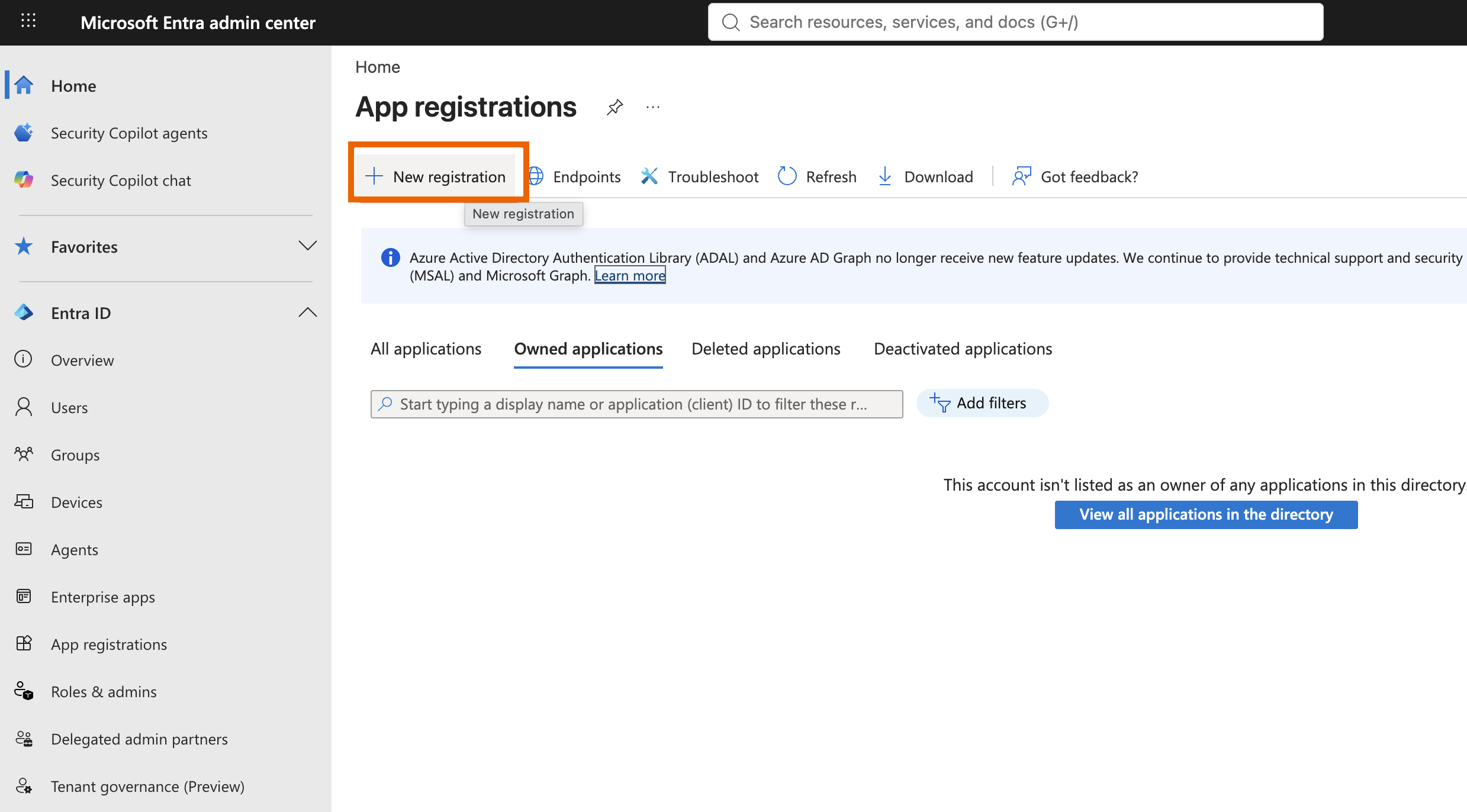
- Go to Entra ID > App registrations.
-
Click New registration.
-
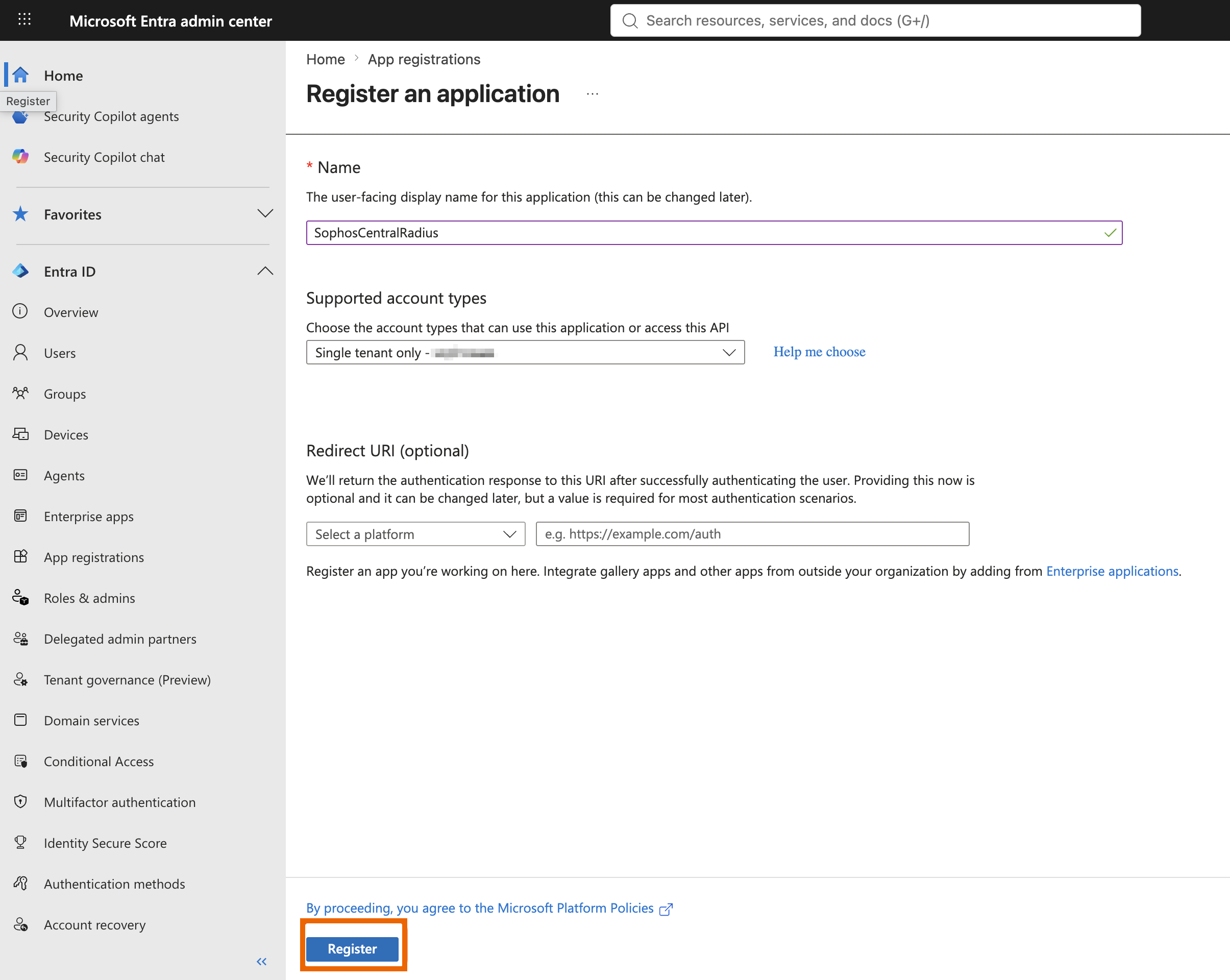
Enter a Name.
- Select Single tenant only for Supported account types.
- Leave Redirect URI blank unless required in your environment.
-
Click Register.
Get the application details
After you create the application, you must copy the credentials so that you can enter them into Sophos Fusion when you add Entra ID as an external IdP.
- In the Microsoft Entra admin center, go to Entra ID > App registrations and select your app.
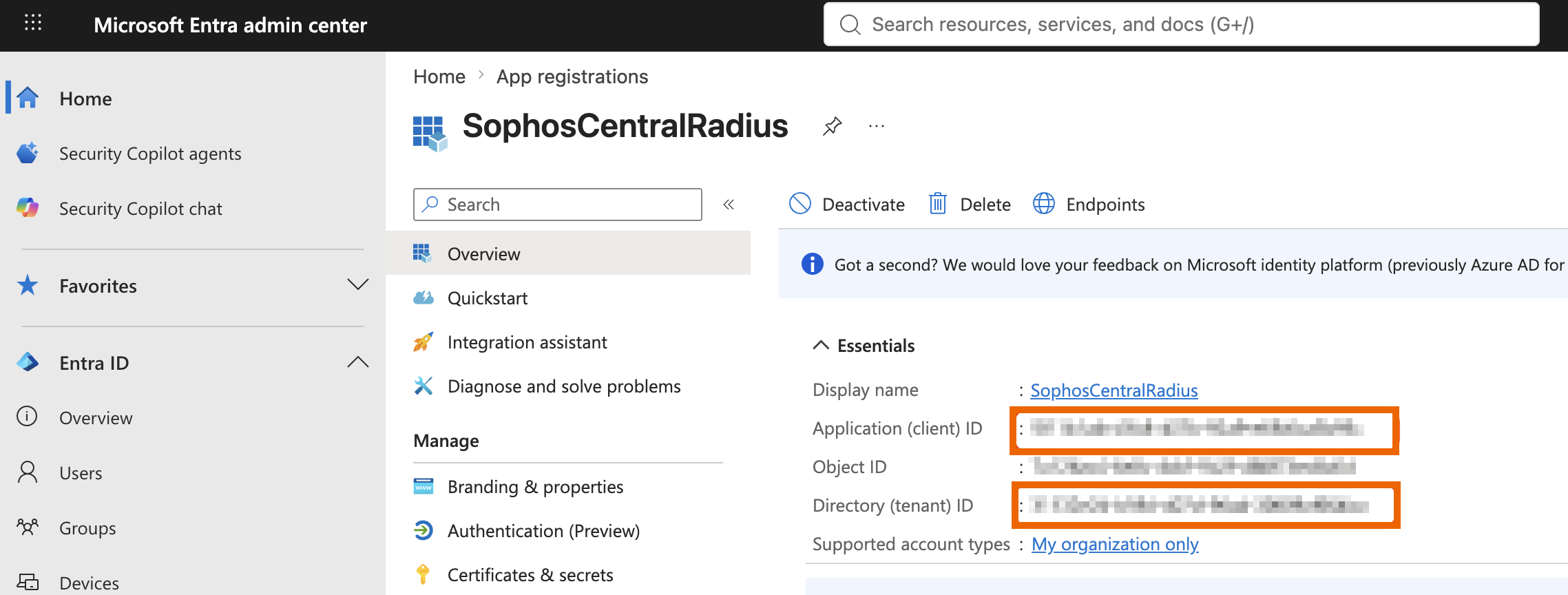
- Click Overview.
-
Note the Application (client) ID and Directory (tenant) ID. You'll need both these values in Sophos Fusion.
-
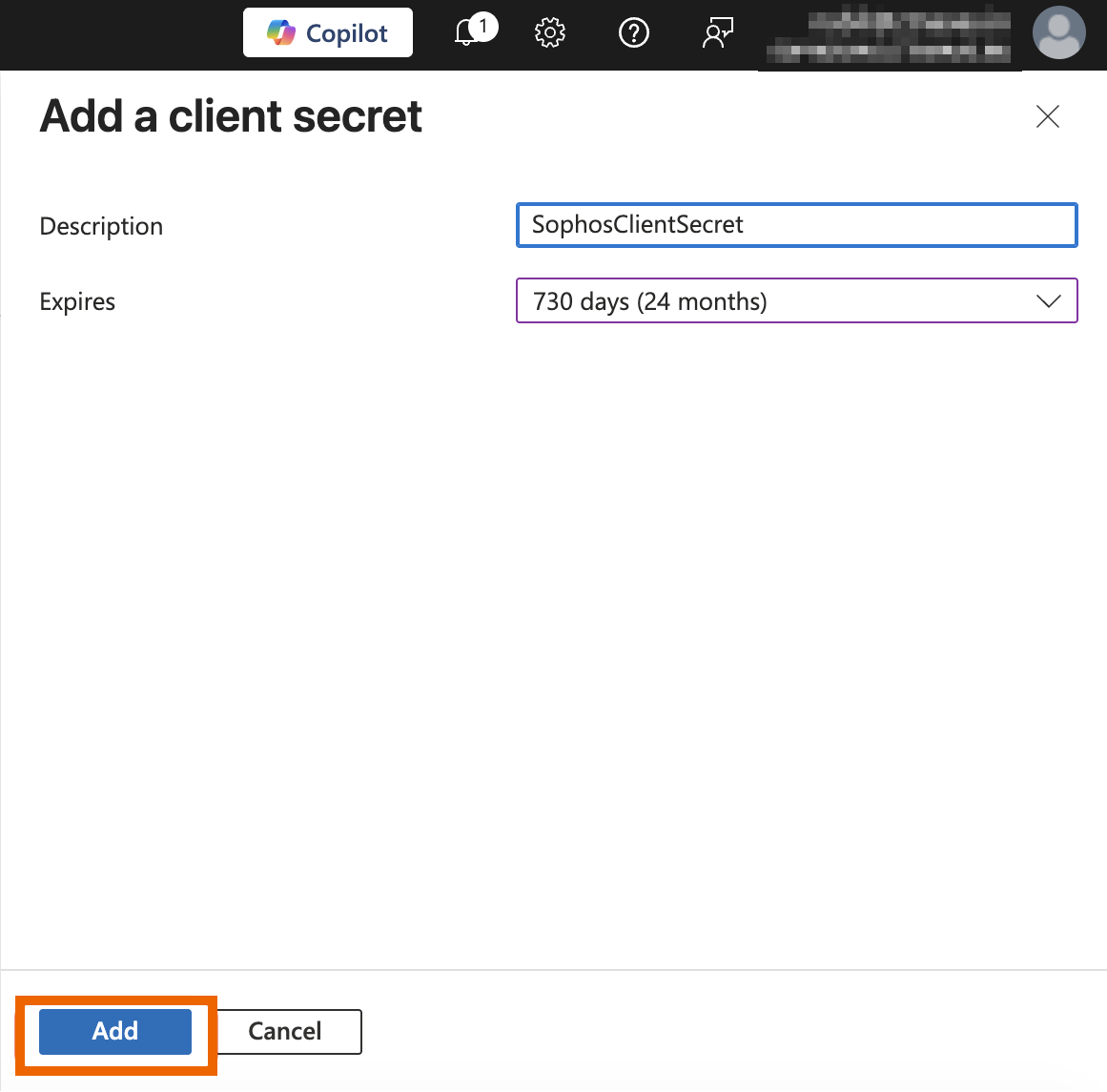
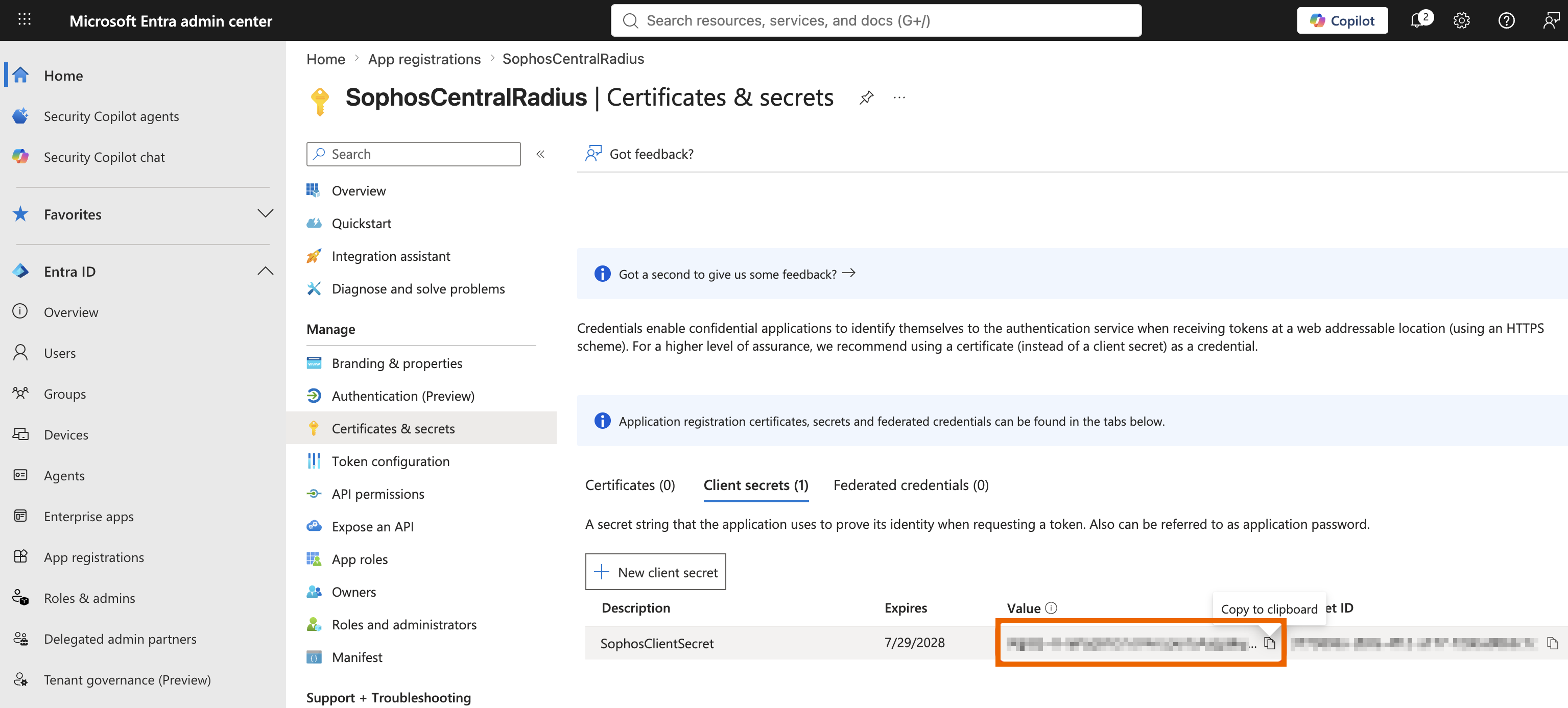
In your app, go to Certificates & secrets > Client secrets > New client secret.
- Enter a description.
- For Expires, select how long the secret will be valid for.
-
Click Add.
-
Click the Copy to clipboard button
 to copy the secret.
Warning
You must copy the secret when it's created. You can't see it again. If you lose the secret, you must create a new one.
-
Go to Entra ID > Domain names > Custom domain names.
-
Make a note of the Name and make sure the Status is Verified.
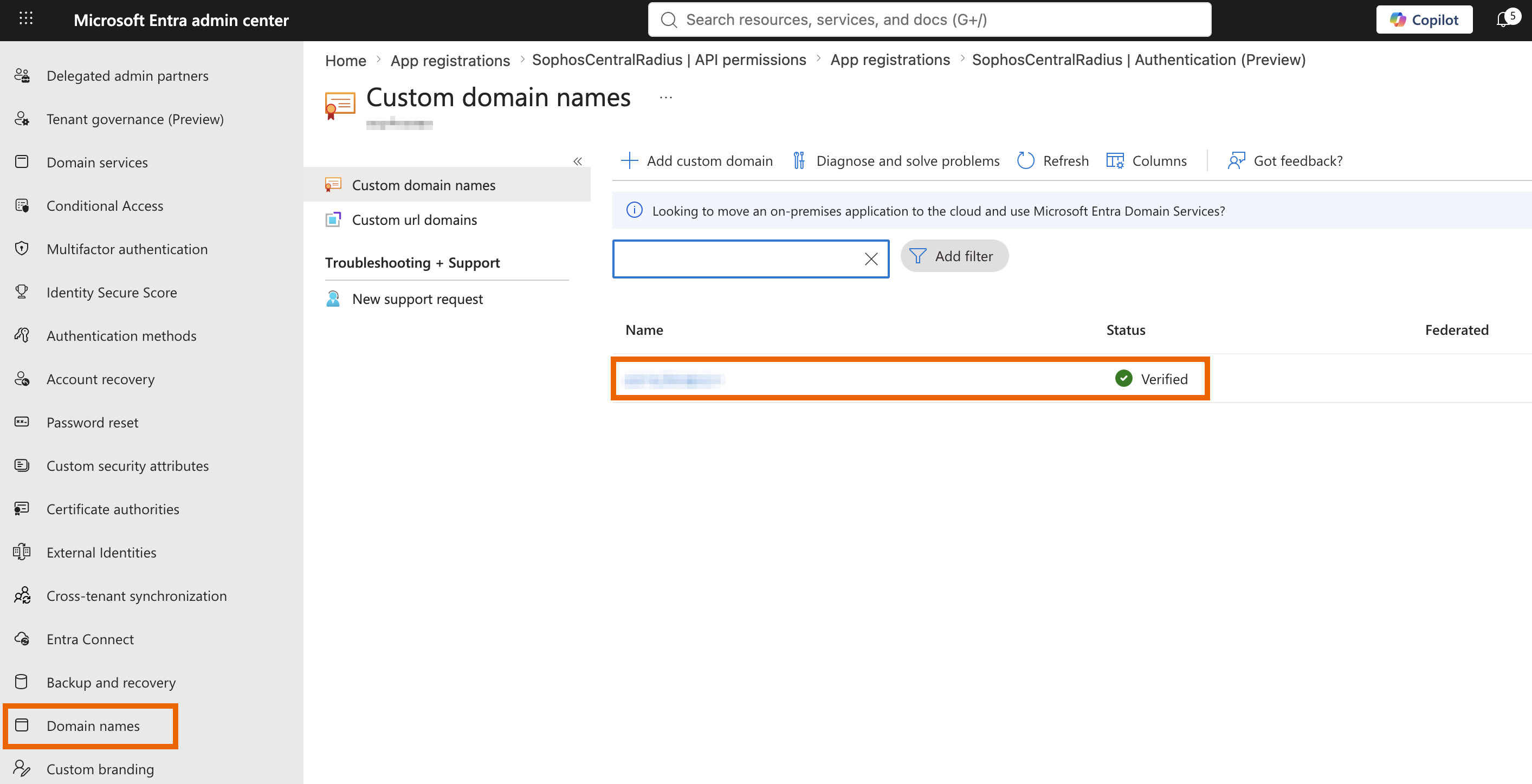
You now have the Client ID, Client secret, Domain name, and Tenant ID needed in Sophos Fusion.
Set the application permissions
Set the Entra ID permissions as follows, so that Sophos Fusion can authenticate users:
- In the Microsoft Entra admin center, go to Entra ID > App registrations and select your app.
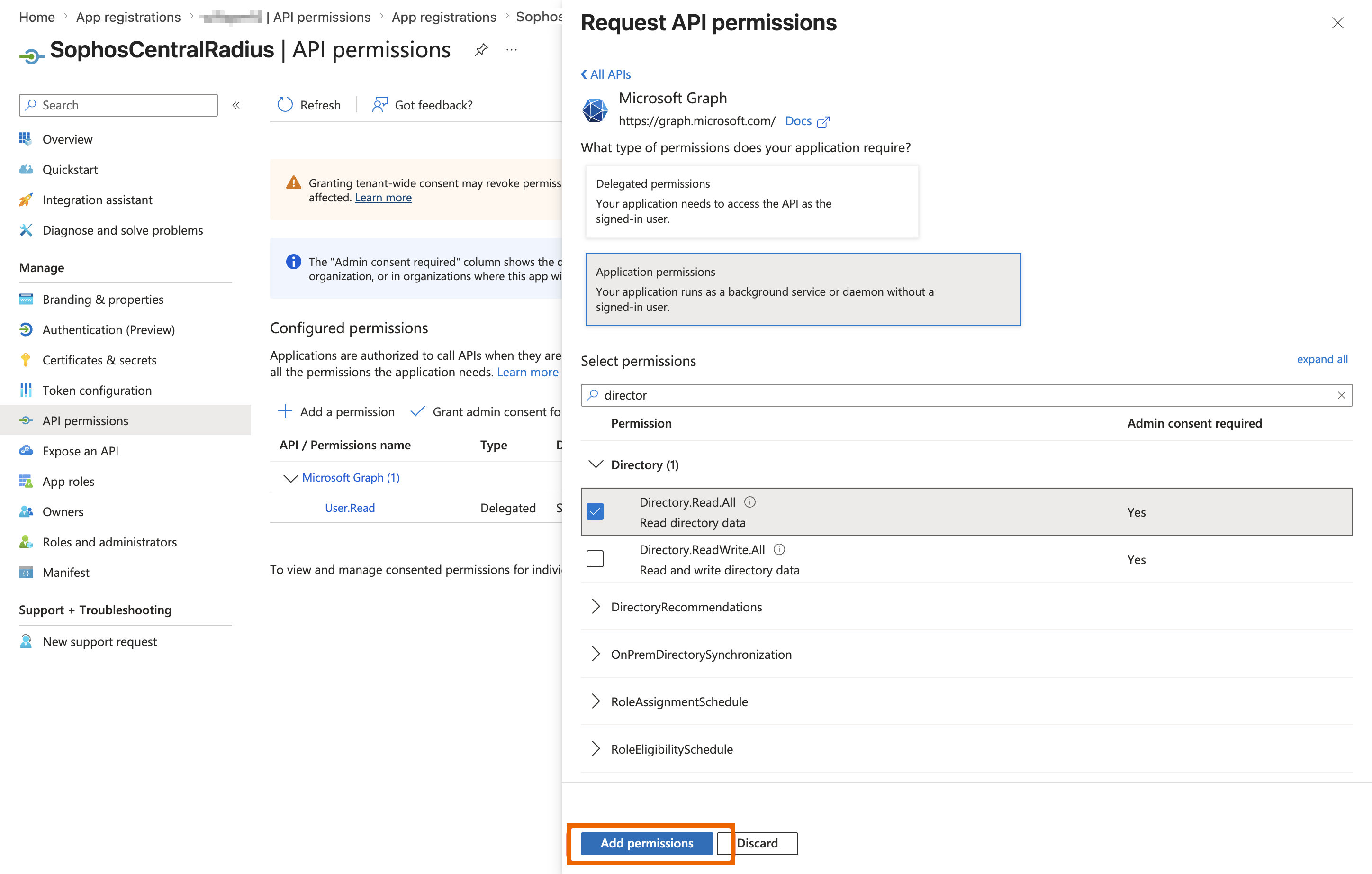
- Go to API permissions > Add a permission > Microsoft Graph.
-
Set the following permissions:
Permission Type Admin consent required Domain.Read.All Application Yes User.Read Delegated Yes Tip
Use the search feature to quickly find the permissions.
-
Click Add permissions.
-
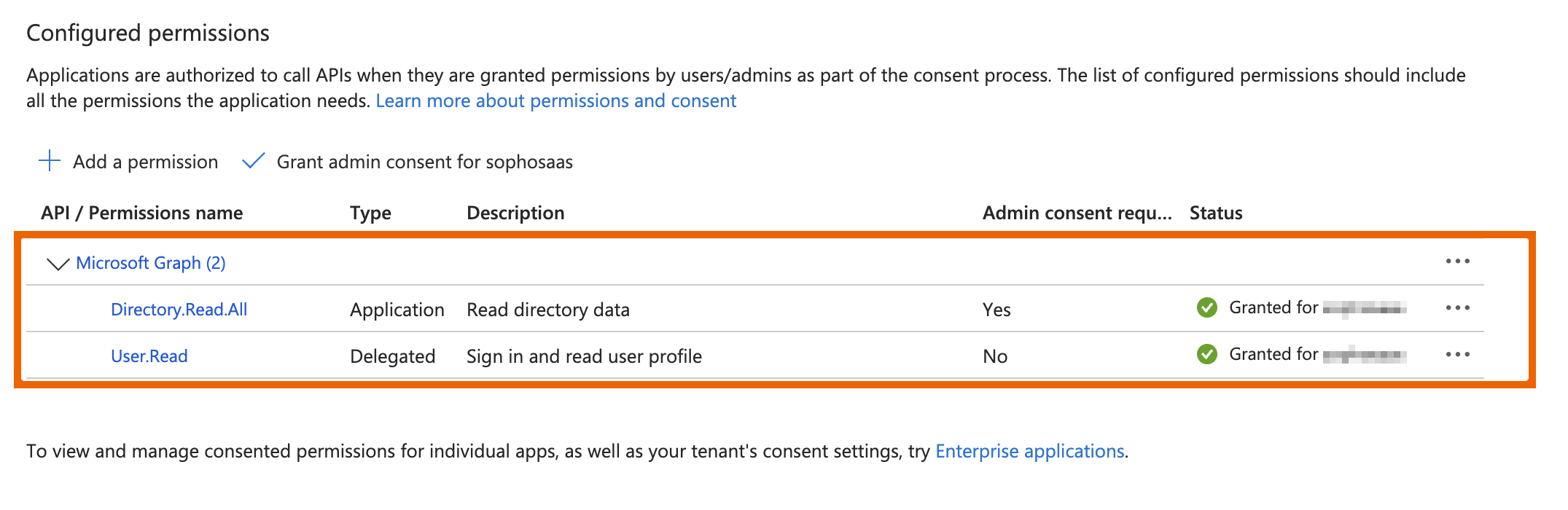
Click Grant admin consent for <tenant>.
-
Click Yes.
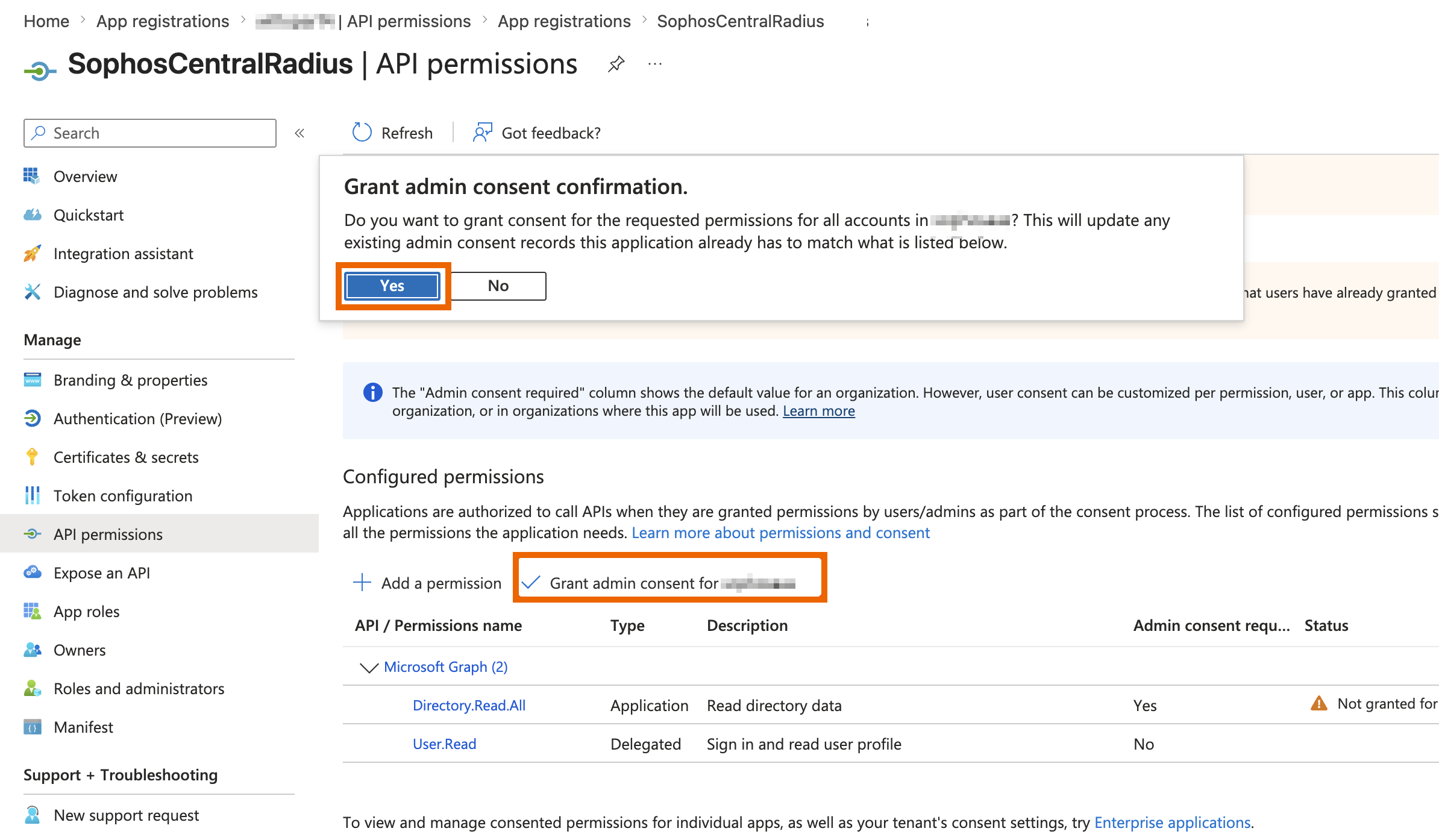
Both permissions now show as Granted.
Next steps
Entra ID is now configured for Sophos Fusion RADIUS authentication. To add Entra ID as an external identity provider for AP6 SSIDs, see Add a RADIUS server or identity provider.