Computer Status
The Status tab in a computer's details page lets you see the computer's security health.
To see the status tab, do as follows:
-
Go to My Environment > Computers & Servers.
Alternatively, go to My Products > Endpoint > Computers.
-
Click the name of the computer you want to view details for.
- Click the Status tab.
The details you see depend on the computer's operating system. See Windows computers or macOS and earlier Windows computers.
Windows computers
The Status tab shows the computer's security health.
Some earlier versions of Windows might show different details. See macOS and earlier Windows computers.
Health status
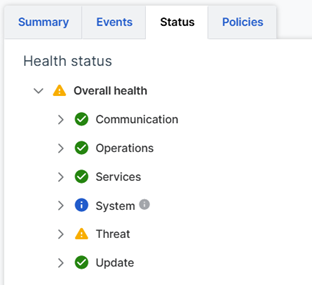
Health status shows the Overall health of the computer.
| Icon | Description |
|---|---|
 | Good (Green check mark) |
 | Warning (Orange warning sign) |
 | Bad (Red warning sign) |
The overall health is based on the range of health assessments shown below it.
Health assessments
We assess the health of the following features:
- Communication: Communications between the computer and Sophos Fusion, plus communications to remote sources of threat data.
- Operations: Operations such as uploads to Sophos Data Lake and file scanning.
- Services: Sophos drivers, processes, and services.
- System: The computer's hardware specifications plus the Sophos security products installed.
- Threat: The threat level and the status of device isolation and emergency protection.
- Update: Installation and updating status. The details also show if the computer needs a post-update restart.
Each assessment shows a status: Good (Green), Warning (Orange), Bad (Red), or Info. The status of each assessment contributes to the overall health, unless the status is Info.
You can also see detailed assessments of the computer's health in the Sophos Endpoint agent. Go to the computer, double-click the Sophos icon in the taskbar, and click Endpoint Self Help.
macOS and earlier Windows computers
The Status tab in a computer's details page lets you see the computer's security health and details of any alerts.
It also lets you take action against alerts.
Security health
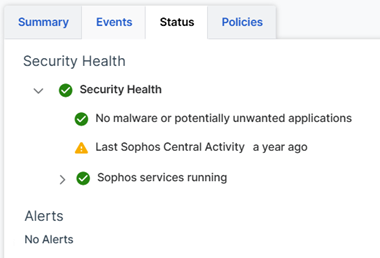
Security Health shows the following information:
- Whether the device has detected malware or potentially unwanted applications.
- When the device last connected with Sophos Fusion. For example, for policies.
- Which Sophos services are running on the server.
The overall status (Red, Orange, or Green) is the same as that for the highest-priority item listed, excluding Last Sophos Fusion Activity.
Alerts
The page lists any alerts on the device. The details include:
- Alert details: For example, the name of the malware.
- When the alert occurred.
- The actions that you can take. These depend on the type of threat or event and are the same as the actions available in the Dashboard.
You have 90 days to review and take action on alerts. If you don't take action within 90 days, we purge the alerts, and your device displays Red health status. You can reset the health status for the device. To do this, click Action > Reset health status.