Firewall information
You can view your firewall's details, manage your firewall from Sophos Fusion, and take various actions, such as viewing a device report for your firewall.
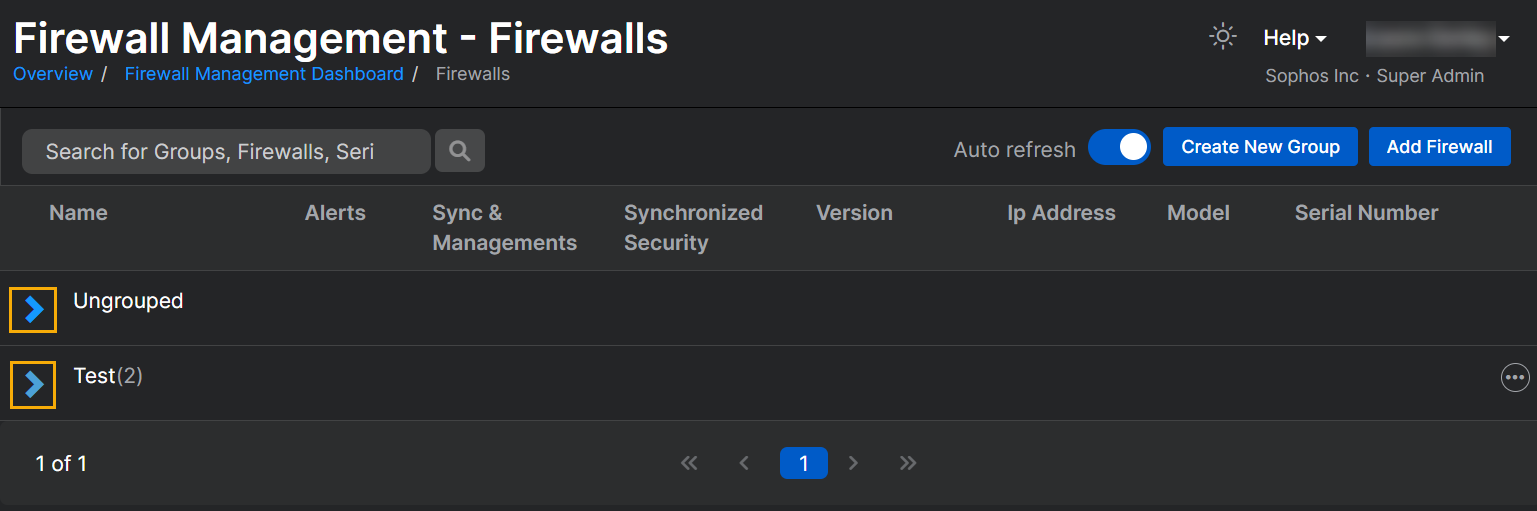
The following information is shown for each firewall:
- Name. See Name for more details.
- Notifications. See Notifications for more details.
- Version. See Version for more details.
- IP Address: The firewall's IP address.
- Model: The firewall's model.
- Serial Number: The firewall's serial number.
Name
Shows your lists of ungrouped and grouped firewalls. To see your firewalls, click the arrow next to the list name.
Ungrouped firewalls are in the Ungrouped list.

Firewall status
Click the icon next to your firewall's name to see its status. The icon changes depending on your firewall's status.
If you click a status icon, more information is displayed.
Example
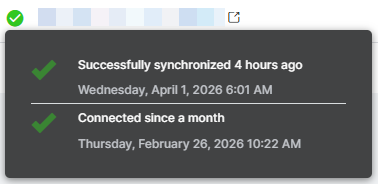
Here's an example of a connected firewall that last synchronized four hours ago.
Example
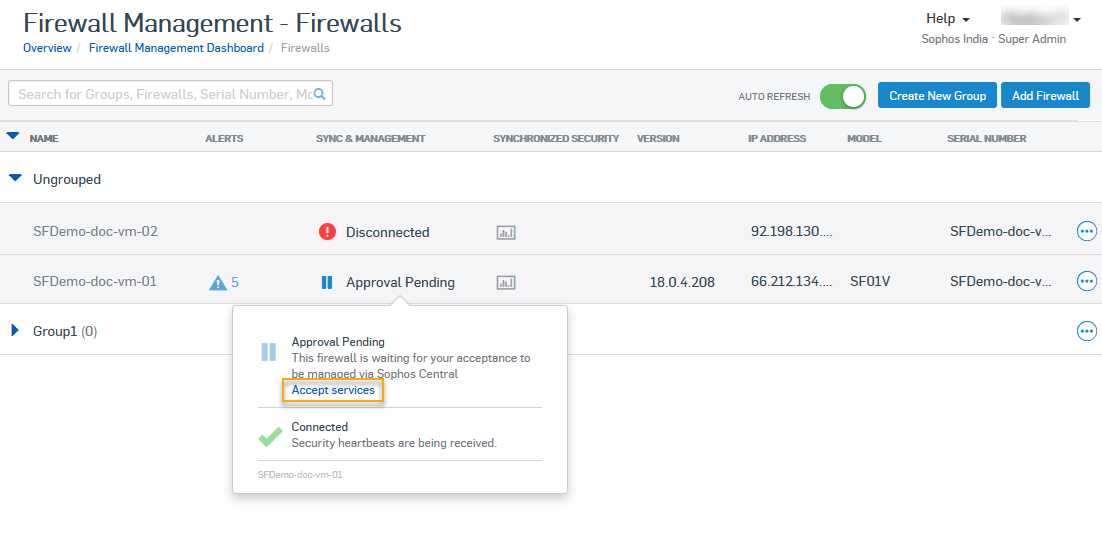
Here's an example of a firewall that's awaiting approval.
The types of statuses are as follows.
| Status | Description |
|---|---|
| Connected since x | Shows how long the firewall has been online and sending heartbeats to Sophos Fusion, including the date and time it connected to Sophos Fusion. If the firewall is ungrouped, this status indicates that the firewall is online and sending regular heartbeats. |
| Successfully synchronized x ago | Shows the date and time of the most recent successful synchronization, confirming that the firewall is online, sending regular heartbeats, and the firewall's configuration matches the group policy. If the firewall is ungrouped, you won't see this status, because group policies are only applied to firewalls when you assign them to groups. |
| Failed to apply a policy | The firewall's configuration doesn't match the group policy. The admin needs to look in the tasks queue to find out which policy can't be applied. Shows the date and time the policy couldn't be applied. |
| Synchronization started x ago | The firewall has just been added to the group. Sophos Fusion is applying the group policy to the firewall. Shows the date and time when the firewall was added to the policy. |
| Disconnected | Security heartbeats aren't being received. |
| Approval Pending | The firewall has been registered with Sophos Fusion by a local admin from the firewall's web admin console. It's waiting for approval by a Sophos Fusion admin. When approved, the firewall is ready for group and individual device management. |
| Not managed by Sophos Fusion | The firewall is registered with Sophos Fusion for Security Heartbeat. However, Sophos Fusion management hasn't been turned on from the firewall's web admin console. |
| Missing since x | Shows how long the firewall has been disconnected, including the date and time it was last connected. |
| Failed to apply a policy | Shows the date and time when a policy couldn't be applied to the firewall. The tasks queue may have more details about the reason for the failure. |
| Firewall is suspended. | The firewall has been offline or out of sync with the group policy for more than 30 days. This means that Sophos Fusion Reporting can't discover its current status. For more information, see Suspended firewalls. |
| Central Reporting is turned off | Shows that Central Firewall Reporting is turned off. You can turn on firewall reporting from the firewall's web admin console. See Turn on firewall reporting. |
| Firewall groups aren't supported | Only firewalls with version 18 or above support firewall groups. |
Access your firewall's web admin console
For information about accessing your firewall's web console, see Access your firewall's web admin console.
Notifications
The following information is available in the Notifications column.
High-availability firewalls
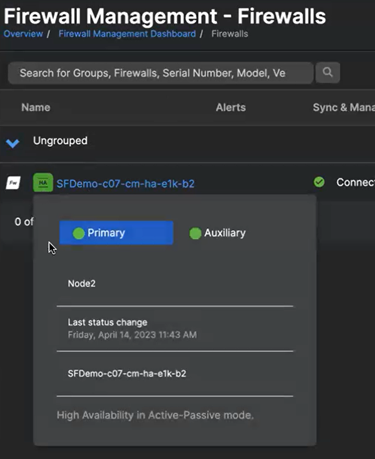
Click the high availability (HA) icon  next to your firewall name to see the following details about your HA cluster:
- Firewall role in the HA cluster. This can be Primary or Auxiliary.
- Firewall node number. Example: "Node1".
- Firewall node information. Example: "Initial primary. Holds license for customer."
-
Last status change. This is the last time the firewall node changed roles. Example: "Friday, April 14, 2023, 11:42 AM".
Note
The time corresponds to the local time on your browser. This may differ slightly from the time on your firewall.
-
Firewall node name: The name you gave to the firewall node.
- High availability mode: The type of HA cluster the firewalls belong to. Example: "High Availability in Active-Passive mode".
Here's an example of HA details for a firewall.
Note
You can also click the HA icon next to the firewall name to see the HA details when you create a new firewall group under Available Firewalls and Assigned Firewalls.
Alerts
Click the alert icon to see the alert. The icon color and style depends on the severity of the alert.
Here's an example.
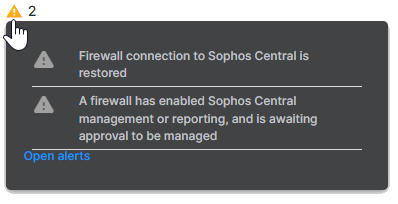
Click Open alerts to go to the Alerts page, where you can see all the alerts that require your action. See Alerts.
For more information about firewall alerts, see Firewall alerts.
Reporting
Click the reporting icon  to see useful reporting links.
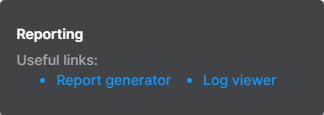
Click Report generator to go to the Report Generator on the firewall reporting page. The Report templates field is populated with Bandwidth usage, and the Firewall field is populated with your firewall.
Click Log viewer to go to the Report Generator on the firewall reporting page. The Report templates field is populated with Log viewer and search, and the Firewall field is populated with your firewall.
For more information about reporting, see Report Generator.
Security Heartbeat and Synchronized Application Control
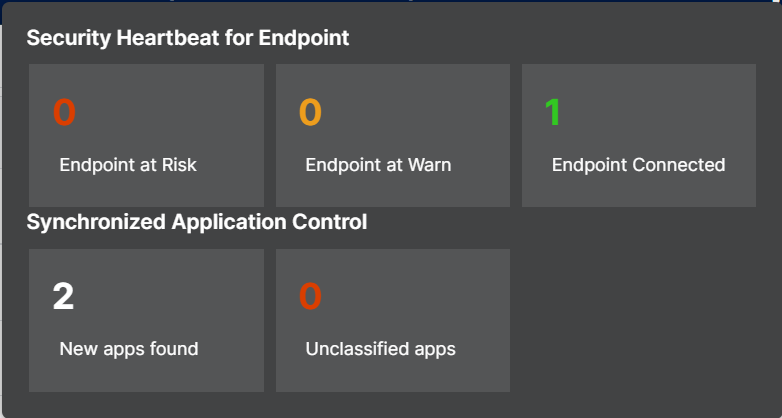
Click the Synchronization icon  to see the following details:
- Security Heartbeat for Endpoint: The number of endpoints connected to the firewall, the number of endpoints with a "Warning" status, and the number of endpoints with a "Risk" status.
- Synchronized Application Control: The number of new apps discovered by the firewall, and the number of unclassified apps.
Firmware update
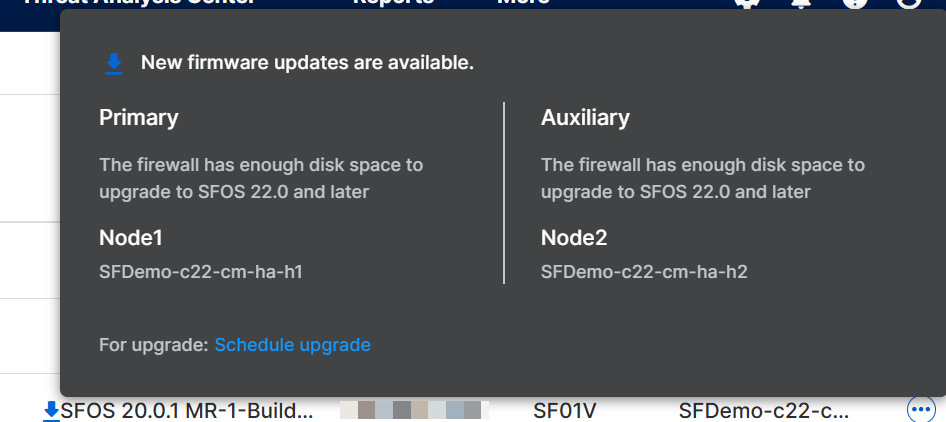
If a firmware update is available, you'll see a blue arrow icon  next to the firewall.
Click the icon for more information.
Example
Here's an example of an HA pair with firmware updates available.
The other firmware update statuses are as follows:
| Icon | Description |
|---|---|
 | Firmware update successful. |
 | Firmware update failed. |
 | Firmware update scheduled. |
 | Firmware update in progress. |
Version
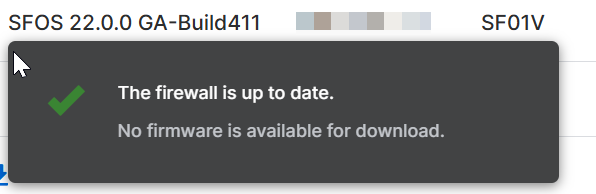
The firewall's firmware version. You can click the version to see the firewall's update status.
Example
Here's an example of a firewall that's up to date.
IP Address
The firewall's IP address.
Model
The firewall's model.
Serial Number
The firewall's serial number.
Actions
Click the three horizontal dots. 
In the drop-down menu, you see the following options:
- Manage Firewall: See Access your firewall's web admin console
- View device report: See Report Generator
- Attach a label: See Attach a label to your firewall
- Add location: See Add the location of a firewall
- Remove Firewall from Sophos Fusion: Click this option, then click Remove to remove the selected firewall from Sophos Fusion.