Service ticket synchronization
Note
Make sure that the MSP staff members who work on tickets in PSA update their web browsers to accept pop-ups from Sophos. This allows deep-links to open the Device Details page of the affected endpoint or server in Sophos Fusion.
You can create service tickets in ConnectWise from Sophos Fusion alerts or cases. You can create service tickets on an existing ConnectWise board or create a specific board for Sophos Fusion tickets.
Requirement
You must set up a rule to control which alerts create tickets. See Configure PSA alert rules.
You can turn on service ticket synchronization and choose which customers you want to use it for.
You can acknowledge an alert from the PSA by closing the matching service ticket in ConnectWise PSA.
Set up ticket synchronization
Some features might not be available for all partners yet.
To set up synchronization, do as follows:
- Click the Global Settings icon
 .
- Click Platform and click PSA Integration.
-
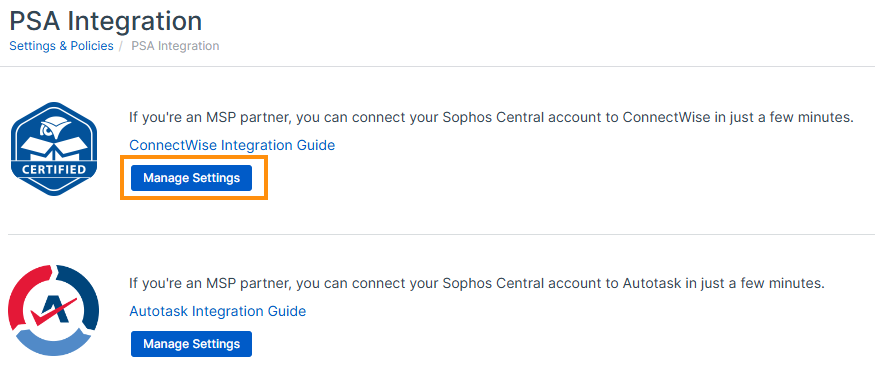
Under ConnectWise Integration Guide, click Manage Settings.
-
In Service ticket synchronization, click Configure.
This opens the Configure service ticket synchronization dialog.
-
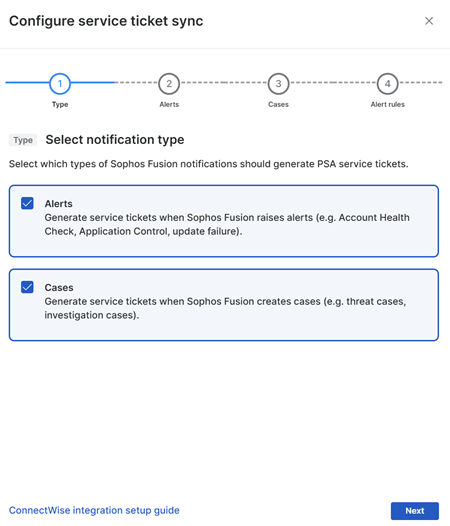
In Select notification type, select which Sophos Fusion notification type generates a PSA service ticket.
- Alerts: Generates service tickets when Sophos Fusion raises alerts.
- Cases: Generates service tickets when Sophos Fusion raises cases.
You can also select both types.
-
Click Next.
-
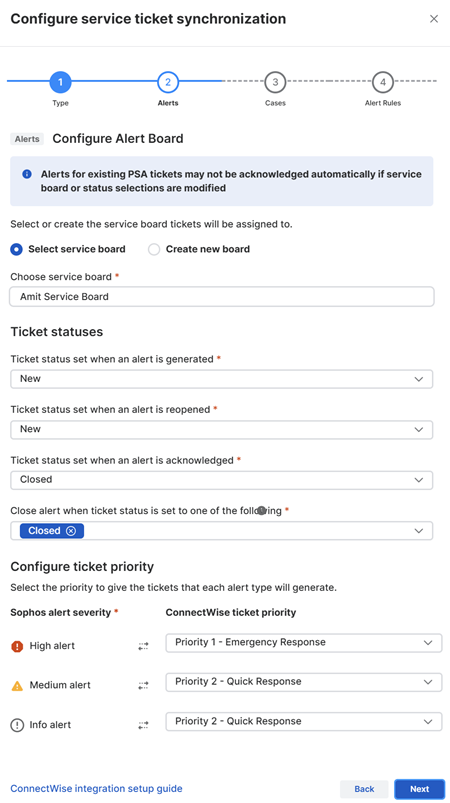
In Configure Alert Board, do as follows:
-
Select which ConnectWise service board you want to use.
- Select service board: Enter an existing service board name that you want to use.
- Create new board: Enter the name for the service board, select a department, and assign a team leader.
-
In Ticket statuses, select the ticket statuses when an alert is generated, reopened, and acknowledged.
Tip
When an alert is acknowledged in Sophos Fusion, the corresponding ticket closes in ConnectWise.
-
(Optional) Select the Mark this status with the 'Closed' flag checkbox to include additional ConnectWise workflows when a ticket is closed.
- In Configure ticket priority, assign ConnectWise ticket priority to each Sophos alert severity.
- Click Next.
-
-
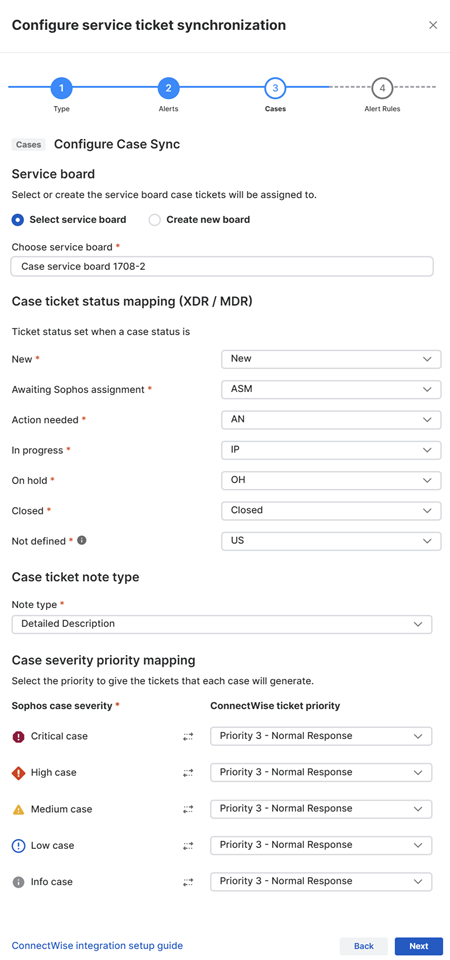
In Configure Case Sync, do as follows:
- In Case ticket status mapping (XDR/MDR), map the Sophos case statuses to corresponding ticket statuses.
- In Case ticket note type, select a note type.
- In Case severity priority mapping, map the Sophos case severities to ConnectWise ticket priorities.
- Click Next.
-
In Configure notification rules, click Finish.
You can now turn on ticket synchronization for your customers.
Turn on ticket synchronization
This creates tickets in ConnectWise for your selected customers using the rule you have set up. You can then manage and work on your tickets in ConnectWise as you usually would.
To turn on ticket synchronization, do as follows:
- Click the Global Settings icon .
- Click Platform and click PSA Integration.
-
On the PSA Integration page, click Manage Settings.
-
For each customer that you want to synchronize tickets for, check that ConnectWise Customer Name has an entry. If they don't, select an appropriate name.
- Turn on Enable Tickets for each customer.
Manage service ticket synchronization
You can see a summary of the ticket data for the last 24 hours under Ticket Details.
For each customer, you can see the number of created tickets and the number of tickets that weren't created. If there are creation failures, you see the last error message.
You can also turn off ticket creation for a customer.
To change the ConnectWise service board you are using, click Edit Service Board and make your changes.
To change the alerts that create service tickets, you must amend your rule. See Configure PSA alert rules.