Set up integration
Before you can map and synchronize customer data, you must configure ConnectWise and do the initial setup tasks.
You must configure ConnectWise, then you can integrate Connectwise and Sophos Fusion Partner.
Configure ConnectWise
To configure ConnectWise, do as follows:
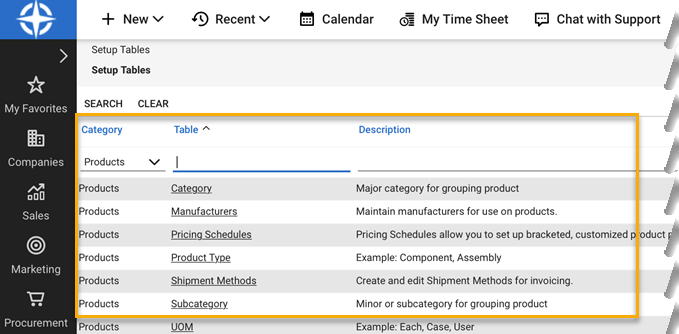
- In ConnectWise, go to System > Setup Tables.
- Look for Products under Category.
-
Click on Product Type. Check that you have at least one product type and that it is Active.
-
Click on Subcategory. Check that you have at least one subcategory and that it is Active.
Product Catalog defaults
You must have a default value set in the Product Catalog for unit of measurement (UOM). If you don't, you won't be able to synchronize your usage data with Sophos Fusion Partner.
To set defaults, do as follows:
- In ConnectWise, go to System > Setup Tables > Category > Products > Table > UOM.
- Check that UOM is active, and set a default value.
ConnectWise PSA on-premises version
If you're using the on-premises version of ConnectWise PSA, you must allow some IP addresses through your firewall. This allows us to synchronize information between ConnectWise and Sophos Fusion Partner.
You must add the following IP addresses to your firewall allow list:
- 52.209.24.198
- 52.209.33.20
- 52.215.194.223
Integrate ConnectWise and Sophos Fusion Partner
To integrate, you must do the following:
- Make sure that the integrator login account is present in ConnectWise.
- Generate API keys for integration: a Public Key and a Private Key.
- In Sophos Fusion Partner, enter your ConnectWise details, including the API keys.
These steps are described in detail in the following: