Overview
On macOS, this page is shown as "Status".
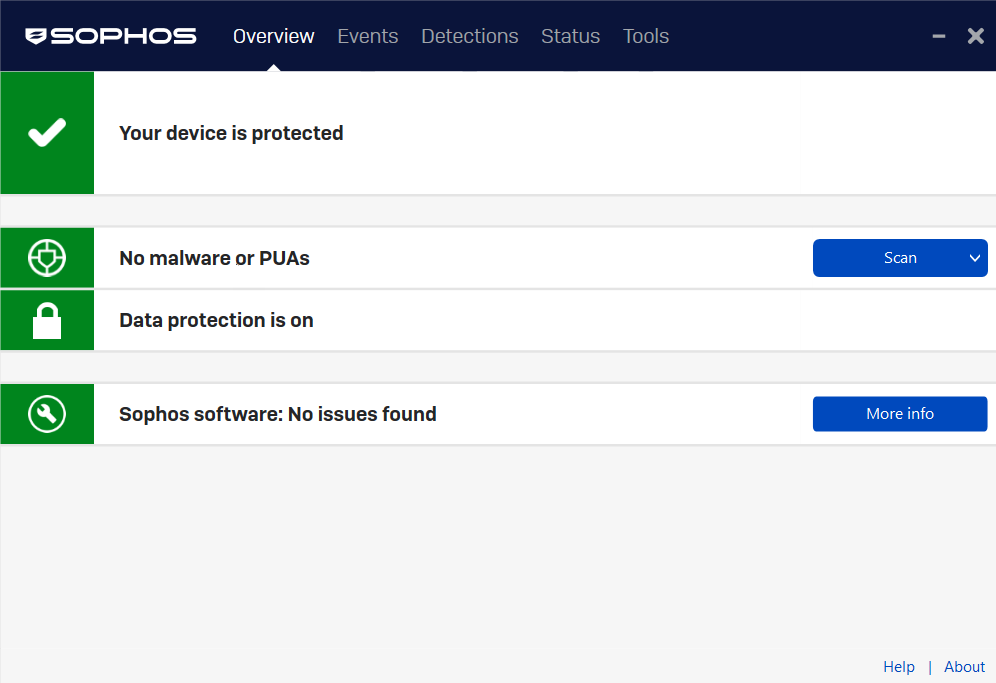
You can check the security status and scan the computer.
The Overview page lets you do as follows:
- See the security status of the computer.
- Scan the computer for threats.
- See the installed features and their security status.
The About link in the lower right of the page lets you view version information or update the product.
Security status
An icon in the upper left of the page shows the status.
| Setting | Description |
|---|---|
 | Good. There are no alerts, or only low-priority alerts. |
 | Bad. There are high-priority alerts. |
 | Warning. There are medium-priority alerts. |
 | The status is unknown. |
Warnings about services
If the status is bad and shows "Some Sophos services are not running", the issue is sometimes the connection to Sophos Fusion.
Warnings in "Sophos software"
If the "Sophos software" panel shows a warning, do as follows:
- On modern Windows, click More info to go to the Status page. If an issue is critical, the link takes you to the relevant section of the page.
- On macOS or legacy Windows, click Endpoint Self Help for help.
Features installed
All the installed features are displayed with their individual security status. Features can include the following, depending on your license:
- Malware and PUA protection
- Data Protection (Windows) or Device Encryption (macOS)
- Zero Trust Network Access (Windows and macOS)
Note
Data Protection here refers to encryption with BitLocker.
Scan the computer
Next to the malware and PUAs status, click Scan to scan all files on the computer for threats.
When you run a scan, the scanning progress and results are shown on the Detections page. If threats are detected, you can go to the Events page to see details.