Query
You can create, edit, and run ClickHouse SQL queries to search data stored on an investigation console. You need to be familiar with ClickHouse SQL. See SELECT Query.
To see the Query page in Sophos Fusion, go to My Products > NDR . Under Investigate, select Query.
At the top of the page, select the investigation console whose data you want to search.
Library
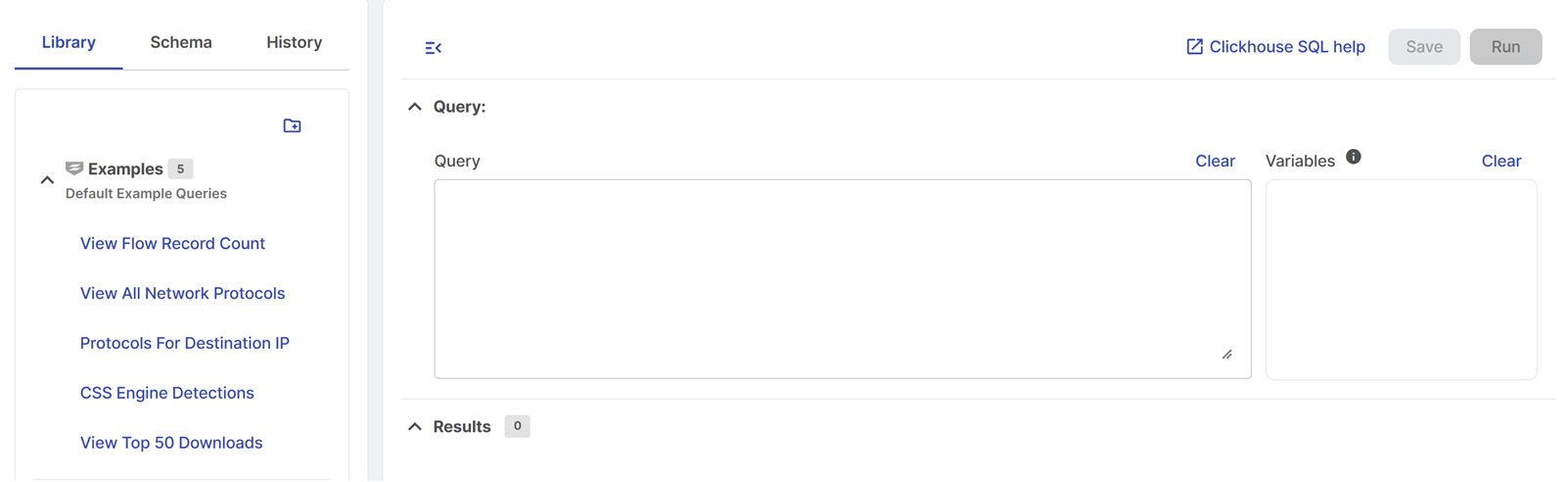
On the Library tab, you can create, organize, edit, and run saved queries. We provide the following preconfigured queries in a category called Examples:
- View Flow Record Count
- View All Network Protocols
- Protocols For Destination IP
- CSS Engine Detections
- View Top 50 Downloads
Create a category
To create a query category, do as follows:
- Click the Add folder icon .
-
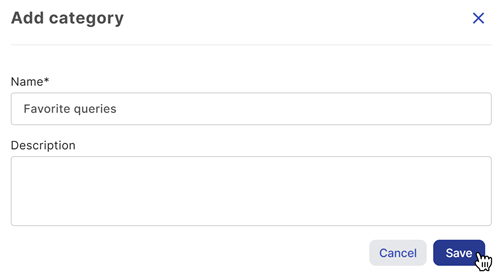
Enter a name and description for the category.
-
Click Save.
Create a query
To create a query, do as follows:
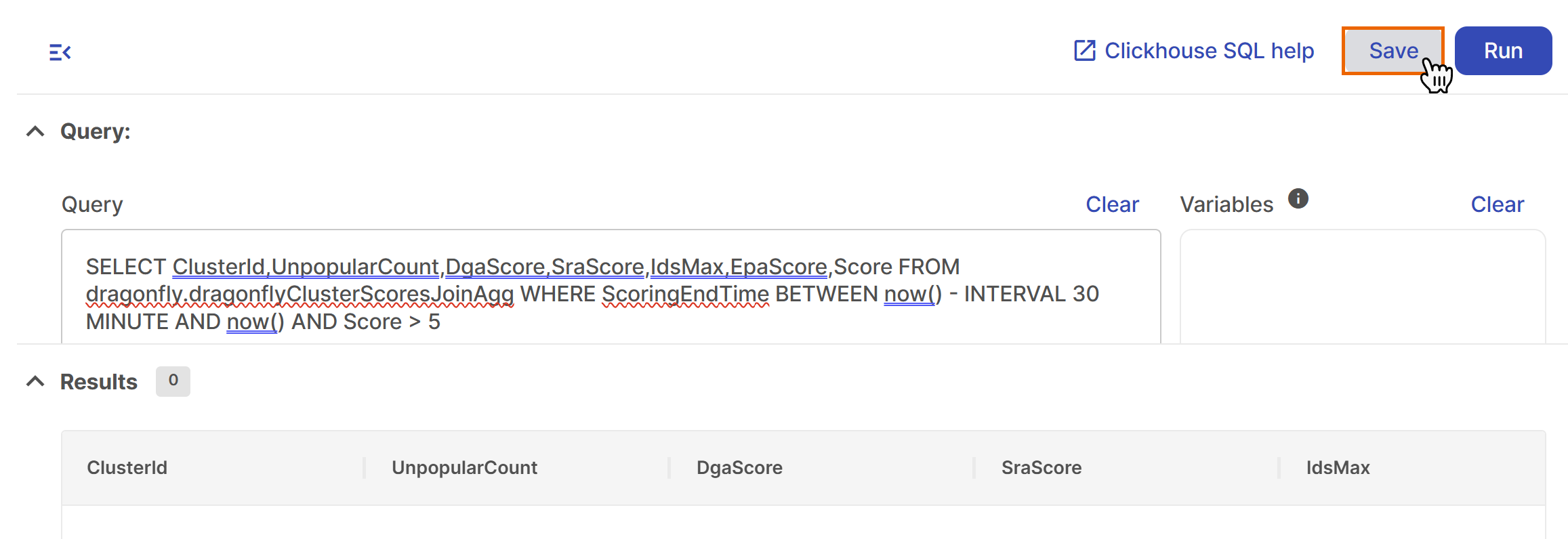
- Enter the query in the query editor.
-
Click Run to run the query.
The results appear below the query editor.
-
Click Save.
-
In the save dialog, select a category and enter a name for the query.
- Click Save.
Run a saved query
To open and run an existing query, do as follows:
- Click a category to expand it.
- Click the query name to load it into the editor.
- Click Run.
This example shows the Protocols For Destination IP query with a variable.
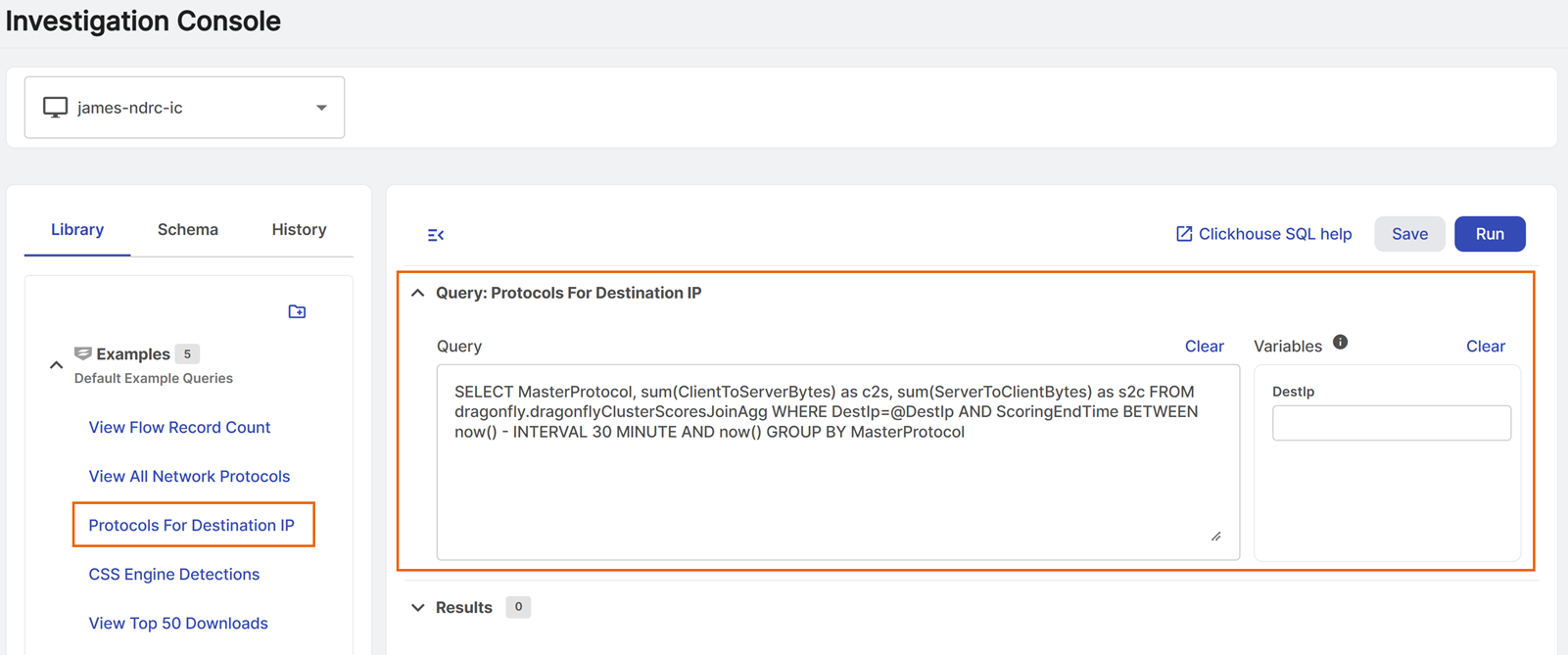
If a query contains a variable such as @DestIp, Sophos Fusion shows a field where you can enter the variable value. For example, enter 192.168.2.1 for @DestIp.
When you save the query, Sophos Fusion also saves the variable value. The next time you select the query, the saved value appears in the query instead of @DestIp.
Schema
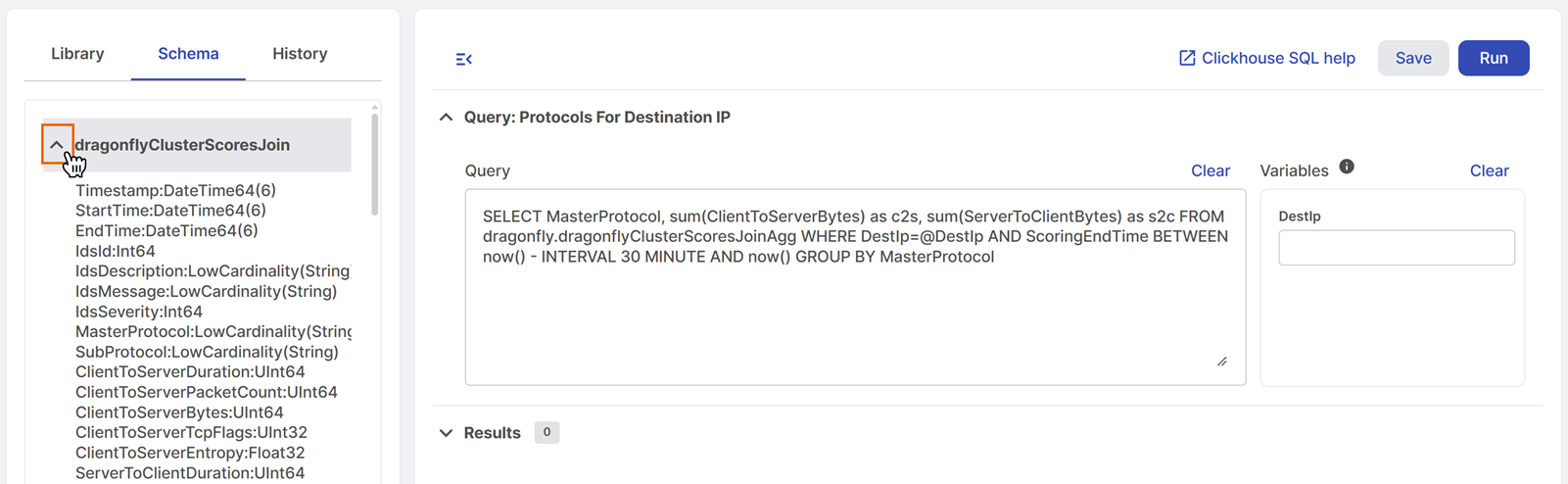
When you run a query, the Schema tab shows the schema for each table you can query. Expand the schema name to see the field names and types.
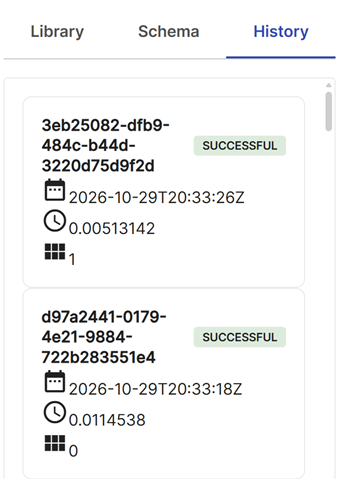
History
The History tab shows the following information about query runs:
- Query ID
- Date and time the query ran
- How long the query ran in seconds
- Number of results
- Whether the query succeeded or failed