NDR appliance details
On the NDR appliance details page, you can monitor appliance health, change its mode, configure firewall rules and maintenance, and manage licenses.
To open an appliance details page, click an appliance name on the NDR Appliances page.
Warning
Configuration changes can disrupt the appliance or network traffic. Make changes when you can monitor the appliance for issues.
If a change fails, the appliance attempts to roll back to its previous configuration.
Appliance header
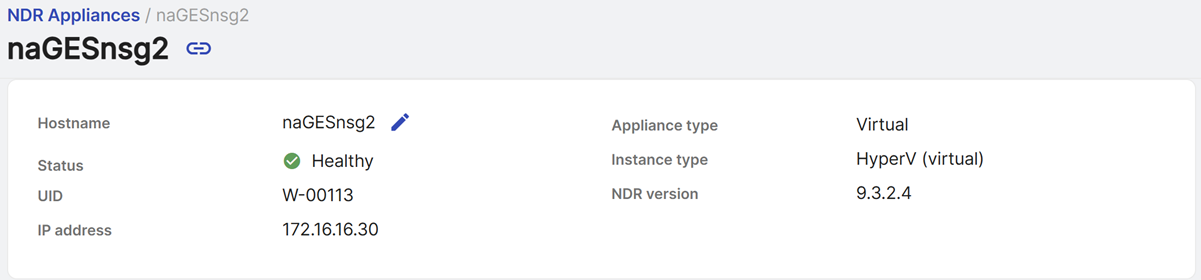
The page header shows the following appliance information:
-
Hostname: The hostname you entered when you created the appliance. Click the Pencil icon to edit the name.
Note
If you change an appliance hostname, new events and detections use the new hostname as the sensor ID. Existing events and detections retain the previous sensor ID.
-
Status: The appliance's health status. See Health status.
- UID: The appliance unique identifier, such as "N-00004".
- IP address: The appliance IP address. If the IP address is statically defined, you can click the Pencil icon to edit it.
- Appliance type: Whether the appliance is physical or virtual.
- Instance type: The appliance hardware model or virtualization platform.
- NDR version: The version of the NDR software running on the appliance. It changes with each update. This isn't the firmware version, which is the version of the base image (for example, 9.3.2.2) and doesn't change when the appliance is updated.
Health status
The appliance can have one of the following health statuses:
| Health status | Description |
|---|---|
| Healthy | All NDR appliance health metrics report a healthy status. |
| Warning | Health metrics are available, but at least one reports a problem. |
| No data | The appliance isn't reporting health metrics. |
| Not registered | The appliance hasn't been registered. |
Summary tab
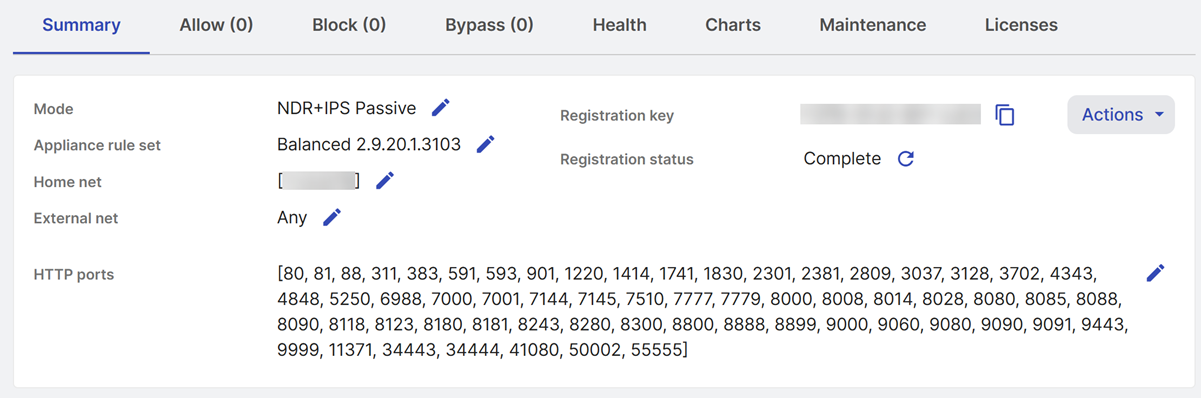
The Summary tab shows how the appliance inspects traffic and its registration details.
Mode
The mode controls which detection engines the appliance uses and how it receives and handles network traffic. For details on each mode, see NDR appliance modes.
To change the mode, click the Pencil icon .
All capture ports on a physical appliance use the same mode. You can't configure some capture ports for Sniffer mode and others for Inline mode.
Physical appliances support all modes. Virtual appliances support only NDR, NDR+IDS, and IDS modes.
Appliance rule set
The rule set determines how the appliance handles Snort rules. The version number is shown next to the name, such as Balanced 2.9.20.1.3097.
Signatures are curated by Sophos threat researchers. New and updated signatures are deployed roughly twice weekly, with emergency out-of-cycle updates issued for urgent zero-day threats.
Click the Pencil icon to change the rule set.
| Rule set | Description | Traffic it drops | Traffic that generates alerts |
|---|---|---|---|
| Connectivity | Protects against the most severe threats, which have the highest risk within an enterprise environment. It provides minimal impact to legitimate traffic. | Current threat landscape malware, high-threat exploit attempts against known vulnerabilities in widespread software, or software actively being exploited in the wild. | Medium-threat events in lesser-used applications. Noisier, lower-fidelity signatures are disabled by default. |
| Security | Provides the highest security coverage feasible, while aiming to limit impact to legitimate enterprise traffic. | Current threat landscape malware; high- and medium-severity vulnerability exploits in both widespread and lesser-used software; routine reconnaissance traffic; generic attack signatures, such as SQL injection and cross-site scripting; traffic related to questionable activity such as torrent use. | |
| Balanced | Offers a mix of increased security coverage while still aiming to provide minimal impact to legitimate traffic. | Current threat landscape malware and traffic exploiting high-severity vulnerabilities in widespread and lesser-used software. | Routine reconnaissance traffic; lower-fidelity signatures; traffic related to questionable activity such as torrent use. |
Networks and ports
Home net, external net, and HTTP ports identify internal addresses, external addresses, and ports that carry HTTP traffic for Snort rules.
Home net
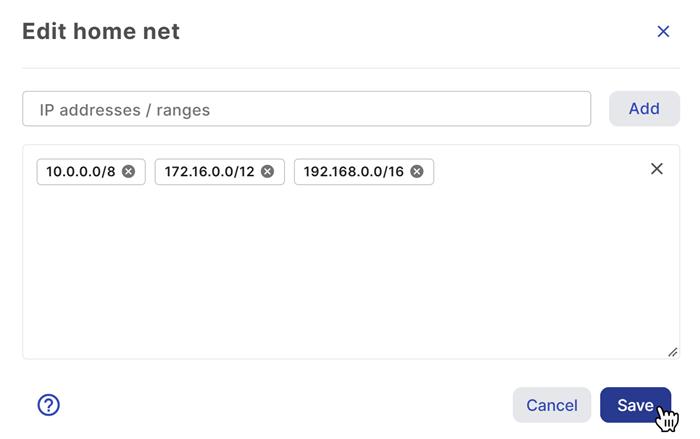
Home net is the list of internal IP addresses and ranges. To edit home net, do as follows:
- Click the Pencil icon .
- Add a single IP address or a range of addresses defined in CIDR notation, such as
192.168.0.0/16. -
Click Add and then repeat as needed.
Tip
To include private IPv4 address ranges in the home net, add these ranges:
10.0.0.0/8172.16.0.0/12192.168.0.0/16
-
Click Save.
Each address you add shows as a tag in the box below the IP addresses field. Click the X in a tag to remove that one entry, or the X in the corner of the box to clear the whole list.
External net
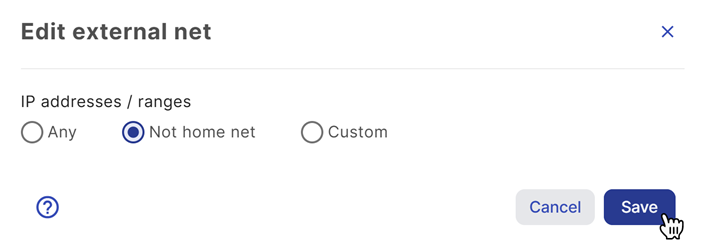
External net identifies the network addresses external to your home network. To edit external net, do as follows:
- Click the Pencil icon .
-
Select one of the following options:
- Any: All networks.
-
Not home net: Everything outside your home network.
-
Custom: Specific IP addresses or ranges.
- Add a single IP address or a range of addresses defined in CIDR notation, such as
192.168.0.0/16. - Click Add and then repeat as needed.
- Add a single IP address or a range of addresses defined in CIDR notation, such as
-
Click Save.
HTTP ports
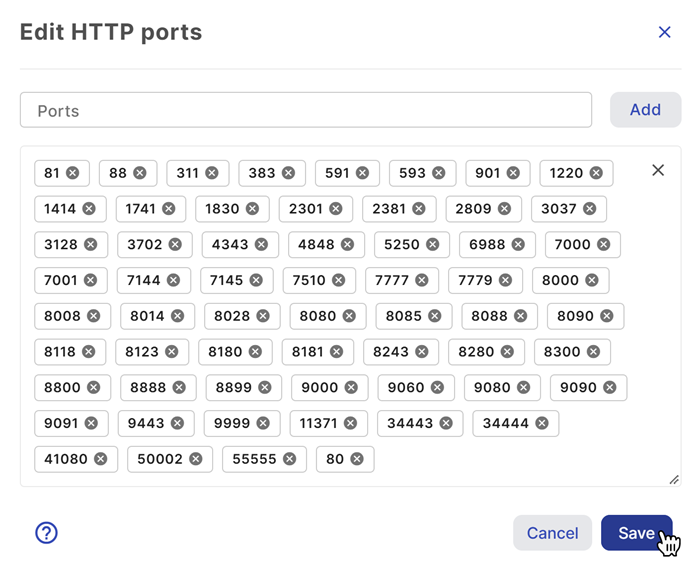
HTTP ports lists the ports where the appliance expects HTTP traffic.
If your network carries HTTP traffic on other ports, add those ports to the HTTP ports setting.
The default HTTP ports variable is as follows:
[80, 81, 88, 311, 383, 591, 593, 901, 1220, 1414, 1741, 1830, 2301, 2381, 2809, 3037, 3128, 3702, 4343, 4848, 5250, 6988, 7000, 7001, 7144, 7145, 7510, 7777, 7779, 8000, 8008, 8014, 8028, 8080, 8085, 8088, 8090, 8118, 8123, 8180, 8181, 8243, 8280, 8300, 8800, 8888, 8899, 9000, 9060, 9080, 9090, 9091, 9443, 9999, 11371, 34443, 34444, 41080, 50002, 55555]
To edit HTTP ports, do as follows:
- Click the Pencil icon .
- Enter a port number.
-
Click Add and then repeat as needed.
-
Click Save.
Registration
The registration key and status are shown on the right side of the Summary tab.
The registration key becomes invalid if the appliance hasn't been activated for 30 days. To reactivate the key, click the Refresh icon next to the status. The key stays the same.
To copy the key, click the Copy icon .
Actions
The Actions menu has two options:
- Reactivate key: Used when the appliance has been replaced.
- Downloads: Downloads open-source package information. For virtual appliances, it also provides the appliance image.
Firewall rules
For appliances with the IDS/IPS license, the Allow, Block, and Bypass tabs let you manage appliance firewall rules.
- Allow: Lets matching traffic pass.
- Block: Blocks matching traffic.
- Bypass: Lets matching traffic pass without inspection.
Bypass rules are useful for traffic such as backup or monitoring traffic, where inspection can affect performance or produce unnecessary detections.
Bypass rules take precedence over allow and block rules. If a block rule doesn't work as expected, check for an overlapping bypass rule.
The number in each tab name shows how many rules are currently in that list.
Firewall rules table
The tables in the Allow, Block, and Bypass tabs show the following information for each rule:
- Source address
- Source port
- Destination address
- Destination port
- Protocol
- Start time (UTC)
- End time (UTC)
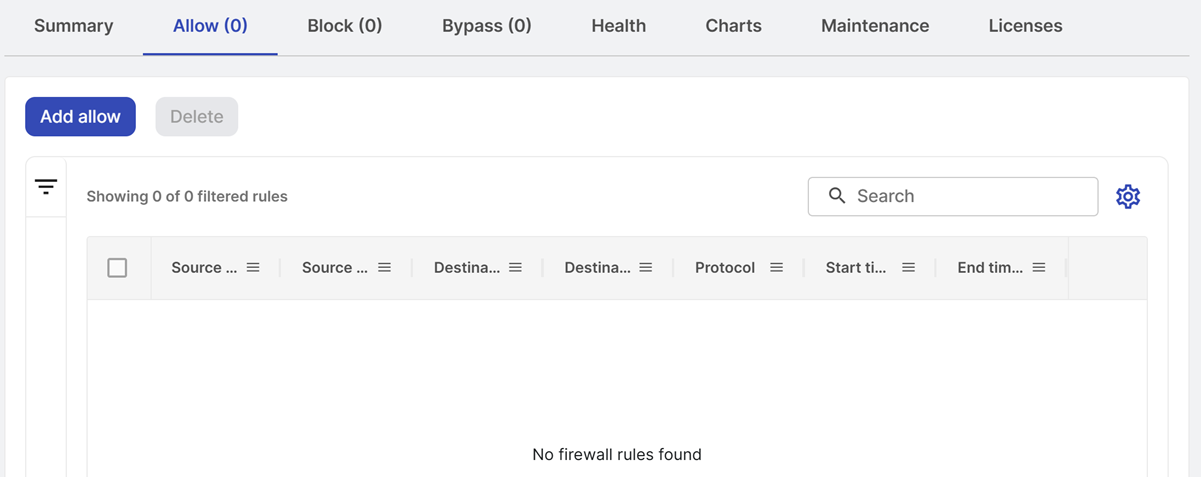
On each tab, you can do as follows:
- Use the search box to filter the table by text.
- Click the Filter icon to open the Filters menu. Select your filter and click Apply.
- Click the Gear icon to open the Columns menu to adjust the table columns.
- Select rules and click Delete to delete them. The button stays grayed out until at least one rule is selected.
Add a rule
To add a rule, do as follows:
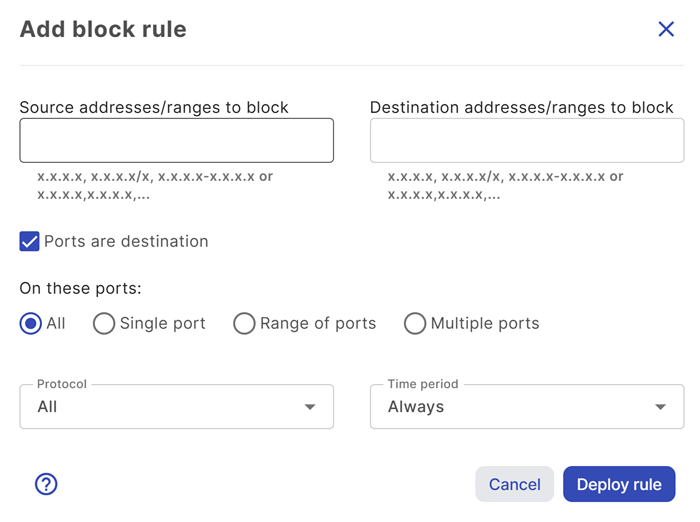
- Click Add allow, Add block, or Add bypass.
-
Enter the source and destination addresses or ranges for the rule.
Both fields accept a single address (
x.x.x.x), a CIDR range (x.x.x.x/x), an address range (x.x.x.x-x.x.x.x), or a comma-separated list of any of these. -
Ports are destination is selected by default, so the ports you enter apply to the destination. Clear it to apply the ports to the source instead.
-
Select which ports the rule applies to:
- All: All ports. This is the default.
- Single port: Enter one port between 0 and 65535.
- Range of ports: Enter a range, such as
1000-2000. - Multiple ports: Enter a port and click Add for each port.
-
Select a protocol:
- All
- TCP
- UDP
- ICMP
- ESP
-
Select how long the rule stays in effect:
- Always
- Next Hour
- Next Day
- Next 3 Days
- Next 7 Days
- Next 30 Days
Rules with a limited duration show their start and end times in UTC.
-
Click Deploy rule.
Health tab
The Health tab shows when the appliance last sent events and the state of the services it depends on.
Last security event received and Last non-security event received show the time in UTC of the most recent event of each type. If either timestamp is much earlier than expected, the appliance might have stopped sending data.
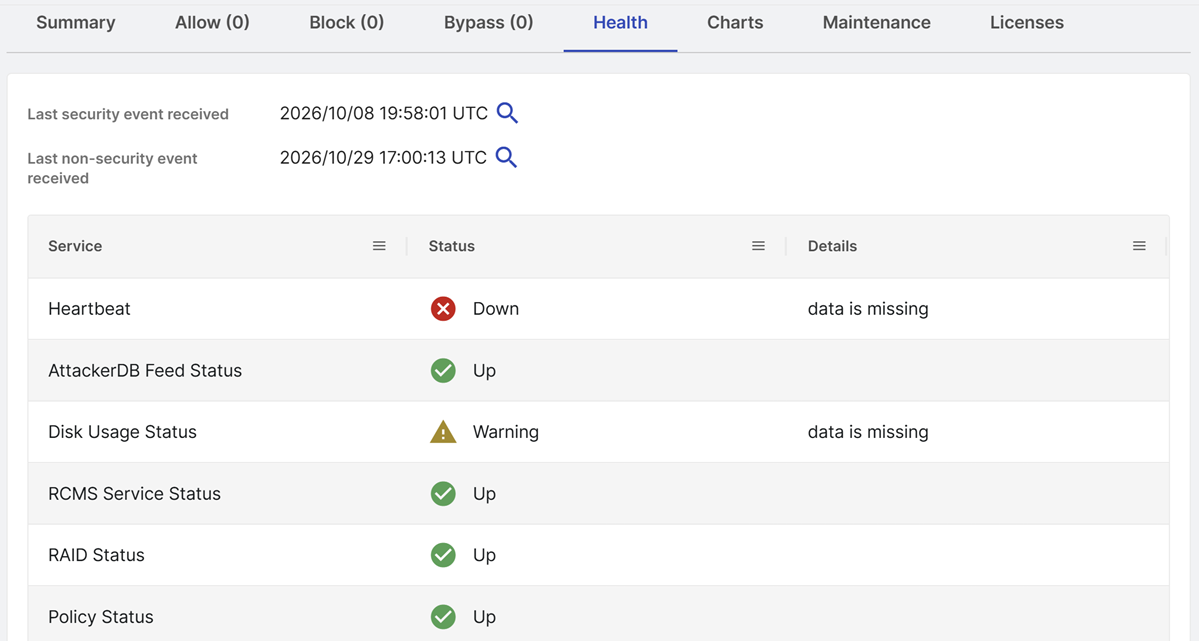
Each service check below shows a status of Up, Warning, or Down. When a check isn't Up, the Details column explains why.
| Check | What it tells you | When status is down |
|---|---|---|
| Heartbeat | Connectivity from the appliance to the backend | The appliance stops checking in. |
| AttackerDB Feed Status | Whether the watchlist is being updated | The last update is more than 72 hours old, or the cron job is malformed. |
| Disk Usage Status | Disk space on the appliance | Any partition or inode usage is above 95%. |
| RCMS Service Status | Connection to the RCMS MQ servers | There is no active connection, or more than one connection. |
| RAID Status | State of the physical and logical disks | A disk problem is reported. This applies to R6XX hardware. |
| Policy Status | Whether the Snort rules are present and current | sw.rules is missing from the Snort rules, or hasn't been updated in 28 days. |
| Read-Only Filesystem Status | Whether any partitions are mounted read-only | Any partition is mounted read-only, excluding those marked ro in fstab. |
| CPU Utilization | CPU load on the appliance | Average CPU usage is above 95% (warning) or 98% (critical). |
| Interface Status | The link state of a network interface on the appliance. There is one row for each monitored interface, named after the real port on that appliance, such as port 0 and port 1, so the interfaces are different on each appliance. | The link condition for that port is not met. |
| Dell OpenManage Status | Hardware health on Dell appliances | Any monitored component is unhealthy. |
| Snort Status | Whether the Snort process, which does the packet inspection, is running | Snort isn't running, or it has restarted within the last 300 seconds. In sniffer traffic mode, this indicates a service outage. In inline traffic mode, it indicates a full outage. |
| Certificate Status | The expiration date of the appliance certificate (/secureworks/certs/Certificate.pem) | The certificate expires within 72 hours. |
| Syslog Health | Whether syslog events are being generated and the syslogd service is up. This is useful if you've set up another log collector to receive the syslog events. | Syslog events aren't being generated or syslogd isn't running. |
| Bypass Status | Whether the appliance has entered failover/bypass mode. This check doesn't refer to individual bypass firewall rules. | The appliance is in failover/bypass and isn't inspecting traffic. |
| Time Offset Status | Time sync between the appliance and its time server | The appliance's time is more than 15 seconds off from the time server. |
| Telegraf Config Status | Whether the Telegraf service is running | The Telegraf service isn't running. |
| Acme Agent Status | The status of the Acme agent, which provides access to the appliance | The secureworks-acme service isn't active or its heartbeat with the ACME backend is more than 120 seconds old. |
| Log Upload Status | The status of the service that posts the appliance's logs to the data lake | The upload process isn't active or files have been waiting to be sent for more than 15 minutes. |
| Gateway Access Status | Access to the NDR API gateway, combining three gateway paths into a single status | Any one of the three paths fails. |
| NDR ML and Analytics | Whether the NDR ML Analytics K3s services are running and all related pods are healthy. It applies only to NDR modes. For all other modes, the status is always Up. | Any K3s service is not running or any related pod is unhealthy. |
Charts tab
The Charts tab has graphs that show how the appliance is performing over time. Click the drop-down menu on the left to select a chart:
- Memory usage
- CPU utilization
- Disk usage
- Network interface errors
- Network interface packets
- Network interface throughput
All times in the graphs are in UTC.
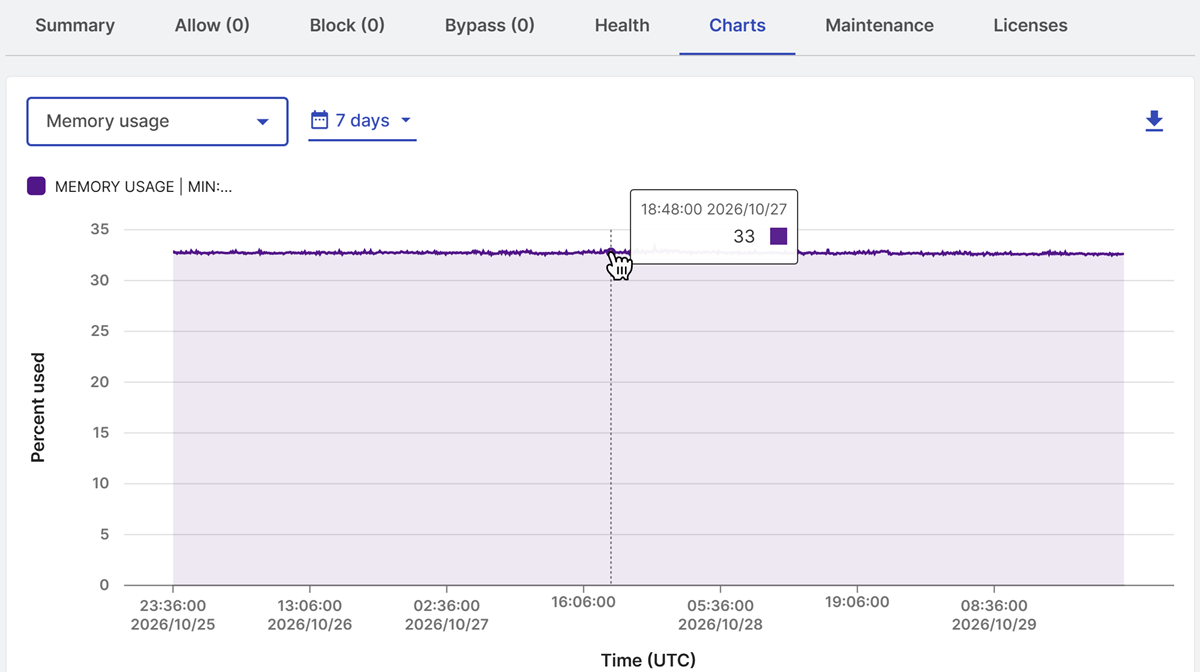
You can take the following actions:
- Change the date range for the data from the default of seven days.
- Hover over the graph to see the values at a point in time.
-
Click an item in the legend to show or hide that series. This can help when a chart has several overlapping lines.
-
Click the Download icon to save the chart as a PNG file.
Maintenance tab
Sophos occasionally performs software updates on NDR appliances. Updates can briefly interrupt traffic, so the maintenance window you configure should be a time when you can respond if something goes wrong. The Maintenance tab is where you select that window and keep track of upcoming and past maintenance.
Maintenance window
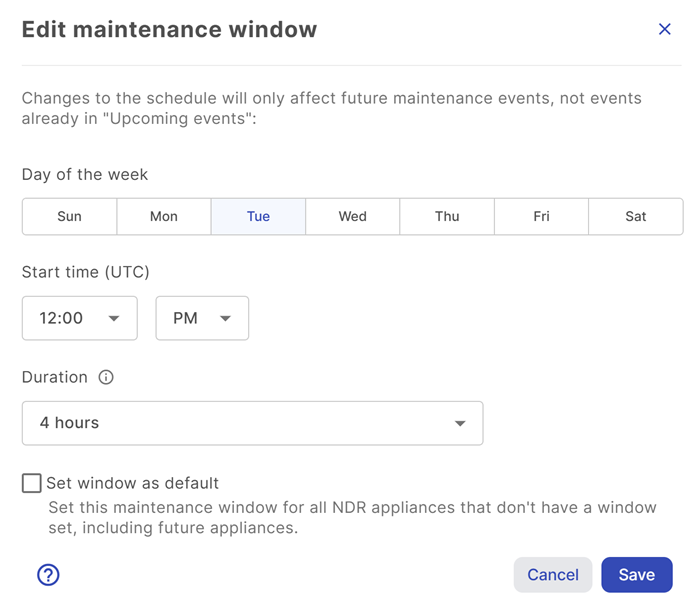
The window is a day of the week, a start time in UTC, and a duration.
Edit maintenance window
To edit the window, do as follows:
- Click the Pencil icon next to the day and time.
- Select the day of the week, start time in UTC, and the duration of the window during which an update can start.
-
(Optional) Click Set window as default. This window applies to all NDR appliances that don't have a window set, including future appliances.
This won't override maintenance windows that have already been configured.
-
Click Save.
A new window only applies to maintenance that hasn't already been scheduled.
If an appliance is unhealthy or can't be reached when its window starts, the maintenance is skipped.
Upcoming events
This table shows scheduled maintenance with its name, start and end time in UTC, status, whether deferred, and whether a reboot is needed. The status is either New or Rescheduled.
To defer maintenance, do as follows:
- Select the upcoming event.
-
Click Defer Maintenance.
An event can be deferred up to 45 days from its original date. An event that has already been rescheduled can't be deferred again.
-
Select a suggested date and time or set a custom range within the 45-day limit.
- Click Apply.
Past events
This table shows the name, start time in UTC, status, and whether a reboot was needed for completed maintenance. The maintenance status can be as follows:
- Complete: The maintenance is complete.
- Failed: The appliance was restored to its previous state.
- Cancelled: The maintenance was deferred or cancelled by Sophos.
Before each update, the appliance runs health checks. If a critical problem occurs during the update, it rolls back automatically.
Licenses tab
The Licenses tab shows the licenses attached to the appliance and lets you add licenses.
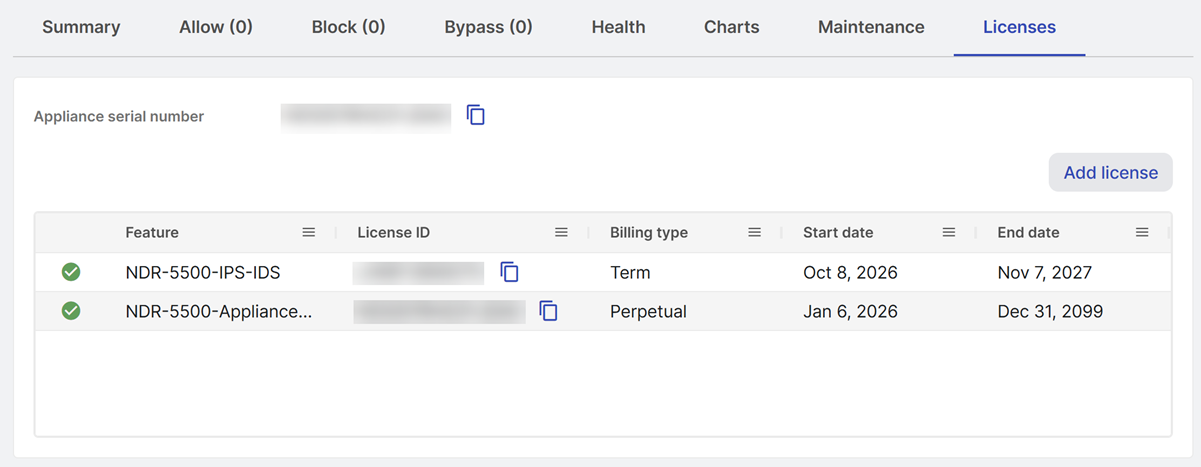
The appliance serial number is shown at the top. The table shows the following information for each license:
- Feature, such as
NDR-5500-Appliance-PURorNDR-5500-IPS-IDS - License ID
- Billing type, which can be Perpetual or Term
- Start date
- End date
A green check next to a row means the license is active.
The appliance license is perpetual. The IDS/IPS license is a term license with a defined end date.
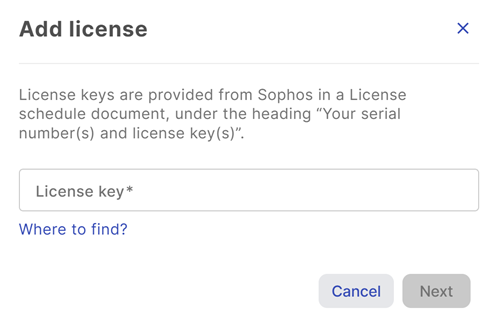
You can find the license key in your license schedule, under Your serial number(s) and license key(s).
To add a license, do as follows:
- Click Add license.
-
Paste the key into the License key field.
-
Click Next.