NDR Appliances
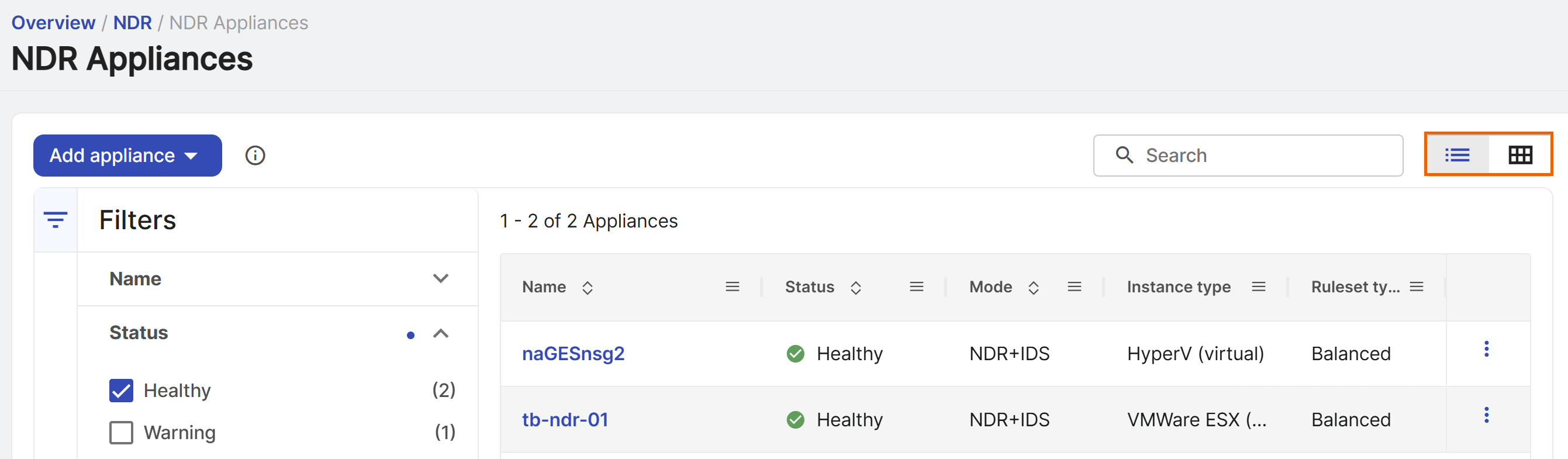
Use the NDR Appliances page to add and manage Sophos NDR appliances. You can search and filter appliances and switch between card and list views.
Add appliance
To add a virtual NDR appliance, see Sophos NDR on Hyper-V or Sophos NDR on VMware ESXi and vSphere.
To add a physical Sophos NDR appliance, see Deploy a physical Sophos NDR appliance.
Adjust your view
You can change the page view, search for appliances, and filter the appliances shown as follows:
-
Click the List View icon or Card View icon to change the page view.
-
Enter a search term to search by name, version, IP address, IP range, or UID.
-
In the Filters menu, you can filter by the following fields:
- Name: The hostname you entered when you created the appliance.
- Status: The appliance's health status. See Health status.
- Mode: The mode configured for the appliance. See Mode.
- Instance type: The appliance's platform or hardware type.
- Rule set type: The type of rule set applied to the appliance. See Appliance rule set.
- Rule set version: The rule set version number.
- NDR version: The version of the NDR software running on the appliance. It changes with each update. This isn't the firmware version, which is the version of the base image (for example, 9.3.2.2) and doesn't change when the appliance is updated.
- IP address/range: The appliance IP address or IP address range. Use an IP address range to broaden your results.
- UID: The appliance UID value.
-
Click Reset at the bottom of the Filters menu to clear your selections.
Appliance actions
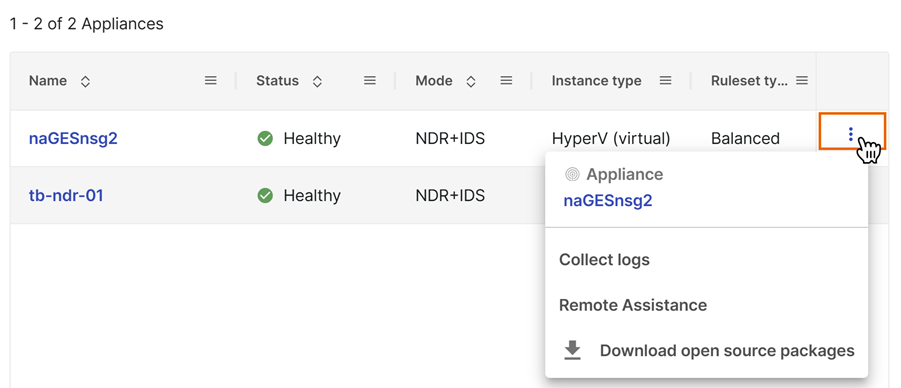
Click the three dots on the right of an appliance to see available actions.
- Appliance name: Opens the appliance details. See NDR appliance details.
- Collect logs: Collects appliance system and application logs for Sophos Support. This option isn't available when the appliance isn't connected to Sophos Fusion. See Log collection.
- Remote Assistance: Connects the appliance to the Sophos remote support service. Sophos Fusion provides an access ID that Sophos Support can use to connect to the appliance. See Remote assistance.
- Download open source packages: Downloads a ZIP file containing third-party open-source software that Sophos provides to meet its software licensing requirements.
Log collection
To collect system and application log files from an appliance connected to Sophos Fusion, do as follows:
- Click the three dots on the right of an appliance.
-
Select Collect logs.
Log collection may take a few minutes.
-
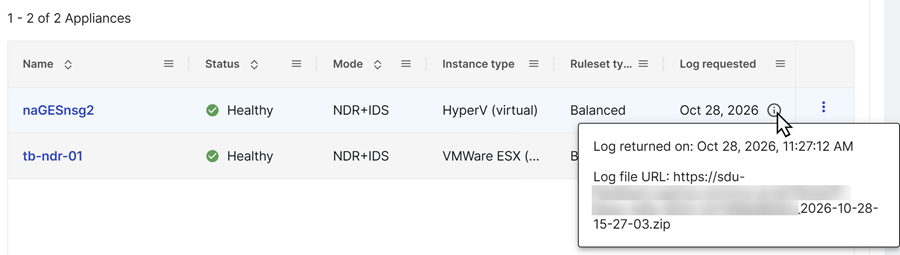
Wait a few minutes, then refresh the page and check the Log requested column in list view. If the request hasn't completed, wait and refresh the page again.
When the request completes, the Log requested column in list view shows the request date.
This information doesn't show in card view.
-
Hover over the Information icon next to the date to see the date and time the logs were collected and the log file URL.
If there's no information, log collection hasn't finished or wasn't successful.
Remote assistance
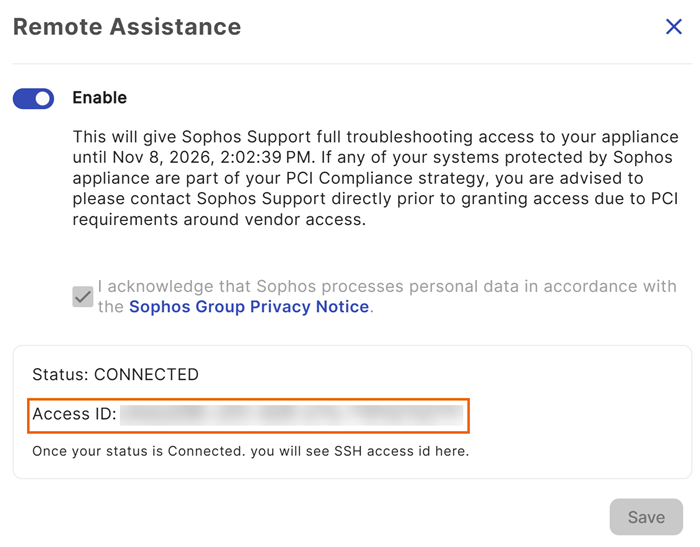
To give Sophos Support remote access to your appliance, do as follows:
- Click the three dots on the right of an appliance.
- Select Remote Assistance.
-
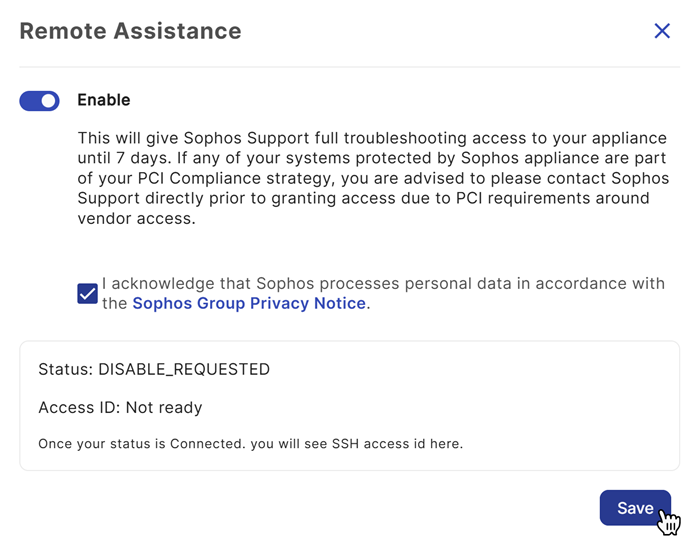
Turn on remote assistance.
Sophos Support has troubleshooting access to the appliance for seven days. You can turn off remote assistance sooner.
-
Click the personal data acknowledgement.
-
Click Save.
When the appliance connects, the status changes to Connected and Sophos Fusion shows an Access ID.
Copy the Access ID and send it to Sophos Support. They use it to access your appliance.
To turn off remote assistance, do as follows:
- Click the three dots on the right of an appliance.
- Select Remote Assistance.
- Turn off remote assistance.
-
Click Save.
The status changes to Disabled.