Firewall reporting licenses
You can allocate and manage your firewall reporting licenses from Sophos Fusion.
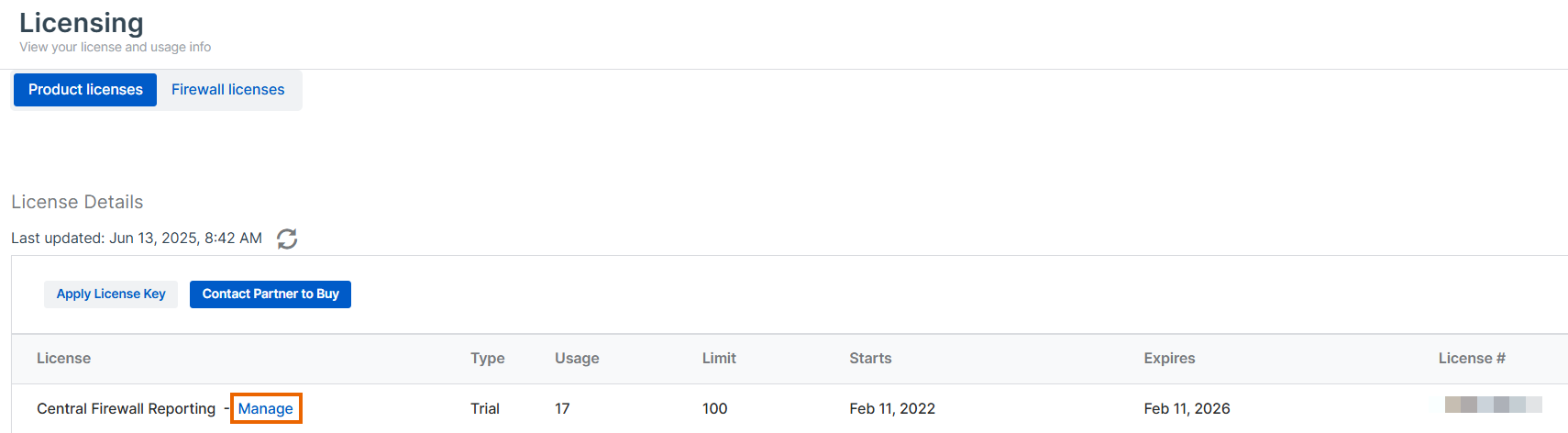
Click your Profile icon  , click Licensing, and go to the Product licenses tab. Under License, you see Central Firewall Reporting. Click Manage.
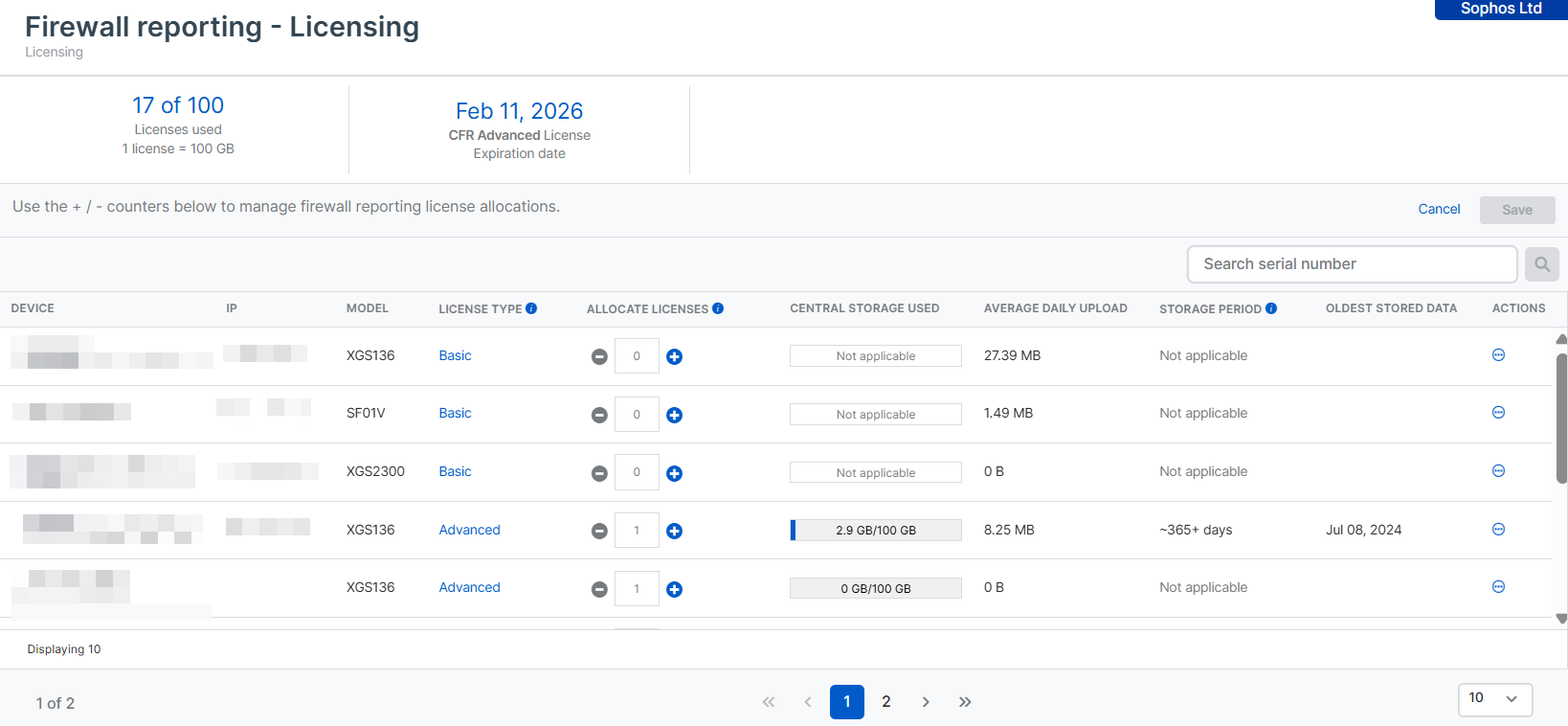
On the Firewall reporting - Licensing page, you can see the following details:
- Device: The firewall's name.
- IP: The firewall's IP address.
- Model: The firewall's model.
- License type: The firewall's license type. For more information, see License type.
- Allocate licenses: Allocate firewall reporting licenses to your firewall by clicking the plus icon. Remove licenses by clicking the minus icon.
- Fusion storage used: How much Sophos Fusion storage is used for your firewall reports, in GB.
- Average daily upload: The average daily amount of data uploaded to Sophos Fusion from your firewalls.
- Storage period: How long reporting data is stored for.
- Oldest storage data: The oldest reporting data that's currently stored.
- Actions: Take various licensing and reporting actions. For details, see Actions.
You can search for your firewalls by serial number.
License type
Click the tab below for your license type.
Reporting on your firewall is free when you have any other active firewall subscription. You can do as follows:
- Store data for up to seven days.
- Search and view firewall reporting data in the firewall's syslog.
- Generate reports in Sophos Fusion.
When you purchase an active Xstream Protection bundle, you get a limited Central Firewall Reporting Advanced license. You can do as follows:
- Store the last 30 days of logs and reports.
- Search and view firewall reporting data in the firewall's syslog.
- Generate reports in Sophos Fusion.
- Download reports in PDF, HTML, and CSV.
- Schedule and save reports in Sophos Fusion.
When you have a Central Firewall Reporting Advanced license, you can do as follows:
- Store logs and reports for up to one year.
- Search and view firewall reporting data in the firewall's syslog.
- Generate reports in Sophos Fusion.
- Download reports in PDF, HTML, and CSV.
- Schedule and save reports in Sophos Fusion.
Actions
Under Actions, click the three dots. 
In the drop-down menu, you see the following options:
-
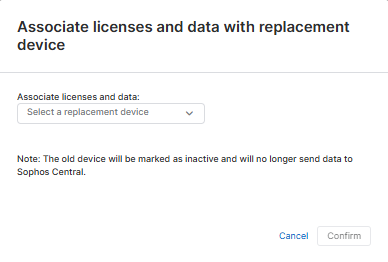
Associate licenses and data with replacement device: Select a replacement device to associate licenses and data with, then click Confirm.
-
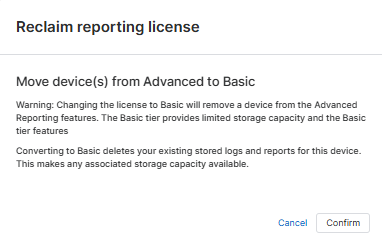
Reclaim all licenses (convert to basic): Converts the firewall's reporting license to the basic tier. Existing stored logs and reports for the firewall are deleted.
If you want to convert the license to basic, click Confirm.
-
View device reports: Takes you to the Firewall reporting - Report Hub page. See Report Hub.
-
Delete log data: Deletes log data for the firewall.
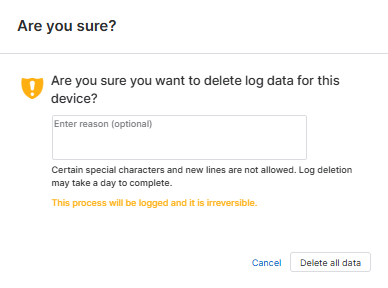
Optionally, you can enter a reason for the action. Click Delete all data to proceed.
Note
This process can't be undone. The action is logged.
-
Delete log data and unregister from Sophos Fusion: Removes the firewall from Sophos Fusion and deletes its log data.
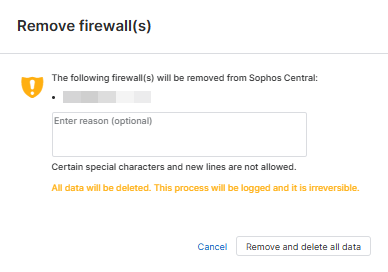
Optionally, you can enter a reason for the action. Click Remove and delete all data to proceed.
Note
This process can't be undone. The action is logged.
HA deployments
For HA deployments, only one Central Firewall Reporting license is required for the HA cluster. You don't need to assign separate reporting licenses to individual HA nodes.
This behavior is the same for active-passive and active-active HA deployments. A single reporting license covers both devices in the HA cluster.
If HA is disabled, the reporting license is automatically assigned to the primary device. The auxiliary device no longer has a reporting license assigned.