AI Defense activity
AI Defense records AI app activity throughout your organization.
- To see a list of AI app activities, go to My Products > AI Defense and click AI Defense Activity.
-
Click the calendar icon
 in the upper right of the page to set the time range you want to view.
You can now see which apps were used during that time range, who used them, how risky the usage was, and what action was taken.
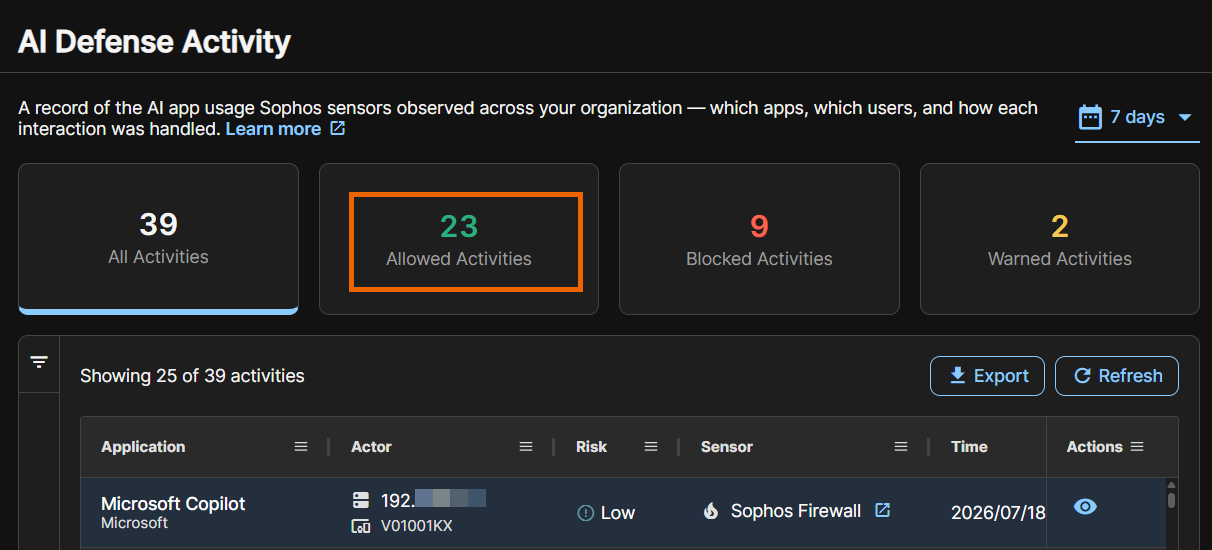
The widgets above the list show the total number of activities and the number that were allowed, blocked, or warned about.
Click a widget to filter the list. For example, click Allowed Activities to see only the AI activities that were allowed.
The activities list
The activities list shows these details for activities in your selected time range:
- Application: The AI application.
- Actor: The device where the AI app was used.
- Risk: The risk level of the application. The level can be Low, Medium, High, or Critical.
- Sensor: The Sophos product that detected the AI usage. Click the Expand icon to see the event in the device's details page.
- Time: The time when AI activity occurred.
-
Action: The action taken due to a policy. The actions are as follows:
- Allowed.
- Blocked.
- Warned: The user was warned but allowed to continue.
- Unknown: No verdict was recorded.
-
Policy: The policy that caused the action taken on the app.
You can export the list. Click Export to download the list as a CSV file.
Customize the activities list
To change the columns shown, do as follows:
-
Click the More icon
 next to a column name.
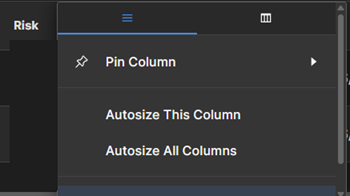
A menu with two tabs opens.
-
In the left tab, you can pin the column and autosize it. You can also autosize all columns or reset them.
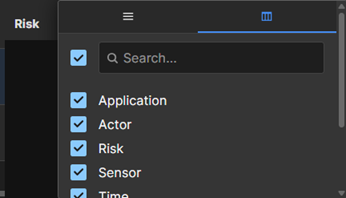
In the right tab, you can select or clear checkboxes to show or hide columns.
See activity details
To see full details of an activity, click the View icon  in the Actions column.
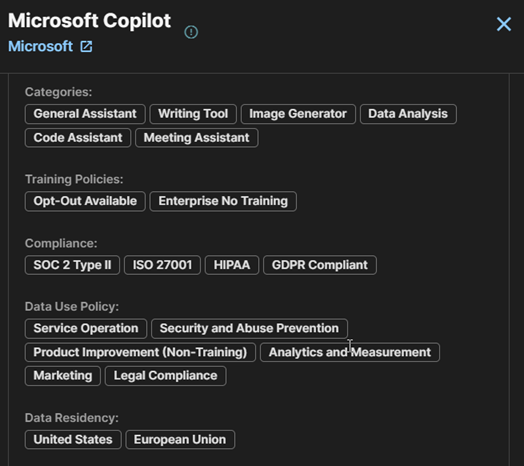
A slide-out opens with a description of the app, a risk summary, and a link to the vendor's website. It also includes the following details:
- Categories: For example, "Code Assistant" or "Writing Tool". An app can be in multiple categories.
- Training policies: For example, "Opt-out Available" or "Enterprise No Training".
- Compliance: Standards the app complies with.
- Data use policy: How data can be used.
- Data Residency: Where data is stored.