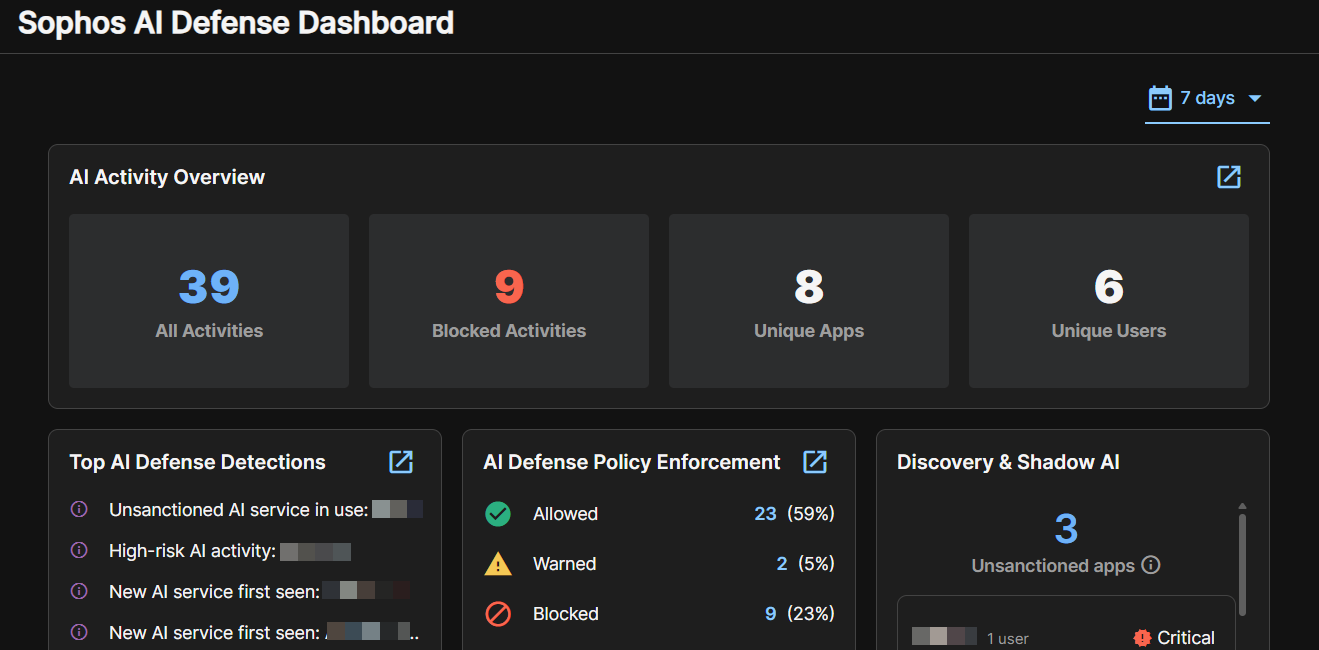
AI Defense dashboard
To see the AI Defense dashboard, do as follows:
- Go to My Products > AI Defense and click Dashboard.
-
Click the calendar icon
 in the upper right of the page to set the time range you want to view.
Top AI apps
Top AI apps lists the most frequently used AI apps and shows the number of users and activities for each. It also shows the risk level of each app.
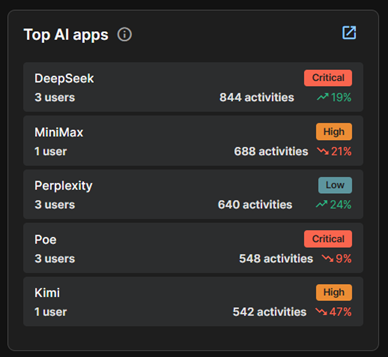
You can see more information about each app and its usage as follows:
- Click the app name to see technical details in the Application details flyout.
- Click the number of users to see the Inventory page filtered to show only those users.
- Click the number of activities to see the Activity page filtered to show only activities for that app.
Tip
To change or clear the filters, click the Filter icon  , then edit the settings or click the reset icon
 .
Click the View All icon  in the upper right of the widget to see a list of all apps, with the most frequently used apps first, on the Inventory page.
AI policy coverage
AI policy coverage shows the number of active AI Defense policies and a breakdown of the allow, warn, and block actions they've enforced.
Click a tile, for example Blocked activities, to see the Activity page filtered to show only those activities.
Tip
To change or clear the filter, click a different tile.
Click the View All icon to see details of all policies.
AI security posture
AI security posture gives you an overall score out of 100 based on your scores for the following factors:
- Sensor coverage: How much of your organization is monitored by Sophos sensors, such as Sophos Endpoint and Sophos Firewall.
- Policy maturity: How well policies control your AI usage, especially usage of higher-risk apps.
- Usage risk: How risky your AI usage is, based on the use of unsanctioned or higher-risk apps. The higher the score, the lower your risk.
Click See details to see settings that reduce your score. Review them and make changes to improve your posture.
Recent AI detections
Recent AI detections lists the most recent detections of AI apps and shows a breakdown of those detections by severity level.
Click a tile, for example High or Medium, to filter the list to show only detections of that severity level.
Click the title of a detection to open its Detection details flyout.
Click the View All icon to see all detections.
AI activity summary
In AI activity summary, the tiles show statistics for activities, apps, and users. You can click each tile to see details as follows:
- All activities: Click to see all activities listed on the Activity page.
- Blocked activities: Click to see the Activity page filtered to show only blocked activities.
- Unique apps: Click to see the apps list on the Inventory page's Apps tab.
- Unique users: Click to see the users list on the Inventory page's Actors tab.
Click the View All icon to see all activities.
Top AI users
Top AI users shows the users who most frequently used AI apps. It shows the number of apps used, the number of activities, an indicator of how their usage is trending, and their risk level.
It also shows the number of policy violations by each user, if any. Policy violations are activities that AI Defense blocks or warns about.
- Click the number of apps used to see a flyout listing those apps.
- Click the number of activities to see the Activity page filtered to show only activities by that user.
Tip
To change or clear the filter, click the Filter icon , then edit the settings or click the Reset icon .
Click the View All icon to see all users listed, with top users first, on the Inventory page.
Top AI providers
Top AI providers shows AI providers ranked by the number of activities. It also shows the risk level for each provider.
Shadow AI
Shadow AI shows the number of unsanctioned apps detected. An unsanctioned app is one that is in use but not explicitly allowed by any policy.
New AI apps
New AI apps shows the number of apps detected in this time period that weren't detected in the previous period of the same length.
Click the View All icon to see details of all apps on the Inventory page.
AI app risk breakdown
AI app risk breakdown shows the number of AI apps in each risk category, the number of users using them, and the number of activities they were used in.
- Click the number of users in each category to see the Inventory page filtered to show only those users.
- Click the number of activities in each category to see the Activity page filtered to show only those activities.
Tip
To change or clear the filters, click the Filter icon , then edit the settings or click the reset icon .
AI usage flow
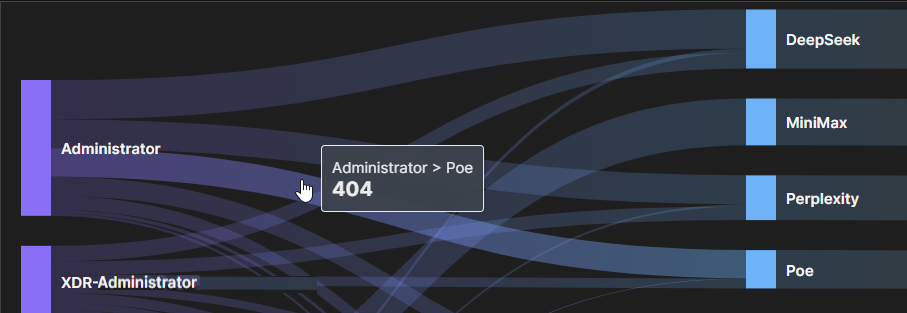
AI usage flow shows which AI apps are used by each user.
The thickness of each flow line lets you see at a glance which apps are most used and which users make most use of them.
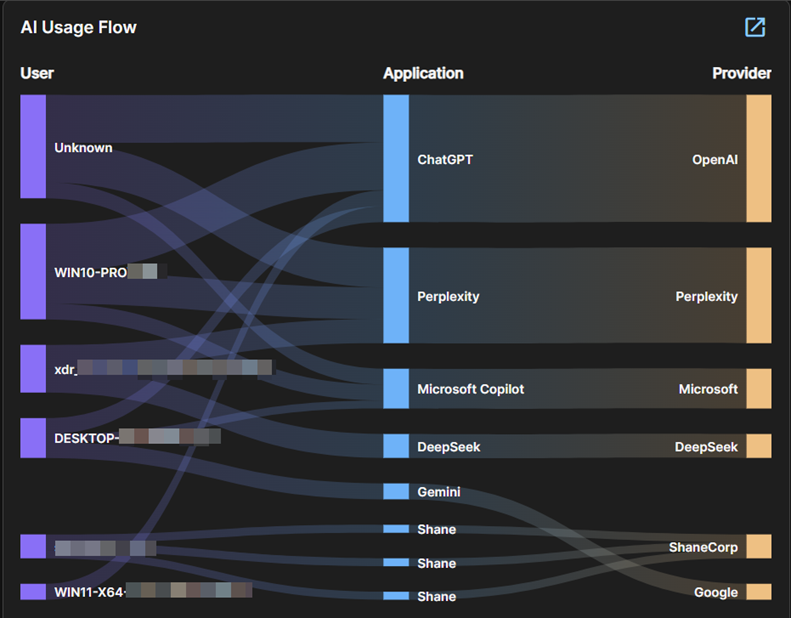
For more usage details, do as follows:
-
Hover over a flow line to see how many times a user used a specific app. In the example below, you can see how many times "Administrator" used Poe.
-
Hover over the solid color block beside a user's name on the left of the page to see how many times they've used AI apps altogether.
- Hover over the app name to see how many times it's been used by all users.
Click the View All icon to see details of all AI usage on the Activity page.
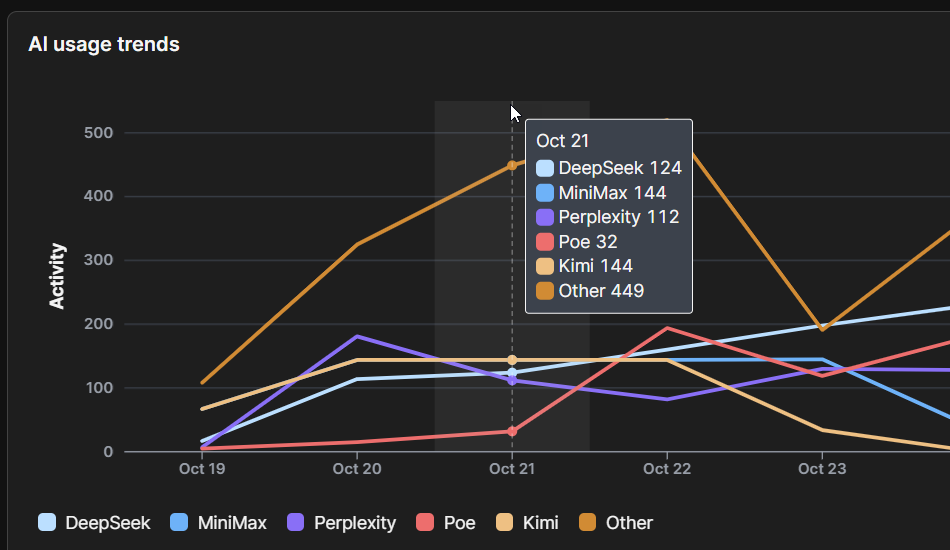
AI usage trends
The AI usage trends graph shows the level of activity for each AI app day by day. Hover over the graph to see the number of times each AI app was used on a specific day.
Click the View All icon to see details of all AI usage on the Activity page.