AI Defense detections
AI Defense detects the use of AI apps in your organization.
View detections
To see your detections, do as follows:
- Go to My Products > AI Defense and click Detections.
- Click the calendar icon in the upper right to select the time period you want to view.
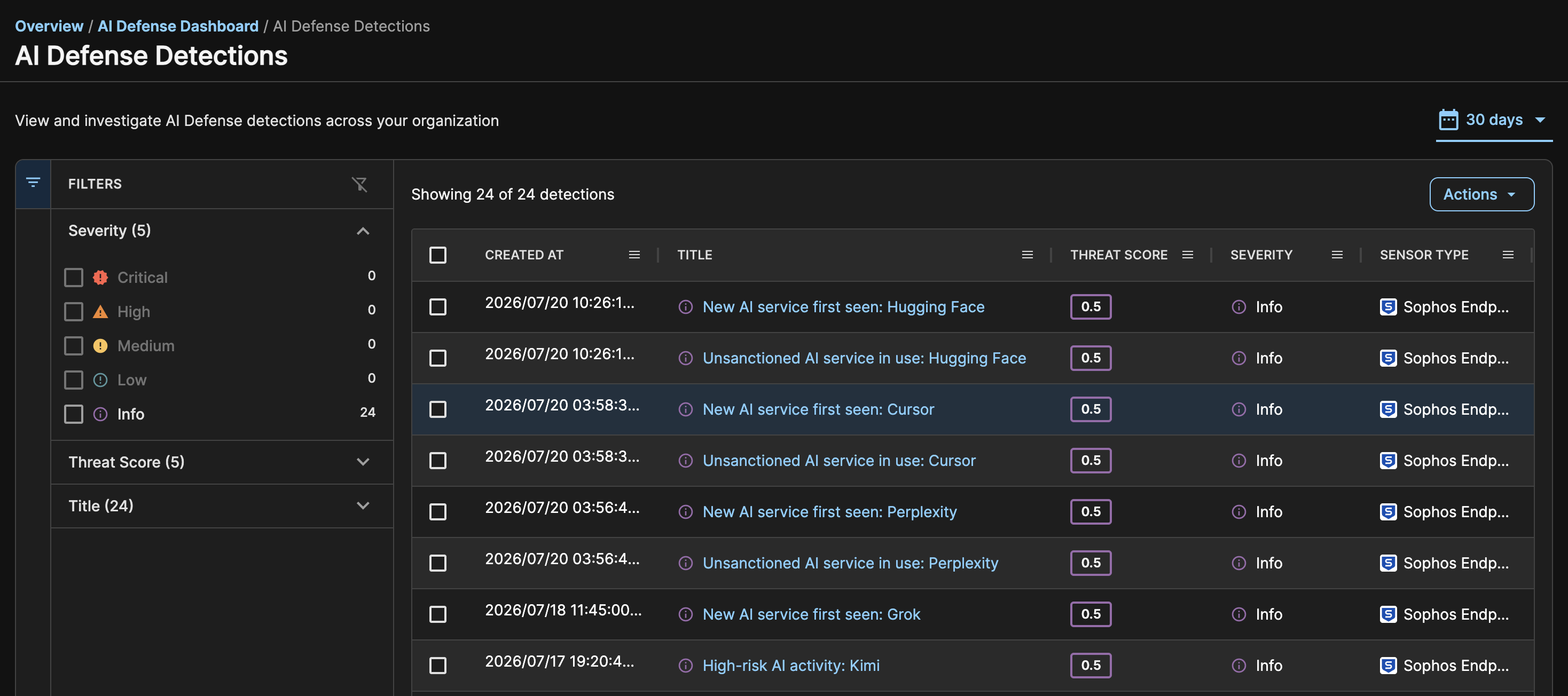
The detections list shows detections with the following details:
- Created at: When the detection occurred.
-
Title: What the detection identified.
For example, a previously unseen AI app, high-risk AI activity, or use of an unapproved app.
-
Threat score: A score for the risk level. Ranges from 0 (Low) to 10 (High).
- Severity: The severity level. Ranges from Info to Critical.
- Sensor: The sensor that detected the AI activity.
Filter detections
To filter detections, do as follows:
- Click the Filter icon
 on the left of the list.
 -
Select the Severity, Threat Score, or detection Title that you want to see.
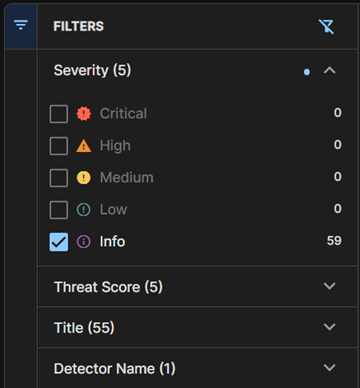
To clear the filters, click the Reset Filters icon  on the right of the filters list.
See full detection details
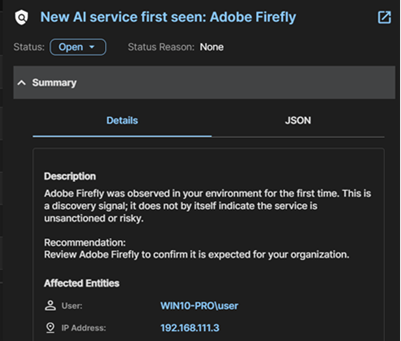
For full details of a detection, click its title in the list.
A slide-out opens with two tabs:
- The Details tab shows a description of the detection, the user or host affected, and the action we recommend.
- The JSON tab shows the raw data the detection is based on. Click Expand all to see the data for every field.
Update detection status
After you investigate the detection or take action, you can update the detection's status in the slide-out as follows:
-
In Status, select one of these options:
- True positive benign. The activity was correctly identified but didn't compromise systems or data.
- True positive malicious. The activity compromised systems or data.
- False positive. The activity was incorrectly identified and isn't malicious.
- Not actionable. The activity might have been correctly identified but remediation actions aren't possible.
A dialog opens.
-
In Reason, give a reason for the status you selected.
Export detections
You can export detection details to formatted CSV, CSV, or JSON files.
-
Select the detections you want to export.
If you want to export all detections, you can skip this step.
-
In Actions, select the format you want.