AI Defense inventory
The AI Defense inventory page lets you view and analyze the AI apps and users in your organization.
Apps
To view your apps, do as follows:
- Go to My Products > AI Defense and click Inventory.
- Select the Apps tab.
- Click the calendar icon in the upper right and select the time period you want to view.
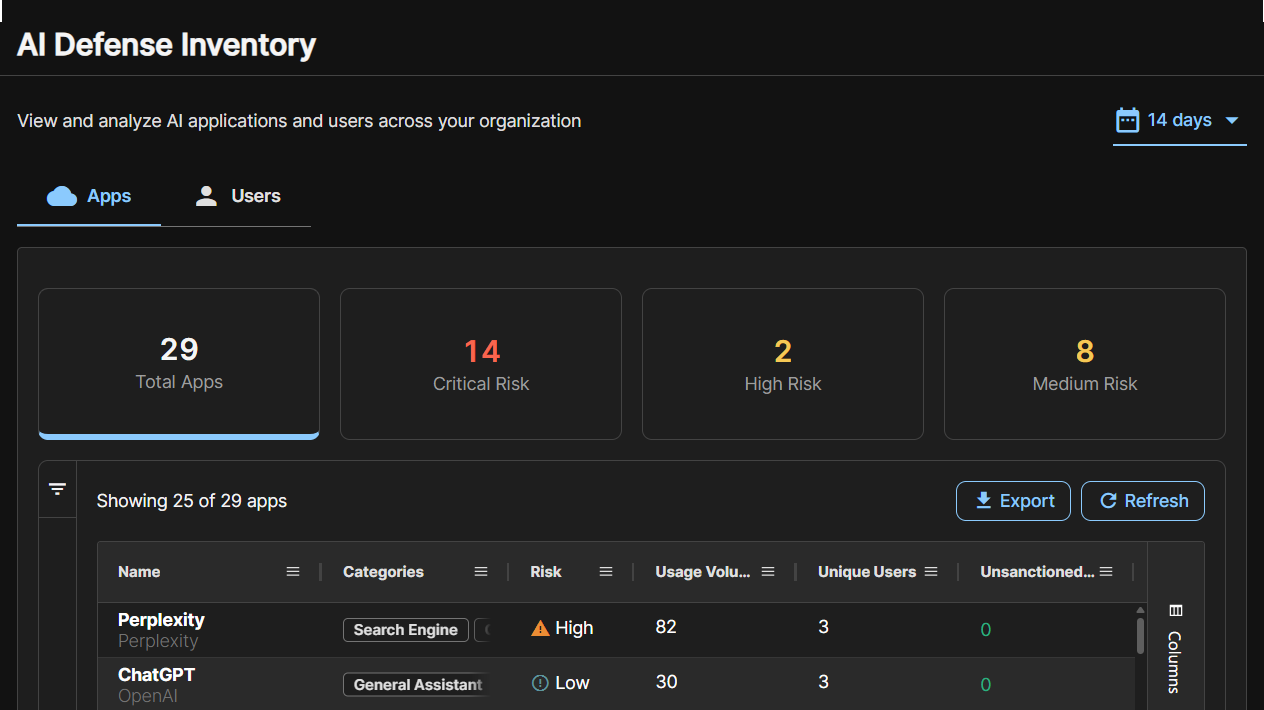
The widgets show you the total number of apps and the number that are critical risk, high risk, or medium risk.
Clicking a widget filters the inventory list to show only apps of that type. For example, clicking High risk shows only the high-risk apps.
The apps list shows the apps, with the following details:
- Risk: Low, Medium, High, or Critical. Risk level is based on the app's compliance certificates, training practices, and more.
- Usage: Level of activity. Each unit of activity groups a device's use of an app into 10-minute windows.
- Users: Number of users who used the app.
- Unsanctioned Use: The value "1" indicates that the app is in use but not explicitly allowed by any policy.
- Trains on Data: Indicates whether the AI provider trains the app on data submitted by your users.
To export the apps list to a CSV file, click Export.
See full app details
To see full app details, click the app name in the list.
A slide-out opens that includes these details:
- Description of the app
- Summary of its risk level
- Main function of the app, for example code assistant or writing tool
- Training policies
- Compliance
- Data use policy
Users
To view your users, do as follows:
- Go to My Products > AI Defense and click Inventory.
- Select the Users tab.
- Click the calendar icon in the upper right and select the time period you want to view.
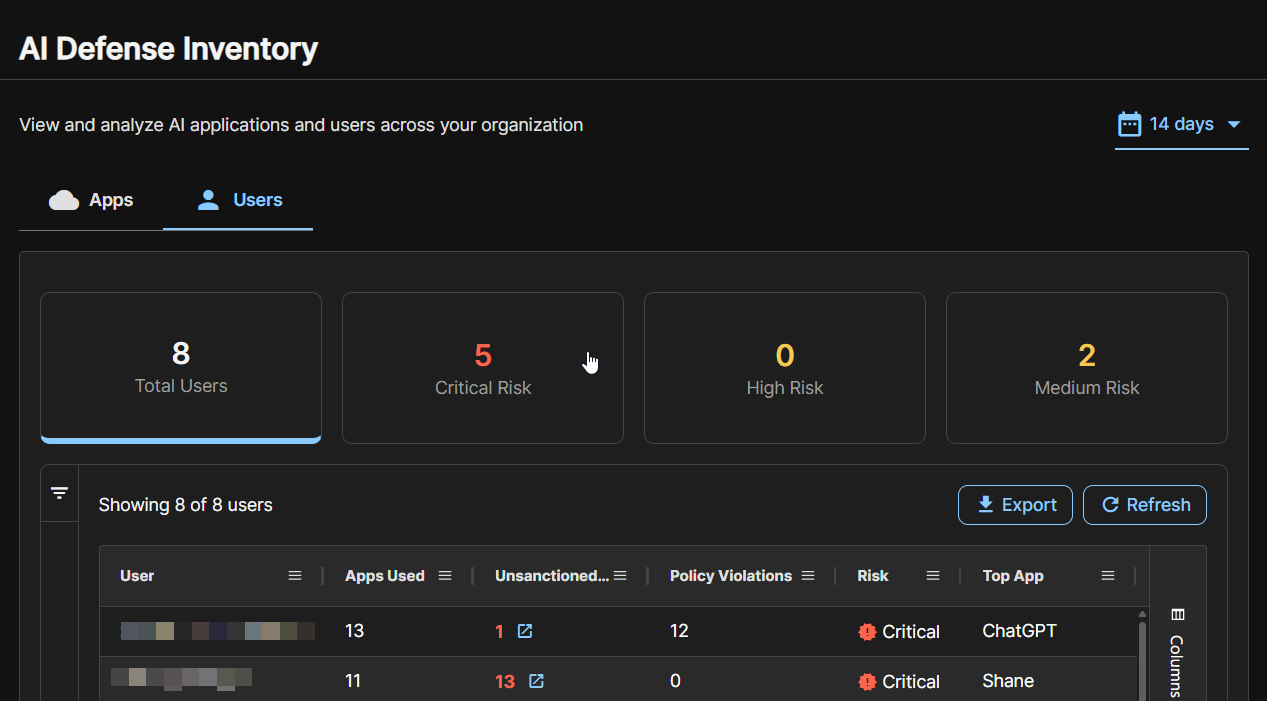
The widgets show you the total number of users and the number that are critical risk, high risk, or medium risk.
Clicking a widget filters the inventory list to show only users of that type. For example, clicking High risk shows only the high-risk users.
The users list shows the users, with the following details:
- Risk: Low, Medium, High, or Critical. Risk level is based on the app's compliance certificates, training practices, and more.
- Usage: Level of activity.
- Apps used: Number of apps used by this user.
- Unsanctioned Use: Apps that are used by the user but not explicitly allowed by any policy.
- Policy violations: Number of activities by this user that were blocked or warned about.
To export the users list to a CSV file, click Export.