AI Defense policies
AI Defense policies let you control which AI apps your users can access.
A policy consists of these settings:
- Rules, which specify which AI apps or app types will be allowed, blocked, or warned about.
- Scope, which specifies which users, groups, or networks the policy applies to.
View policies
To view policies, go to My Products > AI Defense and click Policies.
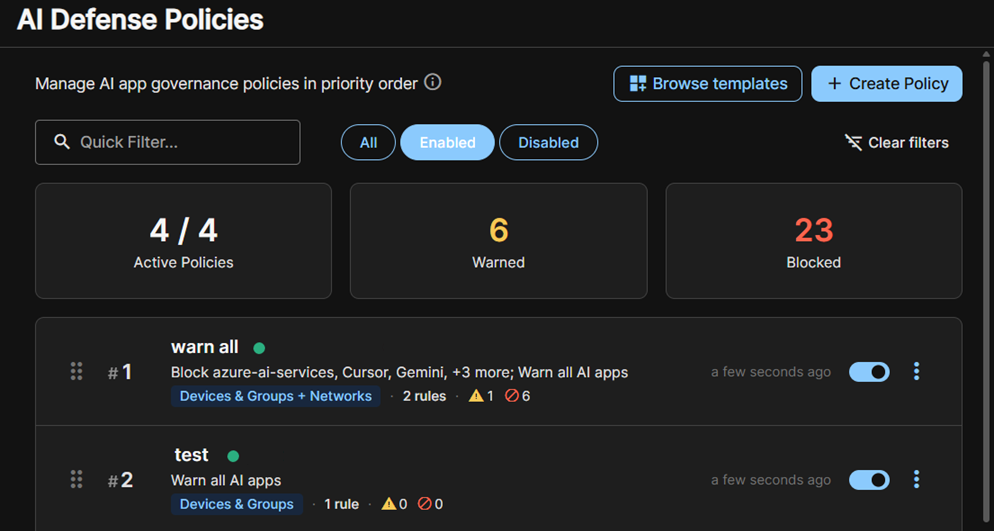
The widgets show the number of active policies and the number of AI activities that policies have blocked or warned about.
The policies list shows individual policies, indicates whether they apply to users, groups, or networks, and summarizes their block, allow, or warn rules.
To filter policies by activity, click All, Active, or Inactive. The policies shown and the statistics in the widgets change to reflect the filter. Alternatively, in Quick Filter, enter the name or partial name you want to filter the list by.
How policies are applied
Before you create or edit policies, you need to know how they'll be applied and prioritized.
When AI activity is detected, policies are applied as follows:
- AI Defense checks policies from the top of the list down. The top policy has the highest priority.
- The first policy whose scope includes the user, device, or network involved is the only policy that is applied. Lower policies are never checked for that AI activity.
- Within that policy, AI Defense checks rules from top to bottom. The first rule that matches the AI app decides the action to take: Allow, Warn, or Block.
- If no rule in the policy matches the AI app, AI Defense takes no action and doesn't move on to policies lower in the list. The AI activity is still recorded.
Policies that are turned off are ignored.
If no policy's scope includes the user, device, or network, AI Defense takes no action but still records the activity.
Policy guidelines
We suggest that you do as follows:
- Put policies that are for a specific group above policies that are for everyone.
- Keep the default "Block all AI apps" rule at the bottom of each policy. In this way, any apps that you didn't list are still covered.
Example of policy usage
In this example, you have two policies:
- Policy 1 in the list applies to Finance. It allows ChatGPT but has no other rules.
- Policy 2 in the list applies to everyone and blocks Gemini.
Now a Finance user who opens Gemini isn't blocked. Policy 1 applies to that user and has no rule for Gemini.
To block Gemini for Finance users, add a rule to Policy 1 or keep the default "Block all AI apps" rule.
Create a policy
This section describes how to create a new policy. If you base your policy on a template or a cloned policy, some settings are already selected. See Create a policy from a template or Clone a policy.
- Go to My Products > AI Defense and click Policies.
-
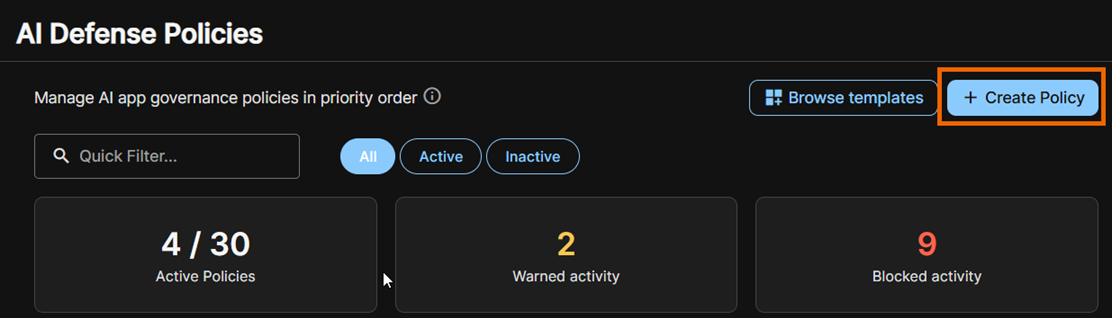
On the Policies page, click Create policy.
-
On the Create Policy page, in Policy Details, do as follows:
- Enter a policy name.
- (Optional) Enter a description of the policy.
Next, set the policy rules and scope. The scope specifies the users or devices it applies to.
Set rules
In Rules, you can create and edit rules.
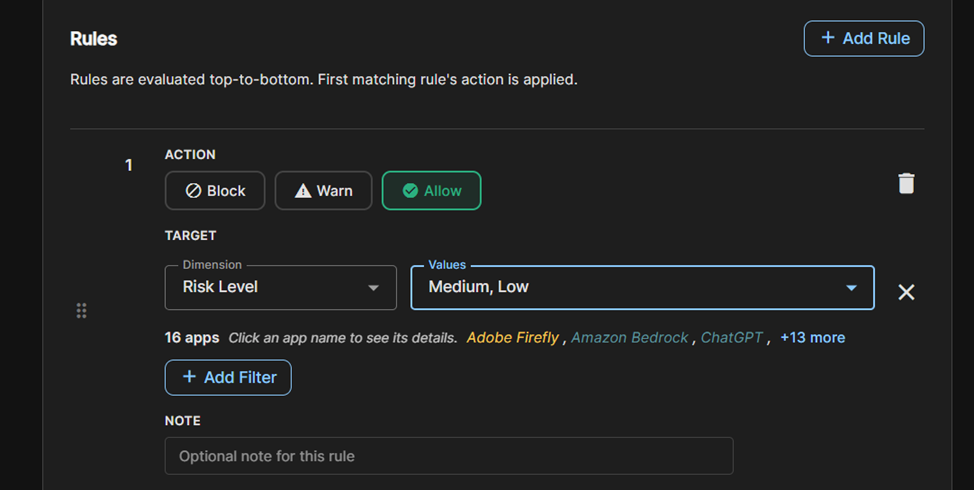
Rules at the top of the list have the highest priority. The first rule that matches an AI usage event applies to that event.
By default, there's a rule that blocks all AI apps. We recommend that you keep this rule at the bottom of the list and add rules that allow some AI apps above it. The default rule then blocks AI usage that doesn't match any of the other rules.
To create a new rule, do as follows:
- Click Add Rule.
-
Select the Action. This is the action we'll take when AI usage matches the rule.
We can block the AI app, allow it, or warn the user about its risks but let them use it.
-
Specify the Target as follows:
- Click Add Filter.
- Select a Dimension. This can be an AI characteristic, for example risk level or compliance with industry standards, or an application name.
-
Select a Value for that dimension. For example, Low or Medium for risk level.
If you selected Application as the dimension, click the Value field to see a list of apps. Select apps you want the rule to apply to.
-
Optional. Click Add Filter to specify another Dimension and Value pair.
Set the scope
In Scope, specify the users, groups, or networks the policy applies to.
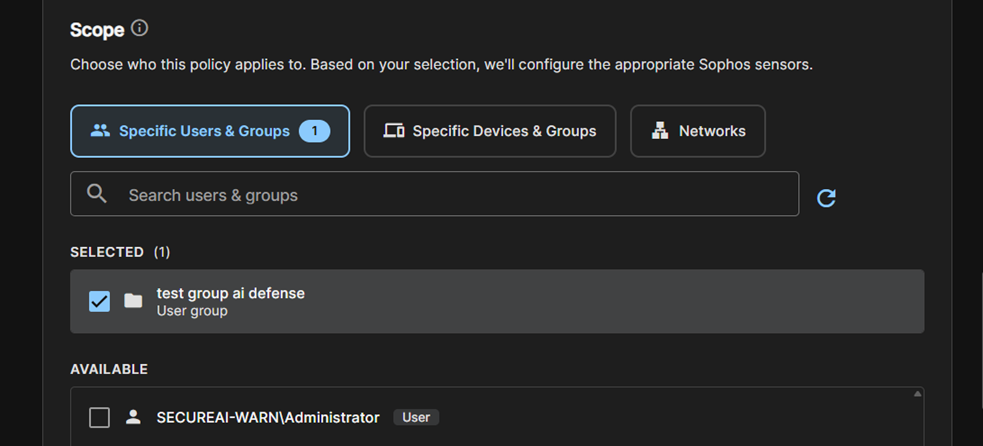
Set the scope as follows:
- Select who or what you want the policy to apply to. For example, click Specific Users and Groups.
-
Select items from the Available list. For example, select specific users or groups.
The page now shows which products the policy will apply to: Sophos Endpoint or Sophos Firewall.
-
Review your settings in What will happen.
- Select I've reviewed the rules and scope above.
-
Save your policy as follows:
-
Click Save to save the policy but not activate it. This lets you change its place in your list so that it has the priority you want before you activate it.
-
Click Save & Enable to activate the policy immediately with top priority.
-
Create a policy from a template
You can create a policy based on a Sophos template.
- Go to My Products > AI Defense and click Policies.
-
On the AI Defense Policies page, click Browse templates.

-
Select a template suitable for your industry. Each template is shown with a summary of its rules. Click Use.
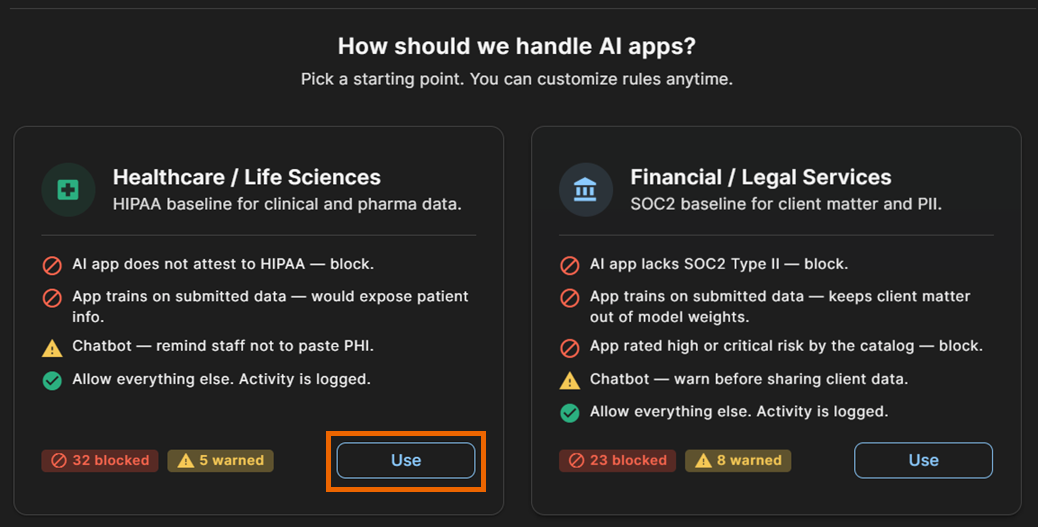
The Create Policy page opens with settings pre-filled.
-
To customize and save your policy, follow the steps in Create a policy.
Clone a policy
You can clone an existing policy and customize it for your needs.
- Go to My Products > AI Defense and click Policies.
- On the AI Defense Policies page, click the three dots
 next to a policy.
 -
Select Clone.
The Create Policy page opens, with the settings from the cloned policy pre-filled.
-
Re-name the policy, edit the settings, and save your policy. For details, see Create a policy.
Edit a policy
To edit a policy, do as follows:
- Go to My Products > AI Defense and click Policies.
-
Click the policy's entry in the list to open its details page.
In Rules, you can make changes as follows:
- To add another rule, click Add Rule.
- To change a rule, click the Edit icon
 next to the rule, update the settings, and click Save Rule.
In Scope, click Edit and change the resources the policy will apply to.