AI Defense setup
AI Defense is available only in Sophos Fusion accounts that have been upgraded to the new platform with Security Operations.
The first time you access AI Defense, an assistant guides you through setup.
The assistant helps you do as follows:
- Enter details of your organization so that we can tailor the setup experience for your needs.
- Select the sensors which send data about AI activity to AI Defense. The sensors can include Sophos Endpoint, Sophos Firewall, and Sophos Linux Server.
- Check that your sensors meet the requirements for using AI Defense. If any requirements are missing, follow the links to the settings you need.
- Create your first policy. The policy controls which AI apps your users can use.
If a Sophos Partner has created a policy for you, you don't need to create one.
Note
If you need to run the assistant again in future to update settings, go to Settings and click Restart onboarding.
To set up AI Defense, do as follows:
-
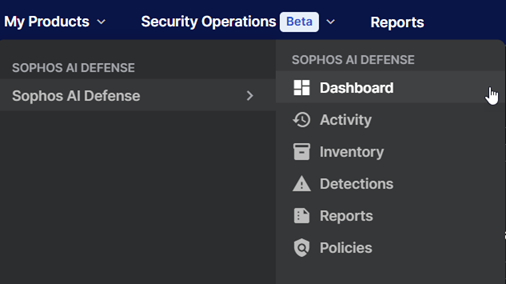
Go to My Products > AI Defense.
-
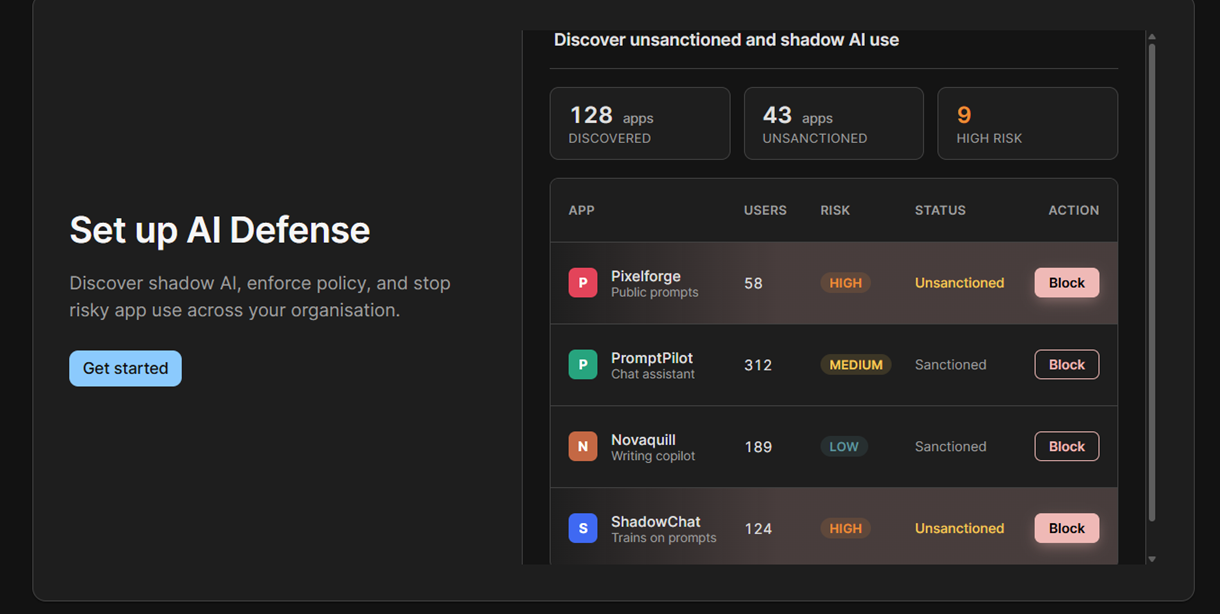
In Set up AI Defense, click Get started.
-
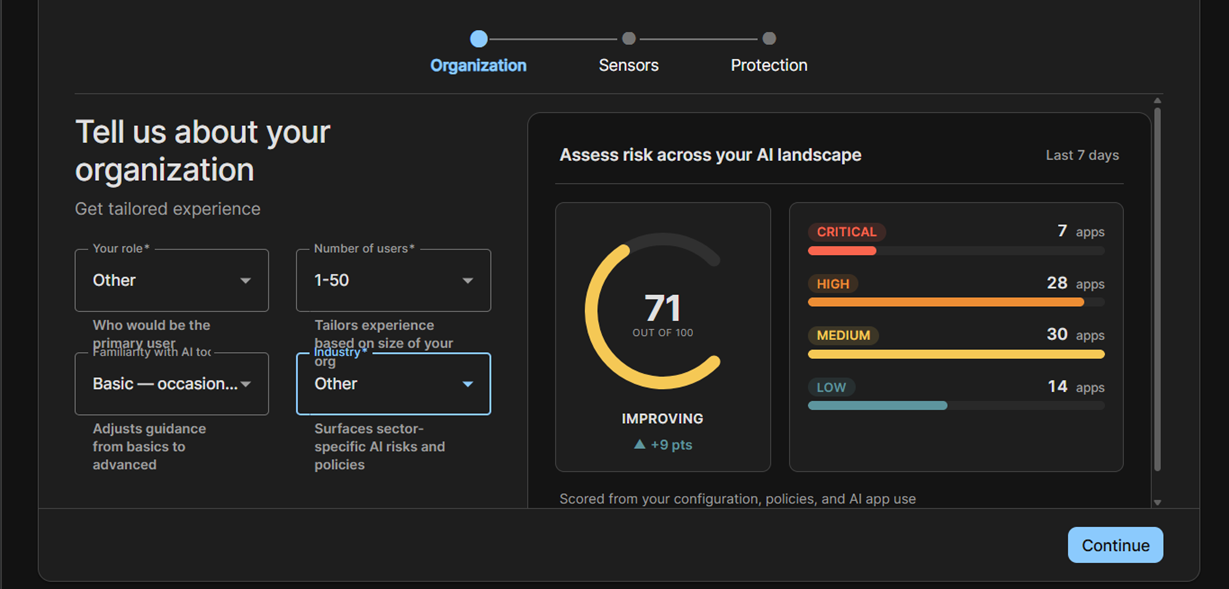
In Tell us about your organization, enter details of the administrator's role and familiarity with AI tools, the number of users, and the sector your organization is in. This lets us tailor the setup experience.
-
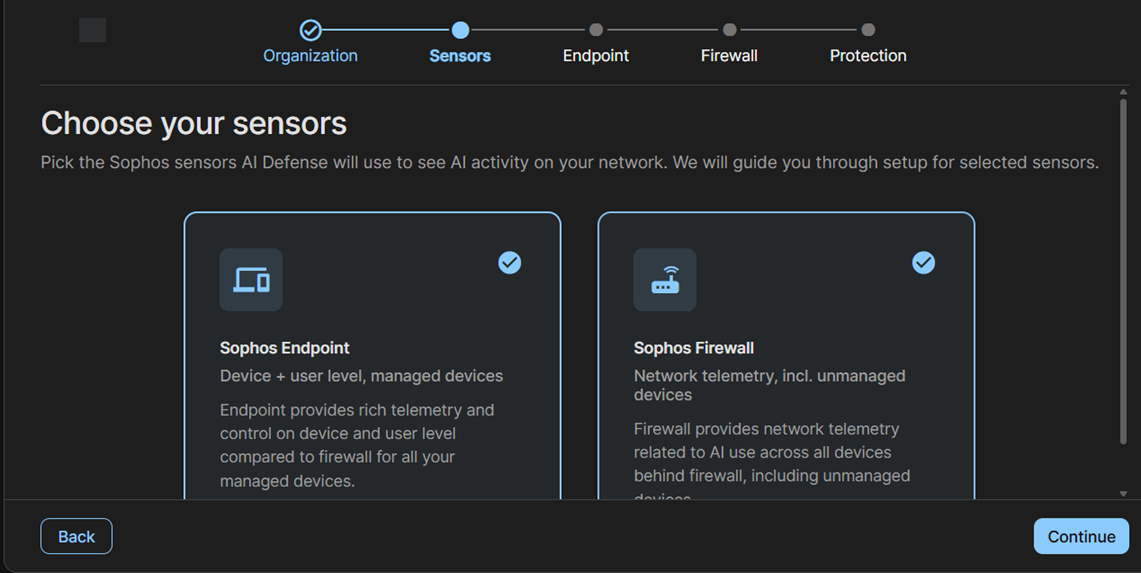
In Choose your sensors, select one or more sensors.
AI Defense uses these sensors to discover AI activity and apply protection. Currently, Sophos Endpoint, Sophos Firewall, and Sophos Linux Server are available.
The next setup steps depend on the sensors you selected. In each step, you'll check that the sensor meets AI Defense requirements. Click Continue.
Note
AI Defense checks whether the selected sensors are available. If it can't verify their status, you see an error message. Click Refresh to check again. If the check fails again, you can still continue the setup process.
-
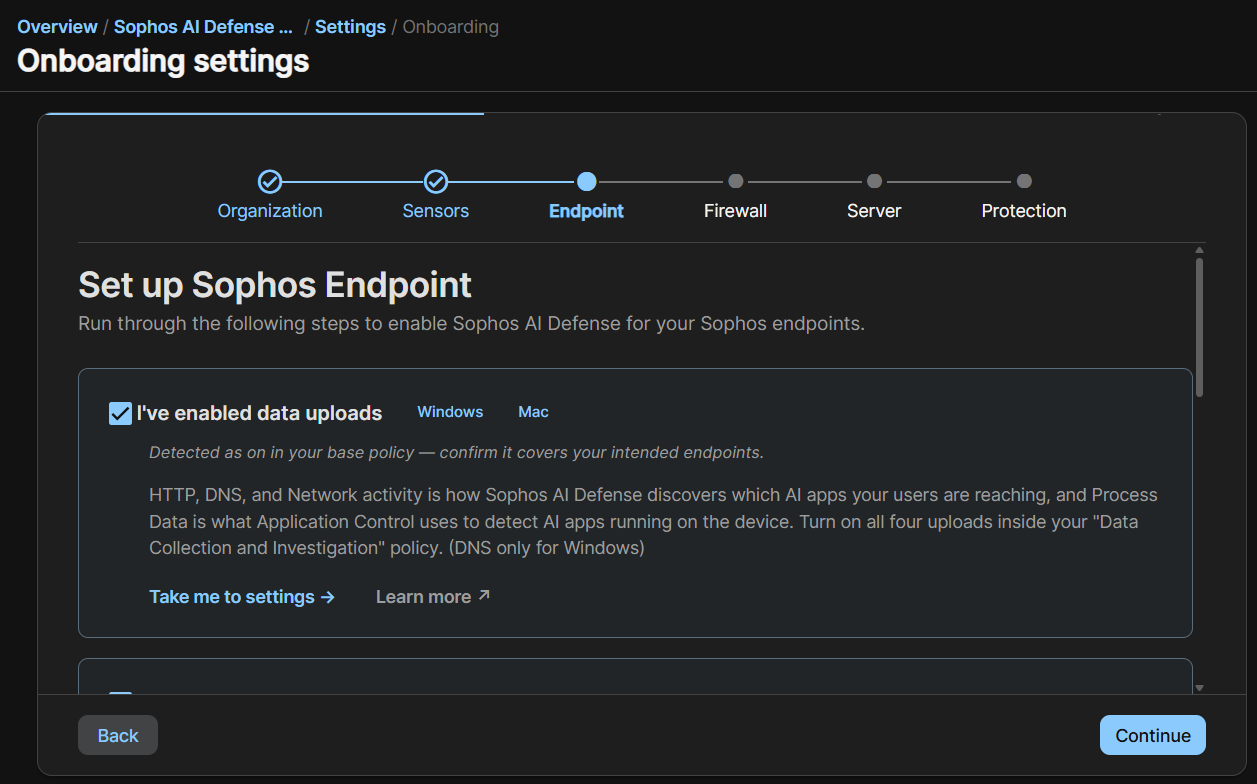
In Set up Sophos Endpoint, the assistant prompts you to confirm that you've turned on settings. Select the checkbox next to each item to confirm it and to see the next item.
The settings to check or turn on are as follows:
-
Enable data uploads.
Go to Endpoint > Policies > Data Collection and Investigation. Then find the policy, turn on Upload to the Data Lake, and select Process Data, HTTP Data, DNS Data, and Network Data.
-
Enable TLS decryption.
Go to Endpoint > Policies > Threat Protection. Then find the policy and turn on SSL/TLS decryption of HTTPS websites.
-
Block QUIC browser connections.
Go to Endpoint > Policies > Threat Protection. Then find the policy and turn on Block QUIC browser connections.
-
Create a web profile and use it in Endpoint Web Control policies.
Go to Global Settings > Protection and Remediation > Web Settings > Web Filtering Profiles and create a profile or profiles.
Then go to Endpoint > Policies > Web Control and use a profile in new or existing Web Control policies that apply to users and devices where you want AI Defense to control use of AI apps. You don't have to use the same profile in every policy.
-
Set Application Control policy.
Go to Endpoint > Policies > Application Control. Then turn on Detect controlled applications when users access them and select Block the detected application.
For full details, see Application Control Policy.
Use Take me to settings to open the relevant Sophos Fusion page or Learn more to open its help.
When you've confirmed that all settings are set up, click Continue.
-
-
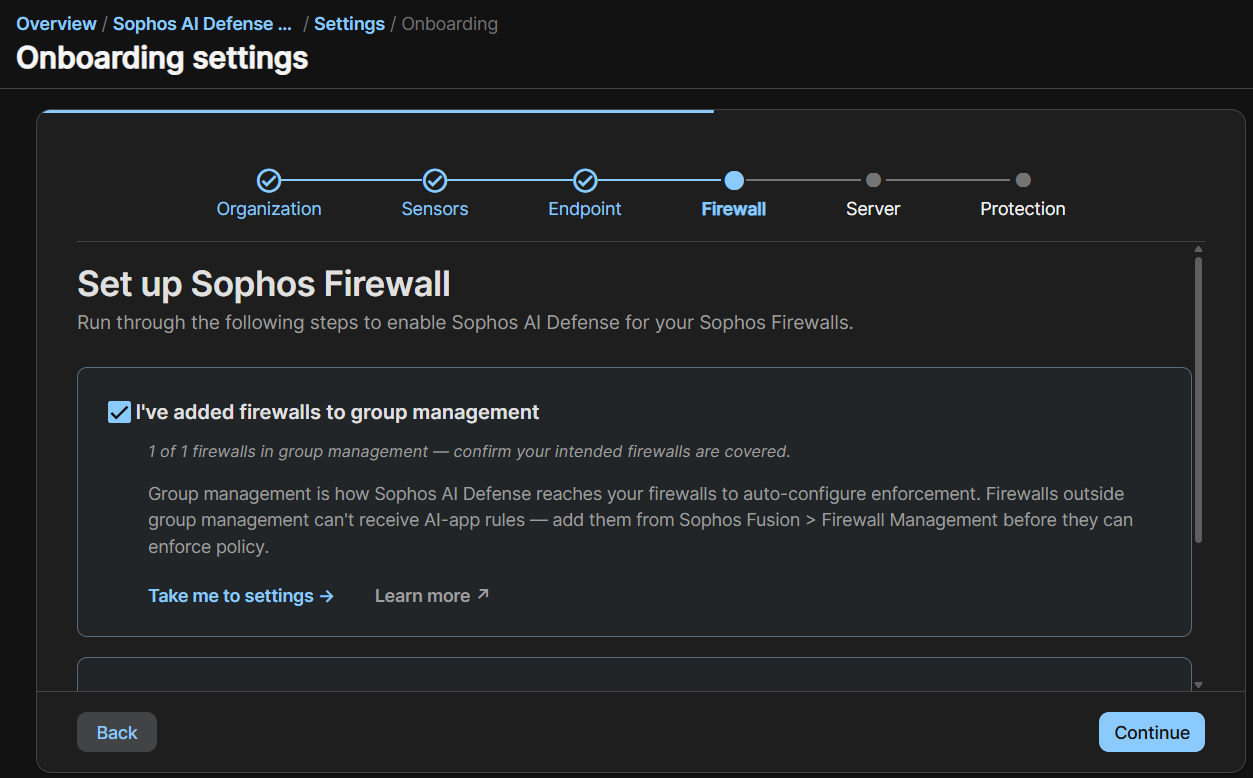
In Set up Sophos Firewall, check or turn on settings as follows:
-
Add firewalls to group management.
Go to Firewall Management > Firewalls to create groups and add firewalls. Firewalls outside group management can't receive AI Defense enforcement rules.
-
Turn on logging in each web policy.
Go to Firewall Management > Firewalls. Find the firewall and click the three dots icon beside it to open the firewall web admin. Click Web, select the policy, and turn on logging in its settings. AI Defense requires this logging to discover AI activity.
Select the checkbox next to each setting to confirm that it's set up. Click Continue.
-
-
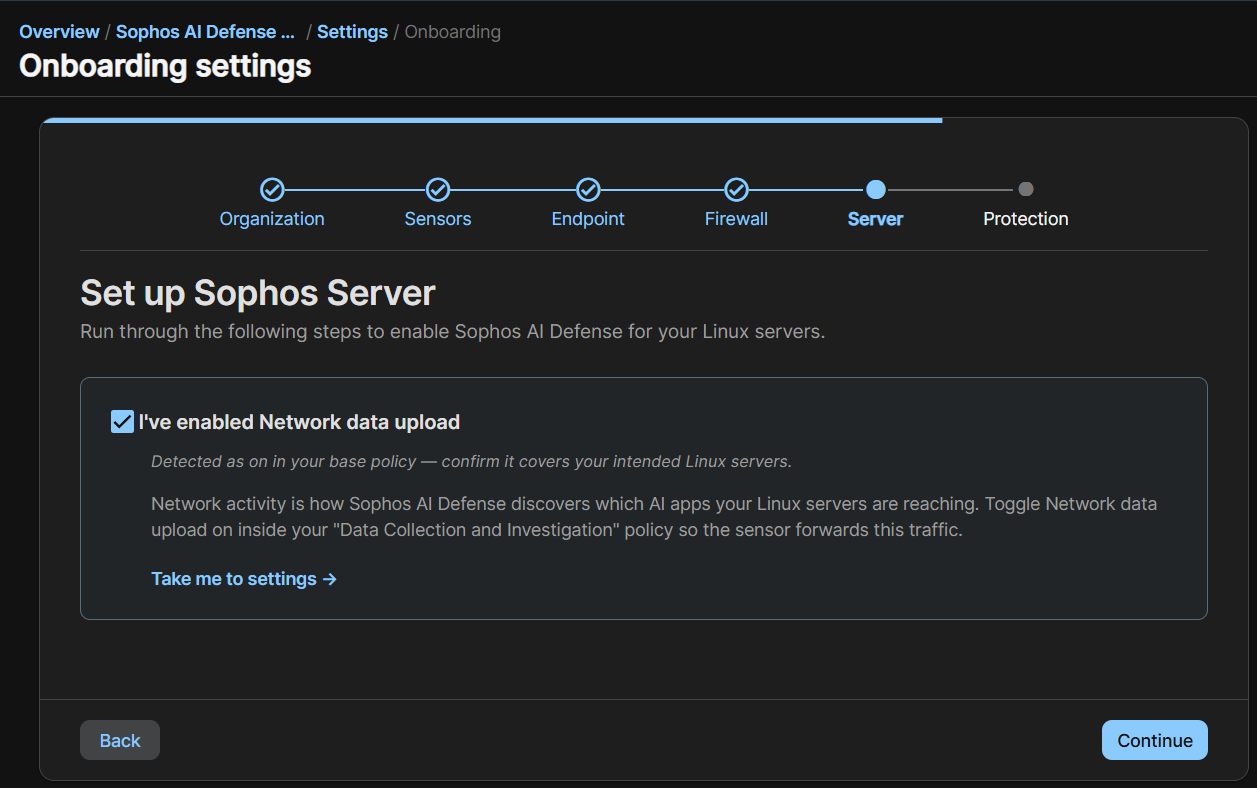
In Set up Sophos Server, check or turn on the following setting:
Network data upload.
Go to Server > Policies > Data Collection and Investigation. Then turn on Upload to the Data Lake and select Network Data.
Select the checkbox next to the setting to confirm it's set up. Click Continue.
-
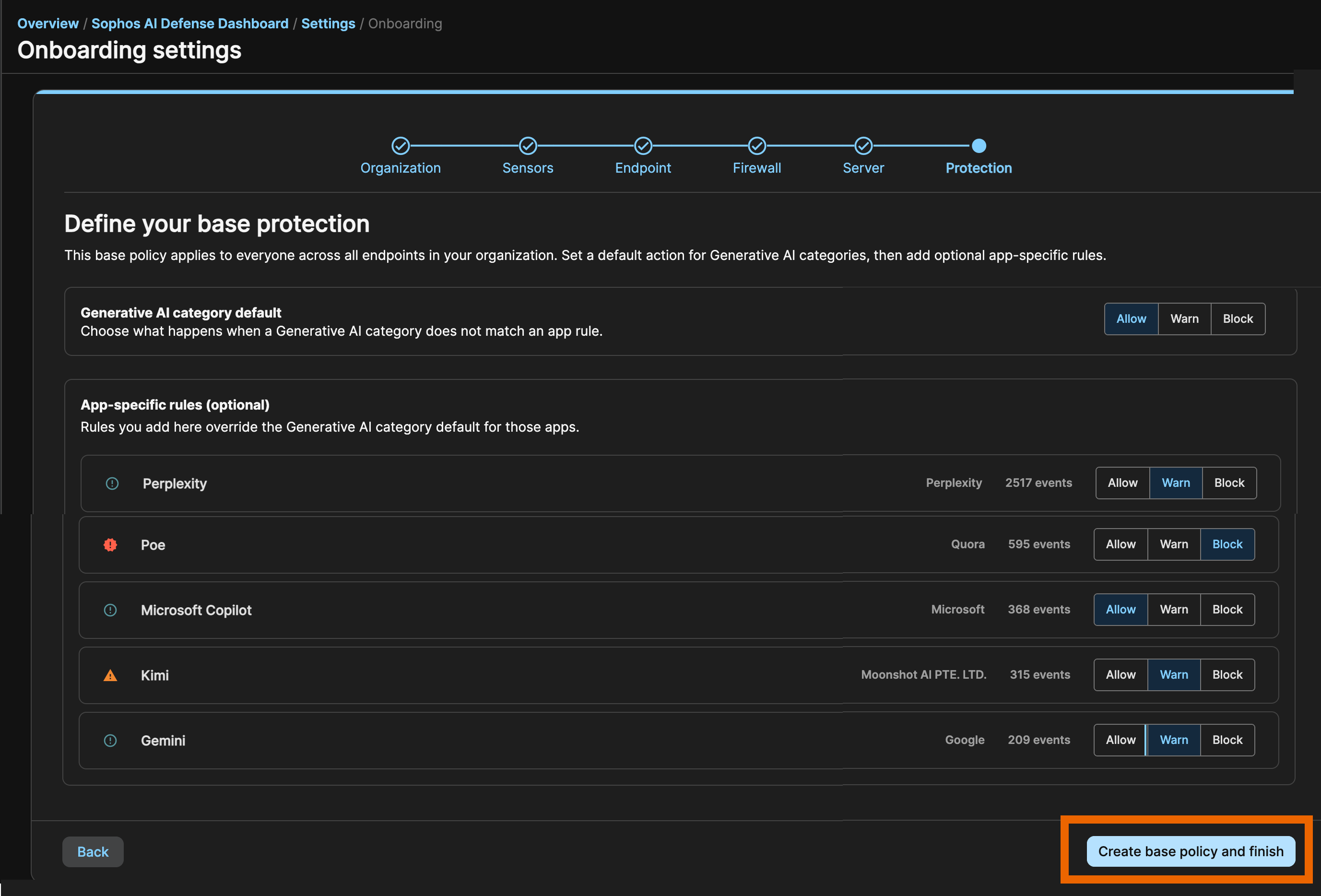
The Define your base protection page opens when you've completed the requirement checks for all your sensors.
If there's no base policy yet, create one now. The base policy applies to everyone in your organization.
Note
If there's already a base policy, onboarding leaves it unchanged. Click Finish and take me to the policy.
-
Set the Generative AI category default. This is the action AI Defense takes on any AI app that you haven't set a rule for. Select whether to block, warn about, or allow apps.
Any app-specific rule you set overrides this default.
-
(Optional) Set app-specific rules. The page shows you AI apps used in your organization in the past thirty days. Select whether to block, warn about, or allow each app.
-
Click Create base policy and finish. Alternatively, you can skip this step.
-
-
If you chose to create a base policy, its policy details page opens.
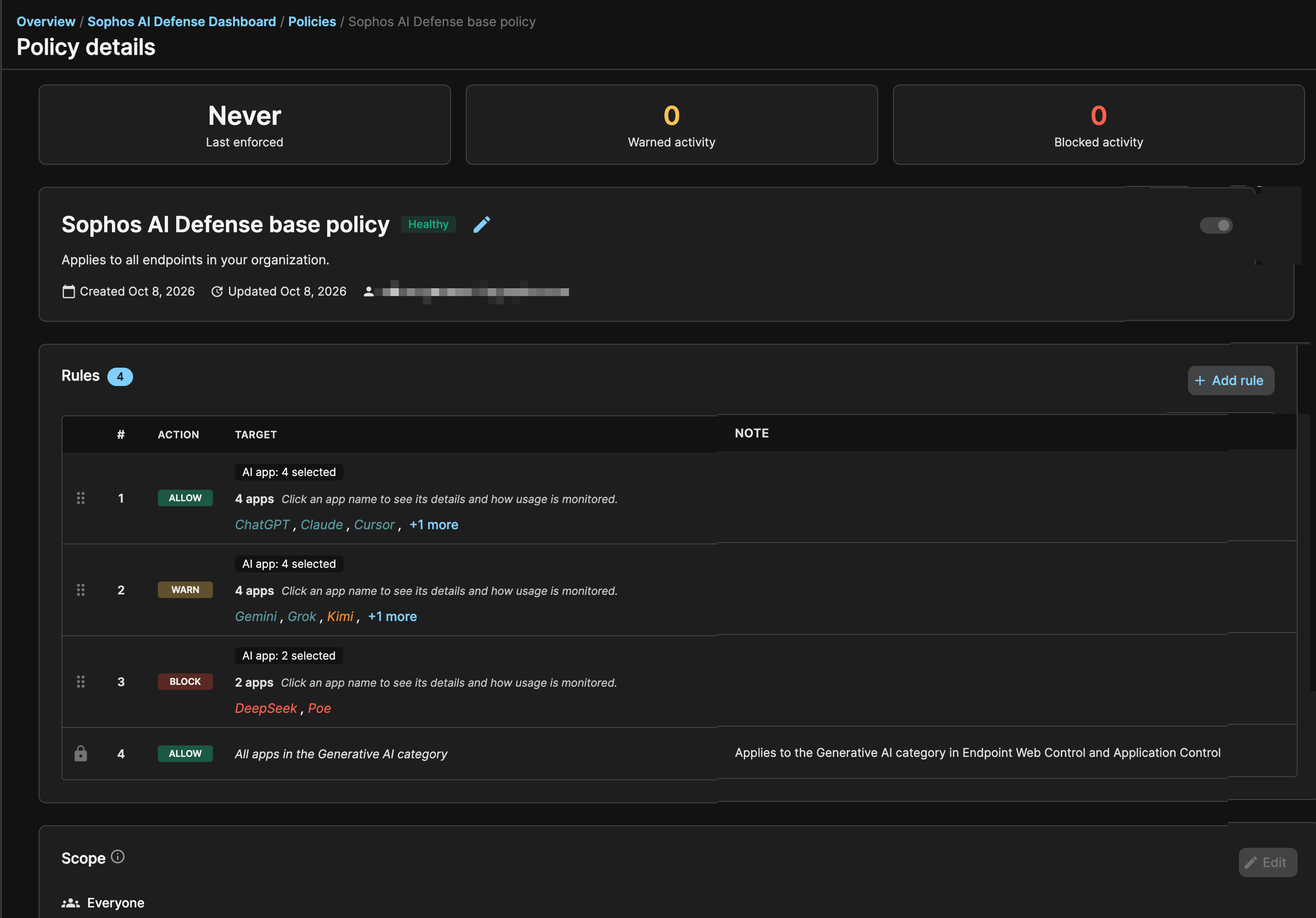
To find out how to create more policies and how policies are prioritized, see AI Defense policies.