Sophos sign-in settings
You can allow your administrators and users to sign in using their Sophos Fusion Admin email and password, federated sign-in, or both.
Note
Users with the Federated credentials only option selected as their sign-in method won't receive an email to set up a password for the Sophos Fusion Self Service Portal. Instead, they can directly sign in to the portal and make the necessary changes for Sophos Email, Device Encryption, and Mobile.
Your chosen sign-in settings apply to all Sophos Fusion products. You can set up custom rules for administrators who need different access.
Requirements
You must be a Super Admin.
If you want to use federated sign-in, you need to set up a domain and an identity provider. You can assign a user to only one domain and one identity provider. See Set up Federated sign-in.
If you choose to use federated sign-in only as your sign-in option, you need to know the following:
- You must ensure that all your administrators and users are assigned to a domain and have an identity provider.
- Administrators and users can't reset their passwords. You need to turn off federated sign-in only so that they can reset their passwords.
- If you change to using Sophos Fusion Admin email and pasword only, administrators and users won't have a password set up that they can use to sign in. They need to use "Reset Password" to set a new password and sign in.
Require 2 MFA methods for backup
You must be a Super Admin to use this feature.
When you turn this requirement on, users must configure at least two different multi-factor authentication methods to sign in.
For more information about authentication, see About authentication.
Set up Sophos sign-in settings
Note
If you make changes to these settings, you're automatically added to a custom sign-in rule that allows you to sign in with your Sophos Fusion Admin email and password.
To choose how your administrators and users sign in, do as follows:
- Click the Global Settings icon
 .
. - Go to Sign-in and Identity, and click Sophos sign-in.
- Choose how you want your administrators and users to sign in.
- Add custom sign-in rules for specific administrators, if required.
- Click Save.
The options you choose here affect what your administrators and users see when they sign in. See Sign-in options.
Add custom rules
You can set up custom rules for administrators who need different access.
To do this, do as follows:
- Click the Global Settings icon .
- Go to Access Control > Sign-in and Identity, and click Sophos sign-in.
- Click Add custom rule.
- Add the administrators you want to make a custom rule for to Selected Users.
-
Choose how you want them to sign in and click Save.
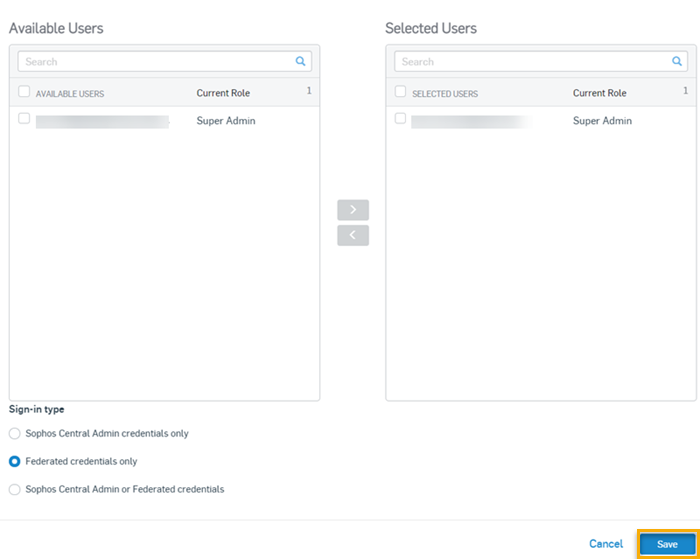
The rule appears in Sophos sign-in settings. It shows the name of the administrators and the sign-in settings that apply to them.