Device migration
You can migrate devices from one Sophos Fusion account to another.
Click the appropriate tab for instructions.
You can migrate computers from one Sophos Fusion account to another. Computers are queued for migration for up to 14 days.
Offline computers must be online within this period to complete the migration. If a computer stays offline for more than 14 days, the migration fails, and the Sophos Fusion administrator must manually requeue it for migration.
To migrate computers you need to do as follows:
- Turn on device migration for your Sophos Fusion accounts. See Turn on device migration.
- Use the Endpoint API to migrate the computers. See Migrate computers using Endpoint API.
- Review the migration results in Sophos Fusion. See Review the migration results.
If an option is locked, your partner or enterprise admin has applied global settings.
Requirements
To migrate computers you must be an administrator for both accounts. You need to have the Admin role. See Administration roles.
You also need API credentials for both accounts. You need to have Service Principal Super Admin credentials. See API Credentials.
To migrate computers you use our Endpoint API. Make sure you're familiar with the following concepts:
- You know how our APIs work. See How our APIs work.
- You have set up our APIs and have the tools to work with them. See Getting started as a tenant.
For more information about the Endpoint API see Endpoint API.
Turn on device migration
To turn on migration, do as follows:
-
Sign in to the Sophos Fusion account you want to migrate computers from.
This is your sending account.
-
Click the Global Settings icon
 .
. - Go to Platform > Device Migration.
-
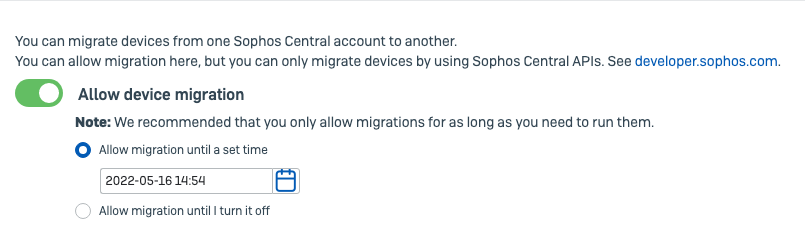
Turn on Allow device migration.
-
Set a time limit for migrations to only allow migrations for a limited time period.
-
Sign into the Sophos Fusion account you want to migrate computers to.
This is your receiving account.
-
Turn on device migration and set a time limit.
Migrate computers using Endpoint API
The following video shows how you can migrate computers between Sophos Fusion accounts using Endpoint API.

To migrate computers between Sophos Fusion accounts you use our Endpoint API. These instructions summarize the steps you need to take using the API commands. For detailed information on how to use the commands see Endpoint API.
To migrate computers, do as follows:
-
For the Sophos Fusion account you want to move computers to, do as follows:
-
In your Receiver enviroment, create a receiving job for the endpoints.
You'll get an access token when you do this. You need this to create the sending job for the other Sophos Fusion account. You also need the ID for the receiving job.
-
-
For the Sophos Fusion account you want to move computers from, do as follows:
- Get a list of endpoints you want to migrate.
-
In your Sender environment, create a sending job with the list of endpoints, the access token, and the ID from the receiving job you set up for the other Sophos Fusion account.
This starts the migration.
You can check the progress of the migration in the API. You can get more detailed information in Sophos Fusion.
Review the migration results
You can use the event and audit logs in your Sophos Fusion accounts to check the migration has been successful. You can also check the receiving Sophos Fusion account for the migrated devices.
In your sending account check your audit log. You should see a "Send endpoints to another tenant" event.
You also need to check your computers. Go to the Events tab for each computer. For each computer that migrated, you should see "Device registered with new account <AccountID>. It's now managed by that account".
For each computer that didn't migrate you should see "Device failed to register with new account <AccountID>. It continues to be managed by this account".
In your receiving account check your audit log. You should see an "Allow endpoints to migrate to this tenant" event.
You also need to check your computers. Go to My Environment > Computers & Servers. You should see your migrated computers. Click on a computer to check it. For each migrated computer, you should see that it's registered, has an assigned user, and is up to date.
You can migrate Sophos APX and AP6 access points from one Sophos Fusion account to another. The migration process requires deregistering the access points from one account and registering them to another as follows:
- Sign in to the Sophos Fusion account where the access points are registered.
- Go to My Environment > Wireless Access Points.
- Check the Serial number column and make a note of the serial numbers for the access points you want to migrate. You'll need these to register the access points with the new Sophos Fusion account.
- Select the access points you want to migrate.
- Click Delete.
-
Click Confirm.
Warning
Deleting the access points from Sophos Fusion restarts them and disconnects any wireless devices.
-
Sign in to the Sophos Fusion account you want to migrate the access points to.
- Go to My Environment > Wireless Access Points.
- Click Register to add the access points to the new account. For information on registering access points, see Register an access point.
You can migrate Sophos Switch devices from one Sophos Fusion account to another. The migration process requires individually deregistering the switches from one account and registering them to another as follows:
- Sign in to the Sophos Fusion account where the switches are registered.
- Go to My Environment > Switches.
- Check the Serial number column and make a note of the serial numbers for the switches you want to migrate. You'll need these to register the switches with the new Sophos Fusion account.
- Click a switch that you want to migrate.
- Click Remove from Sophos Fusion.
-
Click Confirm.
Warning
Deleting the switches from Sophos Fusion restarts them and disconnects any connected devices.
-
Repeat steps 4, 5, and 6 for all the switches you want to migrate.
- Sign in to the Sophos Fusion account you want to migrate the switches to.
- Go to My Environment > Switches.
- Click Add switches to add the switches to the new account. For information on registering switches, see Add switches.