MDR Threat Hunting Dashboard
Available to all Sophos MDR customers, the dashboard shows the threat hunting activity the Sophos MDR Threat Hunting team performed in your environment.
To see the dashboard, sign in to Sophos Fusion and go to My Products > MDR > Threat Hunting Dashboard.
Note
Each section of the dashboard has its own date range filter. Select the time period from the drop-down at the top of each section to adjust the data shown.
Threat hunt and intel effort
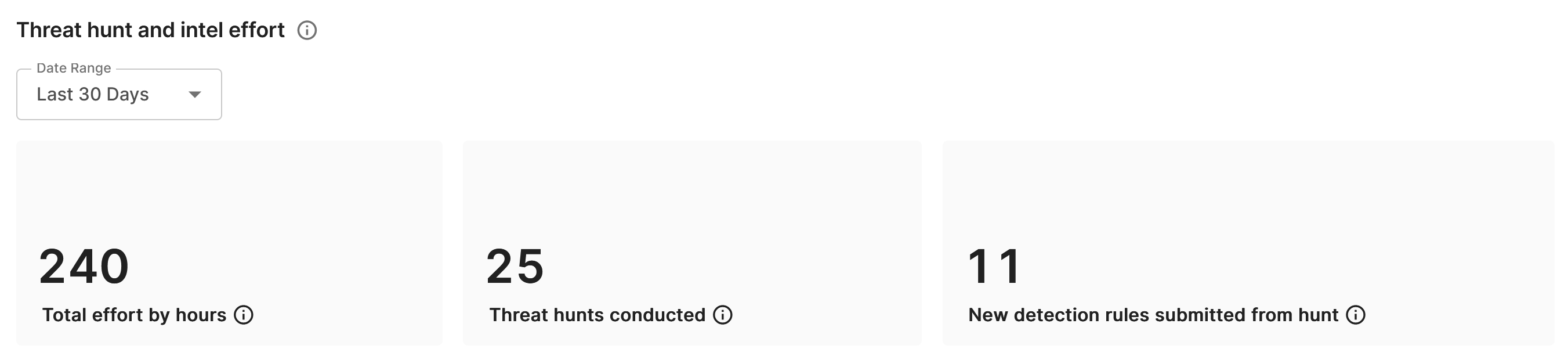
The Threat hunt and intel effort section shows the following summary metrics for Sophos threat hunting activity during the selected date range:
- Total effort by hours: The total number of hours the Sophos Threat Hunting team spent on hunting activity across all customers during the period.
- Threat hunts conducted: The total number of threat hunts performed in your environment during the period.
- New detection rules submitted from hunt: The number of new detection rules that originated directly from threat hunting activity during the period.
Detection improvements
The Detection improvements section shows detection rule improvements resulting from threat hunting activity during the period. These improvements help ensure that detection coverage keeps pace with emerging threats.
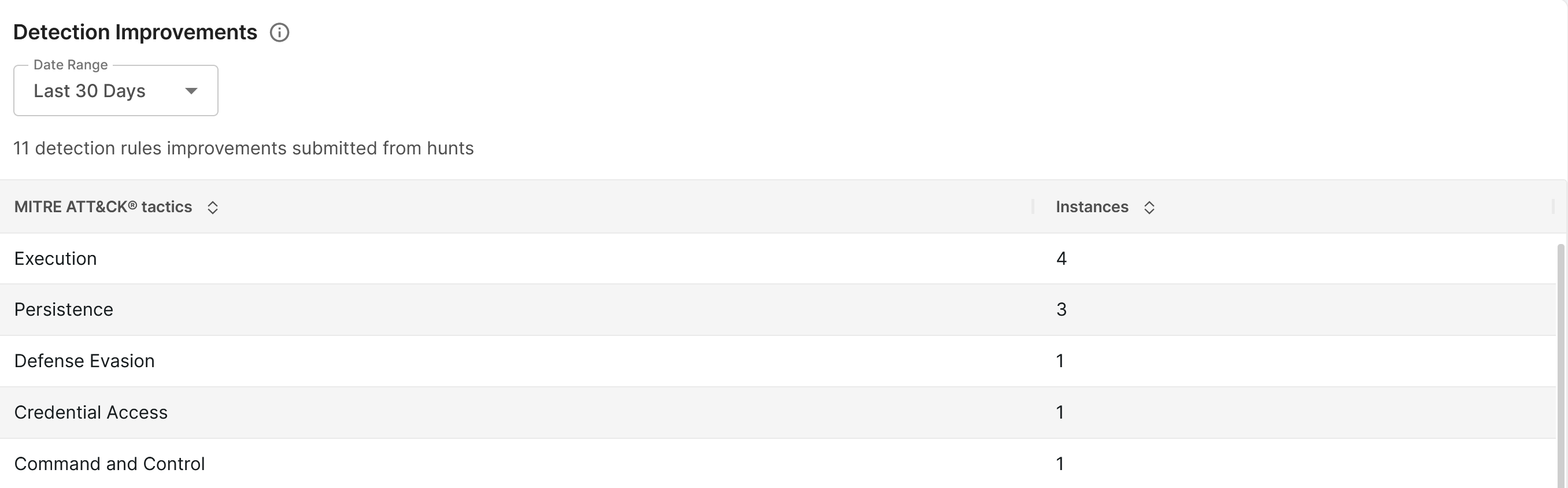
A counter at the top of the section shows the total number of new or improved detection rules resulting from hunts during the period.
Below this, a table shows how many new or improved detection rules relate to each MITRE ATT&CK tactic. The table includes the following tactics:
- Initial Access
- Defense Evasion
- Credential Access
- Privilege Escalation
- Command and Control
- Execution
- Exfiltration
- Reconnaissance
- Resource Development
- Persistence
Hunt results
The Hunt results section lists the threat hunts performed in the selected date range. Use the search bar to find a specific hunt by name.
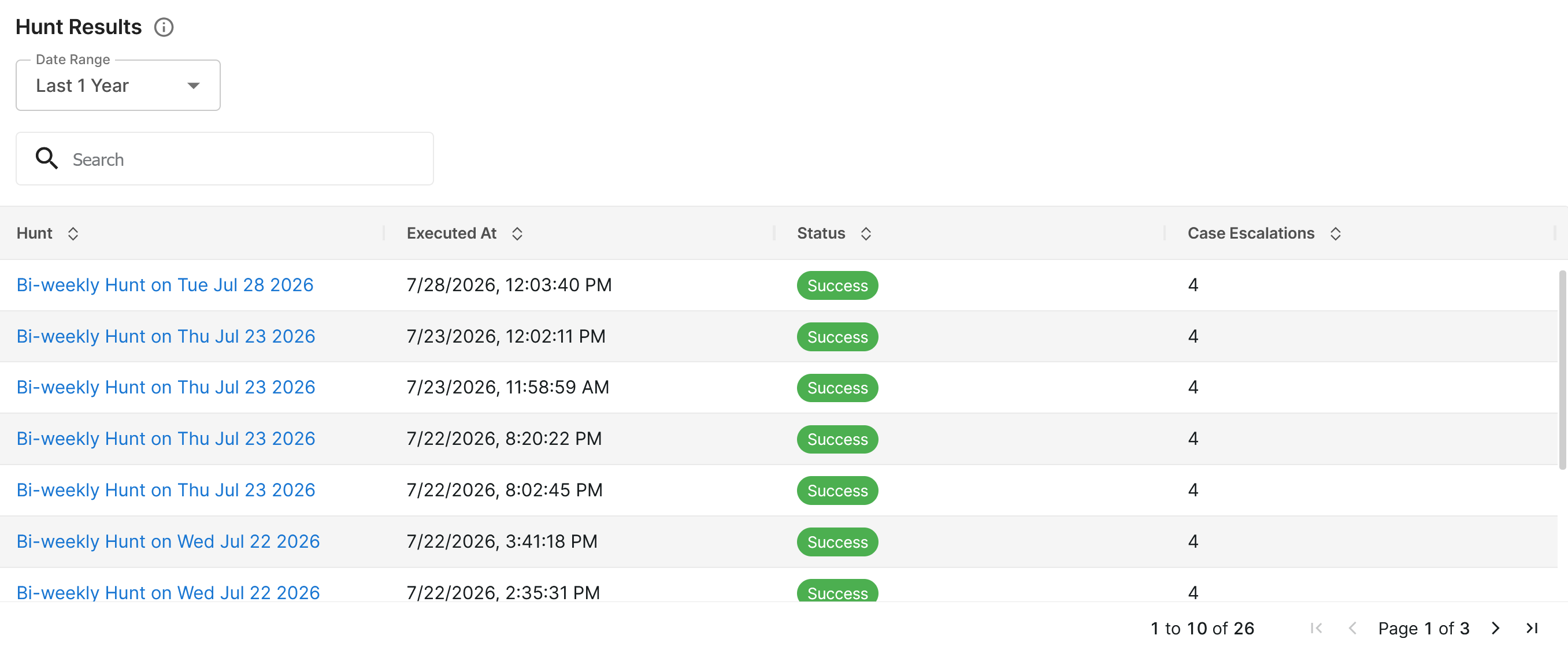
The table includes the following columns:
- Hunt: The name and date of the hunt.
- Executed At: The date and time the hunt was performed.
- Status: Whether the hunt completed successfully.
- Case Escalations: The number of cases escalated as a result of the hunt.
Note
Threat hunts are shown whether or not the hunt identified a threat within your environment.
Hunt details
Click a row in the Hunt results table to open the following details:
-
Hunt summary: A description of the threats, campaigns, malware families, threat actors, and techniques investigated by the hunt.
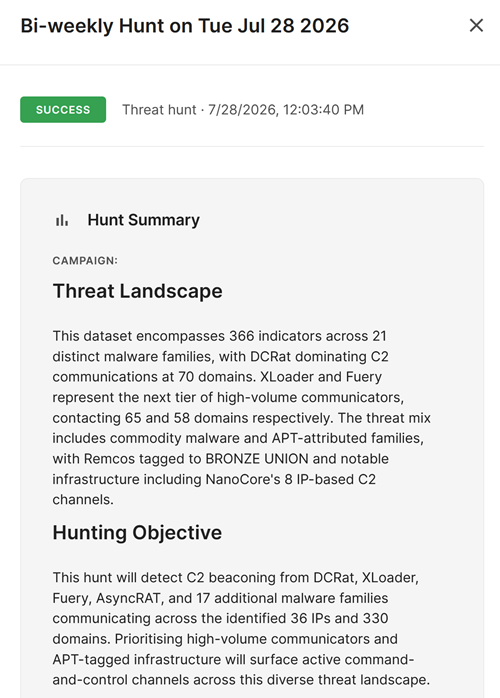
-
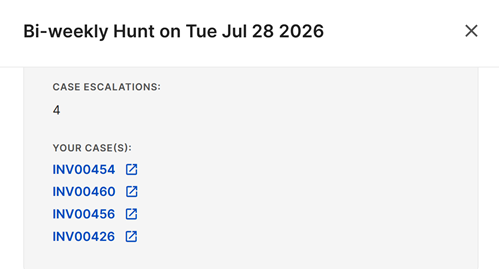
Case escalations: The total number of cases escalated from this hunt.
-
Your cases: Links to any cases created for your organization as a result of this hunt. Click a link to open the case.
-
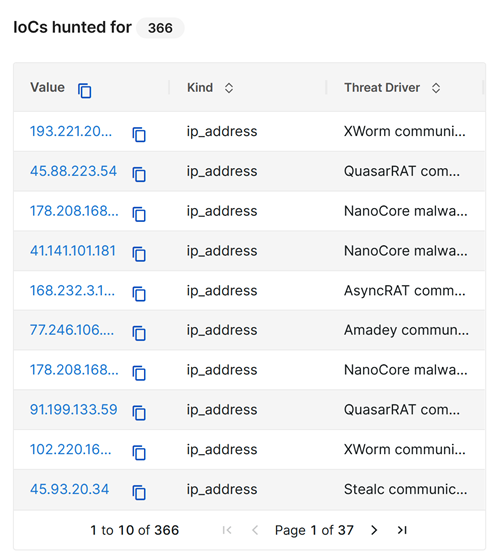
IoCs hunted for: A table listing the indicators of compromise (IoCs) searched for in your environment. Each entry shows the following:
- Value: The IoC's value.
- Kind: The type of IoC, such as IP address, domain, or URL.
- Threat driver: A brief description of the associated threat actor or malware family.